
Dropbox File Request Alternative
FileDrop File Upload Forms - Receive and Request Files From Anyone
Collect Files Securely & Easily – Better Than Dropbox File Request
FileDrop’s File Upload Forms let you request, receive, and manage file uploads securely, uploads go to our cloud or your Google Drive—without the mess of email or clunky forms.
As a Dropbox File Request alternative, our File Upload Portals can be easily customized to look professional and on-brand.
No account required for users. No storage limits. No stress.
Purpose-Built for File Collection
Unlike traditional form tools, File Forms is designed from the ground up for secure file uploads. It works perfectly for client intake, resume submissions, document collection, or any workflow that needs reliable file handling.
- Unlimited Forms
- As much space as you need
- Form Invites - Track users that fill in your forms
- 1Gb per file - unlimited files
- Personalize with your brand
- Save files to our secure cloud or your Google Drive
- Export to Google Sheets




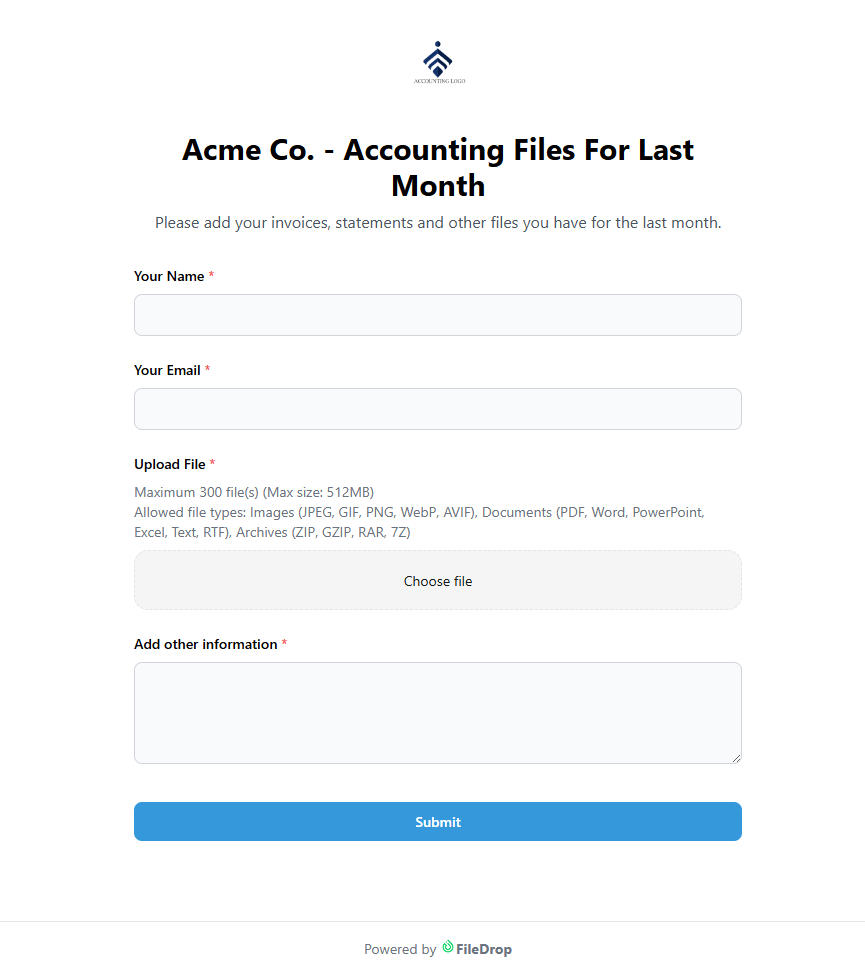

What You Can Do With FileDrop File Forms
Request & Receive Files
Create a secure upload form in minutes. Share it via link or email invites. Your recipients don’t need to sign up—just upload and go.
Send Uploads to Google Drive
Automatically save incoming files to your preferred cloud drive, organized by form and user.
Track Submissions & Receive Alerts
Get email notifications for each upload. Review submissions on your dashboard or in Google Sheets.
Mobile-Optimized Uploads
Recipients can submit files from any device with a seamless mobile experience.
Fully Customizable Branding
Add your logo, colors, and custom messages. Make every form feel like it’s part of your brand.
Fast, Large File Uploads
Support for uploads up to 1GB per file with lightning-fast speeds and resumable uploads.
Enterprise-Grade Security
End-to-end encrypted uploads, virus scanning (optional), and GDPR compliance by design.
Automate Workflows (Zapier & Webhooks – coming soon)
Push uploaded files into CRMs, Slack channels, or other tools using native integrations or Zapier.
Send Requests & Collect from Anyone
Use email invites to collect files from specific people. You can even track who hasn’t uploaded yet and send reminders.
Unlimited Secure Forms
You can create as many forms as you want with any of our paid plans.
Save Files to Google Drive
If you want to save the files to your Google Drive you can do that from the forms settings easily.
Export to Google Sheets
Export all the submitted files and data to Google Sheets with 1 click.
Self Email Notifcations
Receive email notifications from selected forms directly in your inbox.
Mobile Friendly
Your users or customers can fill in and send documents directly from their mobile or tablet.
Bank Grade Security
All files are secured with encryption in transit and end to end to keep client data safe.
Custom Branded Pages
Personalize the way the web form page looks like with your logo or brand colors.
As much space as needed*
We don't count the number of files or the size of the storage you use on our platform.
Cloud Integrations
Users can upload files from PC/Web, Google Drive, Google Photos, Dropbox or OneDrive.
Email Requests - Invites
Invite users to fill in the forms created specially for them. You can send multiple invites per user and track open or if the form has been filled in.
Send Reminders
Easily send reminders to users to upload the documents you need.
Unmatched Upload Speed
Users will experience super fast upload speeds no matter where they are or the device they use.
How it works
Step 1
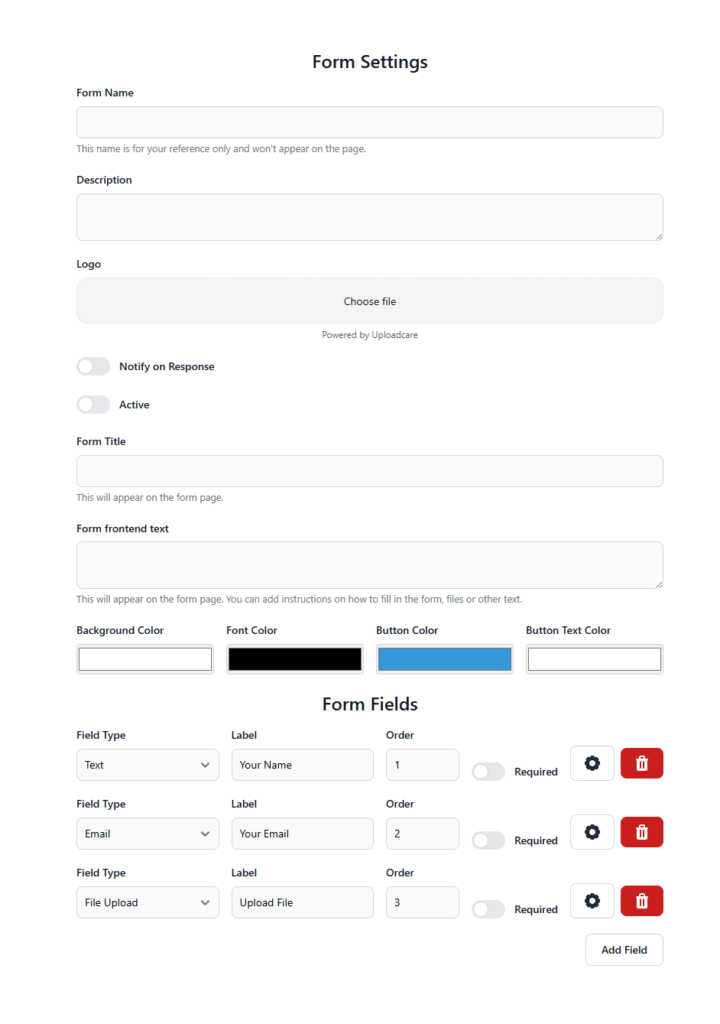
Create your form, by default 3 fields are automatically created, name, email and upload field. Add or remove as you need.
Personalize the web form with your logo or color if you wish.
Step 2
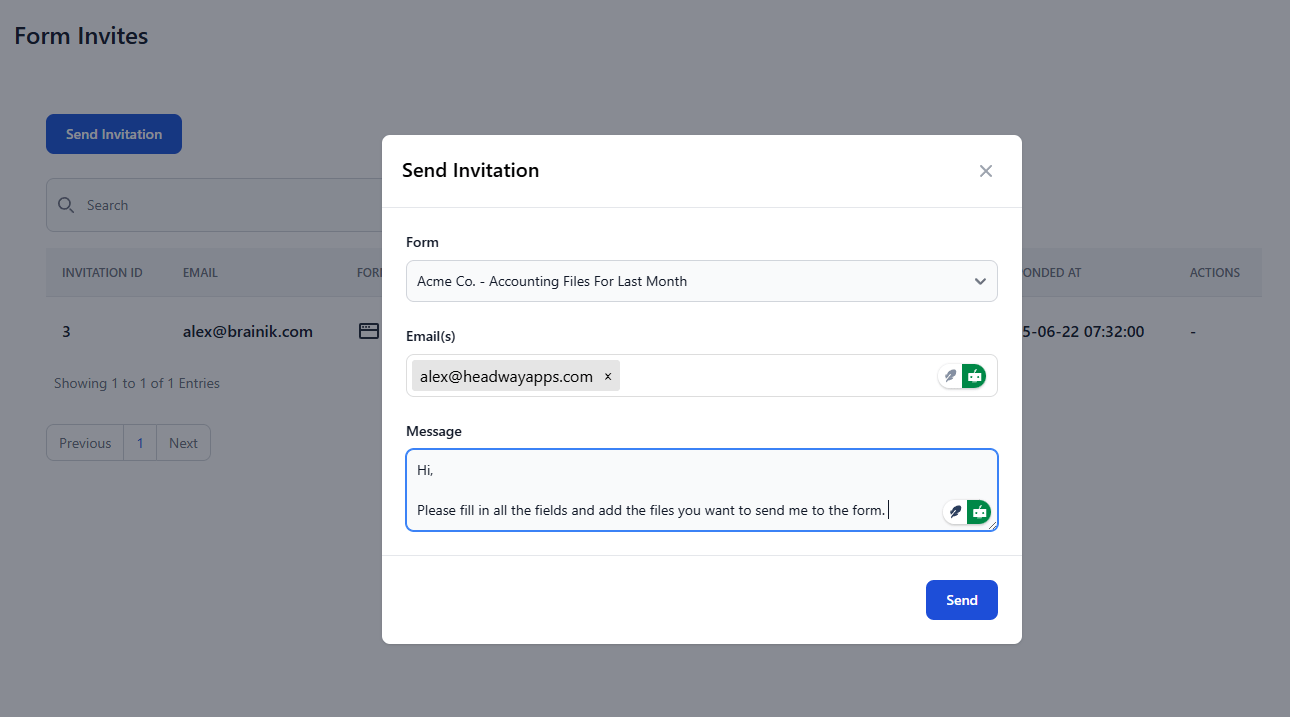
Share your form link with your users or customers. You can also use the invite feature that send an email to your users with a personlized message. Track opens, reads and responses in the dashboard.
Step 3
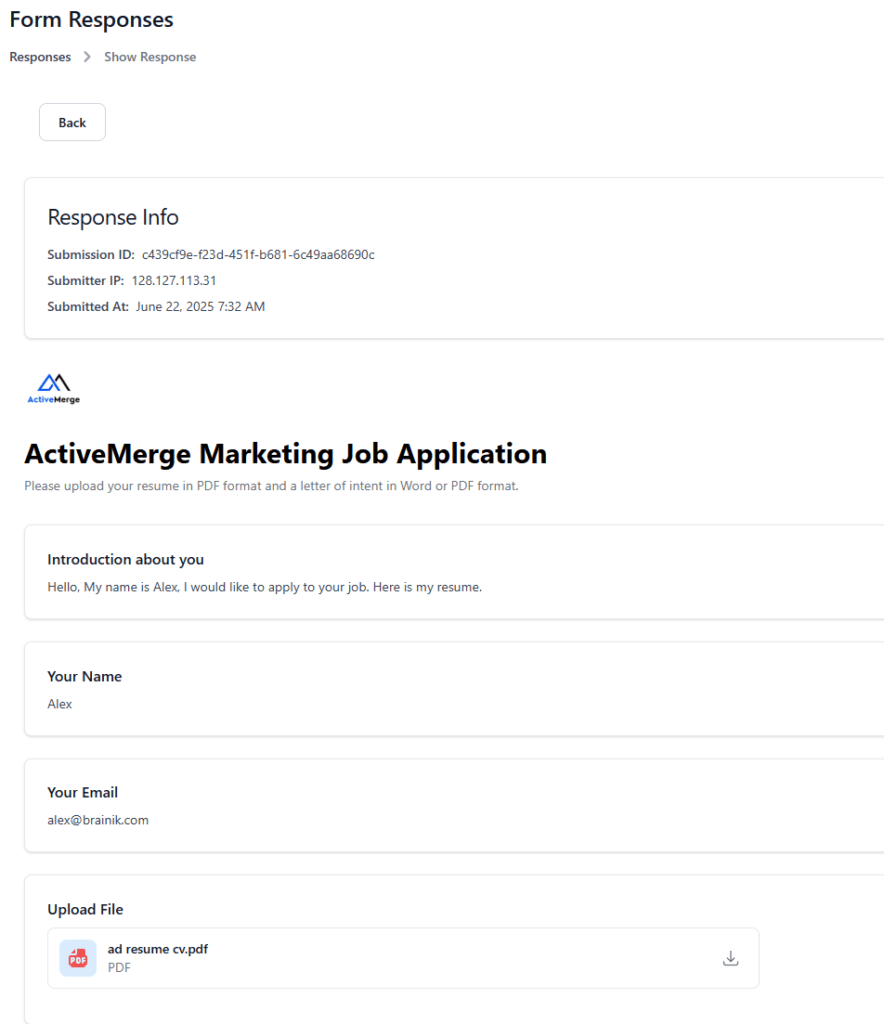
Once an user has submitted a web form with files you can view them in the dashboard. If the user has filled in the form from an invite, the invite will be closed.
Ready to Sign up
Compare Plans
| Feature | FileDrop (File Forms) | Dropbox File Request | ContentSnare.com | Fileinbox.com | FileInvite.com |
|---|---|---|---|---|---|
| Client Login Required | No | No | Yes | No | Yes |
| Max File Size | 1 GB | 2 GB (Free) / 100 GB (Paid) | Varies by plan | 2 GB (more on paid) | Unlimited (Paid) |
| Secure File Uploads | Yes | Yes | Yes | Yes | Yes |
| Auto-Save to Cloud | Yes (Own Cloud and Google Drive) | No | Zapier only | Yes (Dropbox/Drive) | Yes |
| Reminders for Clients | Yes (Simple) | No | Yes (Advanced) | No | Yes (Advanced) |
| Custom Branding | Yes | No | Yes | Yes (some) | Yes |
| Portal / Dashboard | No | No | Yes | No | Yes |
| Templates for Reuse | Basic form reuse | No | Yes | No | Yes |
| Approval Workflow | Planned | No | Yes | No | Yes |
| Pricing (Starting) | Free / $19/month+ | Free / Paid | $79+/mo | Free/$29+/mo | $99+/mo |
| Learning Curve | Simple | Very Simple | Moderate | Simple | Moderate |
| Integrations | Google Drive, Sheets, Webhooks, Zapier (coming soon) | None | Zapier, Drives, CRMs | Zapier, Cloud storage | Zapier, Google, OneDrive |
| Best for | Agencies, accountants, legal, finance, legal, onboarding | Personal file collection | Agencies, accountants, legal | Freelancers, creatives | Finance, legal, onboarding |
Who Uses File Forms?
Agencies collecting assets from clients
Recruiters gathering resumes & cover letters
Lawyers receiving confidential documents
Teachers accepting student assignments
HR Teams collecting onboarding files
Freelancers requesting project materials
Frequently Asked Questions
What is FileDrop File Forms?
FileDrop File Forms is a secure, branded file collection tool that allows you to easily collect large files from anyone using customizable upload forms with drag-and-drop functionality.
Can I create branded upload forms?
Yes! You can personalize each form with your branding—add a logo, choose colors, and include intro text for specific teams or departments.
Are the forms mobile-friendly?
Absolutely. Users can fill in forms and upload files directly from any mobile or tablet device, including iPhone, iPad, and Android.
How large can each uploaded file be?
Each file can be up to 1GB in size, and you can upload unlimited files on Pro, Business+, and Executive plans.
How many forms can I create?
Free Plan: 1 form
Paid Plans (Pro and above): Unlimited forms
How do users upload files?
Users can upload from:
Local devices (PC, Mac)
Google Drive
Google Photos
Dropbox
OneDrive
Is file upload secure?
Yes. FileDrop uses bank-grade encryption to secure your files in transit and at rest. Our files are hosted in AWS, the largest cloud provider in the world.
How fast is the upload speed?
FileDrop ensures super fast upload speeds regardless of device or location. Our CDN technology we
How do I receive files?
You receive file submissions directly in your dashboard. You can download the files from the dashboard. You can also receive email notifications when someone submits a form.
Can I track form responses and invites?
Yes, with FileDrop you can:
Send personalized invites via email
Track if the email was opened and if the form was submitted
View responses and uploaded files in your dashboard
What’s the process to collect files?
Step 1: Create your form with default fields (Name, Email, Upload) or customize it
Step 2: Share the form link or send an invite
Step 3: Get notified and manage submissions in your dashboard
Can I integrate with cloud services?
Yes. FileDrop supports upload integrations with:
Google Drive (coming soon)
Google Photos
Dropbox
OneDrive
If you have more questions or you need help, please contact us.