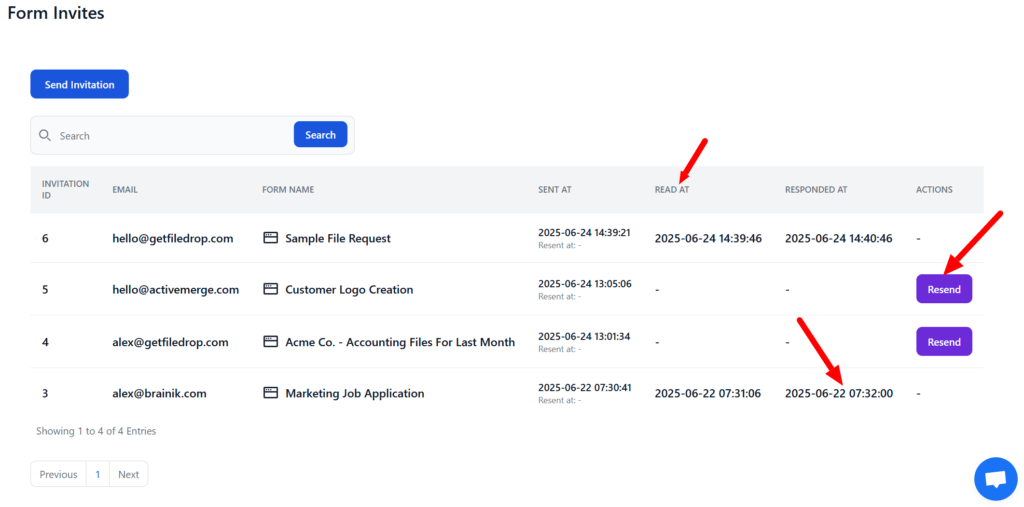
To send a request for users to submit files via the Requests interface is simple. Click on the Send Request button and the invite modal will display.
Based on your subscription plan you have a limited number of requests every month.
1. Add the email addresses of the users you want to invite, you can just copy and paste the emails in the box.
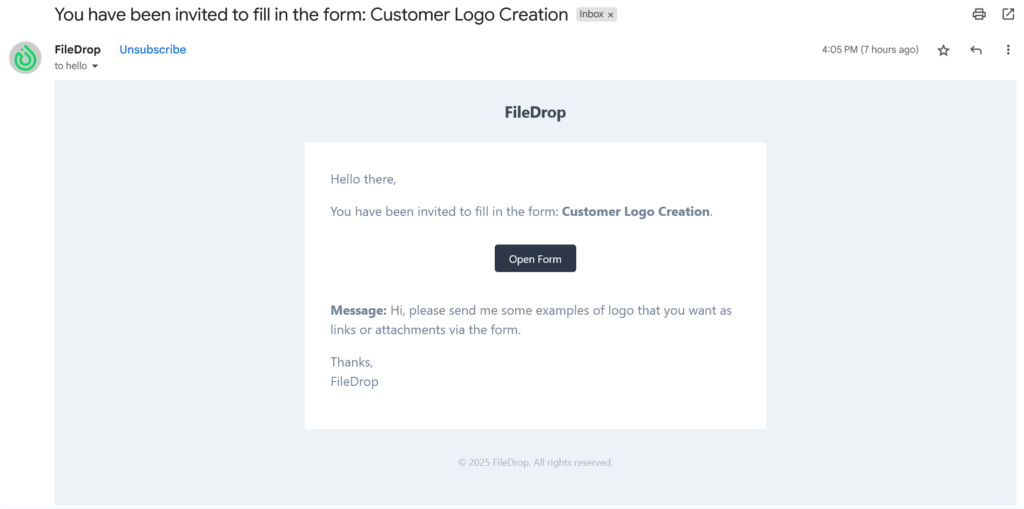
2. Enter a message with the instructions. This will be included in the email we send to your users.

This is an email example of what your users will see.
Tracking Requests
Once the users click on the email request they will be tracked when they open it and also if they fill in the form.
Optionally, you can resend the invite to the user if they didn’t fill it in when needed. If the user responded this action is no longer possible.