When you’re running a business, understanding your competition is crucial. A well-designed competitive analysis template can help you see where you stand and where you can improve. Using Google Sheets makes it simple, collaborative, and accessible from anywhere.
Why Use Google Sheets for Competitive Analysis?
Google Sheets offers flexibility and customization without the steep learning curve of complex tools. It’s free, easy to share, and can handle all the key elements of a competitive analysis, like tracking competitors, evaluating strengths, and identifying opportunities.
Step 1: Open a New Google Sheet
To start, log in to your Google account and open Google Sheets. Create a new blank spreadsheet. You’re about to build your workspace for all the data you’ll collect. You can name your spreadsheet with something like “Competitive Analysis” for proper documentation.

Step 2: Define Your Key Metrics
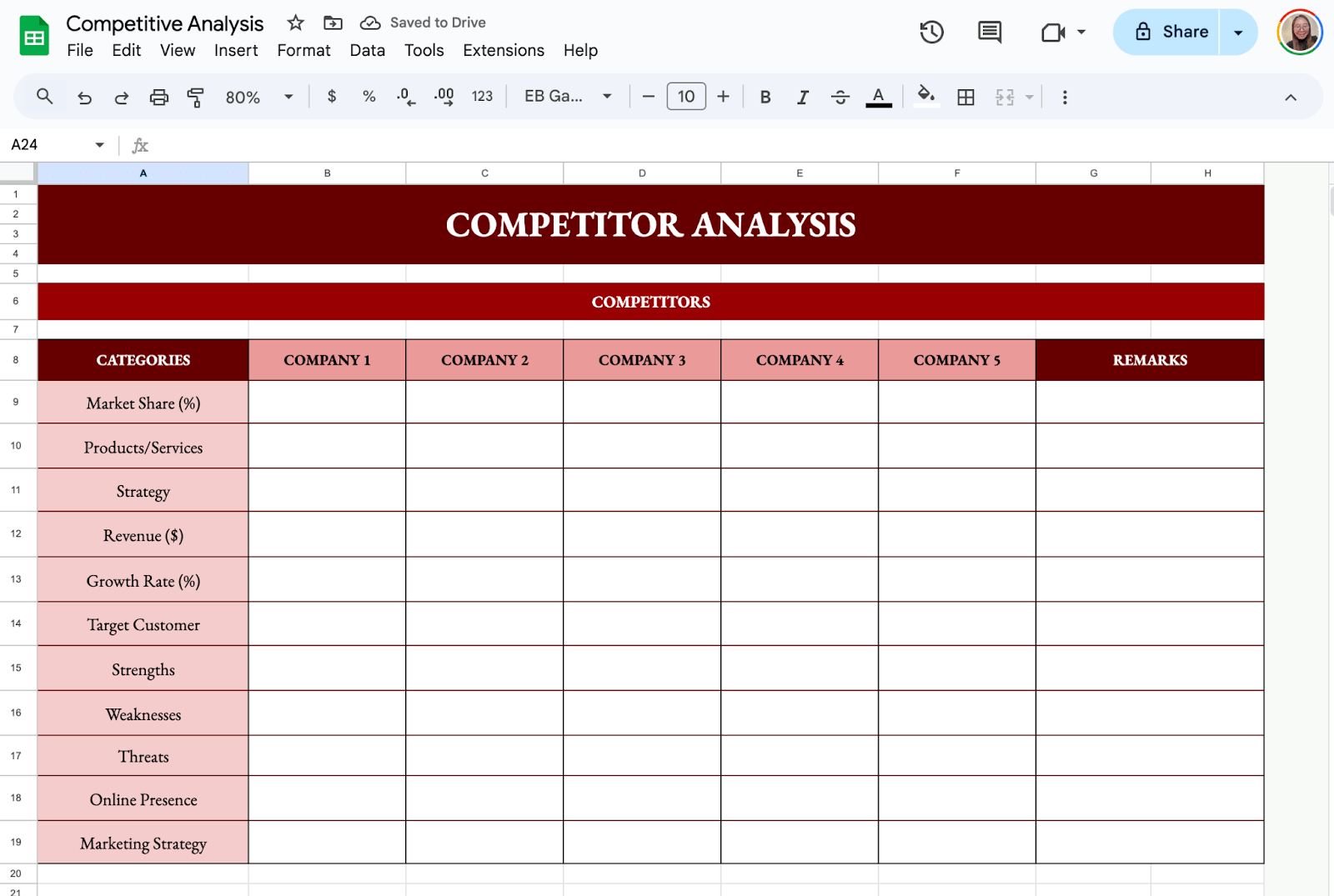
Think about what information matters most when comparing competitors. Common metrics include:
- Competitors (Company Names)
- Market Share (%)
- Products/Services
- Revenue ($)
- Growth Rate (%)
- Target Customer
- Strengths
- Weaknesses
- Threats
- Online Presence
- Marketing Strategy
- Remarks
Step 3: Gather Data and Fill Your Table
Start researching. Here’s how you can collect the information you need:
- Visit Websites: Check your competitors’ websites for product offerings, pricing, and any unique features.
- Analyze Social Media: Review their social media profiles for audience engagement, post frequency, and campaigns.
- Read Reviews: Customer reviews on platforms like Google or Yelp often reveal strengths and weaknesses.
- Use Tools: SEO tools like SEMrush or A rel=”nofollow” target=”_blank” hrefs can give insights into online presence and keyword strategies.
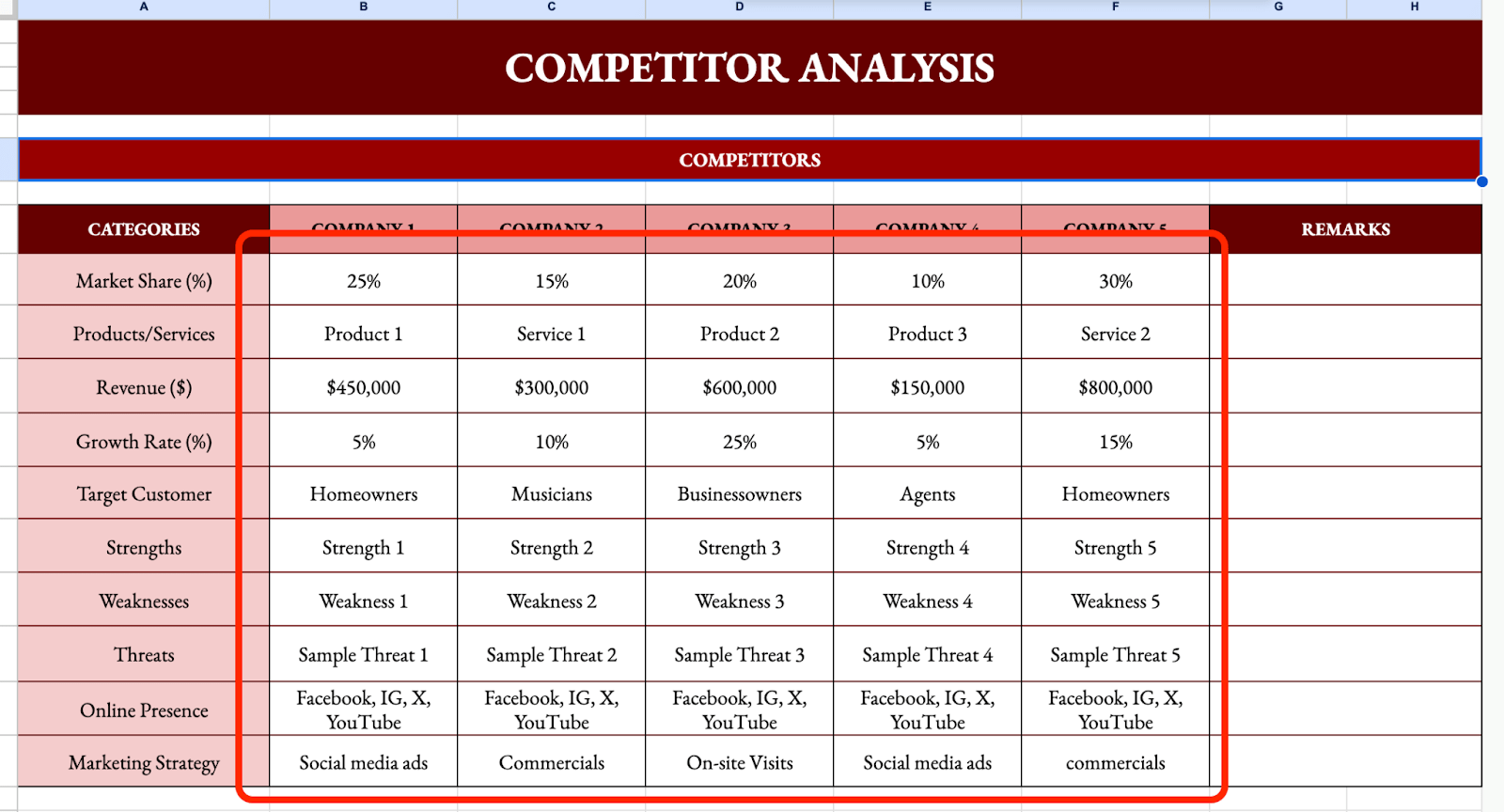
Add the data you find under each relevant column.
Step 4: Use Conditional Formatting
To make the data easier to understand, you can highlight information, such as Market Shares (%). You can use Conditional Formatting to highlight cells that have highest or lowest value. To do this, select the cells and click Format > Conditional Formatting.
Then, under Format Cells If, select Greater than or Equal To option to highlight cells with the highest value. Put the value you desire on the Value or Formula field. After that, you can set the formatting style on your desired color and text formatting.
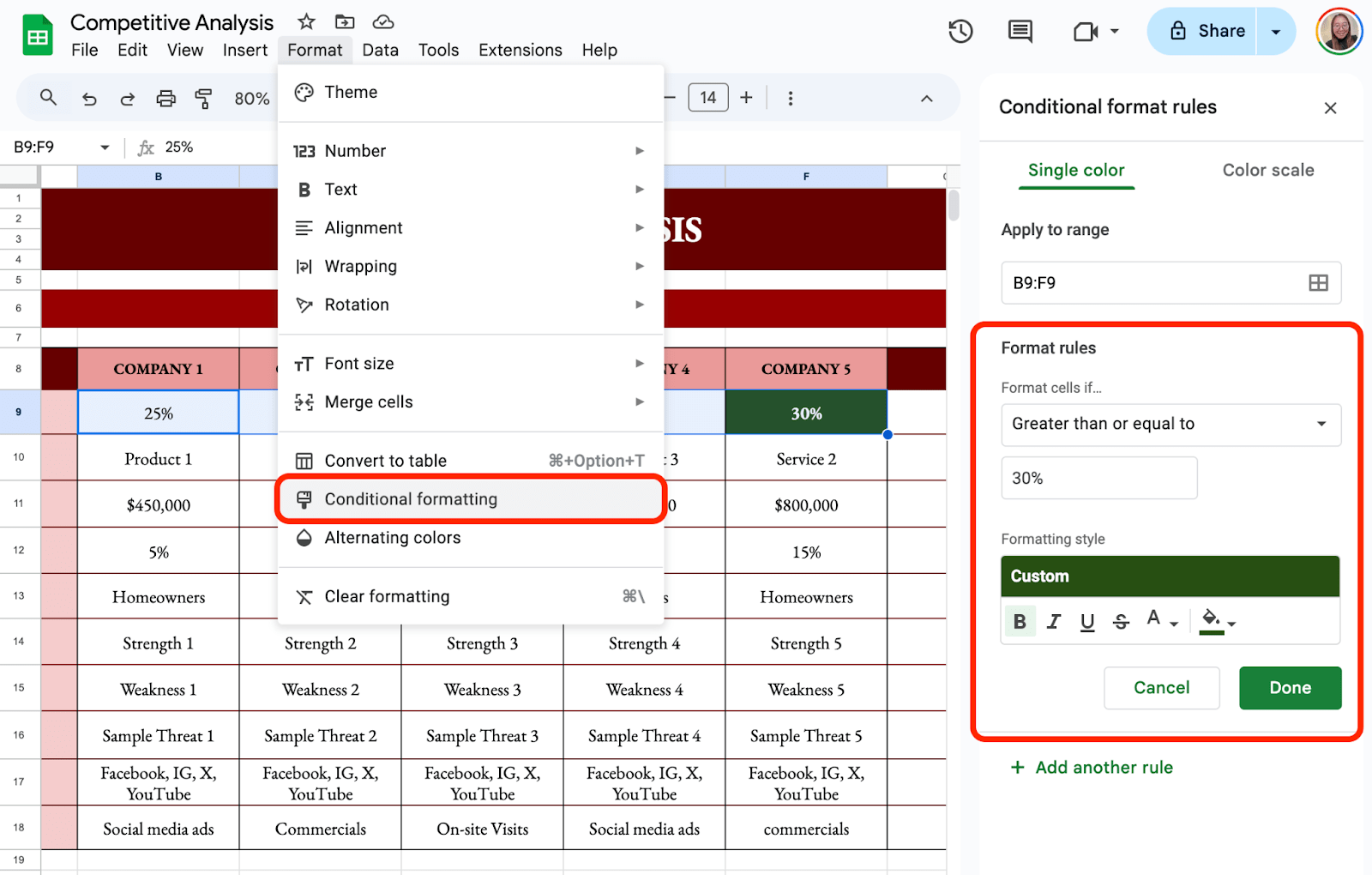
You may follow the same steps to set conditional formatting to highlight the cell with the lowest value. The only difference is under Format Cells If, you need to choose the Less Than or Equal To option.
Step 5: Add Charts for Visual Representation
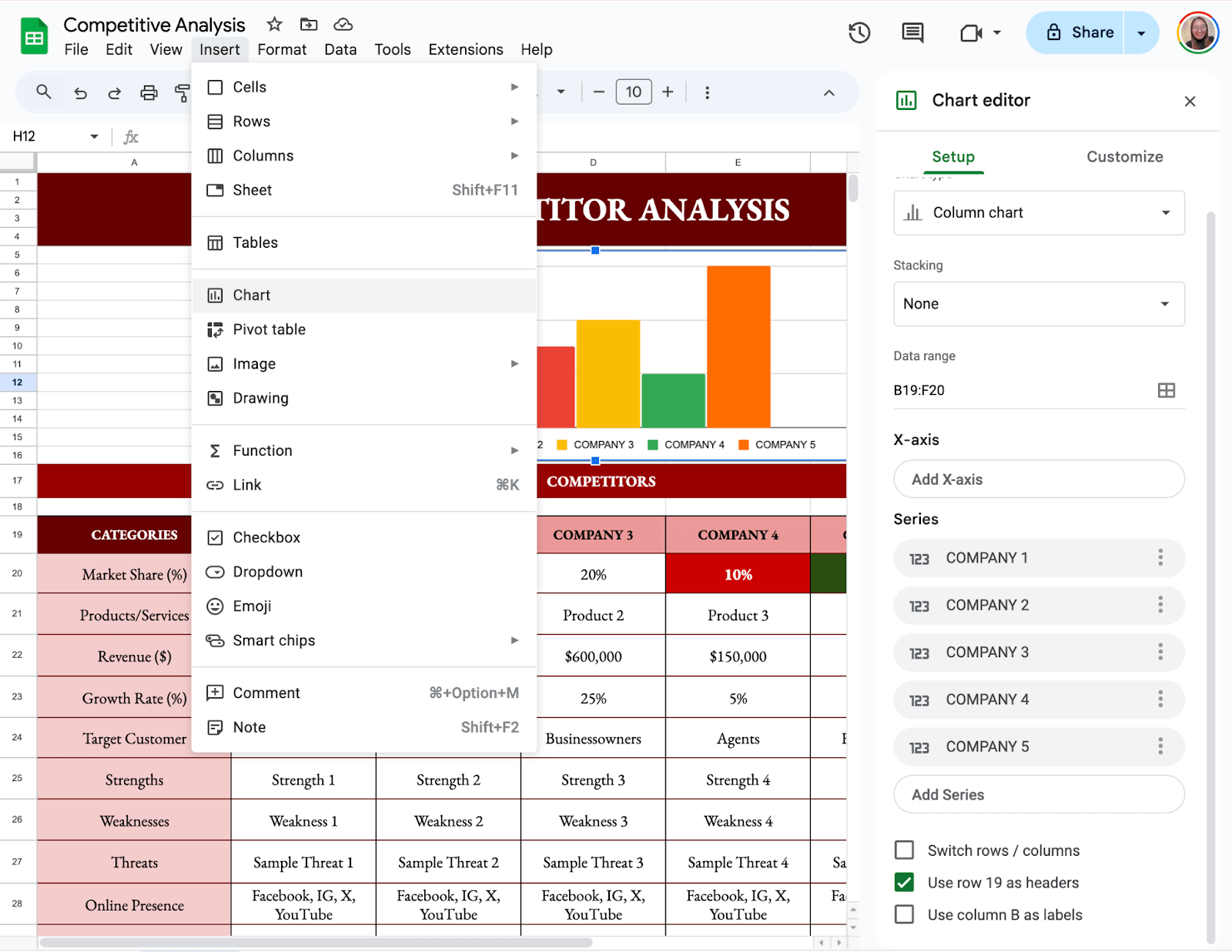
Make your template more user-friendly and easy to understand by adding charts. To add, select the cells you want to include in your chart and click Insert > Chart. You may also choose the chart type you would to use and customize them depending on your preferences.
Step 6: Collaborate with Your Team
Google Sheets allows real-time collaboration. Share your document with your team to divide the research workload and brainstorm strategies based on the data.

Get the Free Competitive Analysis Template
Get a copy of the free Competitive Analysis Template. I’ve populated some cells as examples, but you can customize them as needed.
Final Thoughts
Building a competitive analysis template in Google Sheets can be straightforward and stress-free. By taking it step by step, you’ll create a valuable tool that helps you understand your competitors and fine-tune your strategy. It’s a handy way to keep a competitive edge in your field.
Frequently Asked Questions
Use the formula =B2/$C$1 where C1 contains the total market size. This will give you the market share for each competitor.
How can I highlight competitors with higher prices than my product using conditional formatting?
Select the price column, then Format > Conditional formatting and set a custom formula like =B2>MY_PRODUCT_PRICE. Choose a formatting style to highlight cells accordingly.
How can I use formulas to automate parts of my analysis?
Google Sheets supports various formulas like SUM, AVERAGE, IF, and VLOOKUP to simplify calculations and data retrieval. These formulas help streamline and automate your analysis process.
The Bottom Line:
One keeps you awake. The other gets work done.
A month of coffee: $150
A month of FileDrop: $19
Why not have both?