

Do you struggle to track your client payments? You’re not alone. Keeping an eye on client payments might not be the most thrilling part of your day, but it’s important.
If you need a simple way to see who’s paid and who hasn’t, Google Sheets can be your best buddy. Don’t worry if you’re not a spreadsheet wizard; I’ll walk you through a simple setup to get your client payments neatly organized and easily tracked.
You can also use a Receipts Tracker to view your spending.
Why Should You Track Client Payment?
Keeping track of client payments is essential for maintaining steady cash flow, especially for freelancers and small businesses. It helps you stay on top of who’s paid and who hasn’t, making it easier to manage finances, plan for the future, and avoid delays.
Regular monitoring also lets you quickly follow up on overdue invoices, minimizing uncertainty and showing clients you’re professional and reliable.
Step 1: Set Up Your Google Sheet
Open Google Sheets and click “+ Blank” to open a new spreadsheet. This empty sheet will be your main dashboard for tracking all client payments.
Create the following columns to match what you’ll need to track payments:
- Invoice Number (Transaction #)
- Client/Company Name
- Issue Date (Date when you sent the invoice)
- Sent
- Due Date:
- Amount Due
- Amount Paid
- Balance
- Status (paid, unpaid, or partially paid)
- Date Paid
- Payment Method (PayPal, Credit Card, etc.).
- Payment Status (on time or late)
- Notes

Depending on your needs, you can customize the columns, but these are essential. Leave enough space at the top rows of your spreadsheet for the summary and charts to be added later.
Step 2: Add Your Invoices and Payments
Start entering the details for each invoice you’ve sent to your clients. This will give you a starting point for tracking and a reference for future payments.

Step 3: Use Dropdown Menus
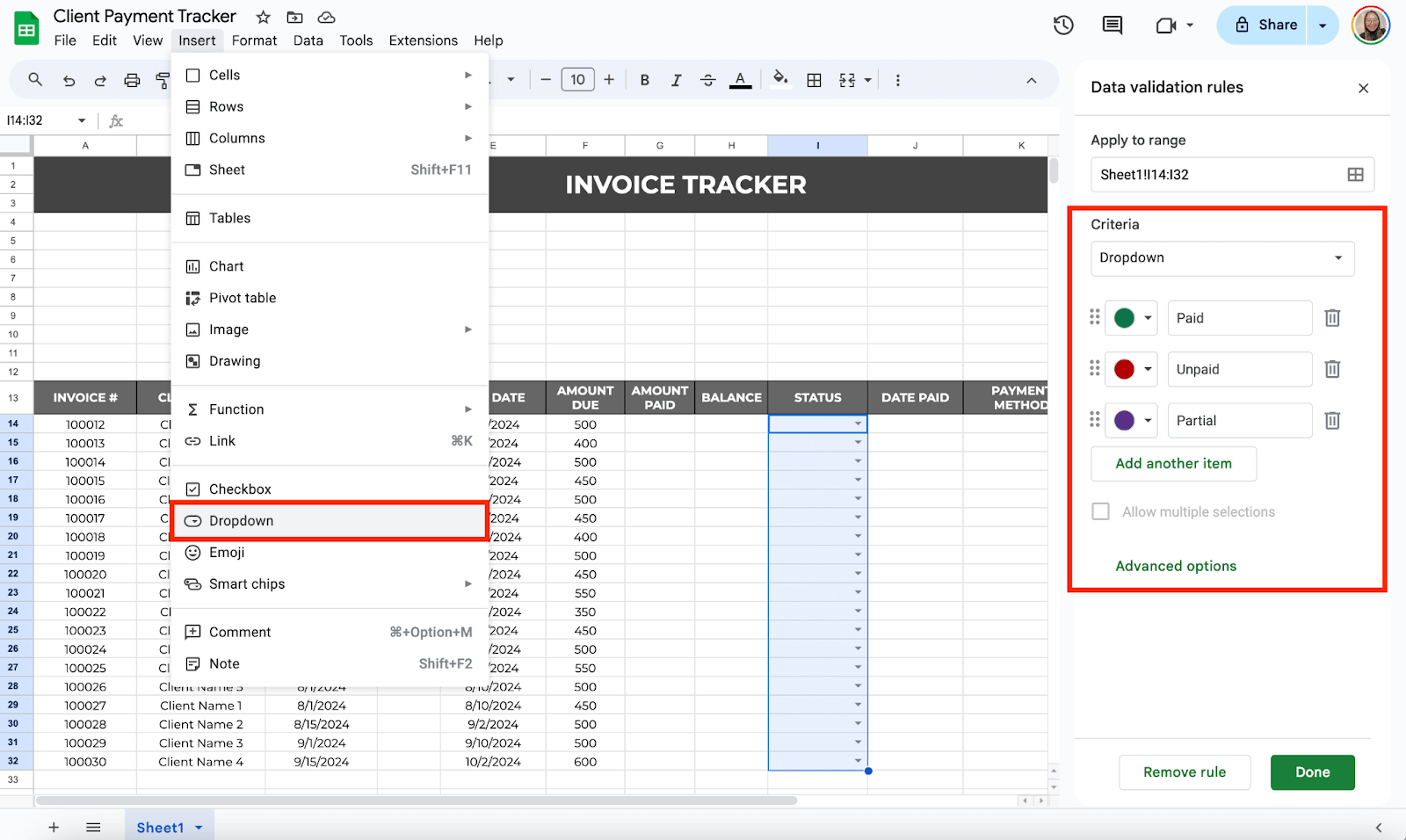
You can use dropdown menus for categories that require recurring information, such as Status, Payment Method, and Payment Status. Select the cells where you want to put it to add a dropdown list, then click Insert > Dropdown. Next, add your options and customize each item depending on your preferences.
Step 4: Use Formulas to Automate Calculations
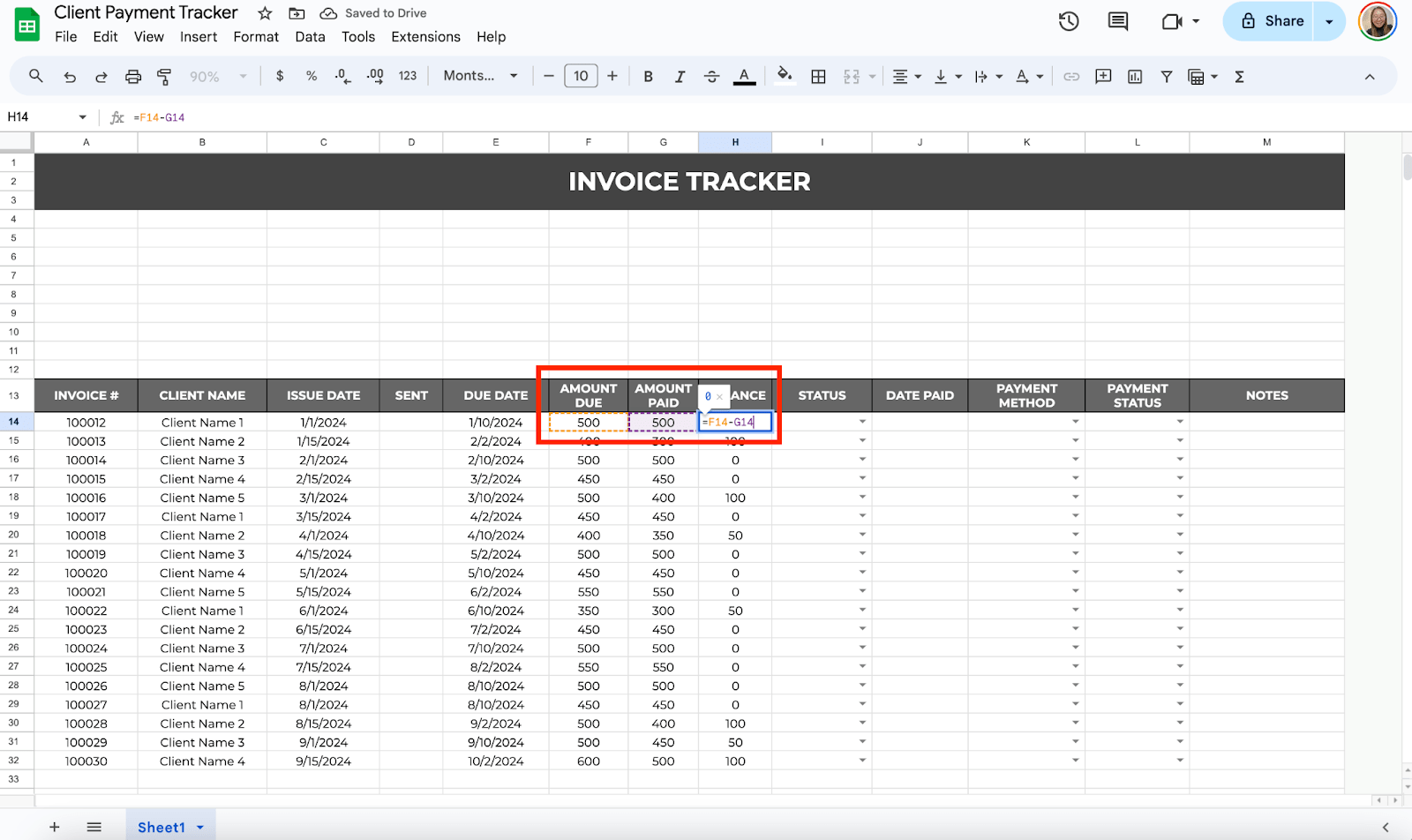
To calculate your balance or how much is left to be paid for each invoice, you can subtract the “Amount Paid” from the “Amount Due”:
=Amount Due – Amount Paid
Step 5: Use Automated Checkboxes
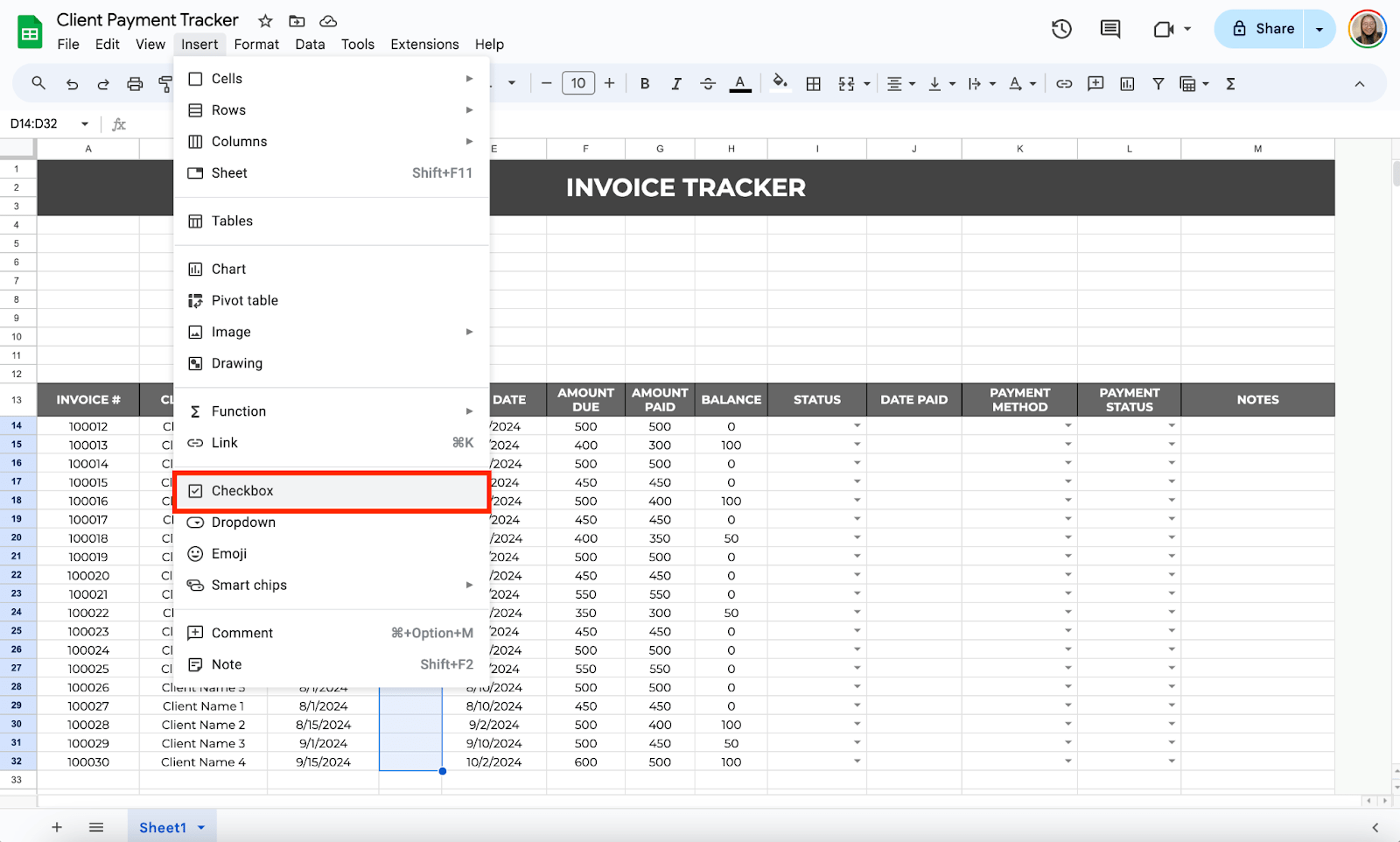
To add a checkbox under the Sent category, click on the cell where you want it to appear, go to the “Insert” menu, and select “Checkbox.”
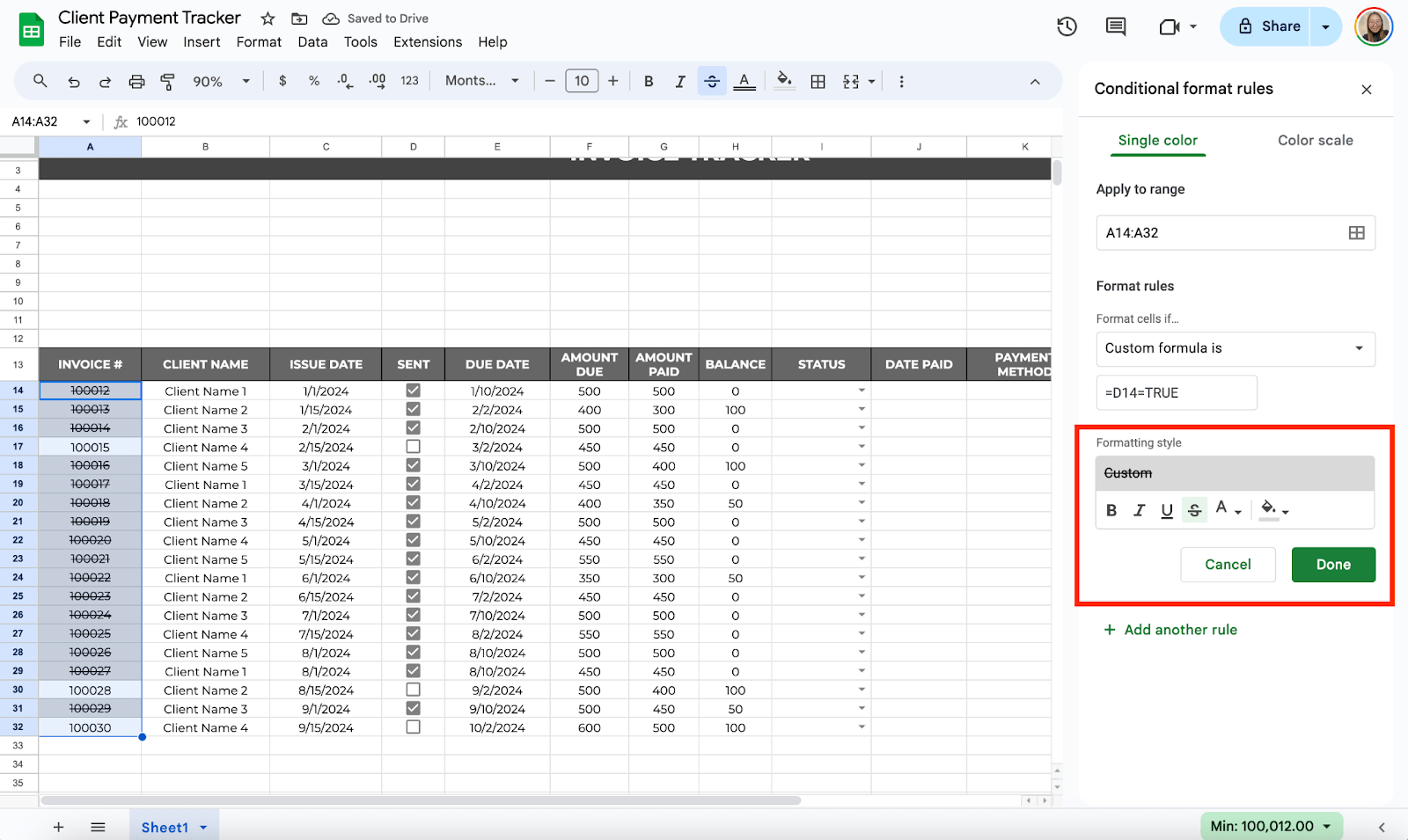
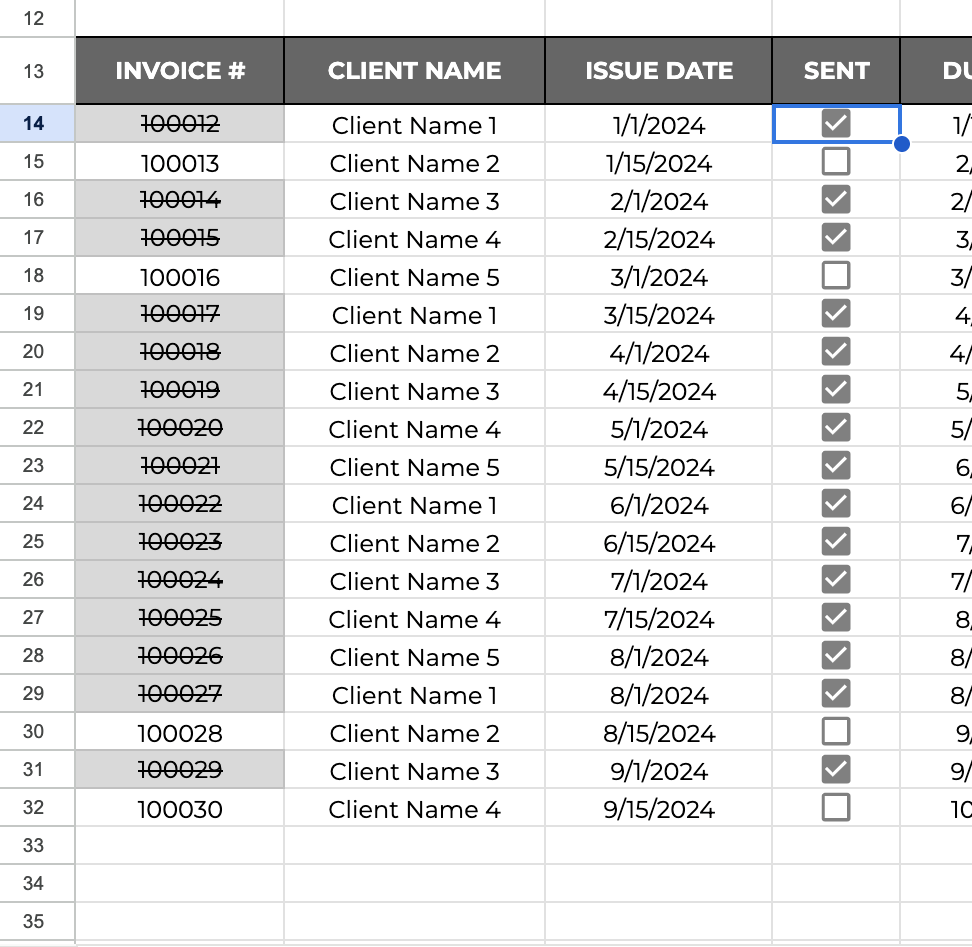
One way to easily track the things you’ve already packed is by using the strikethrough feature every time you click the checkboxes. To do that, select the columns of your items, then click Format > Conditional Formatting. Go to Format Rules and select Custom Formula Is. Then, enter the start range of the checkboxes in the Value field. In this case. I’ll use “=D14=TRUE”
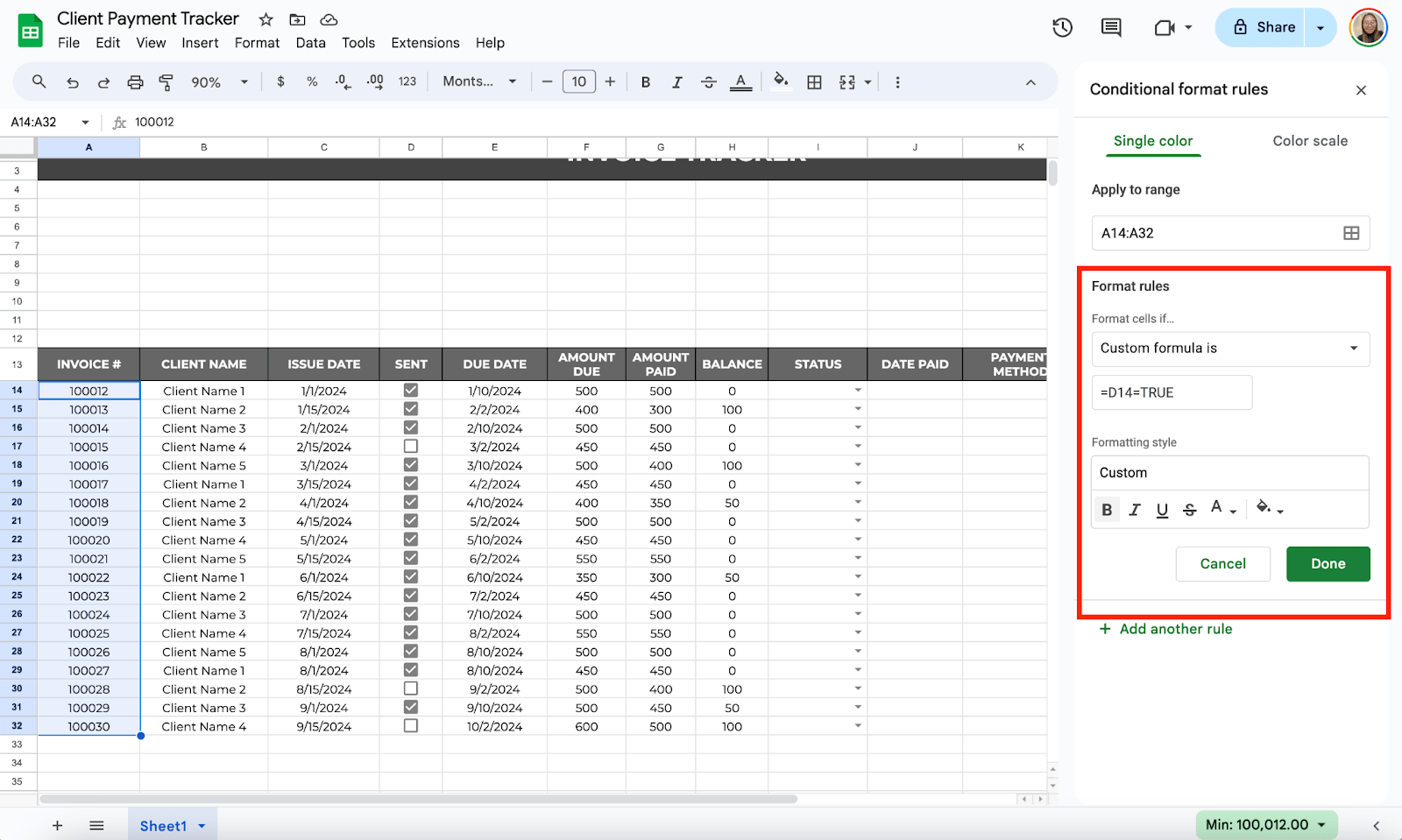
Now, select the color you want by clicking the Fill Color icon and then clicking the Strikethrough icon to see the result.
Here is what you will get:
Step 6: Monitor Your Totals
At the top of your sheet, create a summary table for quick insight:
- Summary
- Amount Due
- Amount Paid
- Balance
Now, you can use the =SUM function to get the Amount Due, Amount Paid, and Balance totals.

Step 7: Use Charts for a Clear Overview
You can add visual elements to your sheet to make it easier to see how many payments are due, paid, or overdue.
Select the data in your “Status” column. Go to Insert > Chart.

This chart can help you track cash flow over time.
Get the Free Client Payment Tracker
Get a copy of the free Client Payment Tracker. I’ve populated some cells as examples, but you can customize them as needed.
Final Thoughts
It’s easy to get caught up in complicated tools and systems, but sometimes sticking with something as basic as Google Sheets can give you exactly what you need without the hassle. If you’re looking for something reliable and easy to manage, this method is a solid choice.
Frequently Asked Questions
Can I automatically calculate the number of days until payment is due?
Yes, you can use the DAYS function to calculate the days between the issue and due dates. In the “Days Due” column, use the formula: =DAYS(Due Date, Issue Date). This will automatically update, showing how many days are left before the invoice is due (or how many days it’s overdue).
How can I track payments received over time?
To track payments over time, you can use a Pivot Table or a Bar Graph that groups payments by month. Alternatively, create a Bar Graph that visually displays payments by month.
How do I keep track of payment due dates and alert myself of upcoming due dates?
Try Conditional Formatting combined with formulas. For example, to highlight upcoming due dates within the next 7 days, select your Due Date column, apply Conditional Formatting, and use a formula like =AND(TODAY()<=A2, A2<=TODAY()+7), assuming A2 is the start of your Due Date column. This will highlight due dates that are within the next week.
The Bottom Line:
One keeps you awake. The other gets work done.
A month of coffee: $80
A month of FileDrop: $19
Why not have both?


