
Client intake is one of the most important phases in any marketing project. It’s where agencies collect creative briefs, brand files, and campaign assets from clients — the building blocks of every successful campaign.
But too often, this process turns into a chaotic email exchange of attachments, links, and scattered messages. Files get lost, wrong versions get shared, and project timelines get delayed before the campaign even starts. If you’ve ever asked a client to “just send everything over,” you know how messy it can get.
In this guide, we’ll show you how to create a client intake form that collects everything you need from briefs, assets, and client details in one organized submission.
What is a Client Intake Form?
A client intake form is a structured questionnaire that collects foundational information from prospective clients at the start of a business relationship. It’s a strategic alignment tool that sets the tone for your entire working relationship.
A well-designed intake form ensures both you and your client are aligned on the client’s goals, deliverables, and expectations before any work begins. This prevents misunderstandings later and keeps collaboration smooth from day one.
Beyond alignment, a good intake form can:
- Act as a decision-making filter. The answers prospective clients provide help service providers assess whether they’re the right fit. Vague responses, unrealistic timelines, or mismatched budgets become visible upfront, allowing you to save yourself from projects that were never going to work.
- Serve as project documentation. It captures case details, requirements, and client input in one place, creating a reference point for scope discussions or audits down the line.
- Trigger automated workflows. With today’s digital tools, onboarding forms can sync with project management platforms, making them essential to how modern agencies operate.
For marketing agencies specifically, intake forms streamline the client onboarding process by collecting everything needed to launch a campaign: project briefs, brand guidelines, logos, target audience details, and creative assets. Think of it as a checklist that gathers briefs and assets in one submission.
Why Marketing Agencies Should Use an Intake Form
Without a structured intake process, getting what you need from clients becomes a guessing game. You send emails, wait for replies, ask follow-up questions, and still end up missing half the assets you need.
An intake form fixes that by putting everything in one place from the start.
Saves time on back-and-forth: Instead of multiple emails asking for logos, briefs, and brand colors, clients submit everything at once. Your team spends less time chasing and more time doing the actual work.
Sets clear expectations: When clients see exactly what you’re asking for, they understand what’s required before the project begins. No surprises, no confusion.
Keeps projects on track: When you have all the assets and information upfront, there’s no waiting around for missing files. Campaigns launch on time.
Makes handoffs easier: Everyone on your team, including account managers, designers, and strategists, can access the same submission. No digging through inboxes or Slack threads.
Build client trust. A branded, polished form signals professionalism before the project even starts.
Choosing the Right Format and Tools for Your Intake Form
Once you’ve decided to use an intake form, the next step is choosing how to build it. There are several options, each with trade-offs.
Word or PDF documents. Simple to create, but clunky for clients. They have to download the file, fill it out, save it, and send it back. If you need file uploads like logos or brand assets, this method falls apart quickly.
Google Forms or Microsoft Forms. Free and easy to set up. Good for basic questionnaires, but limited when it comes to branding, file uploads, and organization. Submissions can get messy if you’re managing multiple clients.
Dedicated form builders. Tools like FileDrop, Typeform, or Jotform offer more control. You can add your branding, customize fields, accept file uploads, and integrate with other tools like Google Drive. The trade-off is cost, though many have free tiers.
What to look for:
When choosing a tool, consider whether it supports file uploads (essential for collecting assets), allows custom branding (so clients recognize your agency), integrates with your existing workflow (like Google Drive or Slack), and makes the experience easy for clients (no logins or confusing steps).
For agencies that need to collect both information and files, a dedicated tool built for that purpose will save you the most time.
But before exploring dedicated tools, it’s worth understanding why sending marketing assets through email creates more problems than it solves.
When onboarding a new client, your team needs to collect a wide range of materials like brand guidelines, product photos, ad creatives, logos, and brief documents. When these assets are shared over email, it can get unorganized and add friction to your workflow.
1. Files Get Lost or Misplaced
Clients send multiple emails or forget attachments. Important assets like high-resolution logos or video files disappear in long threads.
2. No Structure
Each client sends different file types with inconsistent naming conventions. Your creative team wastes hours sorting and renaming files.
3. Security Risks
Email attachments and open drive links expose your client’s sensitive files to unauthorized access.
4. Confusing for Clients
Clients aren’t sure which files to send or where to upload them — slowing down the entire onboarding process.
With FileDrop, you can avoid all that chaos by creating a customized file upload form that collects everything you need in one place — securely and with your agency’s branding.
How FileDrop Solves the Intake Problem
FileDrop’s File Request Pages are secure, customizable upload pages that let clients send files and fill out information — no logins, no email attachments, and no shared drive confusion.
Each Page is:
- Branded with your agency’s logo and colors
- Securely encrypted for all uploads
- Integrated with Google Drive so all files are automatically backed up
- Customizable with fields for text, dropdowns, file uploads, and notes
Marketing agencies use File Request Pages for:
- New client onboarding
- Campaign brief collection
- Creative asset uploads
- Media kit submissions
- Partner content submissions
Step-by-Step: How to Set Up a Page for Client Intake
Here’s how to create your own Client Intake Form in just a few minutes.
Step 1: Create Your FileDrop Account
Visit https://app.getfiledrop.com/register.
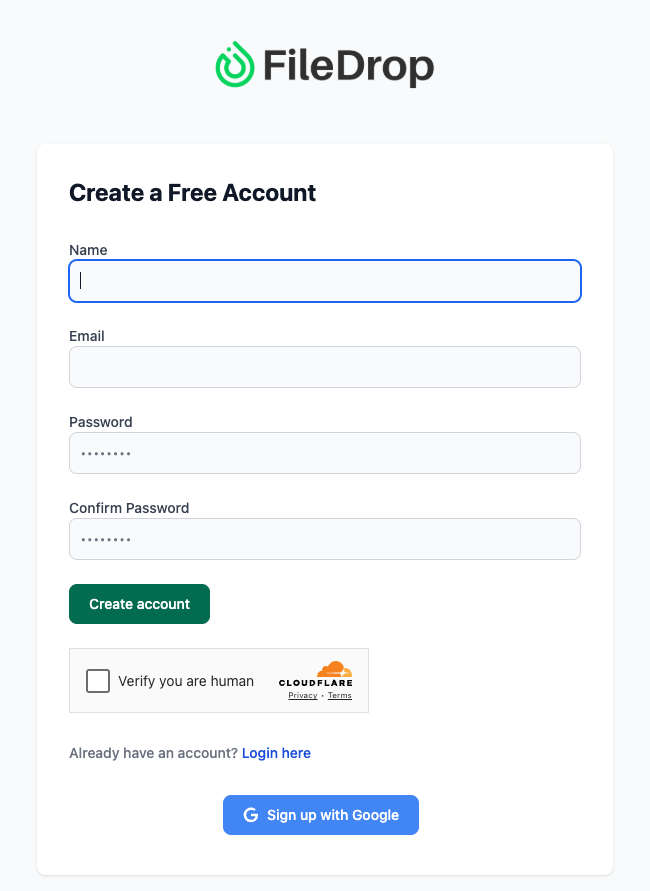
You can sign up using your work email or Google Login — no credit card required. Once you’re registered, you’ll land in your FileDrop dashboard, where you can access tools like:
- File Forms – to collect files and information
- Secure Send – to deliver files safely
- Share PDF – to send and track PDF views
You’ll use the File Forms feature to build your onboarding system.
Pro Tip: If you’re part of a larger agency, sign up with a shared account like projects@agency.com so all client submissions stay organized in one place.
Step 2: Access the File Request Page Dashboard (Formerly Forms)
From the left-hand menu, click File Forms.
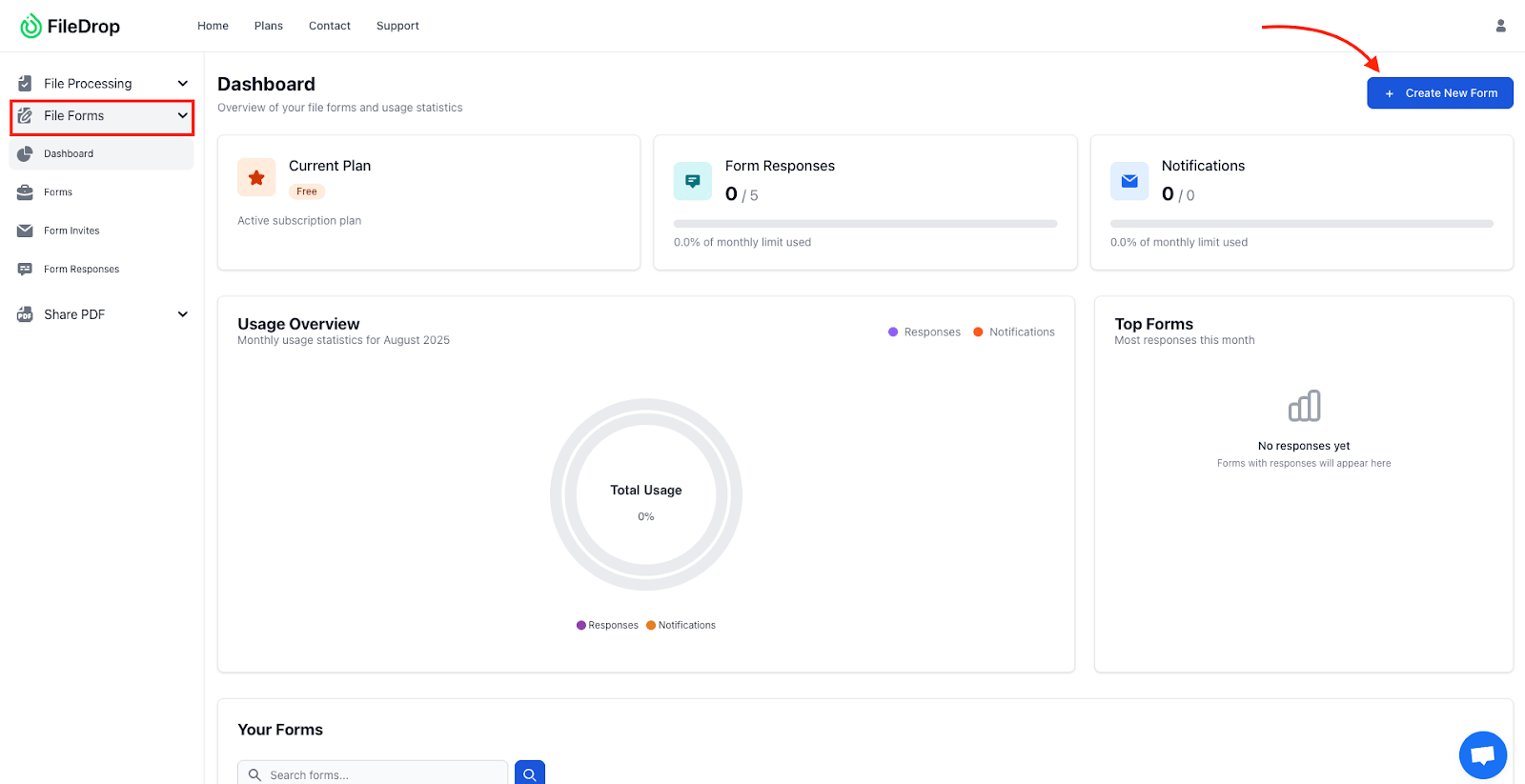
This is your control panel for creating and managing intake forms for every client or project.
Each form can be customized for different onboarding needs — for example:
- “New Client – Branding Assets Upload”
- “Paid Ads Campaign Intake”
- “Content Marketing Intake Form”
- “Product Launch Asset Submission”
Each one has its own unique upload link, branding, and automatic folder structure.
Organization Tip: Group forms by department (e.g., Design, Ads, Content) so your teams know exactly where to find client uploads later.
Step 3: Create a New File Request Page (Formerly Forms)
Click New File Form to start building your intake system.
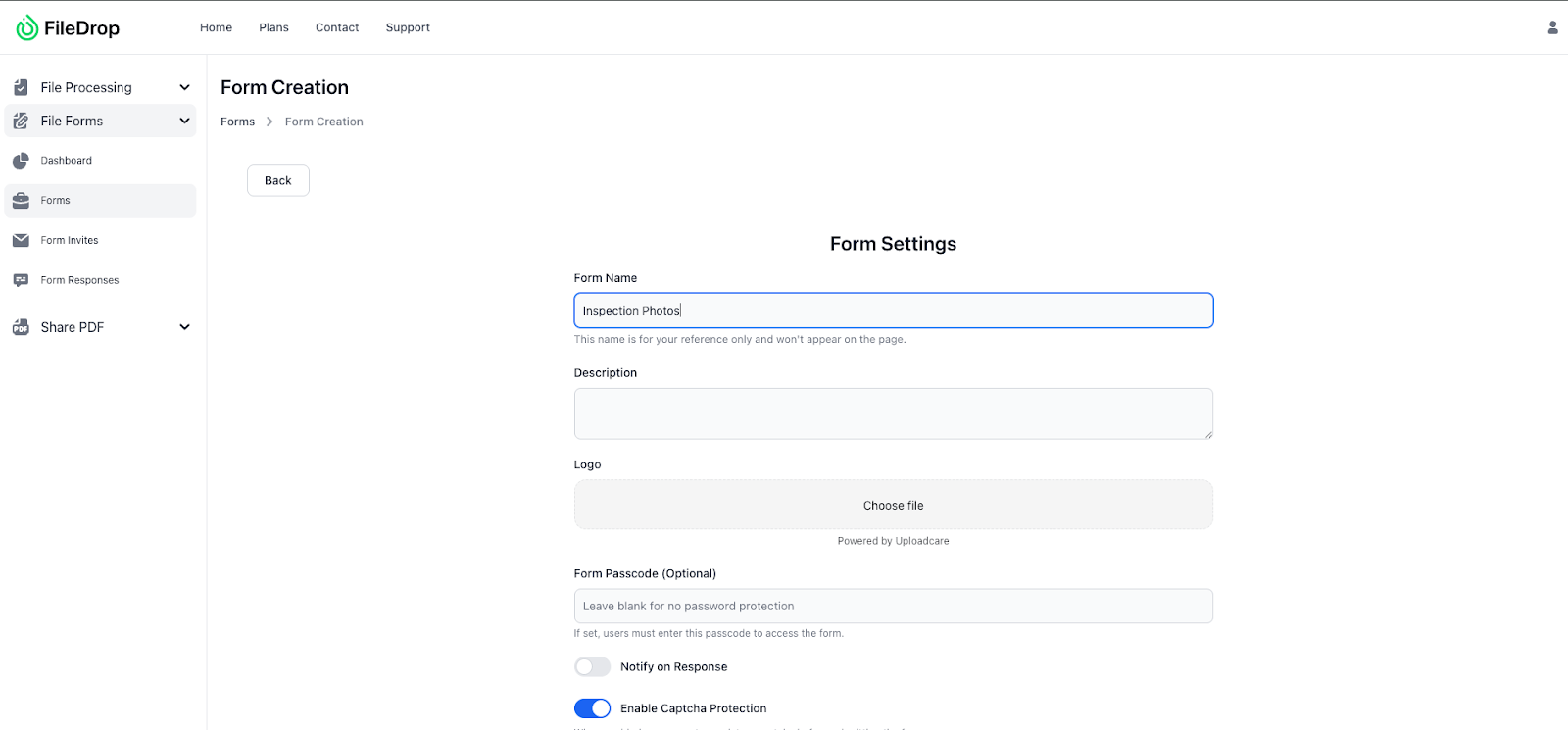
Give your form a clear, descriptive name such as:
- “Client Intake – Campaign Assets”
- “Creative Brief and Brand Upload Portal”
Then, toggle Separate Submission Folders. This ensures that every client submission automatically creates its own labeled folder in your Google Drive — for example: /Clients/Acme Co/2025 Brand Campaign/Uploads
This structure keeps submissions organized by client and project, preventing any mix-up between different accounts.
Workflow Tip: Use input fields (like “Client Name” or “Project Title”) to generate folder names automatically. This makes Drive organization effortless — even when dozens of clients are uploading simultaneously.
Step 4: Connect Your Google Drive
Now, let’s automate where your client uploads go. Scroll down to Google Drive Integration and click Connect Google Drive. You’ll be asked to sign in and grant permission to your agency’s Google account.
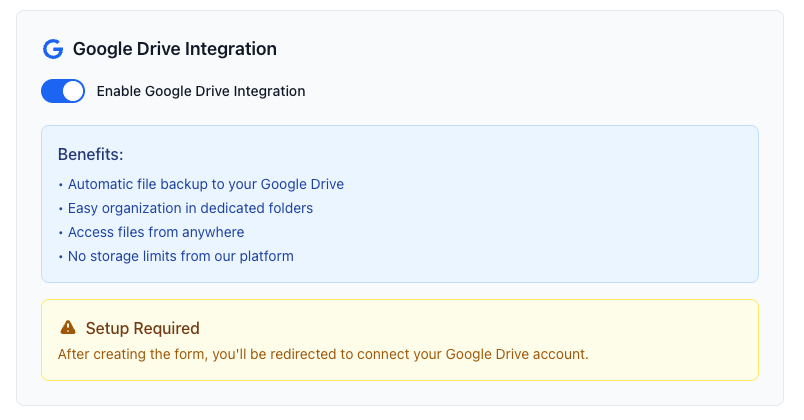
Choose a parent folder in Drive where all uploads will be stored. For example:
| Google Drive └── Client Onboarding ├── Brand Campaigns ├── Social Media Projects ├── Website Redesigns └── Paid Ads Materials |
Once connected:
- Every upload will be stored automatically in the Drive folder you choose.
- FileDrop will create subfolders per submission.
- File names and metadata stay intact for easier searching.
Why this matters:
- No manual downloading or re-uploading
- Files are backed up instantly
- You maintain consistent naming and structure across all projects
- Perfect for agencies with multiple active clients or campaigns
Step 5: Add Form Instructions and Branding
Now it’s time to make your form client-facing and professional. In the Form Editor, customize how it looks and what it says.
- Title: “Upload Campaign Assets & Creative Briefs”
- Instructions Example: “Use this form to submit your brand assets, creative briefs, and files related to your campaign. Accepted formats: PDF, ZIP, JPG, PNG, and MP4. All uploads are automatically saved to our secure Google Drive.”
- Logo: Upload your agency logo for a professional look.
- Brand Colors: Adjust buttons, headers, and background to match your branding.
- Confirmation Message: Add a thank-you message such as: “Thank you for submitting your campaign materials! Our project team will review them shortly.”

Why branding matters: Clients instantly recognize your agency identity, creating trust and professionalism even before the project starts.
Step 6: Add Form Fields for Client Information
Next, add the fields your clients will fill out. FileDrop lets you add text boxes, dropdowns, file uploads, and notes.
Here’s a sample field setup for a campaign onboarding form:
| Field Type | Example Label | Purpose |
| Text Field | Client Name | Identify client folder |
| Contact Email | For notifications | |
| Dropdown | Campaign Type (Branding, Social Ads, SEO, Video) | Organize project types |
| File Upload | Upload Brand Assets | Logos, brand guides, etc. |
| File Upload | Upload Creative Brief | Project details and references |
| File Upload | Upload Reference Materials | Previous campaigns, screenshots |
| Text Area | Notes or Special Instructions | Client messages for the team |
Pro Tip: Mark critical fields as required so clients can’t skip them. This ensures you get everything you need before project kickoff.
Step 7: Activate and Save Your Page
Once you’ve customized all the fields and branding, toggle Active and click Save Form.
FileDrop will now:
- Publish the upload form
- Generate a unique shareable link
- Connect to your Google Drive folder automatically
From now on, every submission will be neatly saved, organized, and available instantly in your Drive — without your team lifting a finger.
You’re ready to share your onboarding form! Once activated, copy your form’s secure upload link and send it to clients.
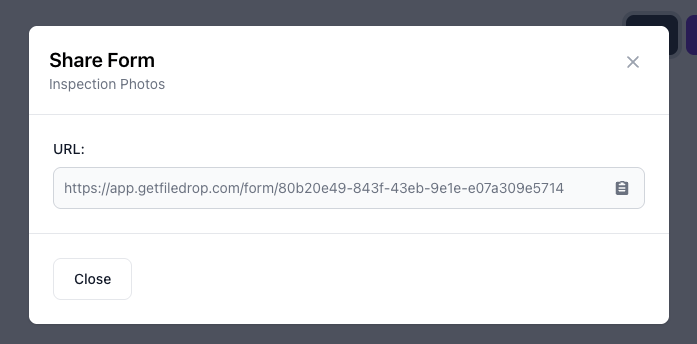
You can share it via:
- Your welcome email
- A section in your proposal or contract email
- Slack or Teams channels
- Client dashboards or Notion portals
- QR codes on printed welcome packets
Clients just click the link, fill out the form, upload files, and submit. No accounts, no confusion — just a clean, professional experience.
Example Message:
“Hi [Client Name], please use this secure upload form to share all your campaign assets, logos, and creative files. Everything will automatically be saved to your project folder in our system.”

Step 9: Review and Manage Submissions
Once clients start uploading, FileDrop automatically creates folders in your Google Drive for each submission.
Each folder includes:
- The uploaded files
- The form responses (client name, campaign type, notes)
- Timestamped entries for easy tracking
You can review, rename, or share these files directly from Google Drive — or forward them to your creative team instantly.
Efficiency Tip: Use Drive’s search queries like brand assets 2025 or clientname campaign brief to instantly find historical uploads.
Step 10: (Optional) Track Submissions in Google Sheets
If you want a live log of all client uploads, connect your form to Google Sheets.
Here’s how:
- Go to your File Forms dashboard.
- Click the Google Sheets icon next to your onboarding form.
- FileDrop will create a new spreadsheet with real-time submission logs.
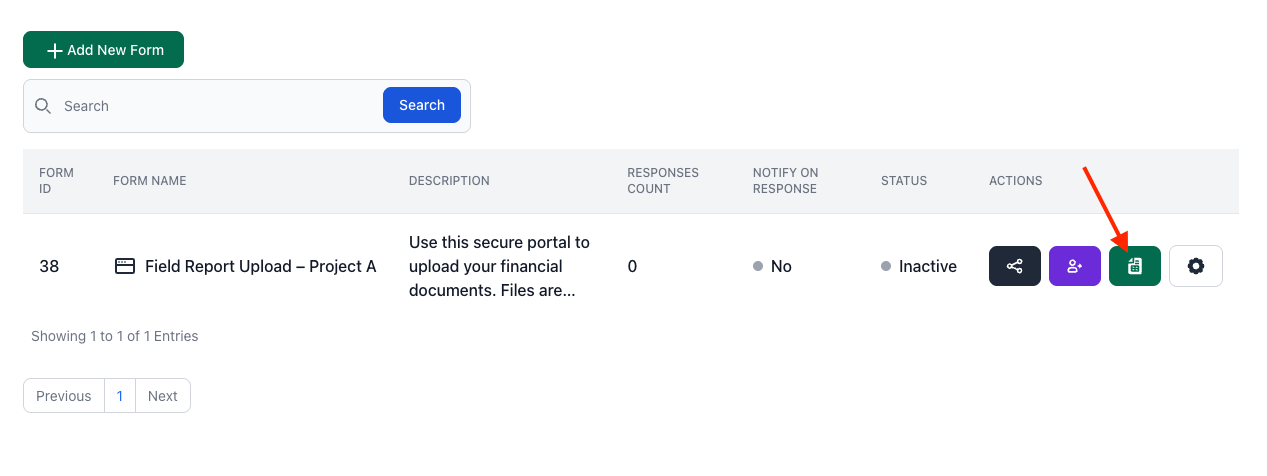
Each new submission automatically adds a row containing:
- Client Name
- Campaign Type
- Upload Date
- Drive Folder Link
This is perfect for project managers who want to track deliverables, client activity, or onboarding progress without manual updates.
Real-World Example: A Marketing Agency Streamlines Onboarding with FileDrop
PixelWave Creative, a digital marketing agency, used to spend hours chasing missing logos, creative briefs, and brand folders from clients.
Their inboxes were cluttered with half-sent zip files and incomplete attachments.
Now, with FileDrop File Request Pages, they send a single branded link during onboarding that collects everything — assets, notes, and files — in one secure place.
Here’s what changed:
- Clients upload assets directly from any device
- Files are automatically organized in Google Drive
- Account managers get instant notifications for every submission
- Onboarding turnaround time dropped from 3 days to less than 24 hours
Why FileDrop Is the Best Client Onboarding Solution for Agencies
- End-to-End Encryption – Files are protected during transfer and at rest.
- Branded Experience – Every upload form looks and feels like part of your agency.
- No Logins or Portals – Clients can send files with one click.
- Auto-Organized Uploads – Google Drive integration keeps everything sorted.
- Instant Notifications – Know exactly when files arrive.
- Easy Setup – Create a secure intake form in minutes, no IT help needed.
Conclusion
Client onboarding shouldn’t involve chasing files, sorting folders, or fixing disorganized submissions.
With FileDrop File Forms, you can build a professional, branded intake system that collects all campaign assets in one place — securely, efficiently, and with zero back-and-forth emails. In just minutes, your agency can turn onboarding chaos into a seamless, automated process that impresses clients and saves hours of admin work.
Start building your client onboarding form today at FileDrop!
Frequently Asked Questions
1. Can I collect both files and client details in one form?
Yes. File Forms support text, dropdowns, and file upload fields so you can gather everything at once.
2. Can I customize the branding of my File Form?
Absolutely. You can upload your logo, adjust colors, and add personalized messages for a professional look.
3. Where do uploaded files go?
All client uploads are securely stored and automatically backed up to your connected Google Drive (if enabled).
4. Do clients need to log in or create an account?
No. Clients simply open your link and upload their files securely in seconds.
5. What should I include in a client intake form?
At minimum, include fields for client name, contact email, project type, and file uploads for assets. You can also add fields for budget, timeline, target audience, and special instructions depending on your workflow.
6. When should I send a client intake form?
Send your intake form as soon as the client confirms they want to work with you, ideally within 24-48 hours of signing a contract or proposal. The sooner you collect assets, the faster your team can start.