KEY TAKEAWAYS
- Facebook does not allow direct PDF uploads except in Groups, where enabled
- Professional link sharing via FileDrop is the most versatile workaround
- Converting PDFs to images works for short, highly visual documents
- File hosting services like Google Drive offer a free link-sharing alternative
- Use the link sticker on Facebook Stories to share your PDF link
If you’ve been searching for how to post a PDF on Facebook, you’ve already hit the wall: you click Create Post, look for an upload option… and there’s no PDF button anywhere. You’re not alone — this is one of the most common frustrations for small business owners, marketers, and educators trying to share documents on the platform.
The good news? There are four proven workarounds that actually work. This guide walks you through each method, explains when to use it, and helps you choose the right approach for your situation.
Can You Post a PDF on Facebook?
The short answer: not directly. Facebook does not support direct PDF uploads on personal profiles or business pages. The platform is built around images, videos, and links. Document formats like PDF don’t fit its native content model.
According to Meta’s Help Center, file uploads are only supported in certain Group contexts. For everything else, link-based sharing is the recommended path.
For context: as of 2024, over 98% of Facebook users access the platform on mobile which is another reason why clean, link-based PDF sharing outperforms clunky file attachments.
A PDF hosting tool stores your document in the cloud and generates a clean, shareable link. When you paste that link into a Facebook post, Facebook automatically generates a link preview, making your PDF feel like native content in the feed.
This makes it the absolute best method for sharing professional documents like brochures, menus, reports, lead magnets, proposals, and virtually any other high-value PDF file.
Sharing this link is the simplest and most professional way to post a PDF on Facebook, as it bypasses Facebook’s limitations by not requiring you to upload the file itself. You can easily do this job using FileDrop’s PDF hosting tool.
Step 1: Upload your PDF to FileDrop
Sign up for a free FileDrop account and upload your PDF to FileDrop’s PDF hosting tool. In your dashboard, select ‘Host PDF.’

Click on ‘Choose File’, then select the PDF files you wish to upload.
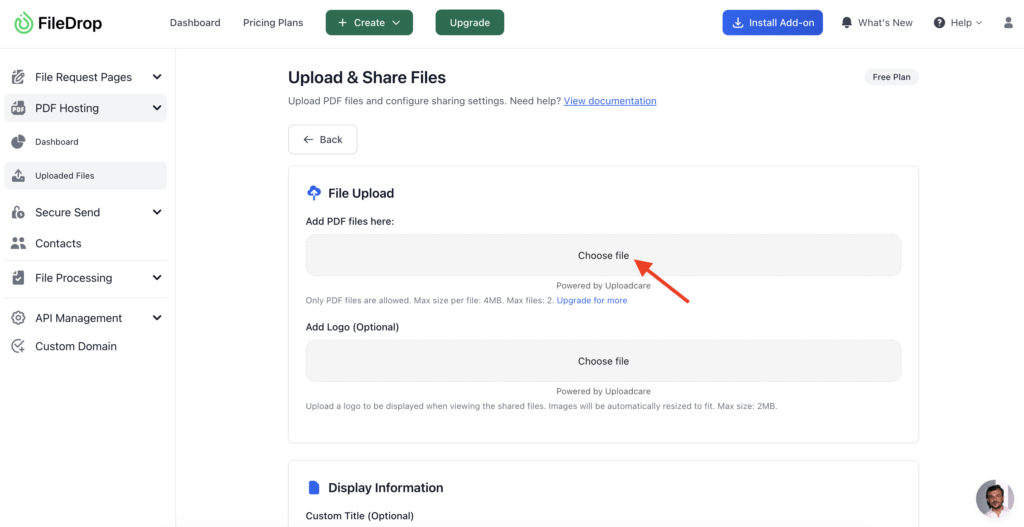
Wait for the upload to be completed.
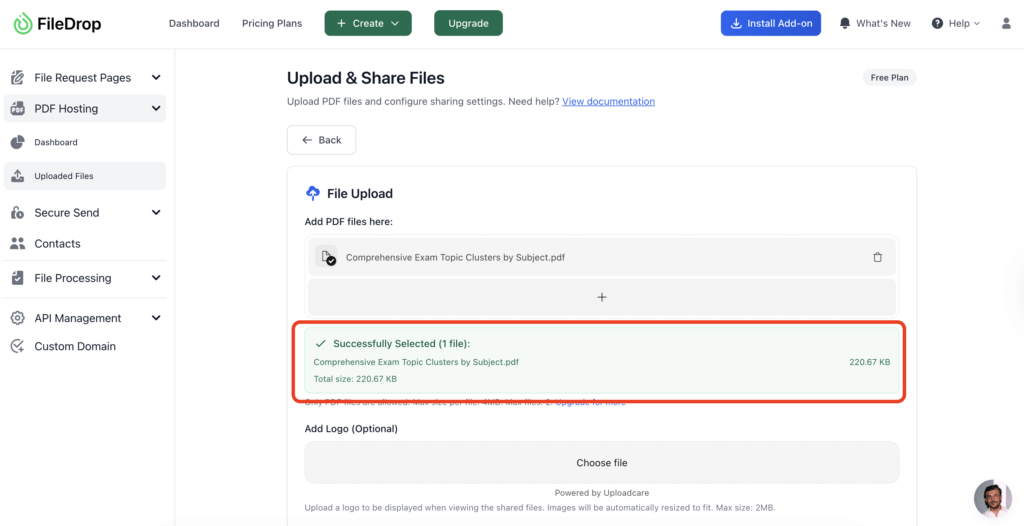
Before generating your link, you can tailor how your document looks and who can access it:
- Add your logo and brand colors for a polished look
- Set a custom display name and description
- Require a password to restrict access
- Disable downloads to keep the file read-only
- Generate a QR code for offline sharing
- Require email verification before viewing
- Set a link expiry date
- Add a watermark to discourage unauthorized sharing
- Turn your PDF into an interactive flipbook
Once your done with customizing how your PDF is shared, click ‘Upload Files’
FileDrop instantly generates the final public link and a QR code you can use to share your hosted PDF.

It opens in your browser for a distraction-free viewing.
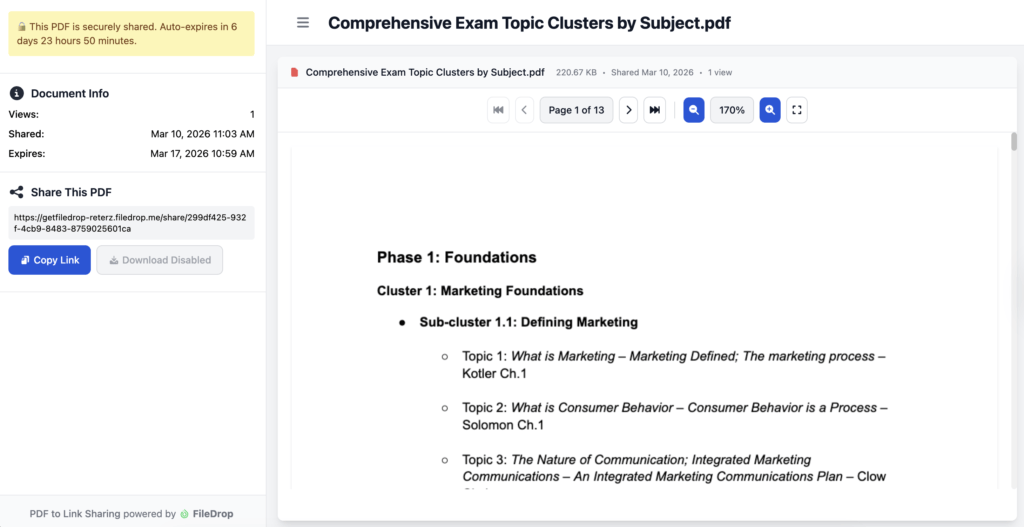
Step 4: Paste the link into your Facebook post
Paste the link into a new Facebook post. Facebook will automatically generate a link preview card, giving your PDF a professional, native-feeling presence in the feed. Add a compelling caption explaining what the document contains and why it matters.

Strengths and Drawbacks of Using a PDF Hosting Tool
Now that you know how the link-sharing method works, here is a quick overview of its strengths and weaknesses compared to other approaches:
Pros:
- Versatility: Works everywhere Facebook allows links (profiles, pages, groups, stories).
- Superior User Experience: Recipients are not confused by storage interfaces and won’t run into login prompts or sharing permission errors common with standard cloud storage links.
- Enhanced Control: Allows for advanced features like view tracking, password protection, disabling downloads, watermarks, and others.
- Mobile Optimized: PDF viewers load quickly and cleanly on all mobile devices.
Cons
- Requires a Click: The content is not natively displayed in the feed, requiring the user to click an external link to view the PDF.
- Limited access on Free Plan: Free plan has file size and upload limits (upgrades available)
Method 2: Convert your PDF to images using PDF to Image Converter Tool
If your PDF is short and highly visual, there is a compelling alternative to link sharing: converting the document into images.
This method is best for: short visual content like flyers, posters, or one-pagers where the text is minimal and you want maximum visibility. Since images are a native Facebook format, this workaround works perfectly on Profiles, Pages, and Groups. It also means your content appears directly in the feed without requiring any clicks.
Step 1: Use FileDrop’s Free PDF to Image Converter
FileDrop has a dedicated free PDF to Image converter. Simply drag and drop your PDF file, and each page will be rendered as an image directly in your browser. Download all pages, then upload them to Facebook as a photo post or carousel.

Strengths and Drawbacks of Converting a PDF to Image
Before deciding if this is the right method for your PDF, let’s quickly break down the benefits and limitations:
Strengths
- Native Content: Images are a native Facebook format, which can boost engagement.
- No External Links: The content lives directly on Facebook, requiring no user clicks to an outside source.
- Good Feed Visibility: Images tend to perform well in the Facebook feed algorithm.
Drawbacks
- Poor Readability: Text may be hard to read, especially on mobile devices.
- Not Accessible/Searchable: The text in the images is not searchable by users or accessible to screen readers.
- Impractical for Long Documents: Not suitable for multi-page files (e.g., reports, ebooks).
- No Downloads or Tracking: You lose the ability to track views or allow document downloads.
A file hosting service is a platform designed to store your digital files and allow you to generate a shareable link. Services like Google Drive, Dropbox, and Microsoft OneDrive are the most common examples
This workaround is a viable, free alternative to a dedicated PDF hosting tool. It’s best for individuals or small businesses who already use one of these services for document storage and want a quick, zero-cost way to share a single PDF.
Step 1: Log in to Google Drive and Upload your PDF File
If you have Gmail, you automatically have access to Google Drive. Simply go to drive.google.com in your web browser. To upload your PDF, go to the left panel, click ‘My Drive’ then right click on the main window then select ‘file upload.’ You can also drag and drop your PDF file directly in the main window.
Step 2: Configure Sharing Settings
To configure the sharing settings of your PDF, click on the three dots then select ‘Share’.

In the general access settings, change ‘Restricted’ to ‘Anyone with the link’ to enable file sharing to all.

Once changed, click ‘Copy link’ then ‘Done’. Proceed to creating a post on Facebook then paste your shareable link from Google Drive.
Strengths and Drawbacks of Using a File Hosting Service
The file hosting method provides a quick, zero-cost way to get a sharable link for your PDF. However, you must be aware of the inherent trade-offs regarding how your content looks and feels to the recipient.
Strengths
- Free and Accessible: Utilizes services (Google Drive, Dropbox, etc.) that many people already have accounts for.
- Simple Link Generation: Easy to upload a file and copy a public shareable link.
- Large File Support: Can easily handle large PDF files that may be too big to send via email.
Drawbacks
- Generic Presentation: The automatically generated link preview on Facebook is often unbranded and unappealing.
- Recipient Friction: Depending on the service and file settings, recipients may be required to sign in or deal with a clunky, download-first file viewer.
- No Professional Features: Lacks advanced features like password protection, view tracking, or the ability to update the file without changing the link.
Method 4: Upload a PDF directly to a Facebook Group
This is the only method that lets you upload a PDF file directly on Facebook without any external links or hosting tools. The catch: it only works inside Facebook Groups where the administrator has enabled file uploads.
It’s best suited for private, contained environments: a classroom group, a community of practice, or an internal team workspace where all your audience is already group members.
Step 1: Create a post in your selected Facebook group.
Start a post in the Group and select the three dots.

Step 2: Select your PDF File

Step 3: Attach your PDF file and post
You can now attach a file to your post. Simply click ‘Choose File’ and select your PDF file from your computer, and upload.

Strengths and Drawbacks of publishing a PDF in Facebook Groups
Strengths
- Simple and Native: No need for third-party tools, hosting accounts, or external links.
- Contained Sharing: Ideal for private communities, classrooms, or internal team file-sharing.
- Instant Access: Group members can click and view the document immediately.
Drawbacks
- Highly Restrictive: Only works inside Facebook Groups; cannot be used on business pages or personal feeds.
- No Professional Features: Lacks view tracking, password protection, custom branding, or link previews.
- Files Get Buried: Content is difficult to find later in the group feed, unlike a consistently-shared link.
Bonus Method: Use Facebook Stories Link Sticker (Underused Workaround)
Most guides stop at four methods. Here’s one most guides haven’t covered: If you can actually post your PDF link in your stories using the Link Sticker. Take note that this only works on mobile devices.
Here’s how:
- Host your PDF using FileDrop and copy the shareable link.
- Create a new Facebook Story.
- Select an Image to post
- In the selections at the bottom, select “Stickers”
- You’ll be prompted to the sticker selector page then select “Link”
- Paste your shareable PDF link to the URL bar then write a custom sticker text and click add. It’s advisable to use a short call-to-action like “Tap to read the full guide.”
- Resize and reposition the link sticker and click “Share”
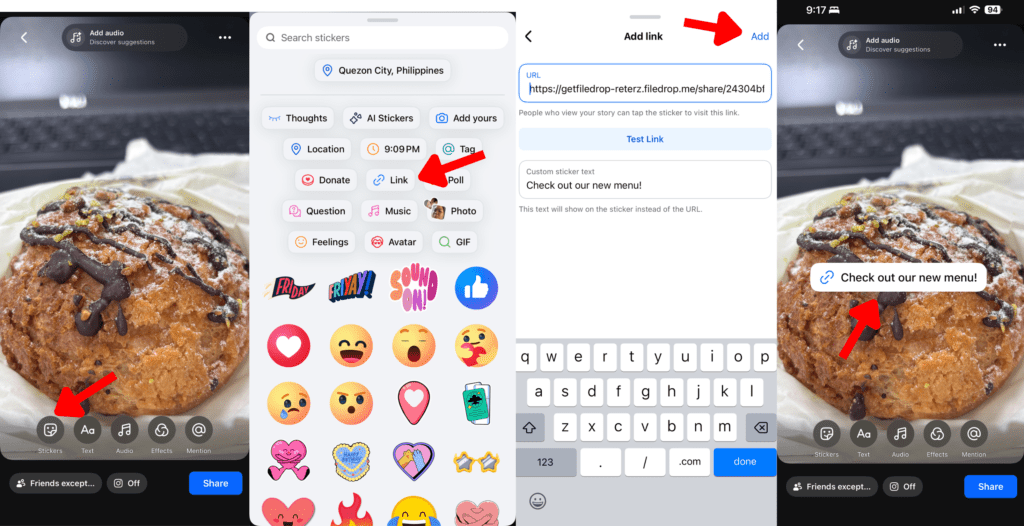
Why this works: Stories appear at the top of the Facebook feed and have strong organic visibility. This method is especially effective for lead magnets, event programs, and product lookbooks — and it pairs naturally with FileDrop’s view tracking so you can see how many people actually clicked through.
Which Method is Right For You?
With four different workarounds available, choosing the best method comes down to your primary goal. Are you looking for the simplest, quickest way to share a single file? Or is your priority a professional, branded look with analytics?
The table below summarizes the core strengths and limitations of each method to help you decide which one best suits your needs for sharing a PDF on Facebook.
| Method | Best For | Professionalism & Features | Where it works |
|---|---|---|---|
| Dedicated PDF Hosting Tool (e.g., FileDrop) | Marketing, sales, professional communication, and high-volume sharing. | Highest. Branded viewer, custom link preview, view tracking, password protection | Personal Profiles, Business Pages, Groups (via link) |
| Convert to Images | Short, highly visual content (flyers, infographics, menus) and immediate in-feed engagement. | High. Native Facebook format with no external link needed. Loses interactivity, not practical for multi-page documents. | Personal Profiles, Business Pages, Groups (direct upload) |
| General File Hosting (e.g., Drive, Dropbox) | Quick, free, one-off sharing, or for internal teams already using the service. | Low. Generic link preview and file viewer. Potential for recipient friction (sign-in, download prompts). | Personal Profiles, Business Pages, Groups (via link) |
| Upload to a Facebook Group | Private communities, classrooms, or internal team file-sharing workspaces. | N/A. Simplest process, but highly restrictive, no features, and files are hard to find later. | Facebook Groups ONLY (if admin-enabled) |
In short: if you’re sharing a PDF for business, marketing, or professional communication, FileDrop is the clear choice. If you just need to drop a one-page flyer into a group for a community event, converting to an image or uploading directly to the group gets the job done.
Tips for sharing PDFs on Facebook
Optimize for mobile
Over 98% of Facebook users access the platform on their phones. Before you post, check that your PDF is readable at mobile scale particularly if it contains small text or dense tables. If readability is a concern, the image conversion method or a flipbook format (available in FileDrop) may perform better than a standard PDF viewer.
Write a Compelling Caption
A bare link is easy to scroll past. Tell people what the document contains, who it’s for, and what they’ll get from reading it. A caption like ‘Here’s the full 2026 pricing guide we mentioned — no email required, just click to view’ is far more effective than pasting a URL with no context.
Use a Custom Thumbnail or Cover Image
When you paste a FileDrop link, Facebook generates a preview card. Make that preview count by uploading a strong cover image to your FileDrop document. A clear, branded thumbnail dramatically increases click-through compared to a generic preview.
Pin High-Value PDF Posts to Your Page
If you’re sharing a resource people will want to revisit like a pricing guide, a product catalog, an event schedule, pin the post to the top of your business page. This turns a single post into a permanent, easy-to-find resource without any additional effort.
Track Engagement to See What Resonates
FileDrop’s built-in analytics tell you how many people opened your PDF, from which devices, and when — far more insight than a standard Facebook post provides. Use this data to refine your content strategy over time. See FileDrop pricing plans to compare tracking features.
Frequently Asked Questions
Can you post a PDF on Facebook?
Not directly on personal profiles or business pages. Facebook doesn’t support direct PDF uploads in those contexts. However, there are four reliable workarounds covered in this guide — link sharing, image conversion, file hosting services, and direct Group uploads.
Can you upload a PDF to Facebook?
Only inside Facebook Groups where file uploads have been enabled by the group admin. Everywhere else, you’ll need to share a hosted link instead.
Why doesn’t Facebook allow PDF uploads?
Facebook’s platform is optimized for visual, mobile-first content — images, videos, and links that drive in-feed engagement. PDFs don’t preview natively in the feed and aren’t well-suited to the scrolling, tap-based experience that most users have on mobile.
How do I post a PDF document on Facebook?
The quickest way to post a PDF document on Facebook is to upload it to a PDF hosting tool like FileDrop, copy the shareable link, and paste it into your Facebook post. Facebook automatically generates a link preview. The whole process takes under 60 seconds.
For most users, sharing a link to a hosted PDF offers the best combination of professionalism, accessibility, and control. A dedicated PDF hosting tool like FileDrop gives you a branded viewer, view tracking, and no login requirement for your audience — all things that generic cloud storage links don’t provide.
How do I post a PDF file on Facebook for free?
You can post a PDF file on Facebook for free using Google Drive, Dropbox, or FileDrop’s free plan. FileDrop’s free tier lets you host and share PDFs with a shareable link, making it one of the easiest no-cost options available.
Facebook may not support PDFs directly, but sharing them doesn’t have to feel like a workaround. For most use cases — marketing materials, professional documents, lead magnets, event programs — link sharing via a dedicated PDF hosting tool is the fastest, cleanest, and most professional solution available. It works across every Facebook surface, requires no logins from your audience, and takes under a minute from upload to live post.
If you want to share a PDF on Facebook without file size limits, without forcing your audience to log into Google Drive, and with a viewer that actually looks good on mobile, try FileDrop free and share your first PDF on Facebook in under 60 seconds.
The Bottom Line:
One keeps you awake. The other gets work done.
A month of coffee: $80
A month of FileDrop: $19
Why not have both?