

Planning a training schedule can feel like a lot, especially when you’re managing a team, a gym, or even your own personal goals.
The good news? You don’t need fancy software or expensive apps to get organized.
With just a few clicks in Google Sheets, you can build a clean, simple, and flexible training schedule that works for you or your team.
Why Should You Use Google Sheets in Tracking Training Schedules?
Google Sheets is free, easy to use, and available anywhere you have internet access. You don’t need to install anything. Whether you’re on a laptop or mobile, your schedule is always just a few taps away.
Plus, it’s customizable; you can add checkboxes, drop-downs, formulas, and even color codes to make it as simple or detailed as you need. You can also share it with others so everyone stays on the same page.
Step 1: Open a New Google Sheet
Go to Google Sheets and click Blank to start fresh. Rename your sheet something like “Training Schedule.”

Step 2: Create the Basic Table Layout
In the first row, add your column headers. A simple setup might look like this:
- Date
- Day
- Time
- Activity/Topic
- Trainer/Coach
- Duration (hrs)
- Status
This gives you a clean base to work with.

Step 3: Format the Date and Time
Select the “Date” column > right-click > choose Format cells > click Date. Do the same for the “Time” column if needed.
This helps Google Sheets recognize your entries correctly and keeps everything neat.

Step 4: Add Drop-downs for Status
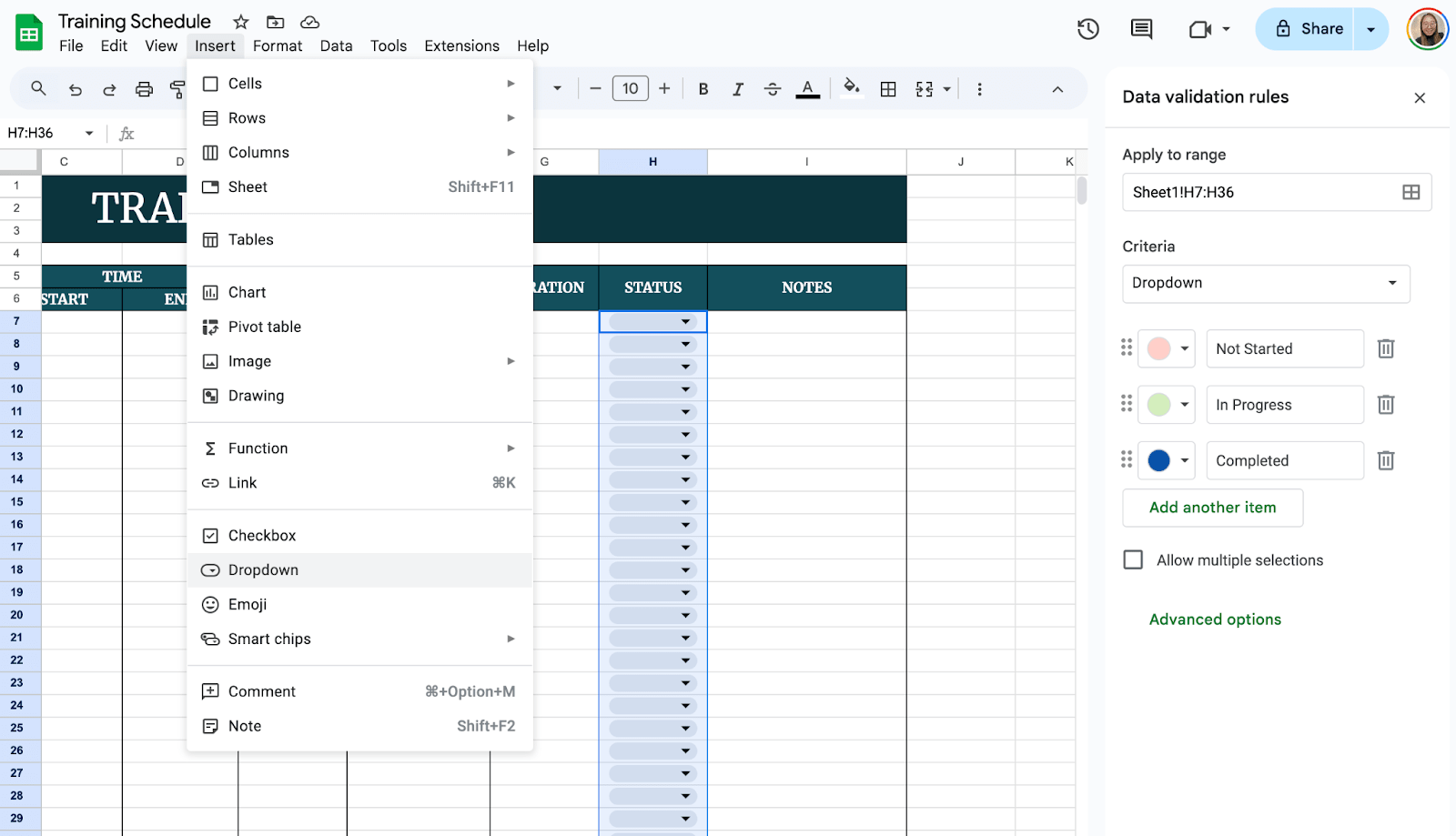
Click on a cell under the “Status” column > go to Insert in the top menu > click Dropdowns, then add options like:
- Not Started
- In Progress
- Completed
This makes it easier to track progress with a simple click.
Step 5: Add Formulas for Total Hours
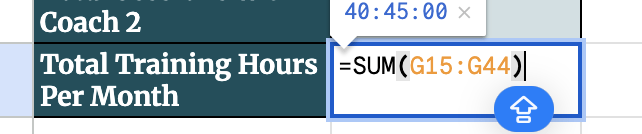
If you want to track total training time, use this formula in an empty cell below the “Duration (hrs)” column:
=SUM(F2:F100)
This adds up all the hours so you don’t have to do the math manually.
Step 6: Freeze the Header Row
Click on View in the top menu > choose Freeze > 1 row. This keeps your headers visible when you scroll down.

Click the green Share button at the top right. Add email addresses or get a shareable link to send to your team.
You can set permissions so others can just view or also edit the sheet.

Get the Free Training Schedule Template
Get a copy of the free Training Schedule Template. I’ve populated some cells as examples, but you can customize them as needed.
Also, if you are using videos for training you can use Snackit.app to create quick fun quizzes for your students.
Final Thoughts
There’s something satisfying about seeing a plan laid out clearly. A simple Google Sheet might not look like much at first, but it can become a powerful tool when you use it to build structure, track progress, and keep your team—or yourself—on target. Don’t overthink it. Start small, tweak as you go, and let the sheet work for you.
Frequently Asked Questions
How do I auto-fill the day of the week from a date?
Use the formula =TEXT(A2, “dddd”) where A2 is your Date cell. This will return the day (e.g., Monday).
How do I calculate the total number of training hours?
Use the formula =SUM(F2:F100) or adjust the range based on your data. It adds up all the values in the “Duration (hrs)” column.
Can I link one sheet to another?
Yes. You can pull data from another sheet using formulas like =Sheet2!A1. This helps when you want a summary sheet for quick overviews.
The Bottom Line:
One keeps you awake. The other gets work done.
A month of coffee: $80
A month of FileDrop: $19
Why not have both?


