


TLDR
Teams that replace email-based document collection with a branded FileDrop upload page can reduce manual follow-up, keep files organized, and give clients or external users one clear place to submit everything.
Instead of sending dozens of reminder emails, send one link with a structured form, upload fields, and a checklist. Users upload at their convenience, your team tracks submissions in one place, and automatic reminders help move missing documents forward.
Key Takeaways
- Email-based document collection creates unbilled admin work through searching, sorting, downloading, renaming, and follow-up
- A branded FileDrop request page lets clients, vendors, employees, applicants, students, or partners self-serve without needing an account
- Checklists and required upload fields make it clearer what has been requested and what is still missing
- Automatic reminders reduce manual chasing while keeping users on track
- Cloud storage, Google Sheets, Airtable, approvals, API access, Secure Send, and PDF sharing turn document collection into a repeatable workflow
Email is often the first tool businesses use to collect documents. It is familiar, fast to start, and everyone already has it. But once a team needs to collect documents from more than a few clients, vendors, applicants, employees, students, or partners, email becomes hard to manage.
Attachments arrive across different threads. Important details are missing. Large files fail to send creating frustration for your users or clients. Team members ask the same follow-up questions repeatedly. Nobody has a clean view of what has been received, what is still missing, and who needs a reminder.
FileDrop replaces scattered email attachments with branded file request pages, custom forms, upload fields, checklists, reminders, notifications, approvals, and integrations with tools like Google Drive, Dropbox, OneDrive, Google Sheets, and Airtable.
The goal is simple: give people one clear place to submit documents, and give your team one clear place to track them.
Why Teams Still Use Email
Email has advantages:
- It is already available
- Clients and external users understand it
- There is no setup required
- It works for quick one-off requests
- It is easy to send a message and ask for an attachment
For a single low-risk document, email may be enough.
The problem starts when document collection becomes a repeatable business process.
Examples:
- A client needs to submit five tax documents
- A vendor needs to upload compliance paperwork
- A new employee needs to complete onboarding files
- A tenant applicant needs to send IDs, proof of income, and references
- A finance team needs invoices, purchase orders, and supporting documents
- A school needs assignments or enrollment forms from many students
- An agency needs brand assets, project briefs, images, and approvals from clients
At that point, email stops being a collection system and becomes a manual tracking problem.
Where Email Breaks Down
1. Attachments Get Buried
Files arrive in different threads, replies, forwards, and inboxes. A client may send one document today, another next week, and a corrected version later. The team then has to search across messages to find the latest file.
With FileDrop, every submission goes through a dedicated request page. Files and form responses are tied to the same submission, making them easier to review and track.
2. Missing Documents Are Hard to Track
Email does not show a checklist of what has been requested and what has been received. The team usually has to maintain a spreadsheet, notes, or a manual status list.
With FileDrop, request pages can include required fields, upload fields, and checklists so users know what is expected and your team can see what is missing.
3. Follow-Ups Become Manual Work
When documents are missing, someone has to send reminders. Then they need to remember who replied, who ignored the reminder, and who still needs another nudge.
With FileDrop, automatic email reminders can reduce repetitive follow-up work and keep the process moving.
4. File Size and File Type Issues Create Friction
Email attachments often hit size limits, most clients have 25 mb limit. Some files are blocked. Others arrive in formats your team does not want. Users may split documents across multiple emails just to get them through.
With FileDrop, upload fields can be configured for the files you need. Users submit through the browser instead of fighting email attachment limits.
5. Context Is Missing
An attachment alone often is not enough. Teams also need names, invoice numbers, due dates, departments, project names, notes, signatures, categories, or approval details.
With FileDrop, custom forms collect structured information alongside uploaded files.
6. Email Is Not a Clean Workflow
Email is a communication tool, not a document intake system. It does not naturally provide submission statuses, approval states, dashboards, integrations, storage routing, or audit-friendly tracking.
With FileDrop, document intake can become a workflow: request, submit, notify, review, approve, store, export, and report.
FileDrop Forms vs Email: Quick Comparison
| Capability | Email Attachments | FileDrop |
|---|---|---|
| Branded upload experience | No | Yes |
| Custom request forms | No | Yes |
| Required fields | No | Yes |
| Dedicated file upload fields | No | Yes |
| File type controls | Limited | Yes |
| Automatic reminders | Manual | Yes |
| Submission checklist | Manual | Yes |
| View what is missing | Manual | Yes |
| Email notifications | Basic inbox alerts | Submission notifications |
| Approval workflow | Manual replies | Approve/reject workflows |
| Cloud storage routing | Manual download/upload | Google Drive, Dropbox, OneDrive |
| Spreadsheet/database tracking | Manual entry | Google Sheets and Airtable workflows |
| External user account required | No | No for request links |
| Works for repeatable processes | Poorly | Yes – Excellent |
| Secure file delivery | Not ideal | Secure Send |
| PDF sharing and tracking | Not built in | PDF sharing links with tracking and branding |
| Attachments size limit | 25 Mb | 1000 Mb |
What FileDrop Adds Beyond Email
Branded Links with Custom Forms
Instead of asking people to reply with attachments, teams can send a professional upload link. The page can include branding, instructions, form fields, and upload fields.
This is useful for accountants, agencies, HR teams, finance teams, legal teams, schools, real estate teams, and operations teams that want a more polished external experience.

Forms and File Upload Fields Together
FileDrop is not just a place to upload files. It can collect structured data and files in the same flow.
Example fields:
- Name
- Phone number
- Company
- Department
- Invoice number
- Amount
- Due date
- Project
- Notes
- Dropdown selections
- Checkboxes
- Signature
- File uploads
This reduces the need to ask follow-up questions after the file arrives.
Checklists for Required Documents
When users know exactly what is required, submissions are cleaner. A checklist-style request page helps the sender understand what to upload and helps your team see progress.
This is especially useful for:
- Tax packets
- Employee onboarding
- Loan or finance documents
- Tenant applications
- Vendor compliance files
- Course assignments
- Client intake documents

Automatic Reminders
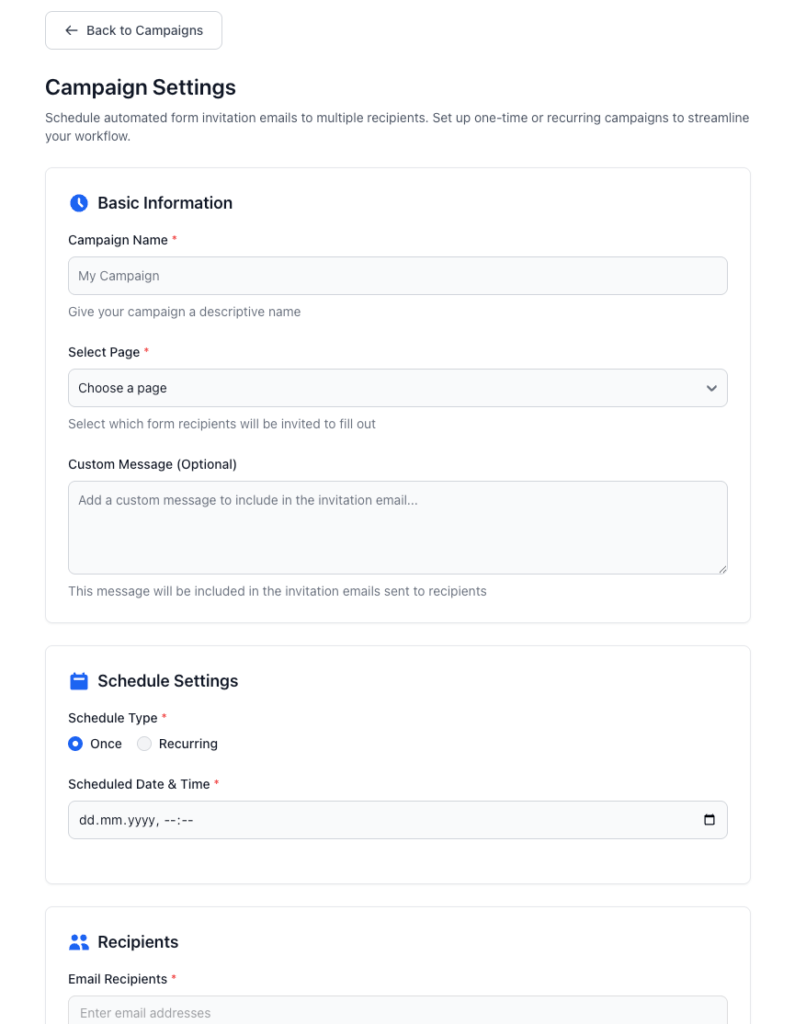
Document collection often fails because people forget. FileDrop can send reminder emails so your team does not have to manually chase every missing document.
This is one of the biggest advantages over email: the follow-up process can be built into the request itself.
Cloud Storage Integrations
Files collected through FileDrop can be organized into cloud storage destinations such as Google Drive, Dropbox, and OneDrive.
This helps teams avoid downloading attachments from email and manually re-uploading them into the correct folder.

Google Sheets and Airtable Workflows
FileDrop can support workflows where submissions are tracked in Google Sheets or Airtable. This is useful when teams want a lightweight dashboard for statuses, assignments, approvals, payment tracking, or operational reporting.
Example:
An invoice submission can be collected through FileDrop, saved to Google Drive, added to a Google Sheet, and reviewed by finance with approval and payment status columns.
Approval Workflows
Email approvals often become messy because approval decisions are buried in replies. FileDrop can support structured review flows where submissions are approved or rejected more clearly.
This is useful for:
- Invoice approval
- Candidate document review
- Legal intake review
- Vendor approval
- Assignment review
- Client asset approval

Secure Send and PDF Sharing
Document workflows are not only about receiving files. Teams also need to send files and share documents securely.
FileDrop includes:
- Secure Send for controlled file delivery
- PDF sharing links with tracking, branding, password protection, watermarking, expiration, and view/download controls
This means teams can use FileDrop for both collection and controlled sharing.

When Email Is Still Fine
Email can still work when:
- The request is rare or one-off
- Only one file is needed
- The document is not sensitive
- There is no deadline
- No one needs to track missing items
- No structured data is required
- The team does not need storage routing, approvals, or reporting
For casual document exchange, email is convenient.
For repeatable document collection, email becomes expensive in time and mistakes.
When to Use FileDrop Instead
Use FileDrop when:
- You collect documents from many people
- You need more than one file per request
- You need form data with the files
- You need to know what is missing
- You want automatic reminders
- You want a branded client-facing upload page
- You need files organized in Google Drive, Dropbox, or OneDrive
- You track submissions in Google Sheets or Airtable
- You need approvals or review steps
- You share PDFs or secure files with clients
- You want API or webhook automation
Example Workflows
Accounting and Bookkeeping
Instead of emailing a tax document list, an accountant sends a branded FileDrop request page with required upload fields for W-2s, 1099s, receipts collection, prior-year returns, and supporting documents.
The client uploads everything through one link. The accountant receives email notifications, sees what is missing, and can store files in the correct cloud folder.
Invoice Approval
A vendor or employee submits an invoice through a FileDrop form. The form collects vendor name, invoice number, due date, amount, department, approver, and the invoice file.
The file is saved to cloud storage, the response is added to Google Sheets or Airtable, and finance can track approval and payment status.
HR Onboarding
HR sends a new hire one FileDrop link for IDs, tax forms, signed policies, certifications, emergency contact details, and direct deposit information.
Instead of chasing attachments across email, HR receives one structured submission with the required files and fields.
Legal Intake
A law firm uses FileDrop to collect case documents, IDs, signed forms, evidence, contracts, and notes through a secure branded page.
The team can review submissions, track missing items, and avoid confidential files being scattered across inboxes.
Agency Client Asset Collection
An agency asks a client to upload logos, brand guidelines, photos, product details, copy, and campaign notes through a FileDrop request page.
The agency receives organized files and structured project details instead of a long email thread with mixed attachments.
How to Move From Email to FileDrop
Step 1: Choose One Repeated Request
Start with a process your team repeats often.
Examples:
- Client onboarding
- Invoice submission
- Tax document collection
- Vendor paperwork
- Candidate documents
- Assignment submission
- Project intake
Step 2: List the Required Information
Write down the fields you normally ask for by email.
Examples:
- Name
- Company
- Document type
- Project
- Due date
- Amount
- Notes
- Approval owner
Step 3: Add File Upload Fields
Create upload fields for each type of document or file you need. Make important files required so users cannot submit an incomplete request by accident.
Step 4: Add Instructions and Branding
Use your logo, colors, and clear instructions so the request feels professional and easy to follow.
Step 5: Connect Storage and Tracking
Connect Google Drive, Dropbox, OneDrive, Google Sheets, or Airtable depending on how your team stores and tracks documents.
Step 6: Turn On Notifications and Reminders
Notify your team when a new submission arrives and use reminders to reduce manual follow-up.
Step 7: Replace Email Attachments With the FileDrop Link
Instead of saying “please reply with the documents,” send the FileDrop link.
Suggested email copy:
Please upload your documents through this secure request page so we can track everything in one place: [FileDrop link]
Bottom Line
Email is fine for simple communication, but it is a weak system for collecting documents at scale.
FileDrop gives teams a structured way to collect files and form data through branded request pages, upload fields, checklists, reminders, notifications, approvals, storage integrations, spreadsheet workflows, API access, Secure Send, and PDF sharing.
For teams that regularly chase documents, FileDrop can replace scattered email attachments with one repeatable workflow. Sign up here.
The Bottom Line:
One keeps you awake. The other gets work done.
A month of coffee: $80
A month of FileDrop: $19
Why not have both?


