


File uploads are where a lot of WordPress forms start to fall apart.It’s one thing to collect a name, an email address, or a message.
It’s another thing entirely to accept contracts, PDFs, MS office files, or other documents without running into storage headaches, permission issues, or messy file handling behind the scenes.
That’s why FileDrop Forms stands out: it’s built specifically for collecting files, not just general form data. If you prefer video you can see the demo here.
Why file uploads need a different kind of form
Most WordPress form plugins do a decent job when the goal is simple data collection. If all you need is a contact request or a lead form, tools like WPForms, Gravity Forms, or Fluent Forms can get the job done.
But once file uploads enter the picture, the limitations become harder to ignore. Uploaded files have to be stored somewhere.
They have to be handled correctly by the host. They need to be accessible to the right people and protected from the wrong ones. And if users are sending documents, you also have to think about safety.
That’s the gap FileDrop Forms is built to fill vs WordPress form plugins. Instead of treating file upload as one feature among many, it focuses on the part that matters most: collecting files reliably and making them easy to manage afterward.
Building a WordPress File Upload Form
Creating the form is straightforward.
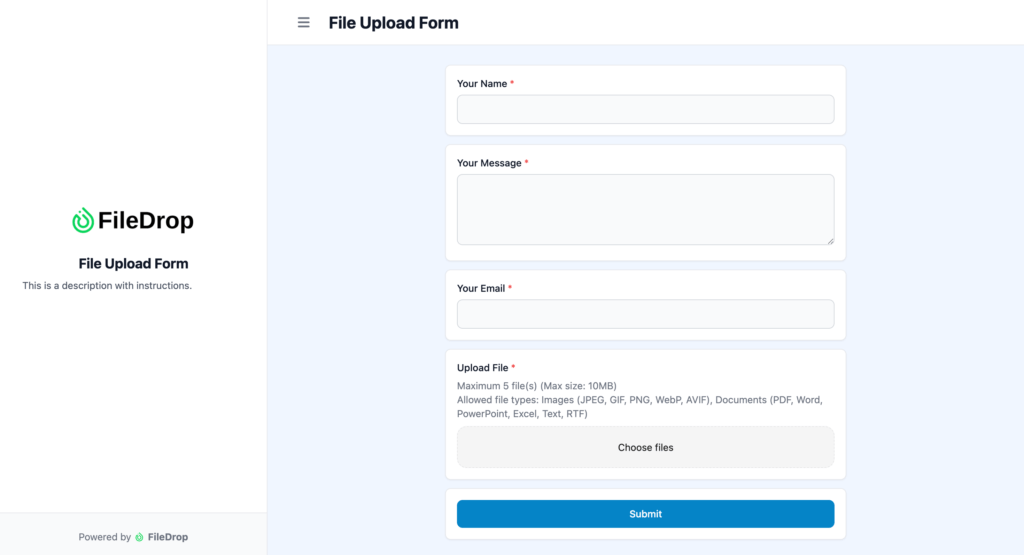
The demo starts by replacing an existing Fluent Form on a WordPress site with a FileDrop Form. A new form is created and named something like “Active Merge Contact Form.” From there, the basic fields are already in place: name, email, and an upload field.
To make the form more useful, a paragraph field is added for the message itself. The submit button text is changed to “Send Message,” which makes the action clearer and more natural for the visitor. The form is then kept simple and clean, without extra page title text or unnecessary clutter.
That simplicity matters. When you’re collecting files, you want the form to feel direct. The fewer distractions on the page, the easier it is for someone to complete it.
Choosing how the form should appear
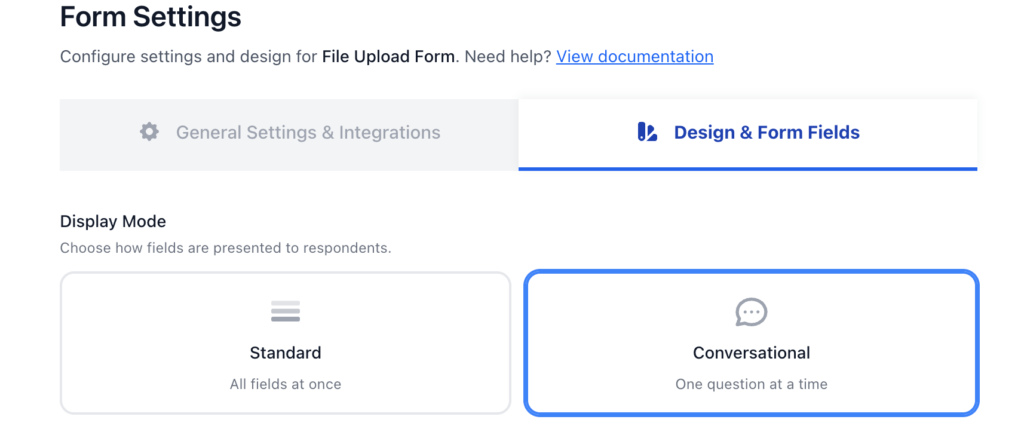
FileDrop Forms gives you two main display styles.
You can show all fields at once in a standard form layout, or you can use a conversational format where one question appears at a time, similar to Typeform. For this example, the standard layout is the better fit. It keeps the experience familiar and practical, especially for a contact form that includes file upload.
There are also a few important settings to decide on before publishing:
- Verification shield / CAPTCHA: This helps confirm the user is real via Verifence.
- Notification emails: You can send responses to the main account email and add additional recipients for other team members.
- Confirmation emails: You can send a message back to the person who submitted the form, though that wasn’t enabled in this case.
Those options give you enough control to shape the form around your workflow without making setup complicated.
Adding security for uploaded files
One of the most important parts of the setup is virus scanning.
This is where FileDrop Forms goes beyond a typical form plugin. Uploaded documents can be scanned for phishing links or malware before they become a problem using Verifence, our built its own in-house scanning system, combined with APIs and antivirus tools designed specifically for documents. Verifence also offers an anti-spam solution to protect your forms from bot or spam submissions.
That focus makes sense. A lot of users aren’t just uploading images or casual attachments — they’re sending PDFs, Office files, and other documents that may need to be handled carefully. If your business receives files from clients or leads, security is not optional.
This is also where the platform’s purpose becomes clear. It wasn’t built just to accept files. It was built because file uploads created real problems, and those problems needed a better solution.

Embedding the form on a WordPress site
Once the form is ready, embedding it on the website is simple.
FileDrop provides multiple embed options:
- inline embed
- popup
- iframe
- direct link
The HTML embed code is copied and pasted into an Elementor site using an HTML block. The old form is removed, the new FileDrop embed is dropped in, and the form appears on the page right away.
That ease of integration is a big part of the appeal. You don’t need to rebuild your site around the form. You just place it where it belongs and publish.
Testing the form in real use
After publishing, the form must be tested with a sample submission. A name, email address, message, and file are entered, along with the CAPTCHA verification to confirm the visitor is real.
That matters because a file upload form isn’t useful until you know it actually works in practice. A clean setup is nice, but the real test is whether someone can submit a message and attach the file without friction.
Here, the process is simple enough to feel usable but still robust enough to handle real submissions.
Managing submissions after they come in
Once a form is submitted, the responses are available inside FileDrop.
From there, you can review the submission details, download uploaded files, and manage attachments in a few different ways. Multiple files can be downloaded together in a ZIP file. If the uploaded file is an image or a document, you can preview it directly in the platform. PDFs can be viewed inline, which makes quick review easier.
The demo also shows analytics, which adds another layer of usefulness. Instead of treating form submissions as isolated events, you can track what’s happening over time and get a better sense of how the form is performing.
That combination of file access, previewing, and analytics makes the workflow more complete. You’re not just collecting files — you’re managing them.

Integrations
FileDrop forms is integrated with:
- Google Drive
- Google Sheets
- Dropbox
- OneDrive
- Airtable
- Excel
The real advantage
The main takeaway is simple: if your WordPress site depends on file submissions, a general-purpose form plugin may not be the best tool for the job.
FileDrop Forms is designed for a specific problem, and that focus pays off. It gives you a fast setup, flexible embedding, security features like virus scanning, and clear submission management after the fact. It’s especially useful for teams that need to collect documents regularly and don’t want to fight with file handling limitations.
If you’ve been forcing a standard form plugin to do work it wasn’t really built for, FileDrop is worth a look.
| Feature | FileDrop Forms | Gravity Forms | WPForms | Contact Form 7 | Ninja Forms |
|---|---|---|---|---|---|
| File upload fields | Yes | Yes | Yes (paid) | Yes (add-on) | Yes (paid tier) |
| Files stored on server | No | Yes | Yes | Yes | Yes |
| Auto-route to Google Drive | Yes | Add-on ($) | Add-on ($) | No | No |
| Auto-route to Dropbox | Yes | Add-on ($) | Add-on ($) | No | No |
| Auto-route to OneDrive | Yes | No | No | No | No |
| Virus scanning on upload | Yes | No | No | No | No |
| Document collection portal (OTP-gated) | Yes | No | No | No | No |
| Per-invitee sent/read/responded tracking | Yes | No | No | No | No |
| Approval workflow | Yes | Add-on ($$$) | No | No | No |
| Automatic follow-up reminders | Yes | No | No | No | No |
| Conversational (one-question) mode | Yes | No | Add-on ($) | No | No |
| Google Sheets sync | Yes | Add-on ($) | Add-on ($) | No | Add-on ($) |
| Airtable sync | Yes | No | No | No | No |
| Repeatable field groups | Yes | Yes | No | No | No |
| Signature field | Yes | Add-on ($) | Add-on ($) | No | Add-on ($) |
| Submission metadata (IP, location, device) | Yes | Yes | Yes (paid) | No | No |
| Custom domain | Yes | Via WordPress | Via WordPress | Via WordPress | Via WordPress |
| Embeddable (external sites) | Yes | Yes | Yes | Yes | Yes |
| Password-protected forms | Yes | Yes (add-on) | Yes (paid) | No | No |
| QR code generation | Yes | No | No | No | No |
| No server maintenance required | Yes | No | No | No | No |
FAQ
What is FileDrop Forms used for?
FileDrop Forms is used for collecting files via upload forms, especially when you need a better way to handle documents, uploads, and submission management.
Can I use it for normal contact forms too?
Yes. The demo uses it as a contact form with name, email, message, and file upload fields.
Does FileDrop support file security?
Yes. It includes virus scanning for uploaded documents and uses in-house scanning along with antivirus and API-based protection.
How do I embed the form on my site?
You can embed it using inline code, a popup, an iframe, or a direct link. In the demo, the form is added to an Elementor page using an HTML block.
Can I download and preview submitted files?
Yes. You can download uploaded files, including multiple files as a ZIP, and preview certain file types like PDFs directly in the submission view.
Is FileDrop only for WordPress?
The demo focuses on WordPress, but the form can also be embedded with any CMS that supports HTML embedding.
If you need a cleaner way to collect files on WordPress, the difference is hard to miss once you try it. FileDrop Forms keeps the process simple for users and far more manageable on the backend.
The Bottom Line:
One keeps you awake. The other gets work done.
A month of coffee: $80
A month of FileDrop: $19
Why not have both?


