


The easiest way to share a PDF as a link is to upload it somewhere like a cloud storage service, your website, or a dedicated PDF hosting tool, and copy the URL it generates. No attachments, no inbox clutter, and no file size errors.
This guide covers three methods, from the quickest free option to the most professional. Pick the one that fits your situation:
Method 1: Cloud storage (Google Drive, Dropbox, OneDrive) — free and fast
Method 2: FileDrop PDF Hosting — best for professional, secure, and trackable sharing
Method 3: Embed on your website — best if you run a blog or CMS
1. Use a Cloud Storage Service
If you already use Google Drive, Dropbox, or OneDrive, you can create a link to a PDF in under a minute. Upload the file, adjust the sharing settings, and copy the link.
Google Drive
- Upload your PDF to Google Drive.
- Right-click the file and select Share or Get link.
- Under General access, change the setting to Anyone with the link.
- Click ‘Copy link’ and share it wherever you need.
By default, Google Drive links are view-only, meaning the recipient can read but not edit the file. If you want to allow downloads, leave the setting as-is — Drive lets viewers download PDFs unless you’ve restricted it in your Google Workspace admin settings.

Dropbox
- Upload your PDF to Dropbox by clicking the upload button
- An upload widget will appear with the upload progress. Once uploading is complete, click “Copy Link” to generate a shareable link
- By default, the shareable link can be shared and viewed by anyone
- Click “Manage” to view the sharing settings
- If you want to share a PDF with a specific person, select “only people invited” and input their email address
- To enable other settings, you must be a paid plan user.


OneDrive
- Click the ‘Create or Upload’ button and select ‘Files Upload.’
- Once the upload is complete, go to ‘My Files’, right-click your PDF, and select ‘manage access.’
- In the pop-up, select ‘Link.’
- To change the access type, click the pencil icon and choose between ‘Can Edit’ or ‘Can View.’
- Then click on ‘copy.’


These services let you set view-only permissions so people can’t edit if that’s not wanted. This might not be the most professional way to share a PDFs as a link, but it’s simple and easy.
3. Use a Dedicated PDF Hosting / Sharing Tool — FileDrop
If you need more than just a link — you want to control who can view it, for how long, and whether they can download or print it — a dedicated PDF hosting tool is the right choice.
FileDrop lets you upload a PDF and instantly generate a secure, shareable link with a built-in browser viewer. No email attachment, no Drive link, no account required for the person receiving it.
Step 1: Create a free FileDrop account
Go to app.getfiledrop.com/register and sign up with your email. The free plan lets you share up to 5 PDFs with no credit card required.

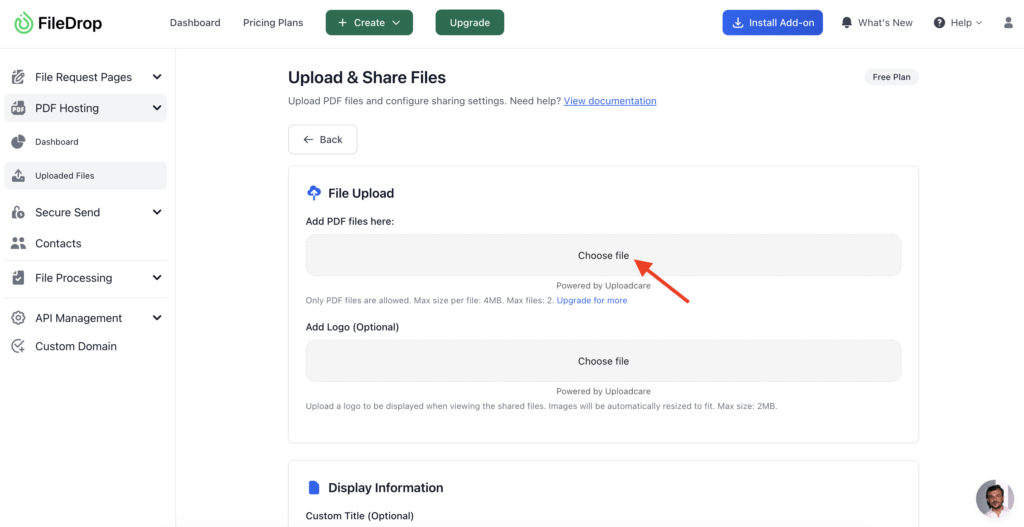
From your FileDrop dashboard, click ‘Host PDF.’ This is where you upload your file and configure how it will be shared.

Step 3: Upload your PDF
Drag and drop your PDF into the upload area, or click to browse from your device. FileDrop also supports uploads from Google Drive, Dropbox, and OneDrive. You can upload multiple files under a single link.
Step 4: Set your access controls
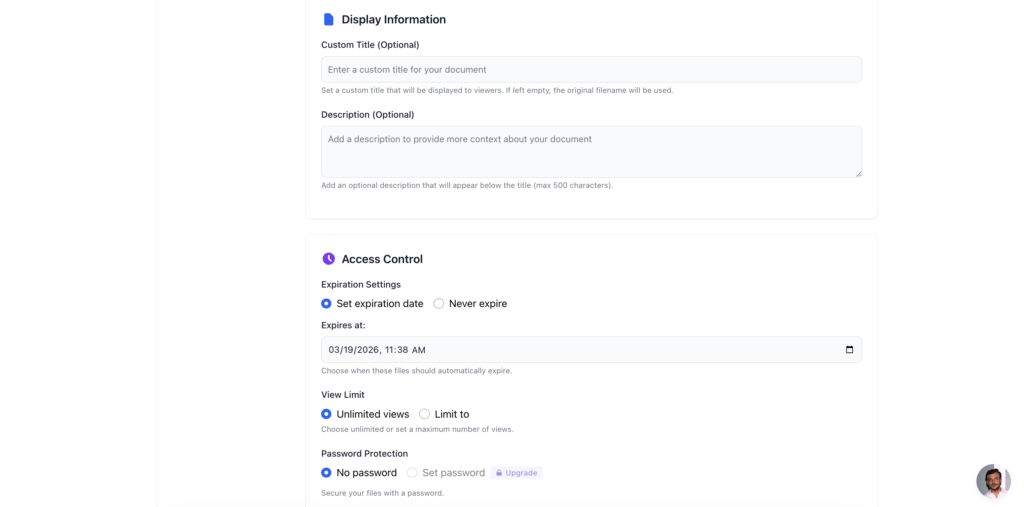
Before generating the link, configure how and when your PDF can be accessed:
1. Display Information: Add a custom title and description (completely optional)
2. Access Control: Configure settings like expiration date, view limit, and password protection
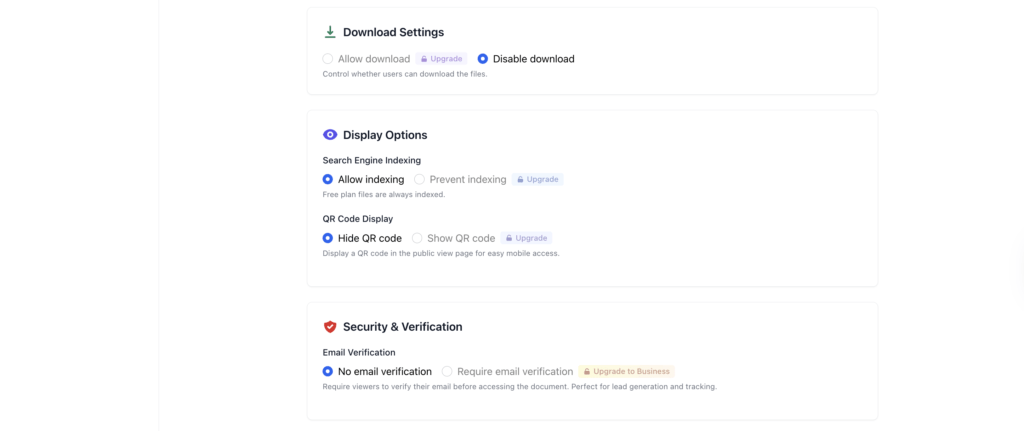
3. Download Setting: Allow or disable the download of your PDF
4. Display Options: Allow search engine indexing and QR code generation
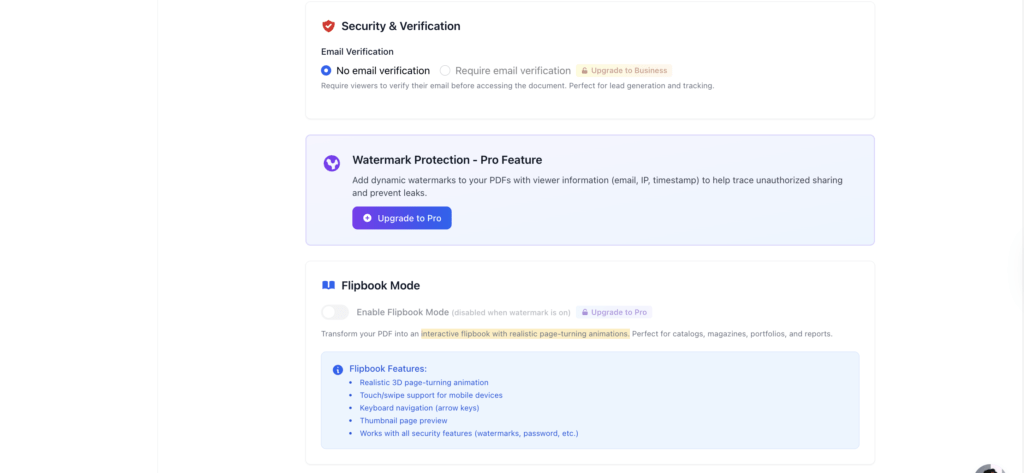
5. Security verification: enable or disable email verification (this is perfect for tracking and lead generation)
6. Watermark Protection (Paid): Add a watermark on your document to avoid unauthorized sharing or use.
7. Flip Book Mode (Paid): Convert your PDF to an interactive flipbook with realistic page-turning animations.
Step 5: Generate your link and QR code
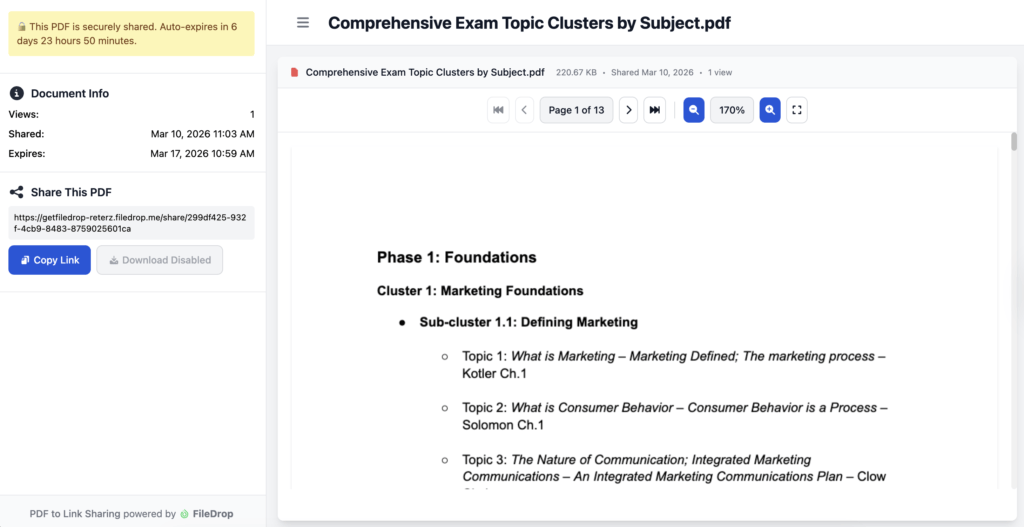
Click Upload. FileDrop instantly creates a secure shareable URL and a QR code. Both allow recipients to view the PDF in any browser with no account or app download needed.

You can share the link via email, Slack, SMS, or even turn it into a Facebook post. The QR code is handy for printed materials like brochures, signage, and business cards.
Copy the link and share it through any channel. Recipients open the PDF directly in their browser on any device without having to log in or download anything.
You can also use FileDrop’s built-in email invite feature: click Send Invite, enter one or more email addresses, and FileDrop sends each recipient a secure link with a QR code attached.
📋 Real-world example:
A law firm needs to send a final contract to a client. Instead of attaching it to an email where it could be ignored, forwarded, or downloaded indefinitely, they:
- Upload the contract to FileDrop
- Set it to expire after 3 views or 7 days
- Add a password and a note: Please review this contract before Friday.
- Copy the link and send it through their client portal
The client sees a clean, branded PDF viewer. The firm knows exactly when it was opened — and when to follow up.
3. Embed in a Website
If you run a website and want visitors to view or download a PDF directly from a page, you can upload the file to your server and link to it — or embed it inline so it displays in the browser without any download required.
Upload via your CMS (WordPress, Webflow, etc.)
- Log in to your website’s CMS (WordPress, Webflow, Squarespace, etc.).
- Navigate to your media library or file manager and upload the PDF.
- Once uploaded, copy the file URL — it will look something like yoursite.com/wp-content/uploads/yourfile.pdf.
- Paste the URL into a page or post as a hyperlink, or use your CMS’s PDF block to embed it inline.
Upload via FTP (advanced)
- Connect to your server using an FTP client (like FileZilla).
- Upload the PDF to your public directory.
- Link to it in HTML:
<a href=”https://yourwebsite.com/yourfile.pdf” target=”_blank”>View PDF</a>
Want to force a download instead of opening in the browser? Add the download attribute:
<a href=”yourfile.pdf” download>Download PDF</a>
Want to open a specific page automatically? Append #page=[number] to the URL:
https://yourwebsite.com/yourfile.pdf#page=3
Embedding is the right choice when the PDF is a permanent part of your site. Examples of these are product brochures on a landing page, a downloadable guide, or a menu on a restaurant’s website. The downside is that once the file is live, you have no way to expire the link or track who’s viewing it.
When to use each method?
Not sure which option is right for you? Here’s a quick breakdown:
| Situation | Best Method | Free | Control Level |
|---|---|---|---|
| Quick casual share | Cloud Storage (Google Drive, Dropbox) | Yes | Low |
| Professional/secure sharing | FileDrop PDF Hosting | Free trier, 5 files | High |
| PDF on your website | Embed (HTML upload | Yes | Medium |
The short version: if you’re sharing a file with a colleague or making a document available on your website, cloud storage or embedding will do the job. If you need the link to expire, the file to be password-protected, or you want to know when someone’s opened it, FileDrop is the better choice.
Conclusion
Sharing a PDF as a link is almost always better than sending it as an email attachment — no size limits, cleaner communication, and easier to control who has access. The method you choose depends on how much control you need.
For quick, informal sharing, Google Drive or Dropbox works perfectly well. For documents that live on your website, embedding is the right approach. And for professional use — contracts, proposals, reports, anything sensitive — FileDrop gives you the control and presentation that a generic cloud link can’t.
FAQ
Can I make a PDF link without using any special tools?
Yes. If you have your own website or access to cloud storage (Google Drive, Dropbox, OneDrive), you can upload the PDF and copy the shareable link.
How do I make a PDF link download automatically instead of opening in the browser?
In HTML, you can add the download attribute to your <a> tag. Example:
<a href=”file.pdf” download>Download PDF</a>
What’s the advantage of using FileDrop over Google Drive or Dropbox?
FileDrop gives you advanced controls like passwords, expiration dates, view/download limits, and even the option to disable downloads. This makes it ideal for contracts, client reports, or other sensitive files.
Yes. Free accounts let you share up to 5 files. Paid plans remove those limits and unlock more features.
The Bottom Line:
One keeps you awake. The other gets work done.
A month of coffee: $80
A month of FileDrop: $19
Why not have both?


