Creating a document upload portal can help make file submission easy and organized for you and your users. Whether you’re collecting contracts, agreements, or any other type of document, using FileDrop’s new File Request Pages feature can simplify the process.
Why Do You Need a Document Upload Portal?
A document upload portal helps streamline file submissions. Instead of collecting files via email or physical submission, a portal lets users upload documents securely and efficiently.
With the rise of remote work, online submissions, and digital documentation, having a portal where everything can be uploaded and managed in one place is more important than ever.
FileDrop’s File Form makes this even easier by offering a customizable form for file uploads.
Step 1: Create a FileDrop Account
First, go to app.getfiledrop.com/ and sign up for a FileDrop account. If you don’t already have one, sign up by entering your email and creating a password. After verifying your email, you’ll have access to the dashboard where you can manage your file forms and settings.

Step 2: Access the File Form Feature
After logging in, navigate to the “File Forms” section. This feature allows you to create customized forms for document uploads. You’ll find it on the dashboard or in the settings menu.

Step 3: Design Your Form
Click the “Forms” tab to create your form.

Then, click Add New Form to start designing your form.

The Page is fully customizable. You can choose the fields you want, such as name, email, description of the document, etc.
Add any necessary questions or instructions so users can fill out the form properly. Keep it simple and easy to understand to avoid confusion.
You can customise the form depending on your preferences:
- Set form fields (like name, email, message)
- Restrict file types
- Add your logo, description, or instructions
- Enable email notifications for new uploads

Step 4: Add File Upload Fields
One of the key features of the File Form is the ability to let users upload files.

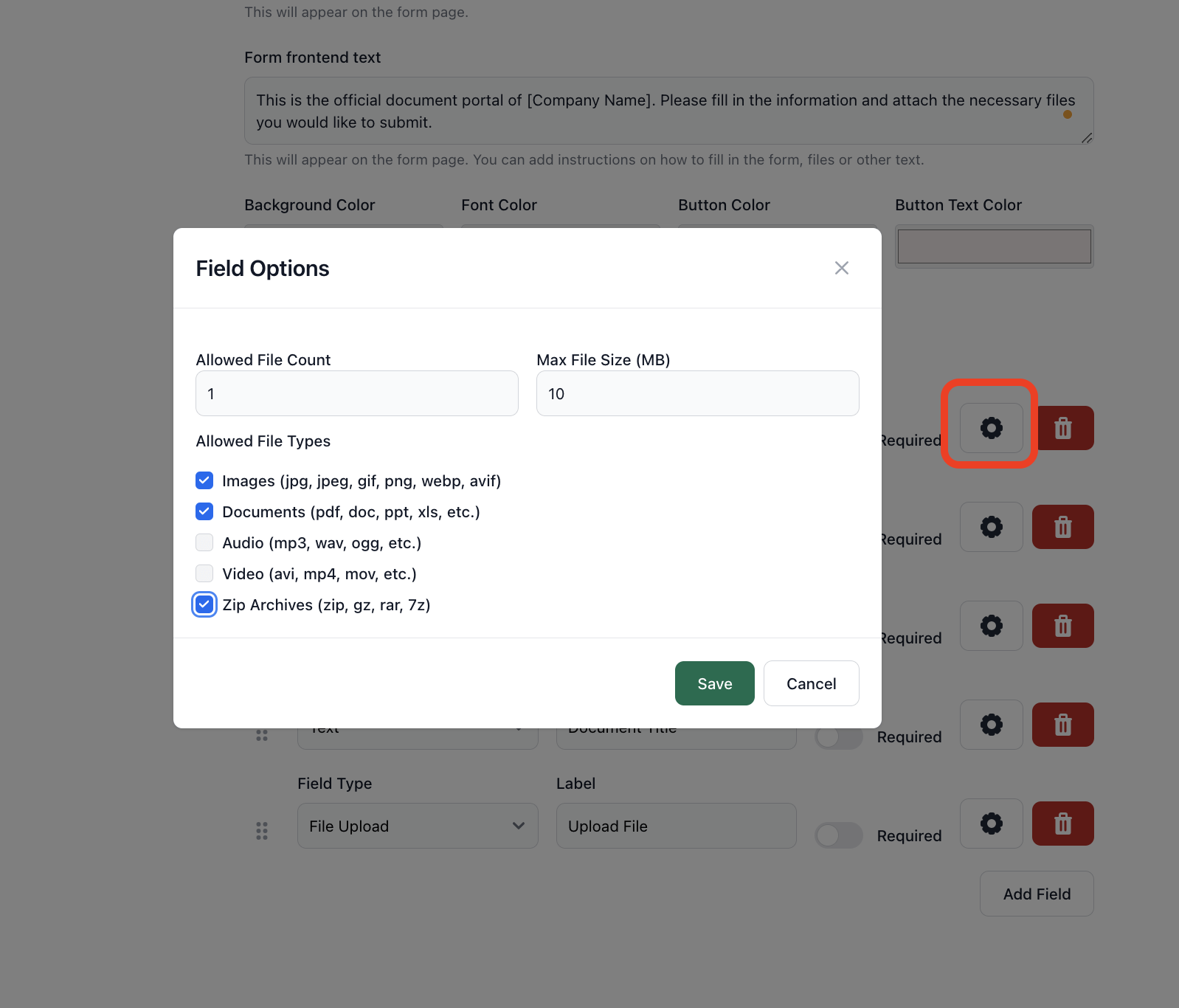
You can specify what type of files are allowed (PDF, Word documents, etc.). To do this, click the Settings icon on the right side, just beside the Trash icon. Make sure you include a clear upload button, so users can easily attach their documents to the form.
Step 5: Configure Google Drive Integration Settings
Set up any preferences for your File Form. This includes notifications, like receiving an email each time someone submits a file. You can also adjust privacy settings, so you know that your submissions are secure.
Once you are satisfied with the form’s setup, save the form by clicking the Create Form button.
Now, you will see a prompt that leads you to finish your Google Drive integration. To complete this step, simply click the Connect Google Drive button.

Once successfully connected to your Google Drive, you will see this prompt:

Sample form:

Once you’ve finished designing your File Form, you’ll get a shareable link. This link can be embedded on your website, shared via email, or sent through social media. When someone clicks the link, they’ll be able to fill out the form and upload their document directly to your FileDrop portal.

Step 7: Monitor Submissions
You can track all the files submitted through your portal in real time. You will also receive an email notification if someone submits a response using your form.
You can also connect Google Sheets or Airtable to monitor and track submissions.

FileDrop allows you to see who submitted the document, when it was uploaded, and what file was shared. To see the responses, simply click the Form Responses tab.

You can download the files or organize them into folders as needed.
Sample Response Information:

Step 8: Manage Your Files in Google Drive
FileDrop integrates seamlessly with Google Drive, so any files submitted through the portal can be stored directly in your Google Drive. This helps with organization and access, ensuring you have all your files in one place.

Benefits of Using FileDrop File Forms
FileDrop’s File Forms offer a range of benefits across various industries, helping businesses streamline document collection, enhance efficiency, and improve organization.
Whether you’re working in marketing, law, HR, education, or another field, FileDrop’s File Forms can be a valuable tool to simplify the way you handle document submissions.
For Marketing Agencies
Marketing agencies can use FileDrop File Forms to easily collect creative briefs, contracts, or design files from clients. By customizing the form fields, agencies can request specific information and files, reducing the need for back-and-forth emails.
For Legal Departments
For legal departments, FileDrop File Forms can be used to gather contracts, legal forms, and evidence securely. It simplifies client interactions and ensures that all documents are submitted in the correct format, making the review process much smoother.
For HR Departments
HR departments can utilize FileDrop File Forms to collect resumes, cover letters, and employee documents during recruitment or onboarding. This reduces manual data entry and makes document management more efficient and organized.
For Education
In education, FileDrop is great for collecting assignments, applications, or even course materials. Teachers and administrators can set up forms that allow students to submit documents easily, saving time and ensuring proper organization.
For Other Industries
Across various other sectors, FileDrop File Forms help streamline file collection and reduce paperwork. This tool can be used by anyone who needs to gather documents from clients, employees, or customers.
Key Benefits
- Easy-to-use interface for submitting files
- Customizable forms to request specific documents
- Secure file collection with no need for email attachments
- Integration with Google Drive for organized storage
With FileDrop File Forms, industries can save time, improve efficiency, and keep all their submissions organized in one place.
Final Thoughts
Having a document upload portal is a game-changer for businesses, schools, or anyone who needs a streamlined way to receive files.
With FileDrop’s File Form, you make the process easy for your users and keep everything neatly organized and secure. It’s an efficient solution that saves time and reduces the hassle of managing multiple file submissions.
Frequently Asked Questions
Can I limit the types of files that can be uploaded?
Yes, FileDrop allows you to set file type restrictions in the File Form. You can specify which file formats are allowed, such as PDFs, Word docs, or images. This ensures only the correct types of files are submitted.
How do I receive notifications when someone submits a file?
You can configure FileDrop to send you email notifications every time a submission is made. This allows you to stay updated and ensures you don’t miss any important documents.
Is there a limit to how many files can be uploaded?
FileDrop does not impose a strict limit on the number of files you can upload. However, the file size may be limited depending on your storage plan. You can always upgrade to get more storage if needed.
The Bottom Line:
One keeps you awake. The other gets work done.
A month of coffee: $150
A month of FileDrop: $19
Why not have both?