HR teams often need to share sensitive employee documents, from employment contracts to pay stubs, tax forms, and performance reviews. Traditionally, email has been the default tool — but it’s far from secure. Attachments can be lost, accidentally forwarded, or blocked due to size limits. Confidential employee data is also exposed to phishing attacks, compromised inboxes, and accidental leaks.
FileDrop’s secure file sending service offers a safer, faster, and more professional way to share employee documents. With Secure Send, HR teams can deliver files securely, control access, and maintain compliance — all without relying on email. This step-by-step guide walks you through setup, sending, and best practices.
Why Email Fails for HR Communication
Before using Secure Send, it’s important to understand why email is a poor fit for sharing HR documents:
- Lack of end-to-end security: Emails and attachments travel through multiple servers that can be compromised.
- Forwarding risk: Employees could unintentionally share sensitive files with others.
- File size limits: Many HR documents, especially contracts with attachments or large pay stubs, can exceed email limits.
- No audit trail: You can’t prove when an employee received or accessed a file.
- Inbox clutter: Important HR communications can get buried or lost in threads.
For HR teams handling confidential employee information, these risks are unacceptable.
What FileDrop Secure Send Offers for HR Teams
Secure Send replaces email attachments with a secure, branded download page. Upload files once, send a secure link, and employees can download documents safely — without creating an account or logging in.
Key benefits for HR teams:
- Confidentiality by design: Encrypted file transfer with links that expire after first download or within 30 days.
- Large file support: Send up to 100 files per transfer, each up to 1 GB.
- Professional experience: Branded download pages with company logos and instructions.
- Audit trail: Track exactly when the secure message was opened and when files were downloaded.
- Ease of use: Employees just click the link — no passwords or technical barriers.
Step-by-Step Tutorial: Sending Employee Documents Securely
Follow these steps to share employee contracts, pay stubs, and other sensitive documents securely.
Step 1: Register for a FileDrop Account
- Go to FileDrop registration.
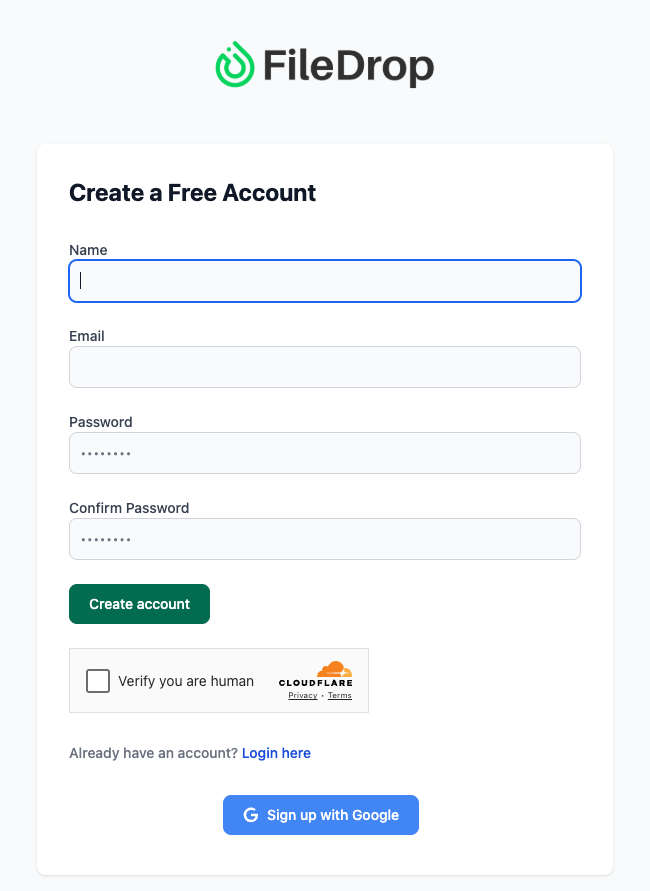
- Sign up using your corporate email.
- Access your dashboard to start using Secure Send and other HR-friendly features.
Your dashboard provides an overview of sent, draft, and expired messages, helping HR teams monitor communications and maintain compliance.
Step 2: Open Secure Send
From your dashboard, select Secure Send, designed for encrypted document delivery.
Dashboard Overview:
- Total Messages, Sent, Draft, Expired: Quickly track the status of all secure messages.
- Most Active Messages: Identify frequently accessed messages.
- Expiring Soon: Receive alerts for links nearing expiration.
- Recent Messages: View your most recent secure sends for auditing or follow-up.
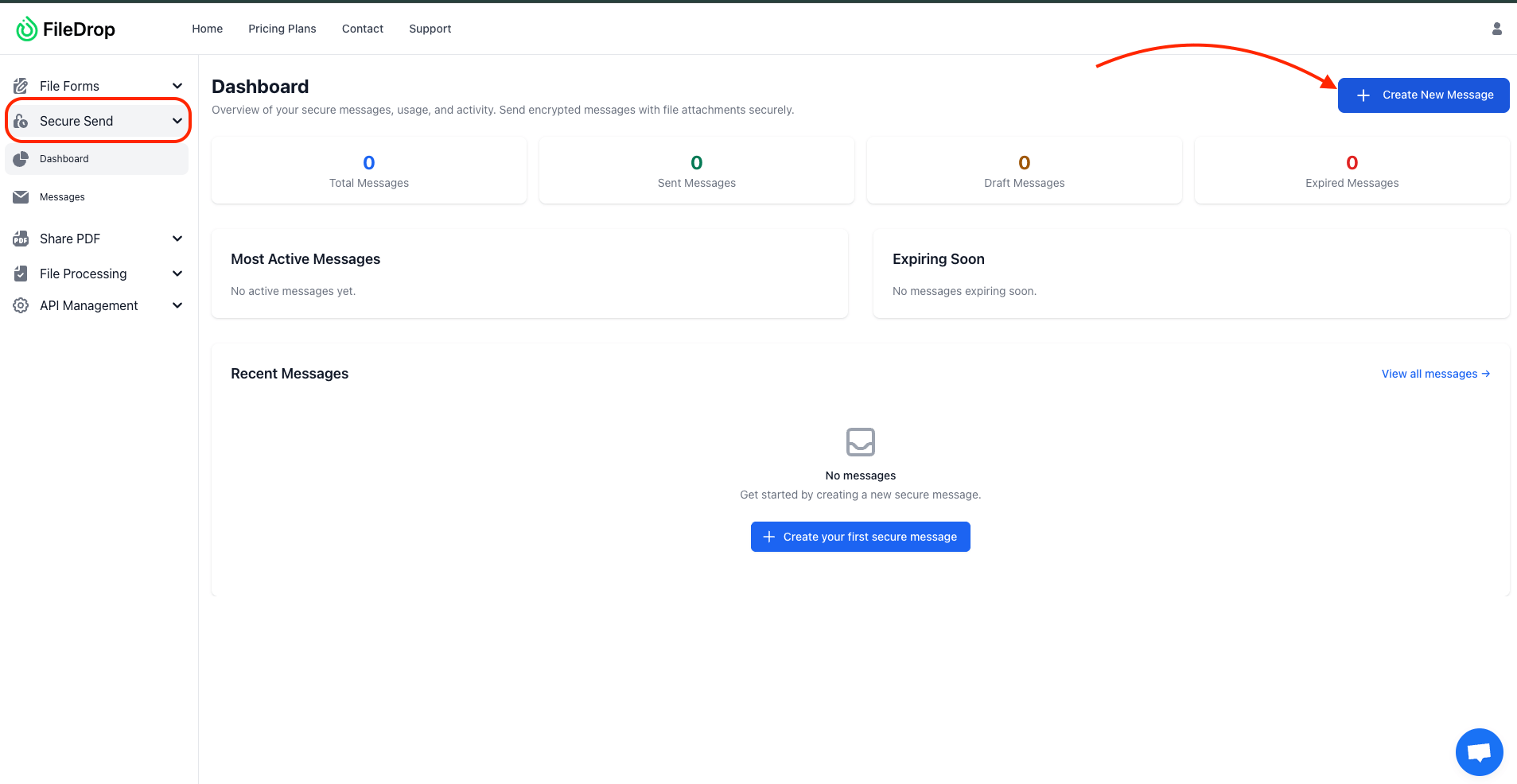
Click Create New Message to start composing a secure message.
Step 3: Create a New Secure Message
The message composer allows HR teams to configure everything an employee needs to access confidential documents safely.
Here’s what you can configure:
- Send To – Enter the recipient’s email address. You can add multiple addresses, separated by commas, to send the same secure message to multiple recipients. Each recipient will receive their own secure link for access.
- Secure Message: Include instructions, updates, or notes relevant to the document. Examples:
- Employment contract delivery instructions
- Pay stub explanations or summary notes
- HR policy acknowledgments

Important: All message content is encrypted and only accessible through the secure link.
- Attach Files: Upload employee documents:
- Employment contracts (PDF/DOCX)
- Pay stubs (PDF)
- Tax forms (W-2, 1099, etc.)
- Performance reviews (PDF)
FileDrop supports up to 100 files per message, each up to 1 GB.
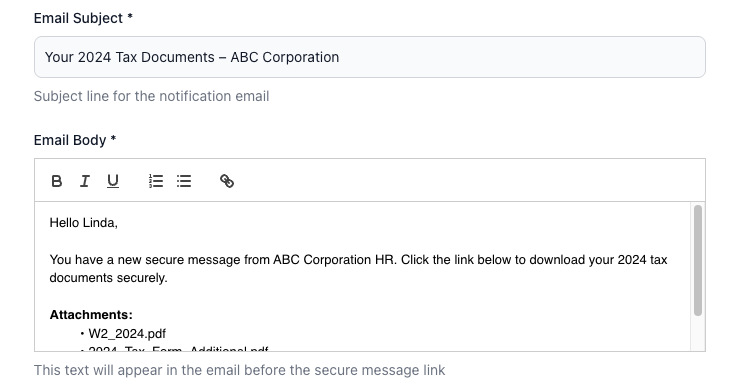
- Email Subject: Notification subject line for the employee, e.g.,
“Your Employment Contract and Pay Stub – Confidential”
- Email Body: Short message appearing in the employee’s inbox before they click the link. Example:
“You have a new secure message from HR. Click the link below to access your documents safely.”
Step 4: Customize the Appearance of Your Secure Page
Before sending, you can personalize the download page to reflect your company’s brand. This creates a more professional, trustworthy experience for your clients.
Here’s what you can adjust:
- Logo (Optional): Upload your company logo to display in the secure message view.
- Background Type: Choose between a solid color or a background image.
- Background Color: Pick a background color for the content area (around the white cards). The default value is #96969c, but you can change it to match your brand palette.
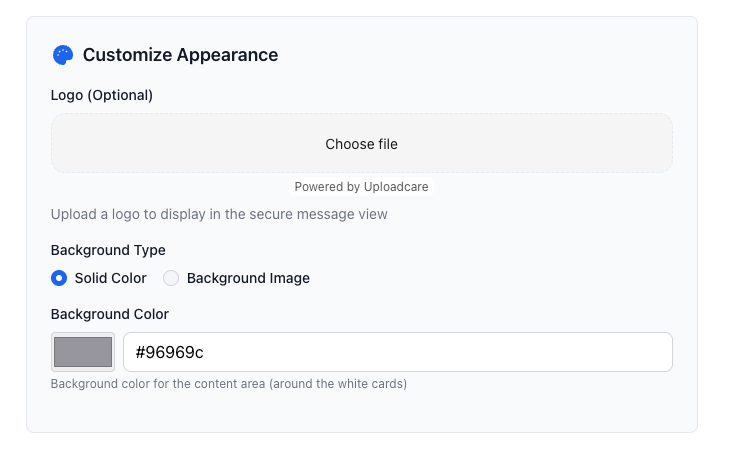
This customization makes your secure page look consistent with your brand, helping clients recognize your company immediately.
Step 5: Set Security Preferences
FileDrop allows HR teams to control access to sensitive employee documents:
- Expire After First Download: Deletes files after access. Ideal for pay stubs or confidential contracts.
- Expiration Date: Automatically expires the link after a set number of days (up to 30).
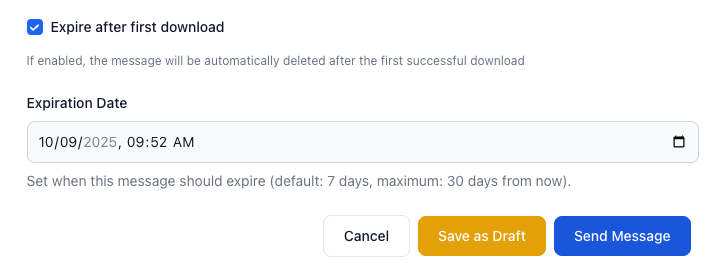
Tip: Using both settings maximizes confidentiality and reduces risk of accidental disclosure.
Step 6: Save, Preview, or Send
After configuring the message:
- Save as Draft: Store and return later if not ready.
- Preview: Review message content and attached files for accuracy and redactions.
- Send Message: Deliver the secure message immediately.
Employees receive a professional email with a secure link. They can access documents safely without attachments in their inbox.
Step 7: Track and Audit
After sending:
- Monitor timestamps showing when the client opened the message and downloaded files.
- Export transfer logs for recordkeeping and compliance purposes.
- Review “Most Active Messages” or “Expiring Soon” dashboards to proactively manage outstanding downloads.
HR Tip: Exported logs can serve as proof of delivery for compliance, audits, or internal HR records.
Real-World Example: Sharing an Employee Contract and Pay Stub
- Upload the employee’s contract and monthly pay stub.
- Set the message:
“Please download your updated employment contract and March 2025 pay stub. This link will expire in 7 days.”
- Enable expire after first download.
- Employee clicks the link, downloads the files, and you see a timestamp confirming access.
- Export the transfer log and save it in HR records for compliance.
Result: Confidential, traceable, and professional delivery — no insecure email attachments involved.
Conclusion: Secure and Efficient HR Document Delivery
Email attachments are risky and outdated. With FileDrop Secure Send, HR teams can share employment contracts, pay stubs, tax forms, and other confidential employee documents securely and efficiently. Control access, enforce expirations, track downloads, and maintain compliance — all while providing a professional, branded experience to employees.
Ready to modernize how your HR team delivers employee documents? Get started with FileDrop today.
Frequently Asked Questions (FAQs)
Do employees need a FileDrop account?
No. Employees click the secure link — no account or login required.
What if I attach the wrong file?
If the employee hasn’t downloaded it yet, you can shorten or cancel the expiry period to revoke access.
Can I track when the employee downloads a file?
Yes. Secure Send provides timestamps showing when the message was read and when files were downloaded.
How large of a file can I send?
You can send up to 100 files per transfer, each up to 1 GB.