A step-by-step workflow for converting PDF files into shareable links and distributing them instantly — all with just a Google Sheets spreadsheet and a Google Drive folder.
The Challenge: Sharing Many PDFs Quickly
If you’ve ever needed to send dozens of PDF files to different people, you already know how painful it can be. Attaching files one by one, hitting size limits, managing follow-ups — it adds up fast. I needed a smarter system, and I found one by combining three tools: Google Drive, FileDrop Sheets Add-on, and WhatsApp Blast.
Here’s how the workflow works.
My Step-by-Step Workflow
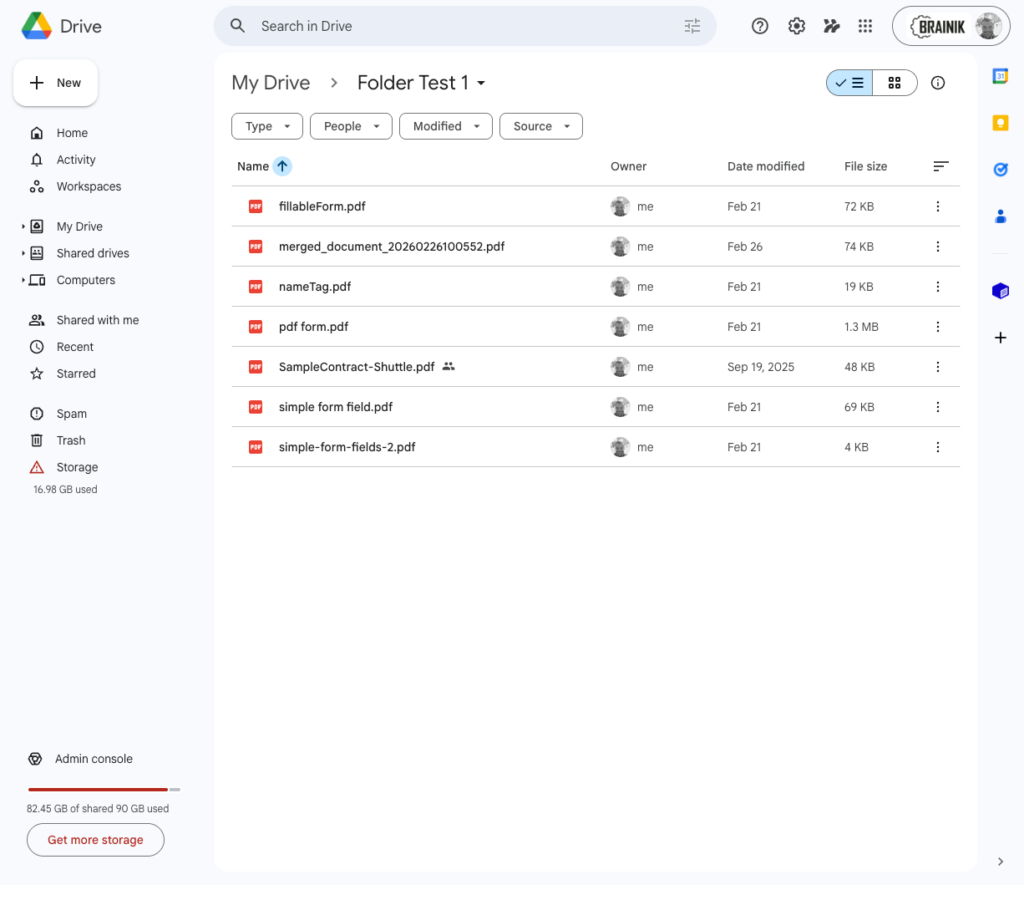
Upload PDFs to a Google Drive Folder
The first thing I do is upload all the PDF files I want to share into a dedicated Google Drive folder. I keep this folder organised and ready in advance so that when it’s time to send, everything is already in one place. Having a clean, purpose-built folder makes the next steps much faster.
Open FileDrop via Google Sheets
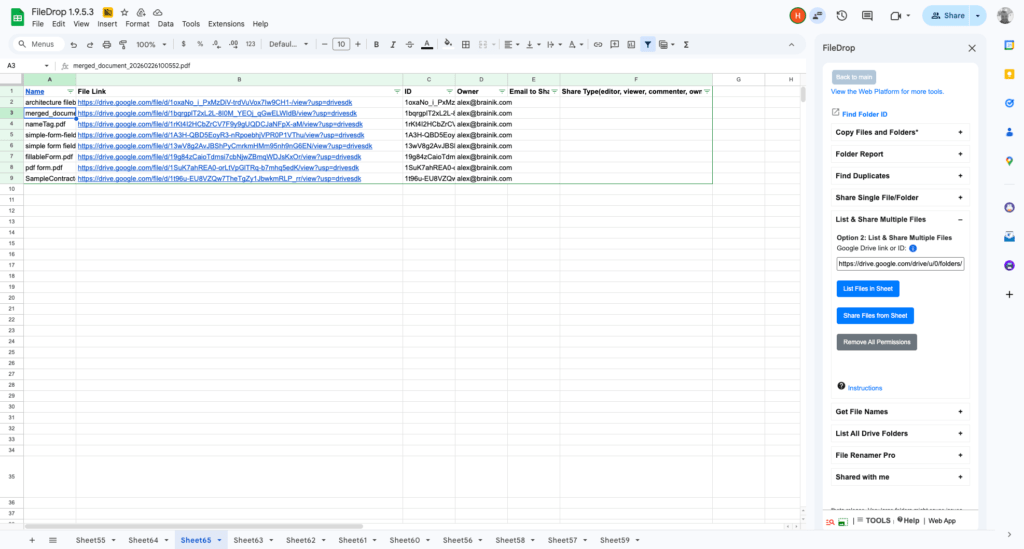
I have a Google Sheets spreadsheet set up specifically to access FileDrop. Once I open the spreadsheet, I launch the FileDrop add-on directly from inside Sheets. This is the bridge that connects my Google Drive files to the link-generation process — no need to visit multiple tools or platforms.
Point FileDrop at the Google Drive Folder
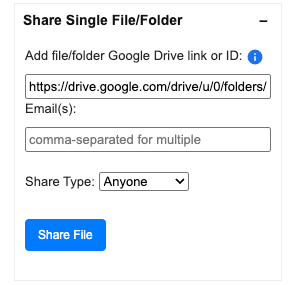
With FileDrop open, I navigate to the Google Drive folder I filled with PDFs. FileDrop reads the contents of the folder and processes each file, converting every PDF into its own unique, shareable file link. Instead of sending file attachments, I now have clean URLs ready to distribute.
Convert All PDFs into Shareable File Links
This is where FileDrop really saves time. Rather than manually generating a link for each file, FileDrop handles the entire batch at once. Within moments, all of my PDF files have been converted into individual file links. The links appear right inside my spreadsheet, organised and ready to use.
Send Links via WhatsApp Blast
Once every PDF has a link, I move to WhatsApp Blast to distribute them. I paste or import the links into the blasting tool and send them out to my contacts or list in one go. No more tedious one-by-one forwarding. Each recipient gets a direct link to their relevant PDF, which they can open instantly on any device.
Why This Workflow Works So Well
The real power of this system is in how it eliminates friction at every stage. Google Drive handles storage reliably. FileDrop automates the conversion of files into links so there’s no manual copying, no broken attachments, and no file size headaches. And WhatsApp Blast handles the distribution at scale, reaching hundreds of contacts at once.
Everything stays connected through the Google Sheets spreadsheet, which acts as the central hub. The links are tracked, visible, and easily updated if needed. It’s a lightweight but powerful system that anyone working with document distribution can replicate.
For advanced use cases, we also offer a professional PDF hosting feature that allows granular access to files, PIN security, dynamic watermarks and more
Who This Is Useful For
This workflow is particularly valuable for businesses and professionals who regularly share documents with large groups — think invoices, catalogs, reports, certificates, or onboarding materials. If your team runs on Google Workspace and you rely on WhatsApp for client or customer communication, this combination is worth setting up.
The bottom line: uploading to Google Drive takes a minute, FileDrop Sheets Add-on converts every file to a link in seconds, and WhatsApp Blast gets those links to your audience instantly. Once the system is in place, what used to take hours now takes minutes.
The Bottom Line:
One keeps you awake. The other gets work done.
A month of coffee: $150
A month of FileDrop: $19
Why not have both?