HR teams handle a high volume of documents during onboarding — contracts, IDs, certificates, tax forms, NDAs, and more. Tracking which new hire has submitted which file quickly becomes messy when handled through email or shared folders.
Files get lost in threads, some employees forget to send required documents, and HR ends up chasing uploads manually.
With FileDrop + Google Sheets integration, you can create a branded upload portal for new hires and automatically log every submission in a live Google Sheet — giving you a real-time document tracker without any manual data entry.
In this guide, you’ll learn how to set up a document collection workflow that:
- Lets new hires upload files through a branded portal
- Automatically assigns folders per employee in Google Drive
- Logs every upload into a Google Sheet tracker with timestamps and file links
- Gives HR instant visibility into who submitted what — without email follow-ups
Why HR Teams Need a Centralized New Hire File Tracker
Traditional onboarding document collection causes several pain points:
- No visibility: HR has no clean overview of which files are still missing.
- Messy email handling: Files arrive in random formats, threads, or chat apps.
- Manual sorting: Each file has to be renamed and uploaded to a Google Drive folder.
- No audit trail: There’s no automatic record of submission time or confirmation.
By combining FileDrop File Forms with Google Drive and Google Sheets, HR teams can create a professional onboarding intake system that stays organized automatically.
Step-by-Step: Track New Hire File Uploads with Google Sheets
Tracking employee document submissions manually can get messy fast—especially when multiple hires are onboarding at the same time. This gives HR a clear, organized view of who submitted what, when it was uploaded, and where the files are stored in Google Drive—no manual tracking required.
Step 1: Create Your FileDrop Account
Go to https://app.getfiledrop.com/register and sign up using your company email.
Using a dedicated HR email address like hr@company.com centralizes all submissions and keeps access controlled within your HR team.
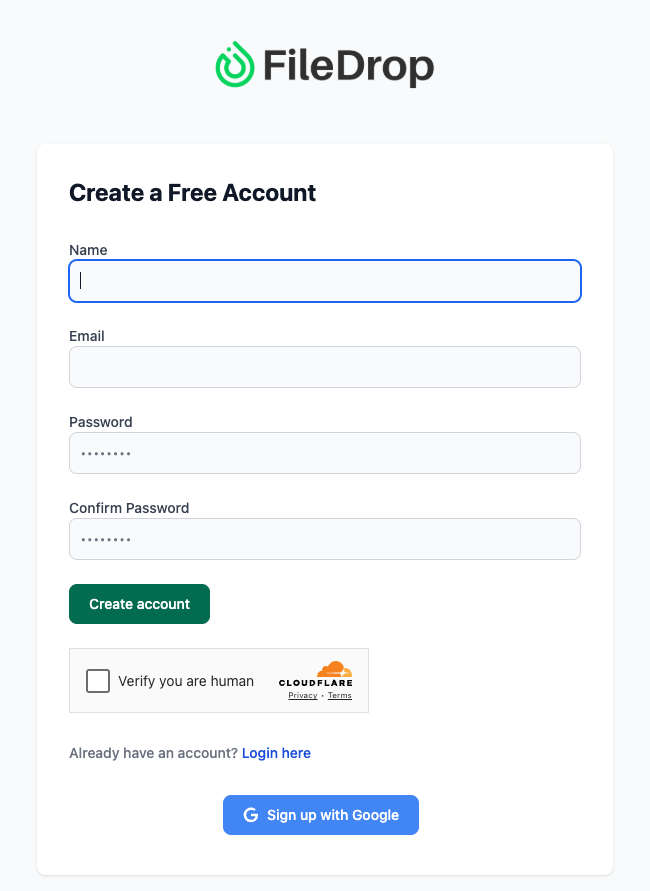
Once completed, log in to access your FileDrop dashboard.
Step 2: Go to the File Forms Dashboard
- In the left-hand menu, click File Forms
- This section is your control center to create, edit, and track upload forms
- Later, you can create separate forms per hiring batch or department if needed (e.g., “2025 Onboarding – Engineering,” “Sales Team – New Hire Upload”)
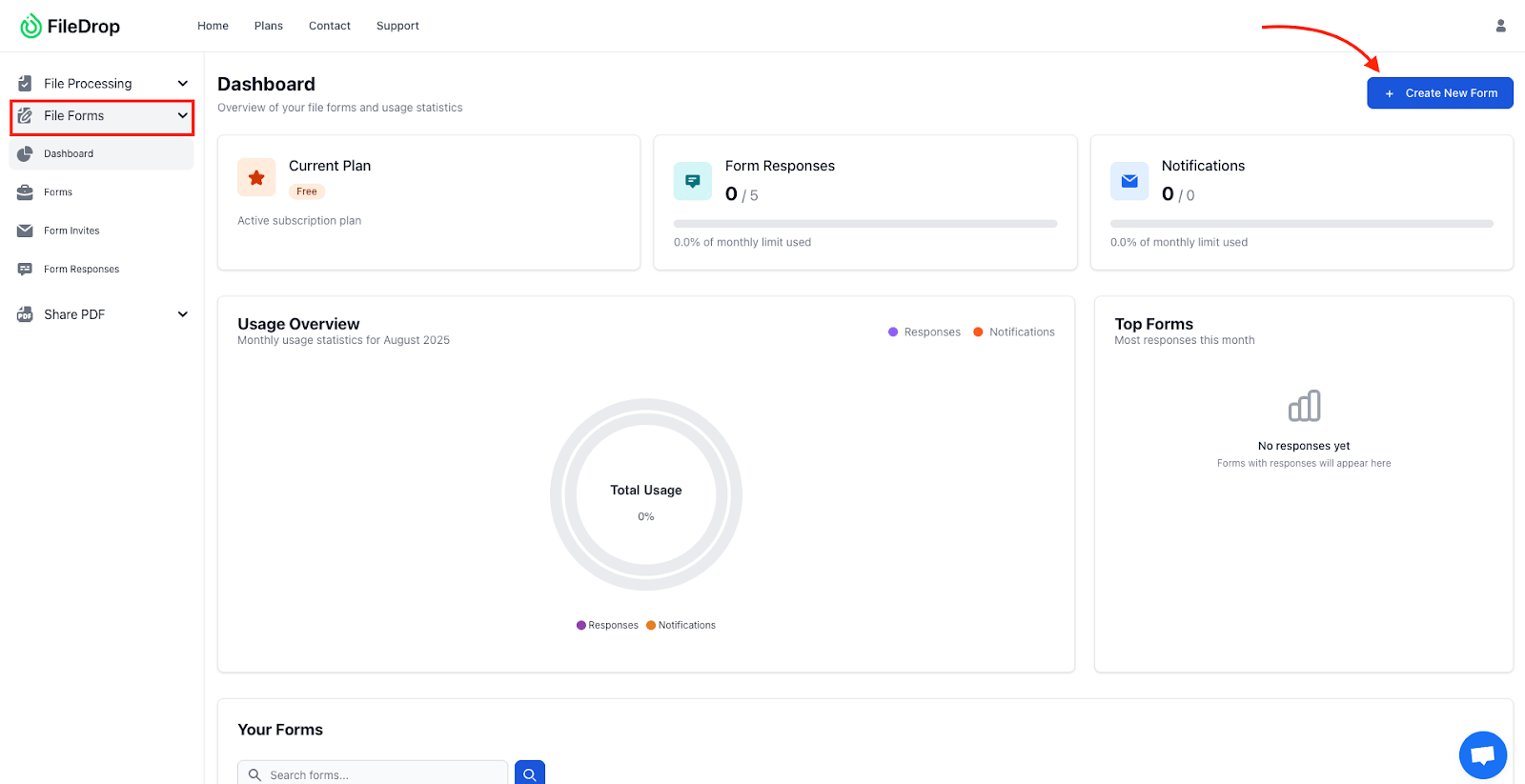
Keeping forms separated helps with Google Drive folder structure and sheet tracking.
Step 3: Create a New File Form for HR Onboarding Files
- Click New File Form
- Name it clearly — examples:
- “New Hire Document Upload – HR”
- “Employee Onboarding Files – 2025”
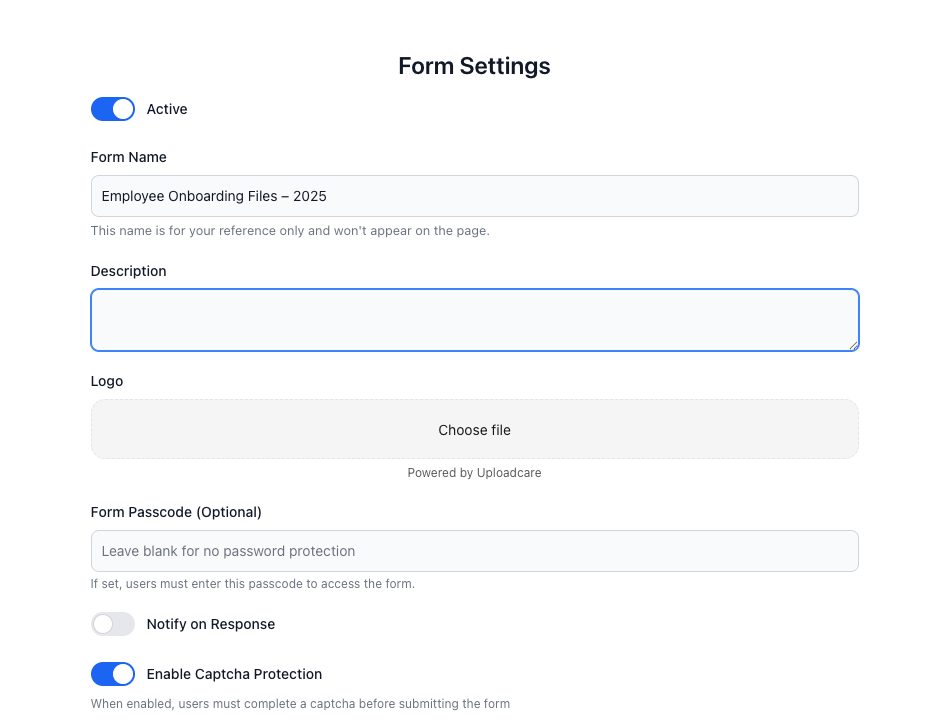
- Enable Separate Submission Folders
- This ensures each candidate’s upload automatically gets its own folder with their name or email as the label
- Perfect for keeping employee folders neatly organized in Drive
This single step eliminates manual folder creation for every new hire.
Step 4: Connect Google Drive for Automatic Folder Storage
- In the form setup, scroll to Google Drive Integration
- Click Connect Google Drive and approve access
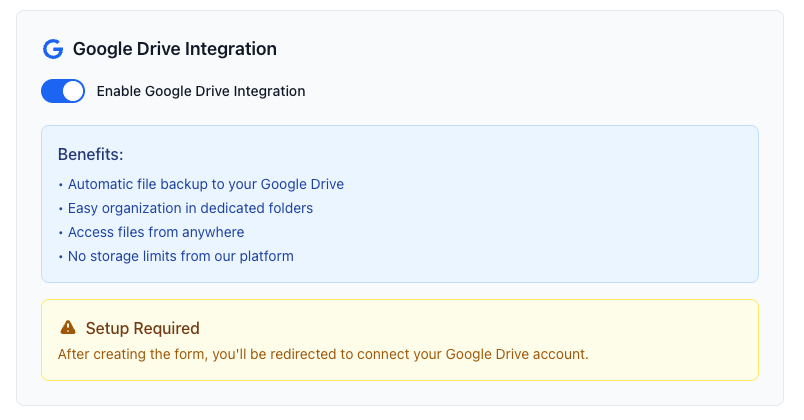
Choose or create a folder like:
| Google Drive └── HR Onboarding Documents ├── 2025 Hires ├── Pending Documents |
All uploaded files will go directly into Google Drive — no downloads, no email attachments. This creates an immediate archive for every hire with zero HR manual sorting.
Step 5: Add Form Instructions and HR Branding
- Set a professional title like: “Upload Your New Hire Documents”
- Add a clear instruction message: “Please upload your onboarding documents here. Files will be securely saved in our HR system. No login required.”
- Upload your HR or company logo
- Adjust colors to match your internal HR portal or company theme

This gives new hires a trusted, branded experience instead of a generic upload screen.
- Once your form is ready, copy the public upload link
- Share it through:
- Welcome email packet
- HR onboarding checklist
- Applicant tracking system (ATS) follow-up
- QR code on printed hiring packet
- Optional: Add multiple HR recipients to receive instant email alerts when a new hire uploads documents
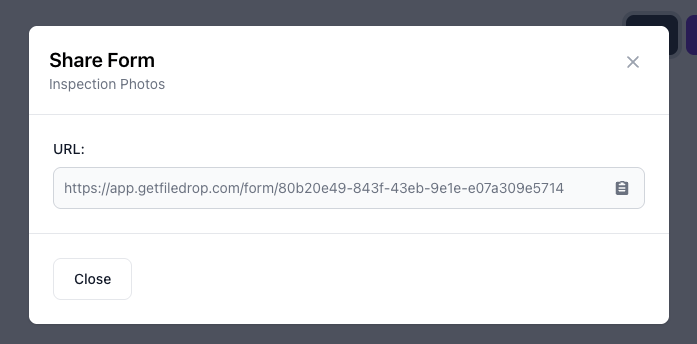
No more “Just checking if you received my ID” emails — HR gets a notification automatically.
Step 7: Sync Uploads to Google Sheets for Tracking
- After publishing, go back to your File Forms dashboard
- Click the Google Sheets icon beside the form
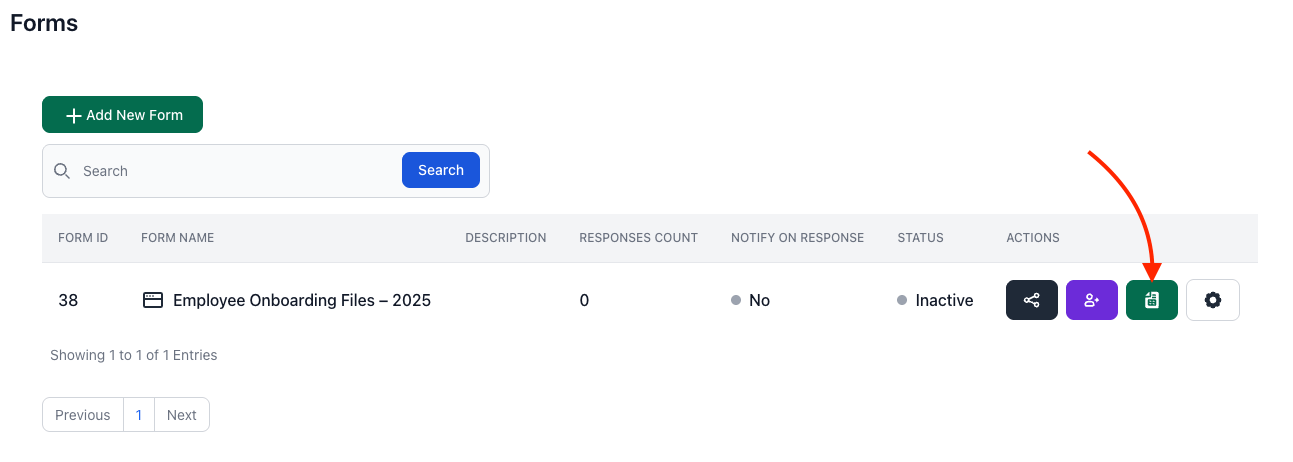
- FileDrop will automatically generate a live Google Sheet tracker
- Each new hire submission will log:
- Employee Name
- Upload Timestamp
- Files Submitted
- Direct link to Google Drive folder
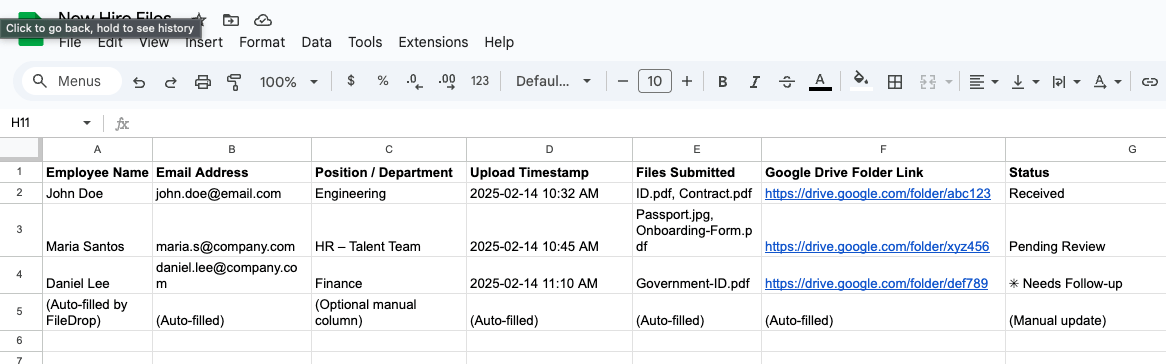
This turns your Google Sheet into a real-time onboarding tracker without manual data entry.
Conclusion: Streamline HR File Collection with One Workflow
Manually tracking new hire documents is inefficient and error-prone. With FileDrop + Google Sheets:
- Every new hire uploads through a simple portal
- Files are automatically sorted in Google Drive by employee
- A Google Sheet tracker logs all submissions in real time
This gives HR instant visibility and reduces time spent checking emails or reminding hires to “send missing files.”
Start building your HR intake system today — it takes less than 10 minutes to set up and saves hours every onboarding cycle. Check out FileDrop today!
Frequently Asked Questions
1. Can each new hire have their own folder automatically?
Yes — enable Separate Submission Folders and FileDrop will generate folders based on their input (like name or email).
2. Do new hires need to sign in or create an account?
No. They can upload files directly without login, which keeps the process frictionless.
3. Can we filter which employees haven’t submitted yet?
Yes — since every upload logs to Google Sheets, you can quickly filter missing submissions and follow up with only those pending.
4. Can we duplicate this workflow for contractors or interns?
Absolutely. You can clone your form and adjust naming for each onboarding group or employment type.