Managing stock and inventory doesn’t have to be complicated. With Google Sheets, you can set up a simple yet powerful system to track products, stock levels, and reorder needs—all without spending a dime on expensive software.
Why Is It Important to Track Stock & Inventory?
Keeping track of stock helps you avoid running out of important items or buying too much. It saves money, keeps customers happy, and makes your business run smoother. A simple system can prevent headaches and keep everything organized.
Step 1: Set Up Your Google Sheet
Open Google Sheets and create a new spreadsheet. This will be your inventory tracker, where you can keep all product details in one place.

Step 2: Label Your Columns
In the first row of your spreadsheet, add the following column headers:
- Item Name – The name of the product
- SKU/ID – A unique identifier for tracking
- Category – The type of product
- Quantity in Stock – The number of items available
- Reorder Level – The minimum quantity before restocking is needed
- Supplier – The company you buy from
- Last Updated – The date the stock was last updated
Proper labeling helps keep your inventory organized and easy to manage.

Step 3: Add Dropdown for Categories
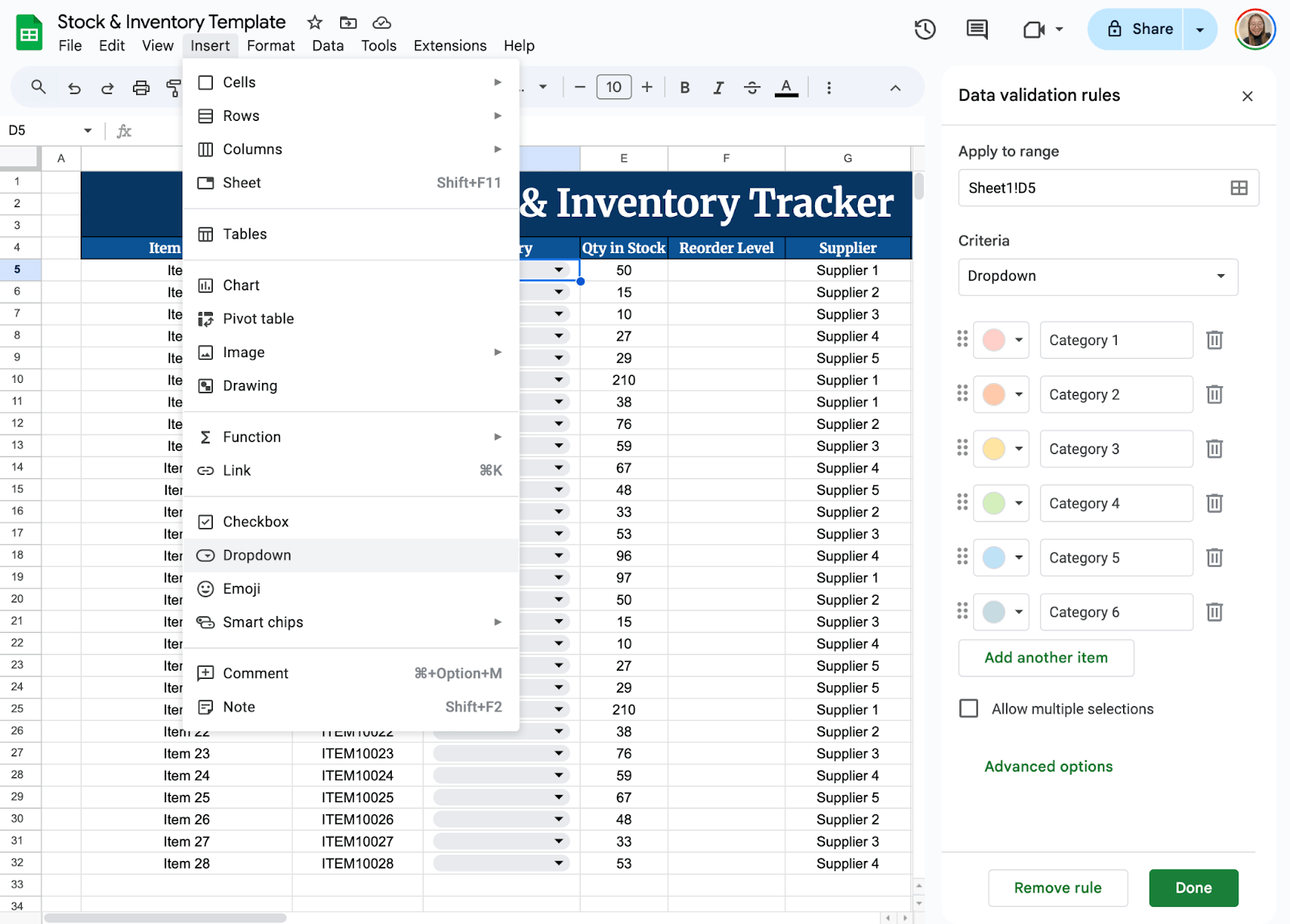
To make data entry easier, set up a dropdown list for the Category column: Click on the first empty cell under Category. Go to Insert > Dropdown, and enter category names, such as Electronics, Office Supplies, Clothing. Click Save. This prevents typos and ensures consistency in categorization.
Step 4: Use Conditional Formatting for Low Stock Alerts
You don’t want to run out of stock unexpectedly. Highlight low-stock items automatically. Select the Quantity in Stock column. Click Format > Conditional formatting. Under Format cells if, choose Less than and enter a threshold (example, 10). Pick a red color to highlight low-stock items. Click Done.
Now, whenever an item’s stock falls below the set limit, it will turn red, making it easy to spot.

Step 5: Calculate Stock Levels Automatically
To keep track of stock changes, create an Inbound and Outbound column. Then, set up a formula in the Quantity in Stock column:
=E2-F2
Here’s what it does:

This keeps your stock updated without manual calculations.
Step 6: Add an Auto-Updated Date
To record when stock was last modified, add this formula in the Last Updated column:
=IF(E5<>””,TODAY(),””)
Each time you update the row, the date refreshes automatically.

Step 7: Use Charts to Visualize Inventory Trends
Charts can help you quickly understand stock levels and trends. Select your Item Name and Quantity in Stock columns. Click Insert > Chart. In the Chart Editor, choose a Bar Chart or Line Chart for a clear view of stock levels.
Customize the chart by adjusting labels, colors, and ranges to make it more informative. This makes it easier to spot trends and take action before stock runs low.

If you work with a team, share your inventory sheet. Click Share in the top-right corner. Add email addresses of team members. Set permissions (Viewer, Commenter, or Editor). This allows real-time collaboration without confusion.

Get the Free Stock & Inventory Template
Get a copy of the Free Stock & Inventory Template. I’ve populated some cells as examples, but you can customize them as needed.
Final Thoughts
The key to good inventory management isn’t just about tracking numbers—it’s about making your system work for you. Keep it simple, update it regularly, and adjust it as your needs change.
A little organization now can save you a lot of stress down the road. Most importantly, find a system that fits your workflow so managing stock feels effortless rather than overwhelming.
Frequently Asked Questions
How can I automatically calculate total stock levels in Google Sheets?
Use the formula =SUM(range) to sum stock levels across different locations or categories. For example, =SUM(B2:B50) will add up all stock quantities in column B.
How do I track inventory across multiple locations?
Add a Location column and use =SUMIF(A:A, “Warehouse A”, B:B) to total stock for each location. For example, =SUMIF(A:A, “Warehouse A”, B:B) adds all stock stored in Warehouse A.
Can I track stock movement automatically?
Yes! Use a formula like =E2+F2-G2 where E2 is the starting stock, F2 is new stock received, and G2 is stock used or sold.