

Do you ever lose track of important calls or forget key details? Keeping a call log can make a difference, whether you’re managing business inquiries or personal calls.
With a simple template, you can stay on top of everything—tracking details like the date, time, caller, and the purpose of each conversation. You can also easily create this call log template using Google Sheets. It’s free, user-friendly, and accessible from anywhere, so you’ll always have your call records at your fingertips.
Why Should You Keep Call Records?
Keeping call records isn’t just about staying organized—it’s a smart move for improving customer service and business accountability. These logs help track conversations, ensuring every inquiry or issue gets addressed properly.
They also serve as great training tools for staff, helping improve communication skills. Call records offer legal protection in disputes and provide insights that can guide important business decisions.
Step 1: Open Google Sheets
Go to Google Sheets. You can either go to sheets.google.com or access it from your Google Drive. Once there, click on the “+ Blank” option to start with a new spreadsheet. Then, name it with something like Call Log Tracker.

Step 2: Set Up Your Columns
Next, you’ll want to consider what information you want to track for each call. Typical details include:
- Date
- Time
- Caller Name
- Call Type
- IMPORTANT? (Yes/No)
- Phone Number
- Call Duration
- Reason/Message
- Notes
Once you have that list, create a column for each item. You can type the titles across the first rows of your sheet.

Step 3: Start Logging Calls
Now that your call log template is set up, you can start filling it out. Every time you make or receive a call, just add a new row with the details.

Step 4: Format the Columns
Formatting makes your sheet look neat and helps you avoid mistakes when filling it out. Here’s how you can adjust each column:
Date and Time
Select the range, then go to Format > Number > Date (or Time for the time column).

Phone Number
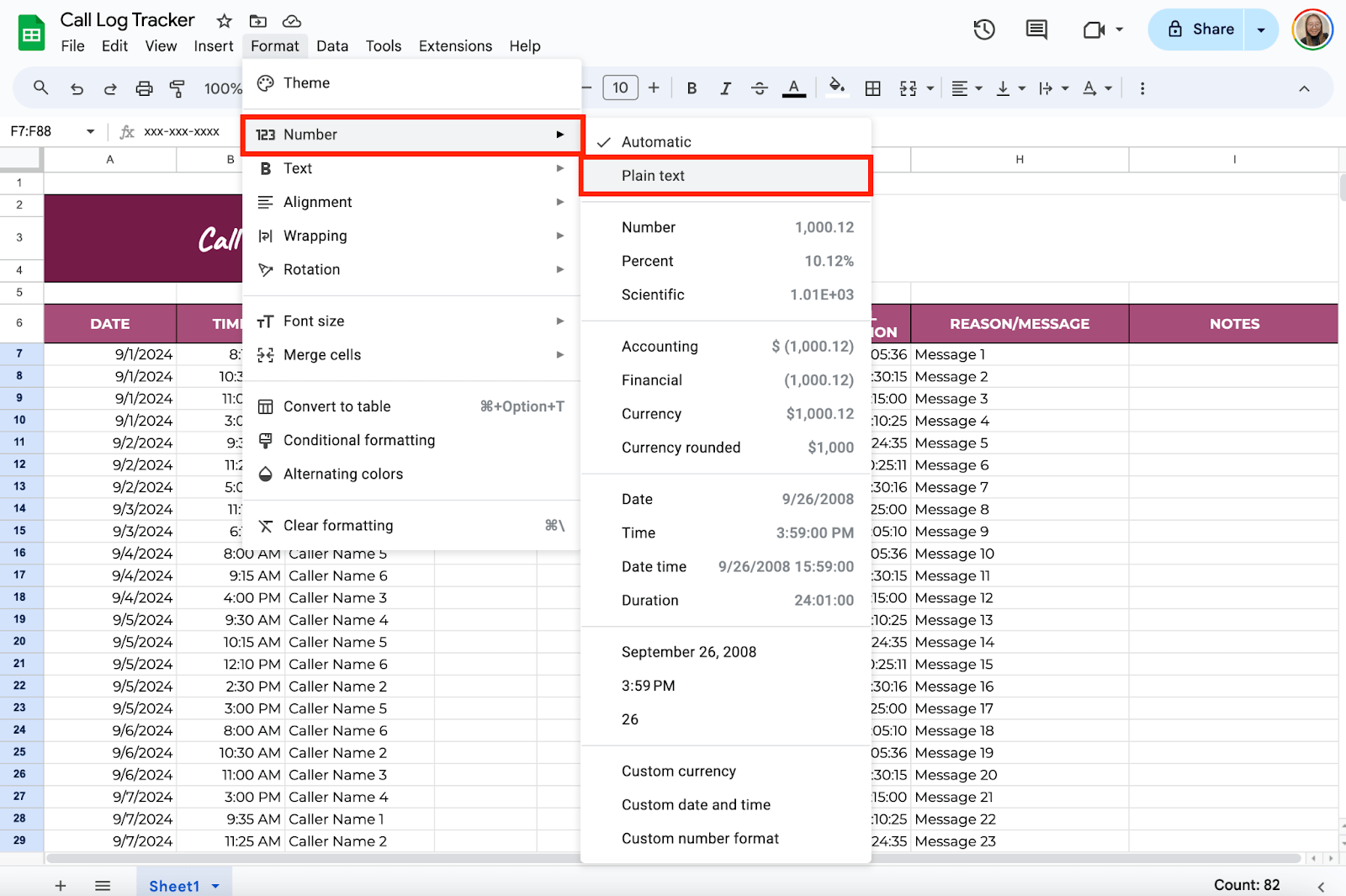
To keep phone numbers consistent, you can format this column by selecting it, then going to Format > Number > Plain text. This will prevent Google Sheets from accidentally trying to turn the numbers into something else, like dates.
Call Duration
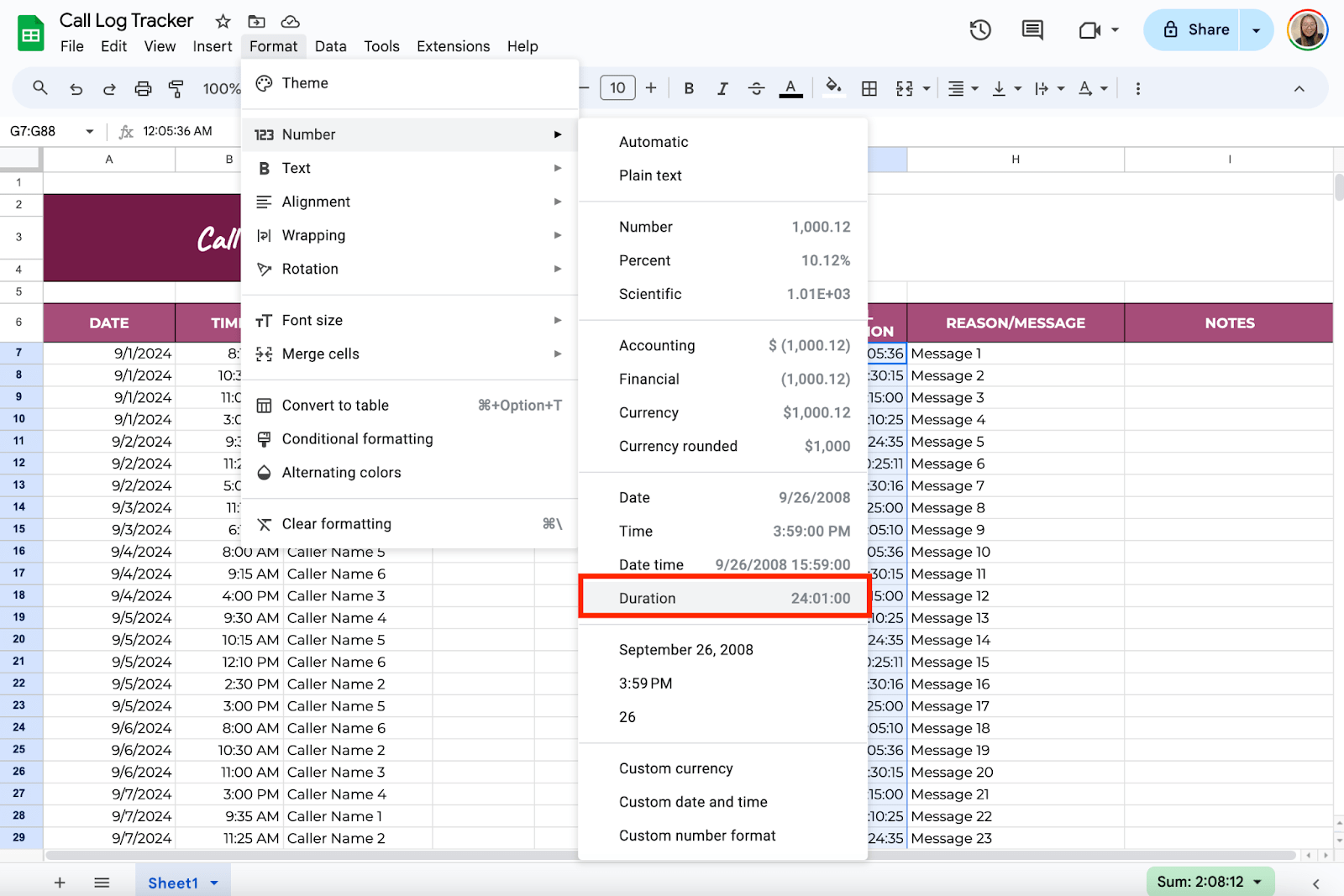
You can keep this as plain text for easy entry or customize it depending on how you record call length (for example: 15 minutes or 00:15).
Step 5: Add Dropdown Lists (Optional)
To save time typing, you can add drop-down lists for frequently used options. For example, under Call Type, you could have options like “Incoming” or “Outgoing.”
To add a dropdown list, select the column where you want the list. Click on Data in the menu, then choose Data validation. Under Criteria, select Dropdown and type in your options.
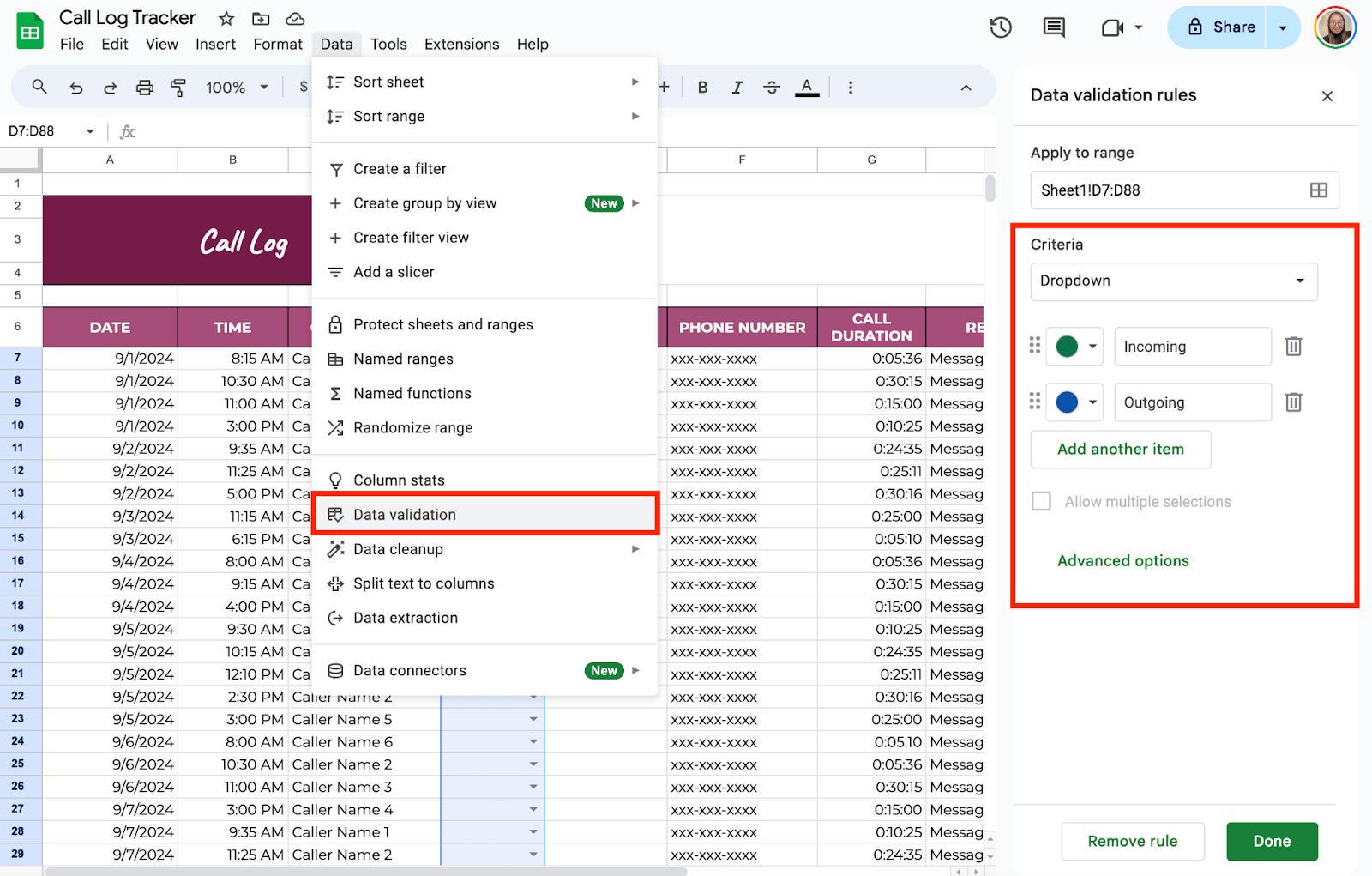
Now, when you click a cell in that column, you’ll see a little arrow, and you can choose one of your options instead of typing it in every time.
Step 6: Freeze the Header Row
Freezing the header row keeps your titles visible as you scroll through the sheet. This is useful if you expect to log lots of calls and always need to see which column is which.
To freeze the top row, click View > Freeze > 1 row.

Step 7: Protect Your Data (Optional)
If multiple people use the same sheet, protecting certain parts, like the headers, might be a good idea so they aren’t accidentally edited.
To protect a range of cells, highlight the row or column you want to lock. Right-click and choose Protect range. Follow the prompts to set who can edit that range.

Step 8: Save and Access Your Sheet Anywhere
One of the best things about Google Sheets is that your work is automatically saved. You can access your call log on any device by logging into your Google account. Plus, you can share it with others by clicking the Share button in the top-right corner and entering their email address.

Get the Free Call Log Tracker
Get a copy of the free Call Log Tracker. I’ve populated some cells as examples, but you can customize them as needed.
Final Thoughts
Tools like this call log template do more than just help you stay organized—it gives you control. When you have a clear system, things stop slipping through the cracks, and that peace of mind is priceless. You can start with the basics and then get creative, adding formulas, filters, or extra columns as your needs evolve. The key is to keep it simple first, then let the tool grow with you.
Frequently Asked Questions
How can I use Google Sheets functions to calculate call durations automatically?
You can use the =MINUS(end_time, start_time) function to calculate the duration of calls. Ensure the times are in Google Sheets’ recognized time format, and the result will give you the call duration, which you can format as ‘Duration.’
Can I automate repetitive data entries with Google Sheets’ features?
Google Sheets provides features like ‘Smart Fill,’ which detects patterns and completes your data entry. Moreover, ‘Macros’ can record a sequence of commands to automate tasks.
What if I want to calculate the average duration or cost of calls?
Use the =AVERAGE() function to find the average call duration and =SUM() for total costs. You can also use =SUMIF() or =AVERAGEIF() to perform these calculations for specific conditions, like for a certain client or call type.
The Bottom Line:
One keeps you awake. The other gets work done.
A month of coffee: $80
A month of FileDrop: $19
Why not have both?


