Tracking key performance indicators (KPIs) is crucial for effective procurement management. A well-structured KPI dashboard in Google Sheets helps you monitor supplier performance, cost savings, purchase efficiency, and other critical metrics. This guide will walk you through creating a Procurement KPI Dashboard step by step.
Why Use Google Sheets as a KPI Dashboard?
Google Sheets is an excellent tool for building a KPI dashboard because it is accessible, cost-effective, and easy to use. With Google Sheets, you can:
- Organize and analyze procurement data in real time.
- Share dashboards with stakeholders and collaborate seamlessly.
- Automate updates using built-in functions and integrations with other tools.
- Visualize data through charts and graphs without the need for advanced technical skills.
Step 1: Identify Your Key Procurement Metrics
Before setting up your dashboard, determine which KPIs matter most to your procurement process. Common procurement KPIs include:
- Cost Savings: Reduction in expenses compared to previous periods.
- Supplier Lead Time: Time taken by suppliers to fulfill orders.
- Purchase Order (PO) Cycle Time: The time taken to complete the procurement process from order to delivery.
- On-Time Delivery Rate: Percentage of orders received on schedule.
- Supplier Performance Score: A rating based on reliability, quality, and compliance.
- Spend Under Management: Percentage of procurement spend that is actively managed.
Select 5-10 KPIs that align with your procurement objectives to avoid cluttering your dashboard.
Step 2: Set Up Your Google Sheet
Open Google Sheets and create a new spreadsheet titled “Procurement KPI Dashboard.” Organize your sheet into two main sections:
- Raw Data: Stores all procurement-related data.
- Dashboard: Displays KPI calculations and visualizations.

Step 3: Input Your Data
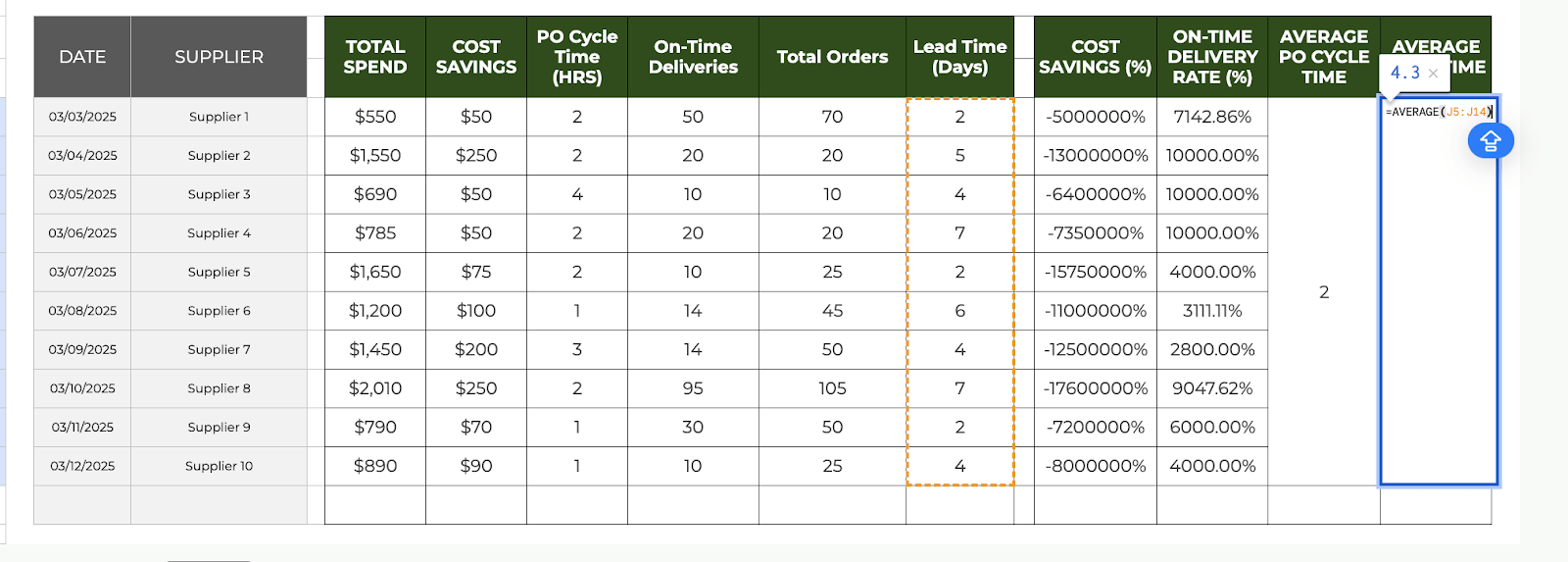
In the Raw Data section, create columns for each KPI-related metric. For example:
- Date
- Supplier
- Total Spend
- Cost Savings
- PO Cycle Time
- On-Time Deliveries
- Total Orders
- Lead Time (Days)
You can manually enter data or automate updates by connecting Google Sheets to external sources like ERP systems or supplier portals.

Step 4: Calculate Your KPIs
Use Google Sheets formulas to derive insights from your raw data. Examples include:
- Cost Savings (%): =(Cost Savings / Total Spend) * 100
- On-Time Delivery Rate (%): =(On-Time Deliveries / Total Orders) * 100
- Average PO Cycle Time: =AVERAGE(PO Cycle Time)
- Supplier Lead Time: =AVERAGE(Lead Time (Days))
Step 5: Create Visuals for Your Dashboard
To make your dashboard visually engaging, use Google Sheets’ built-in charts and graphs. Select your data range. Click Insert > Chart.
Choose the appropriate chart type:
- Line charts to track trends over time (e.g., cost savings).
- Bar charts for supplier comparisons (e.g., lead time by supplier).
- Gauge charts for performance metrics (e.g., on-time delivery rate).
Arrange charts in your Dashboard tab for easy reference.

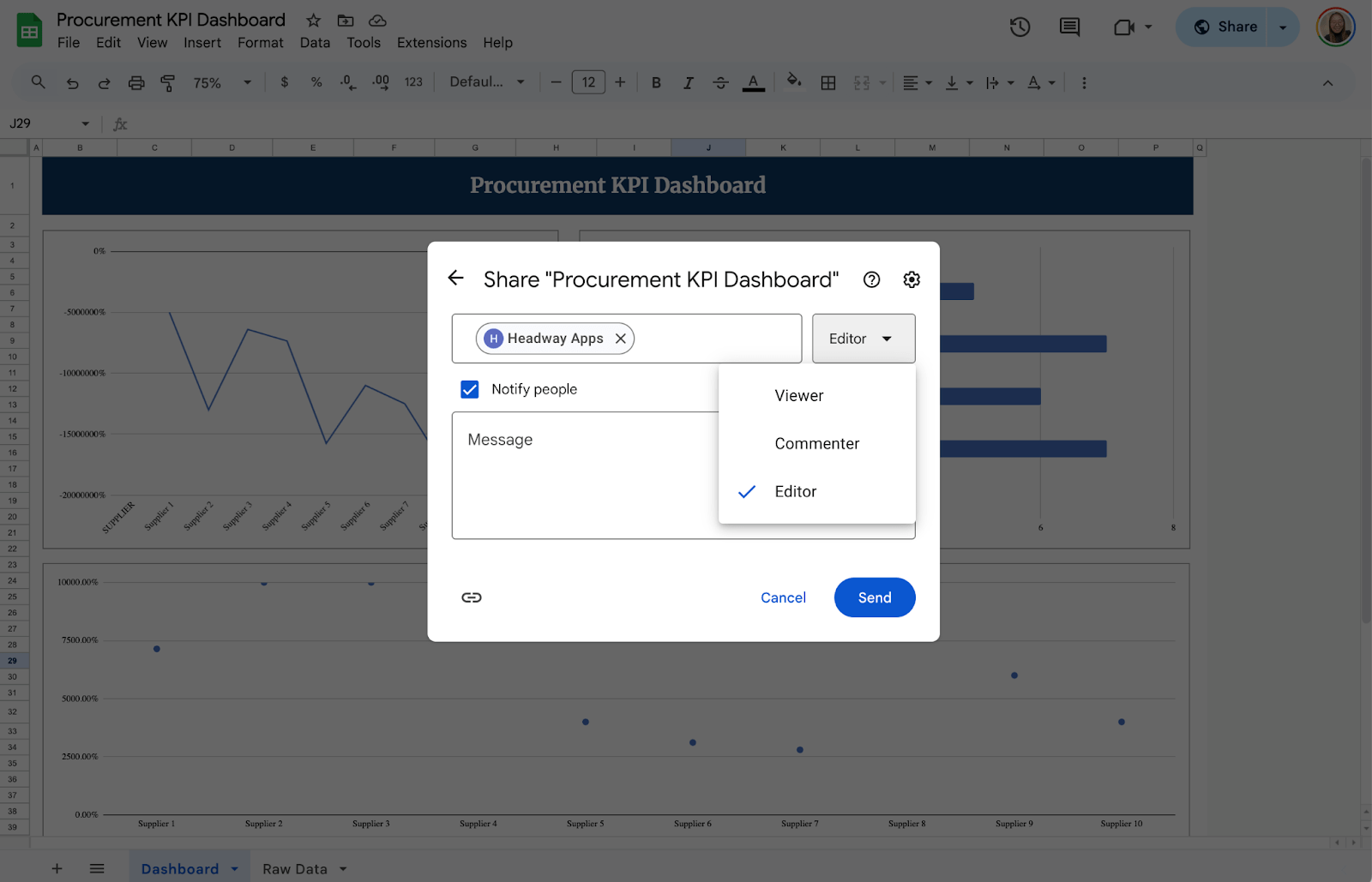
Once your dashboard is ready, click the Share button in the top-right corner. Set permissions for team members.
Get a Free Procurement KPI Dashboard Template
Get a copy of the free Procurement KPI Dashboard Template. I’ve populated some cells as examples, but you can customize them as needed.
Final Thoughts
Creating a Procurement KPI Dashboard in Google Sheets is an effective way to track and optimize procurement performance. With this simple, flexible, and cost-effective solution, you can make data-driven decisions, improve supplier relationships, and streamline your procurement process. Start small, refine your KPIs over time, and enhance your dashboard as needed.
Frequently Asked Questions
Can I automate data updates in Google Sheets?
Yes! Use functions like IMPORTRANGE (to pull data from other sheets), QUERY (to filter data), or connect Sheets to external tools via APIs for real-time updates.
What are the most useful formulas for a Procurement KPI dashboard?
Key formulas include:
- SUM() for total calculations
- AVERAGE() for performance trends
- IF() for conditional calculations
- COUNTIF() for frequency analysis
- SPARKLINE() for mini in-cell visualizations
What chart types work best for procurement KPIs?
- Line charts to track cost savings trends.
- Bar charts for comparing supplier performance.
- Gauge charts for monitoring key performance metrics.