

Quality control is essential for ensuring consistency, accuracy, and efficiency in any process. Whether you’re managing a project, running a business, or organizing your personal tasks, a quality control checklist can be a game-changer.
The best part? You don’t need fancy software to create one. Google Sheets is a free, easy-to-use tool that can help you build a customized checklist in no time.
Why Use Google Sheets?
Google Sheets is a practical choice for creating a quality control checklist because it’s free, accessible from anywhere, and easy to use. Whether you’re working solo or with a team, you can update your checklist in real-time and share it with others.
Plus, there are no complicated setups—just open a new sheet and get started. It’s a simple but effective way to stay organized and ensure nothing falls through the cracks.
Step 1: Open a New Google Sheets Document
To get started, open Google Sheets by going to sheets.google.com and clicking the blank template to create a new spreadsheet.
Give your checklist a clear and simple name. Click on the default “Untitled spreadsheet” at the top-left corner and type something like “Quality Control Checklist.” This helps you find your document easily later.

Step 2: Set Up Your Columns
Think about the information you need to track. Most quality control checklists have these common columns:
- Task/Item: What needs to be checked?
- Standard/Requirement: What should the item meet?
- Status: Is the item “Pass,” “Fail,” or “Needs Review”?
- Checked By: Who completed the check?
- Date: When was the check done?
This forms the foundation of your checklist.

Step 3: Format Your Checklist
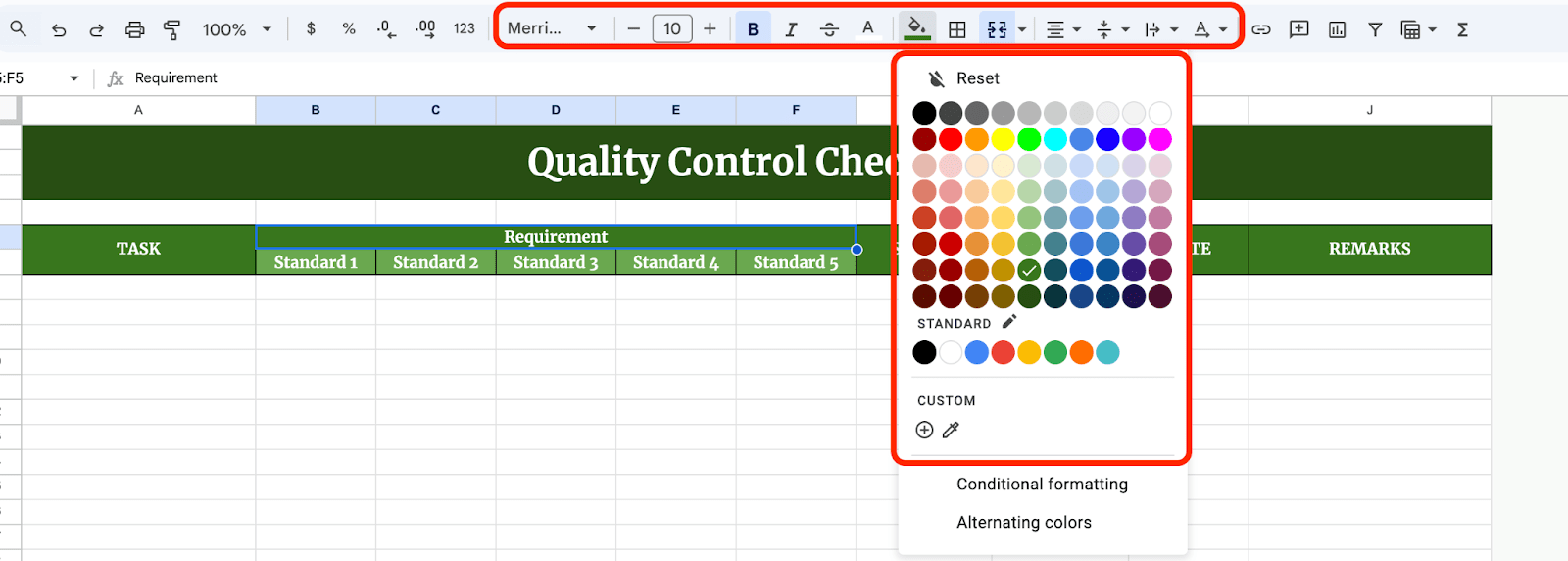
Formatting helps make your checklist easier to read. Here are a few quick tips:
- Bold the Headers: Select Row 1, then click the B icon in the toolbar to make your headers bold.
- Resize Columns: Hover over the line between column letters (A, B, C, etc.) and drag to adjust the width.
- Add Borders: Highlight your table, click the border icon (a square with lines), and choose All Borders for a clean grid.
Step 4: Add Dropdown Options for Status
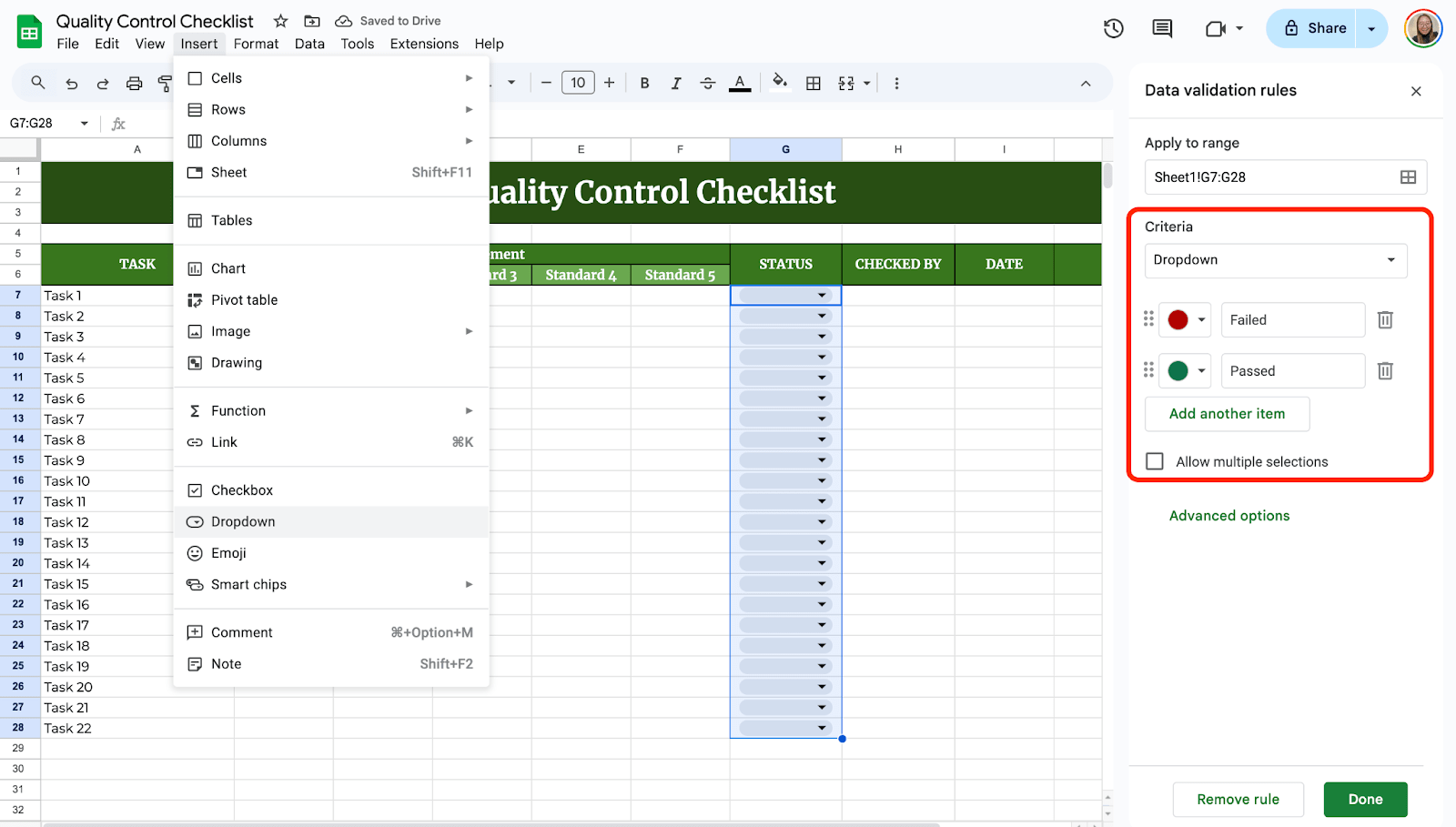
To make the “Status” column easier to use, you can add a drop-down menu with preset options. Click on the first cell under the “Status” column. Go to the Insert menu and select Dropdown, then enter your options.
Now you have a clickable drop-down list for status updates.
Step 5: Add Checkboxes
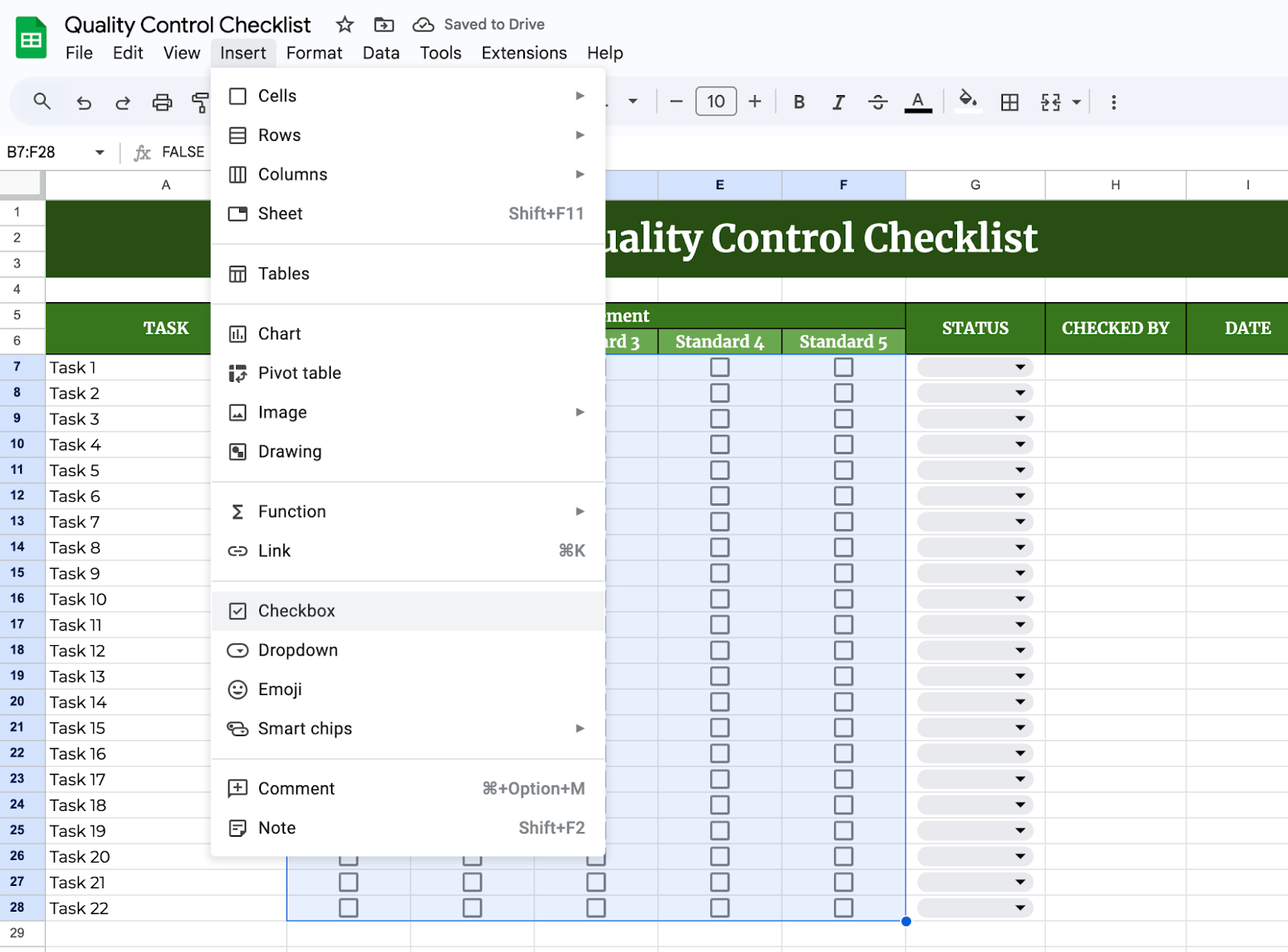
To complete your checklist, you need to add checkboxes under the Requirement column. Click Insert > Checkbox.
Step 6: Add Charts
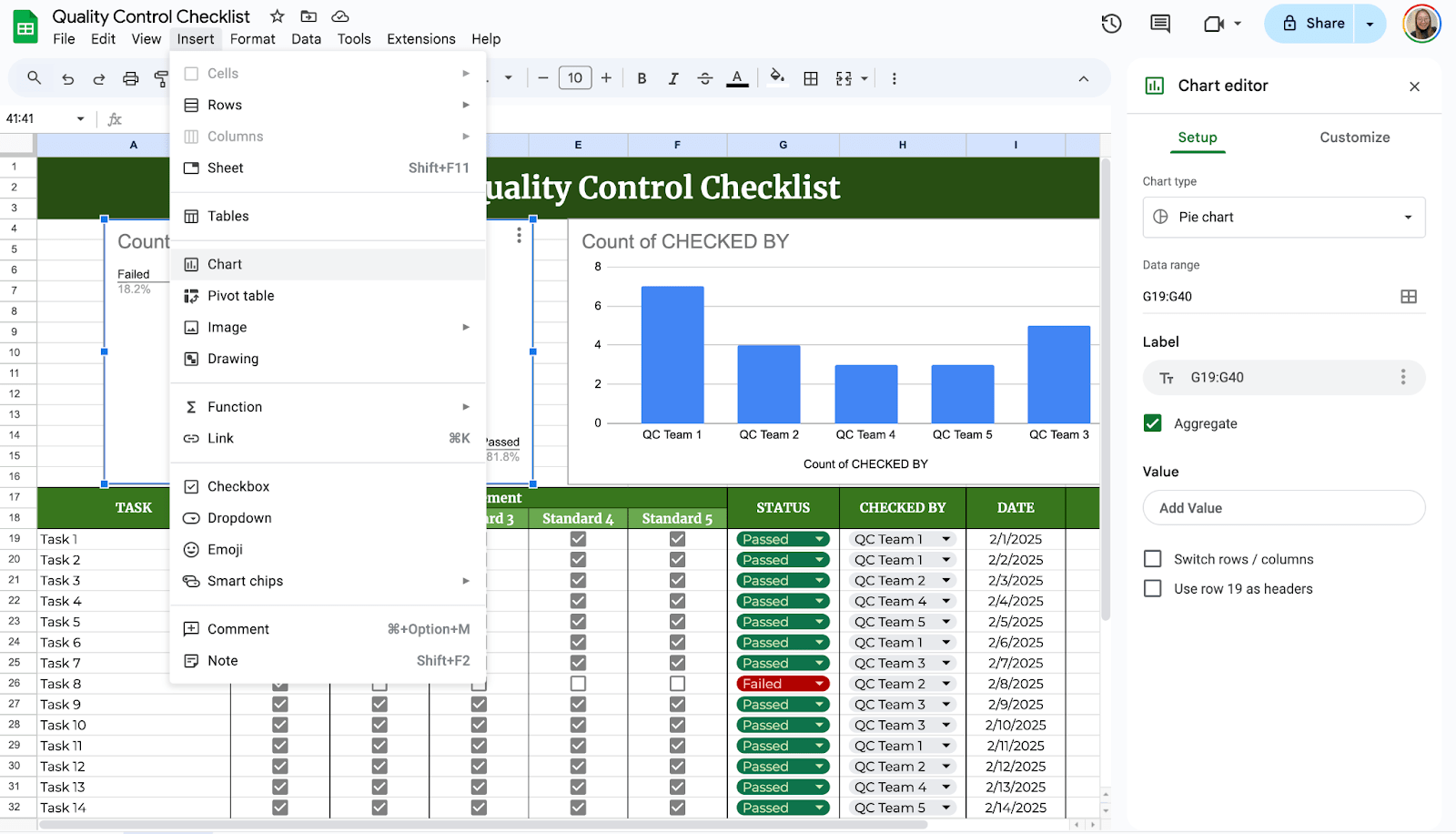
You can visualize your data by adding charts. To add, select the data you would like to see and click Insert > Chart. You can customize it by choosing the chart type, changing colors, and font settings.
If others need to use or review your checklist, sharing is easy. Click the Share button in the top-right corner. Enter email addresses or choose Copy link to share the checklist. Set permissions (“Viewer,” “Commenter,” or “Editor”) as needed.

Get the Free Quality Control Checklist Template
Get a copy of the free Quality Control Checklist Template. I’ve populated some cells as examples, but you can customize them as needed.
Final Thoughts
Your checklist is more than just a document—it’s a reflection of your commitment to quality. Keep it simple, update it regularly, and make it a habit to review the data. Small improvements over time can lead to big changes. Embrace the process, and you’ll find that maintaining high standards becomes second nature. You’ve got this!
Frequently Asked Questions
Can I use formulas to automate my quality control checklist?
Yes! You can use formulas to automate different parts of your checklist. For example, the =IF() function lets you check conditions automatically. You could use =IF(B2=”Pass”, “OK”, “Check Again”) to display a message based on the status.
How do I color-code my checklist based on the status?
You can use the Conditional Formatting feature to highlight cells based on their content. Select the “Status” column, click Format, and then choose Conditional formatting. Set rules like “Text is exactly ‘Pass'” and select a green fill color. Repeat this process for “Fail” (red) and “Needs Review” (yellow) to make your checklist easy to scan.
How do I lock specific columns or rows to prevent changes?
To lock areas of your checklist, use the Protect sheets and ranges feature. Highlight the section you want to lock, go to Data, and select Protect sheets and ranges. From there, you can set specific edit permissions and control who can make changes.
The Bottom Line:
One keeps you awake. The other gets work done.
A month of coffee: $80
A month of FileDrop: $19
Why not have both?


