

A good process improvement checklist keeps things organized and helps your team stay on track. Google Sheets is a simple and free tool that makes it easy to create a checklist you can update and share with others.
Why Is a Process Improvement Checklist Important?
A process improvement checklist is a simple but powerful tool to keep your workflows running smoothly. It helps you spot areas where things could be more efficient and ensures that no important steps fall through the cracks. With a clear checklist, everyone knows what needs to be done, who is responsible, and when it’s due.
Step 1: Set Up Your Google Sheet
Open Google Sheets and click on Blank to start a new spreadsheet. Name your sheet by clicking on Untitled Spreadsheet at the top and giving it a clear title like “Process Improvement Checklist.”

Step 2: Create Column Headers
Think about the key details you want to track. Common columns for a process improvement checklist include:
- Task: What needs to be done?
- Owner: Who is responsible?
- Due Date: When should it be completed?
- Status: Is it pending, in progress, or done?
- Checklist
- Notes: Any extra information.
Type these headers into the top row of your spreadsheet. Make the headers stand out by bolding them. Highlight the row, then click Format > Text > Bold.

Step 3: Add Checklist Items
Start listing the tasks under each column. For example:
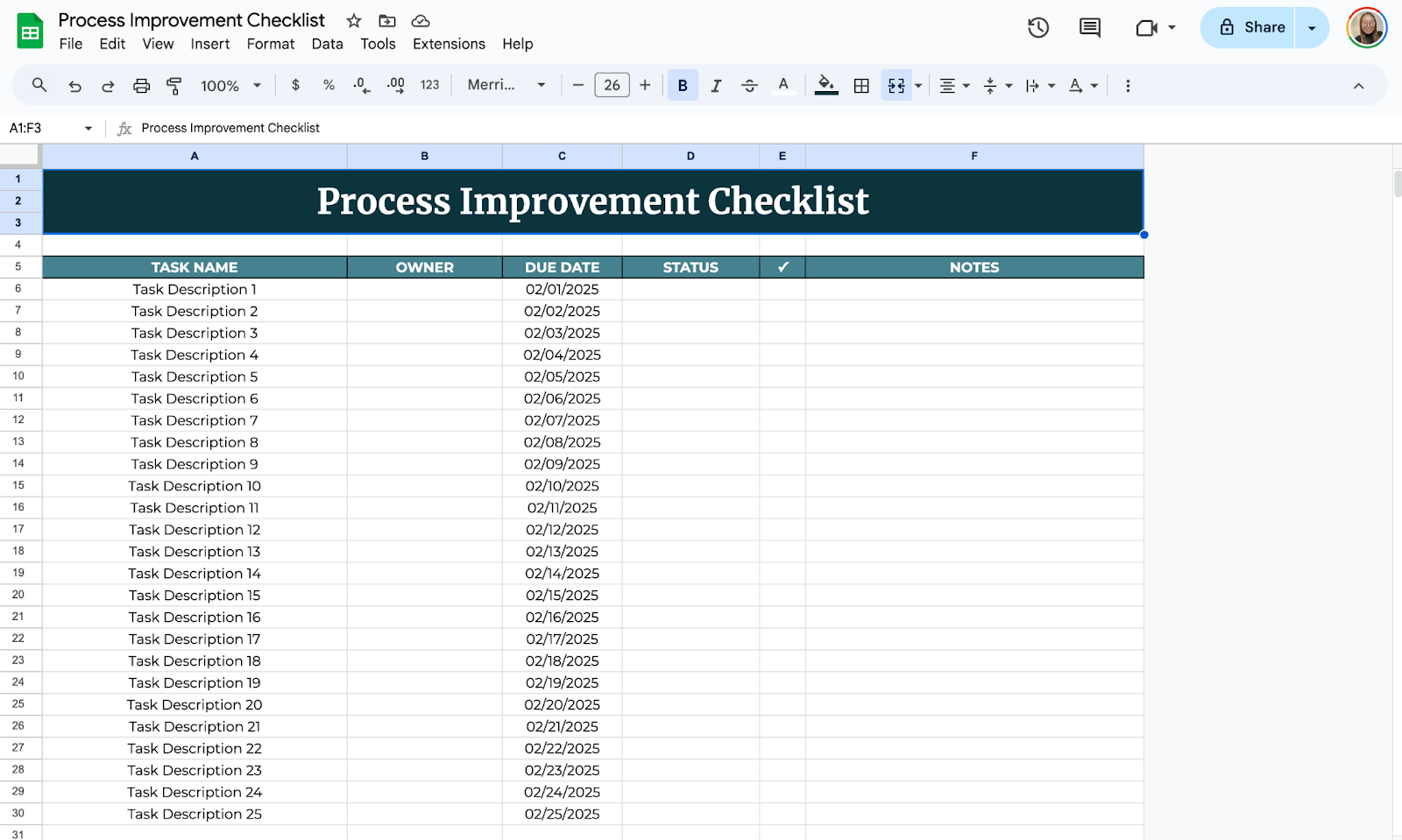
Now, add checkboxes to the spreadsheet. It will help you identify which task is already done and which isn’t.
To add checkboxes, select the range or column where you would like to place them, then click Insert > Checkbox.

Step 4: Make It Easy to Update
Use drop-down menus to track task status. To do this, click the first cell under the Status column. For the dropdown, select the column where you would like to put them, then click Insert > Dropdown and add the options, such as In Progress, Not Started, or Completed.
Finally, click Save. Now, you can choose a status from a drop-down list for each task.

Step 5: Use Chart
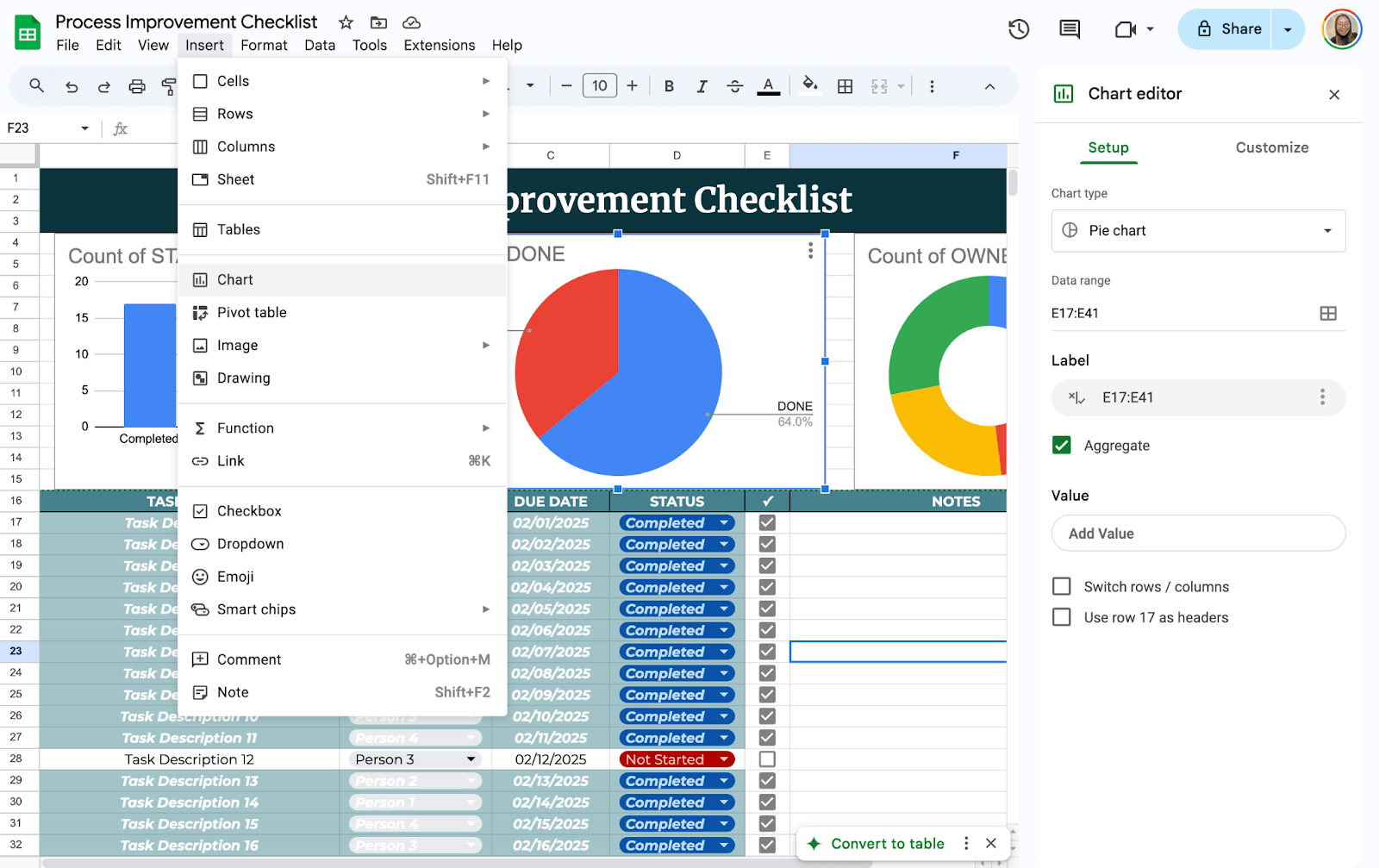
Make your checklist visually clear by using Charts. These charts can help you easily summarize how many processes are already done and how many needs your attention. To add charts, select the data you would like to see then click Insert > Chart.
Keep your team in the loop by sharing the checklist. Click the Share button in the top-right corner. Add email addresses or copy the shareable link. Choose whether people can view, comment, or edit the sheet. Finally, click Send.

Get the Free Process Improvement Checklist Template
Get a copy of the free Process Improvement Checklist Template. I’ve populated some cells as examples, but you can customize them as needed.
Final Thoughts
Creating a process improvement checklist is a simple step that can have a big impact. It brings clarity to your workflow, helps you catch inefficiencies, and keeps your team aligned. The key is to make the checklist easy to use and maintain.
Don’t overcomplicate it—start simple and refine it as you go. Over time, you might be surprised how much smoother and more productive your processes become.
Frequently Asked Questions
Can I automatically track due dates in Google Sheets?
Yes! You can use the =TODAY() formula to display the current date and compare it to task due dates. For example, to highlight overdue tasks, apply conditional formatting with the rule =A2<TODAY() (assuming your due dates are in column A).
How do I add checkboxes to my checklist?
To add checkboxes, select the cells where you want them to appear, then click Insert > Checkbox. This is useful for marking tasks as complete.
How can I track task completion automatically?
You can use the =COUNTIF formula. For example, =COUNTIF(D:D, “Done”) will count all tasks marked as “Done” in column D.
The Bottom Line:
One keeps you awake. The other gets work done.
A month of coffee: $80
A month of FileDrop: $19
Why not have both?


