Collecting large media files from clients should be simple, but it’s often one of the most time‑consuming parts of creative and production workflows. Video teams wait on raw footage, marketing teams chase assets, and agencies deal with broken links, incomplete uploads, and disorganized shared drives.
Research shows that 69% of businesses still rely on email for sharing critical documents, and 55% use shared network drives where files are often misplaced or duplicated. As Christopher Seiwald, CEO of Perforce, says:
“Documents are like rumors — once they’re shared, you don’t know what they’ll look like when they come back”
Shared drives and email were never built for secure, structured media intake. FileDrop’s File Request Pages provide a purpose‑built alternative, letting teams collect large files through branded upload pages without relying on email or shared folders.
Teams that rely on Google Drive, Dropbox, or similar shared folders experience the same recurring problems:
Upload reliability issues
Large video and image files frequently fail mid-upload. Clients believe files were submitted successfully when they were not.
Access and permission overhead
Teams spend time granting, revoking, and troubleshooting access instead of reviewing files.
No submission accountability
Shared drives do not provide a clear record of who submitted files, when they were uploaded, or whether a submission is complete.
Disorganized file structures
Clients upload files wherever they want, using inconsistent names and formats, creating cleanup work for internal teams.
Security exposure
Anyone with the folder link can often access, forward, or misuse sensitive assets.
These issues compound quickly for teams handling large volumes of high-value media files.
How FileDrop File Request Pages Solve This Problem
File Request Pages replace shared drives with secure, branded upload pages designed specifically for external file collection.
With FileDrop, teams can:
- Request large media files using a single upload link
- Control access with passcodes and captcha
- Collect structured metadata alongside files
- Track every submission centrally
- Automatically store files in Google Drive
- Review and approve submissions before acceptance
Clients upload files without logging in or creating accounts, removing friction while maintaining control.
Step-by-Step: Securely Collect Large Media Files Using File Request Pages
The steps below reflect the current FileDrop dashboard and page creation experience.
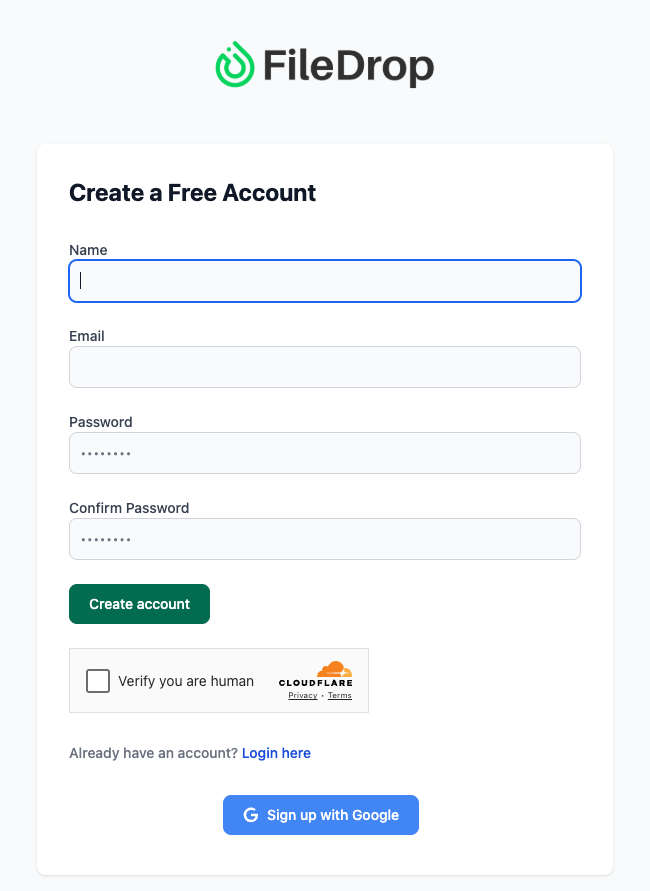
Step 1: Create Your FileDrop Account
Visit https://app.getfiledrop.com/register and create an account using your work email or Google login.
Once logged in, you will have access to:
- File Request Pages for inbound file collection
- Secure Send for outbound delivery
- PDF Hosting for controlled document sharing
- File Processing tools
These features work together to manage the full file lifecycle.
Step 2: Open the File Request Pages Dashboard
From the left navigation menu, click File Request Pages, then open the Dashboard.
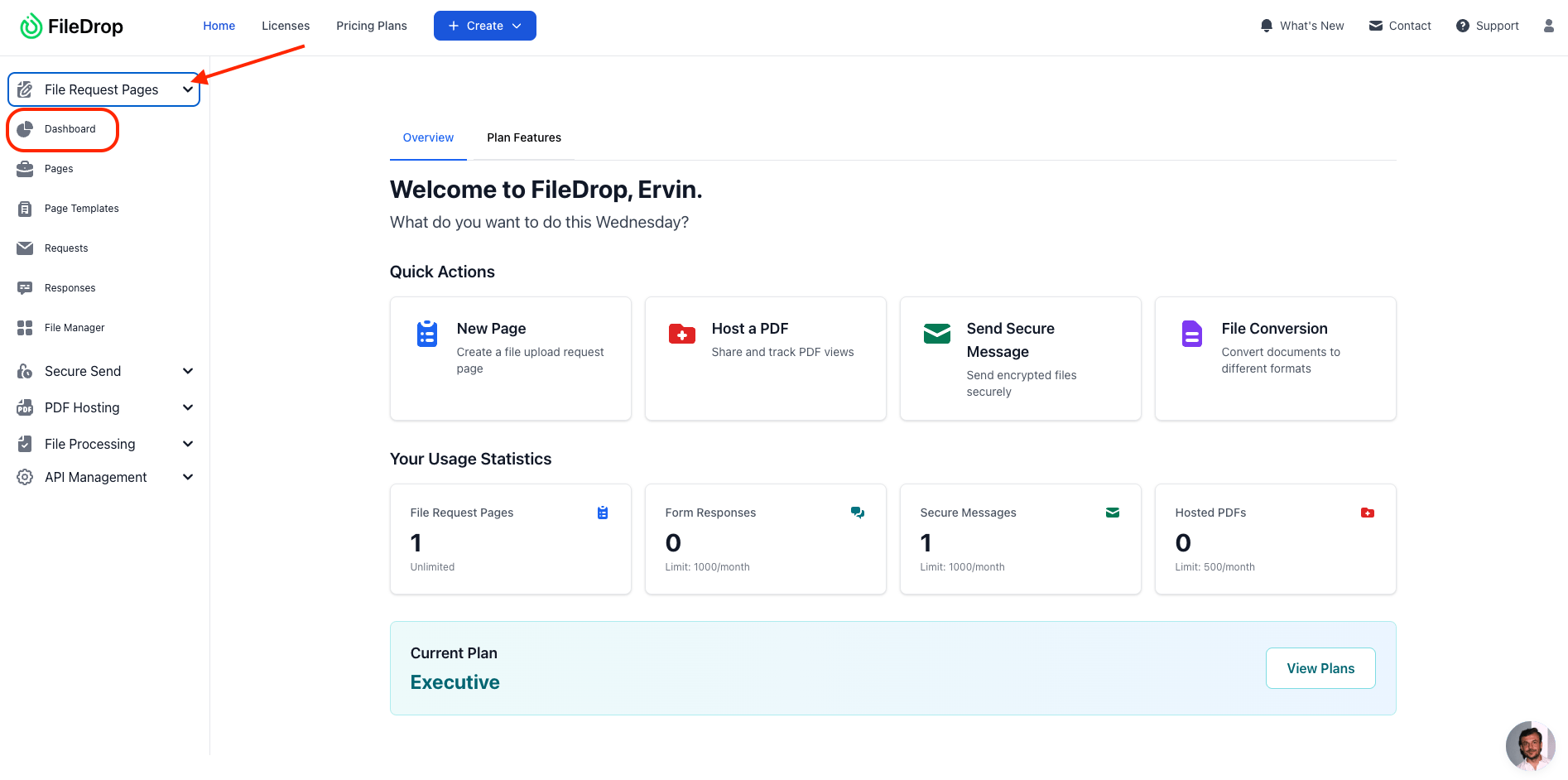
This dashboard is where you manage all upload pages across different workflows, such as:
- Client asset submissions
- Video footage intake
- Design and creative uploads
- Production handoff requests
Each page functions as a reusable, secure upload portal.
Step 3: Create a New File Request Page
Click Create New Page.
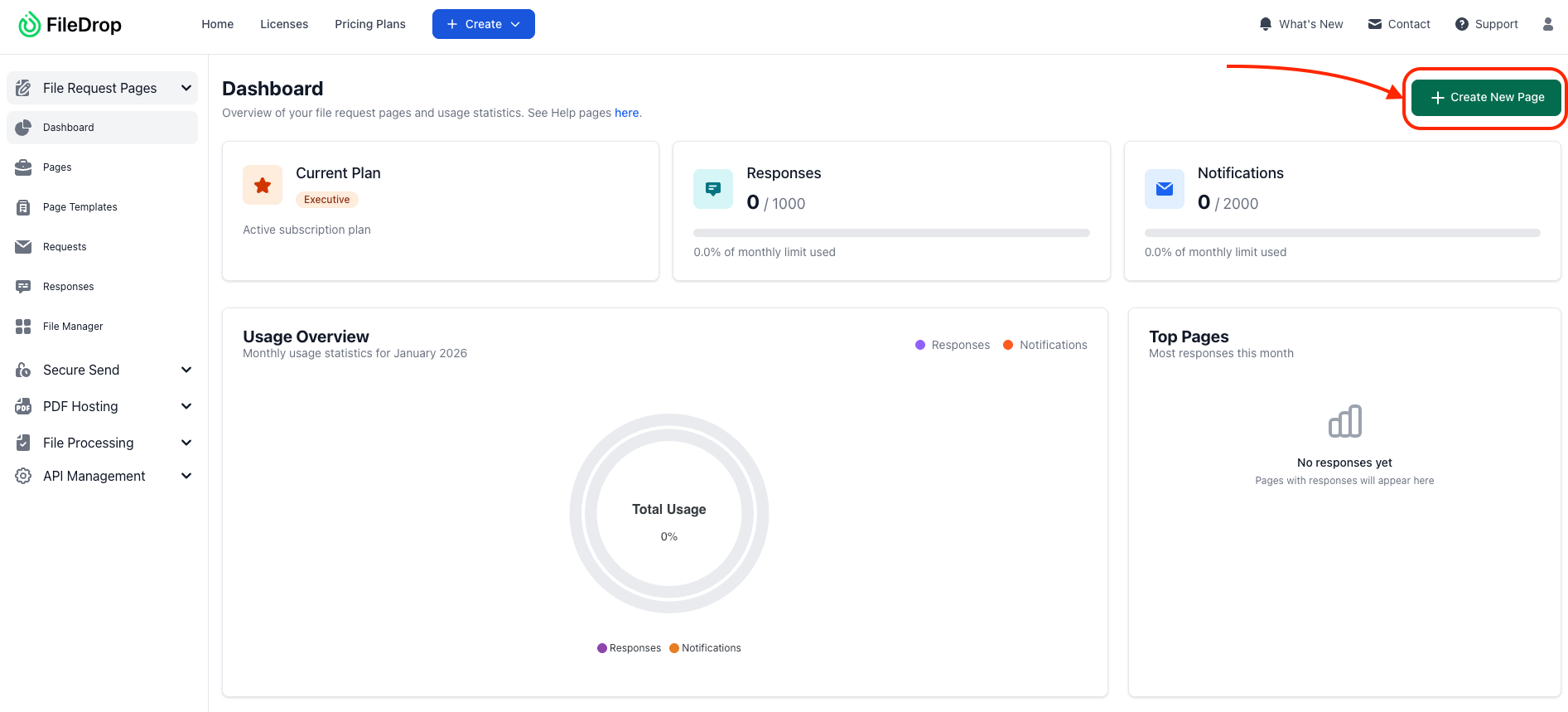
You will be taken to the Page Creation screen, which contains two main configuration sections:
- General Settings & Integrations
- Design & Form Fields
These sections determine how the page behaves, how secure it is, and what clients see.
Step 4: Configure General Settings & Integrations
In General Settings & Integrations, configure how the page operates.
- Page Name – This is an internal reference only. Clients will not see it. Use a clear name such as “Client Media Upload – Video Projects.”
- Description – Optional internal notes to help your team understand the page’s purpose.
- Enable Captcha Protection – Enable this to prevent spam or automated submissions, especially for public-facing pages.
- Page Passcode (Optional) – Set a passcode if only authorized clients should access the page. Users must enter the passcode before uploading files.
- Notify on Response – Enable email notifications when a submission is received, so your team can act immediately.
- Require Approval for Submissions (Optional) – When enabled, every submission must be approved or rejected. Clients receive an email notification of your decision. This is useful for quality control and compliance workflows.
- Submission Display Name – Choose which field value identifies submissions in the File Manager and Google Drive, such as:
- Client name
- Project name
- Email address
By default, FileDrop uses the email address if available.

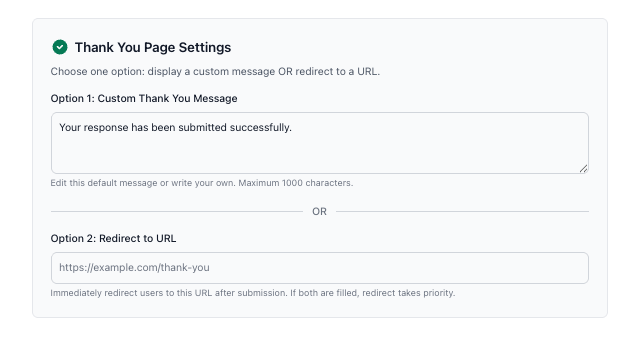
Customize the Thank You Page
Under Thank You Page Settings, choose how the experience ends:
- Option 1: Custom Thank You Message – Example: “Your files have been received successfully. Our team will review them shortly.”
- Option 2: Redirect to URL – Send users to a confirmation page, onboarding guide, or next-step instructions.
Step 5: Enable Google Drive Integration
Scroll to Google Drive Integration and enable it. Connect the Google account where media files should be stored.
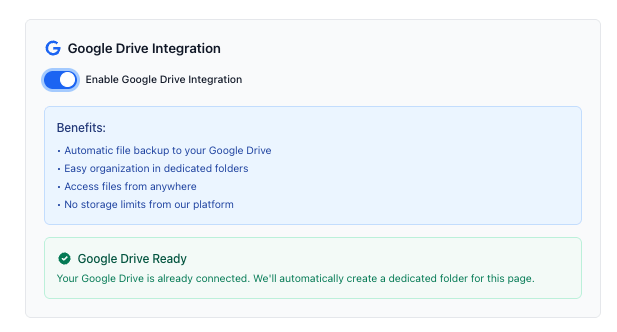
Once connected:
- Files are saved automatically to Drive
- No manual downloading is required
- Submissions remain organized
- Large media files retain original quality and structure
This step is critical for teams managing high-volume or long-term media storage.
Step 6: Configure Page Design and Frontend Content
After General Settings, switch to Design & Form Fields.
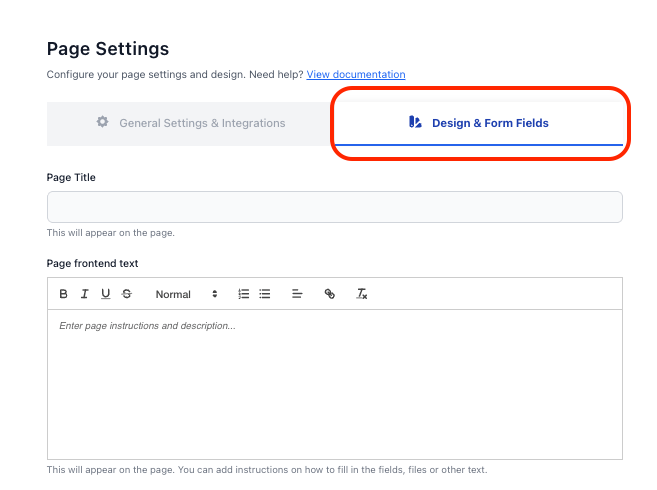
- Page Title – This title appears on the upload page and should clearly describe the request, such as: “Upload Your Project Media Files”
- Page Frontend Text – Add instructions to guide clients. For example: “Use this page to upload all video, image, audio, or design files related to your project. Large files are supported. Please ensure all required fields are completed.” Clear instructions reduce incomplete or incorrect submissions.
Step 7: Apply Branding and Visual Settings
Still within Design & Form Fields, customize the page appearance.
- Logo – Upload your company or agency logo to reassure clients they are on a legitimate page.
- Background Color – Match your brand’s background color for a professional look.
- Button Color and Button Text Color – Customize the submit button to align with your brand and improve visibility. This branding builds trust and improves client confidence during upload.
Step 8: Add and Configure Form Fields

Under Page Fields, add the fields clients must complete.
Common fields for media workflows include:
- Text Field – Label: Your Name or Client NameMark as Required
- Email Field – Label: Your EmailMark as Required
- File Upload Field – Label: Upload Files
Mark as Required. This is the main intake field for large media files.
Fields can be dragged to reorder them. Required fields prevent incomplete submissions and help structure your intake process.
Additional optional fields may include:
- Project Name
- Asset Type
- Notes or special instructions
Step 9: Activate the Page
Toggle the page status to Active and save your changes.
Your File Request Page now includes:
- Secure upload access
- Optional passcode and captcha protection
- Structured form fields
- Branded design
- Google Drive automation
- Optional approval workflows
Distribute the page link through:
- Project management tools
- CRM systems
- Slack or Microsoft Teams
- Client onboarding documents
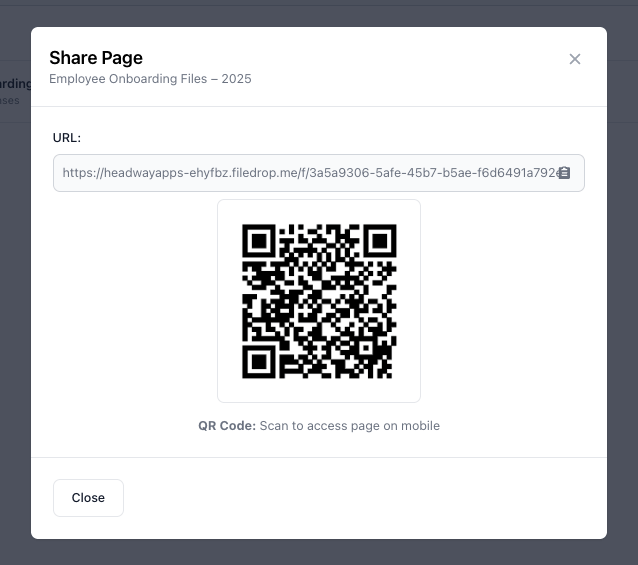
Example message: “Please upload all project media files using the secure link below. Large files are supported and submissions are encrypted.”
Clients do not need an account to upload files.
Step 11: Review, Approve, and Manage Submissions
Each submission appears in the FileDrop dashboard, where you can:
- Review uploaded files
- Approve or reject submissions
- See timestamps and submission details
- Access the corresponding Google Drive folder

This provides complete visibility without relying on shared folders.
Best Practices for Collecting Large Media Files
- Use one File Request Page per workflow
- Require identifying fields like client or project name
- Enable captcha for public links
- Use passcodes for sensitive projects
- Turn on approval workflows for quality control
- Provide clear upload instructions
- Sync files to Google Drive for long-term storage
| Feature | FileDrop | Shared Drives |
| Secure upload pages | Yes | No |
| No client login required | Yes | No |
| Large file support | Yes | Inconsistent |
| Submission tracking | Yes | No |
| Approval workflows | Yes | No |
| Automatic Drive organization | Yes | No |
Real-World Example: Creative Agency Media Intake
A creative agency collecting large video assets from dozens of clients previously relied on shared drives.
They faced upload failures, cluttered folders, and constant access requests.
After switching to FileDrop:
- One File Request Page handled all media uploads
- Clients submitted large files reliably
- Files synced automatically to Google Drive
- Submissions were reviewed centrally
- Editors stopped chasing assets
The agency significantly reduced intake delays and administrative overhead.
Conclusion
Shared drives were never designed for collecting large media files from clients. They create friction, introduce security risks, and force teams to spend valuable time managing access, fixing uploads, and organizing files manually.
FileDrop’s File Request Pages offer a secure, structured alternative built specifically for external file collection. Teams can request large media files through branded upload pages, control access, track every submission, and automatically organize files in Google Drive—without relying on shared folders or client portals.
Clients upload files easily. Teams stay organized. Media workflows move faster, with fewer delays and less administrative overhead.
If your team regularly collects large media files, it’s time to move beyond shared drives. Create your FileDrop account and start collecting files securely with File Request Pages today.