Knowing how to securely send project assets is essential for marketing and creative agencies delivering countless files — from final campaign files and brand kits to design proofs and video exports. But sending these through email or shared drives often leads to the same frustrating questions: “Did the client open it?, “Are they using the right version?”, and “Who else has access to the file?”
With FileDrop Secure Send, agencies can deliver their final project files through a secure, branded download page — while getting instant visibility whenever a client opens or downloads them.
No logins, no shared drives, no confusion. This step-by-step guide shows you how to securely deliver your project assets, control file access, and stay informed when clients engage with your files.
Even experienced teams run into these issues when delivering final assets:
- No delivery insight – You can’t tell if the client ever viewed or downloaded the files.
- Unbranded experience – A plain Dropbox or Google Drive link doesn’t represent your agency’s professionalism.
- Security risks – Shared links can easily be forwarded or shared publicly.
- Version mix-ups – Clients sometimes use old or incorrect versions.
- Lost attachments – Large design files often exceed email size limits.
Creative work deserves a secure, branded, and trackable delivery method. That’s where FileDrop Secure Send stands out.
What FileDrop Secure Send Offers
FileDrop replaces untracked email attachments with a branded, trackable client delivery page.
Simply upload your project files, customize the look, and send your secure link. You’ll get notified when your client views or downloads it.
Key benefits for agencies:
- Branded experience – Add your logo, brand colors, and custom message.
- Secure, private links – Prevent unauthorized sharing or leaks.
- Real-time engagement tracking – Know exactly when a client opens or downloads.
- No logins required – Clients can access the files instantly.
- Large file support – Send big design files, videos, or PDFs (up to 1 GB each).
Managing Large Files and Multiple Formats with FileDrop
Creative agencies work with some of the largest and most diverse file types in any industry. A single video export can exceed 500 MB, while a complete brand kit with high-resolution assets might include dozens of files across multiple formats. Traditional file-sharing methods weren’t designed to handle this complexity.
Understanding File Size Requirements in Creative Work
To put FileDrop’s capabilities in perspective, here’s what typical agency deliverables look like:
- Video exports: Final campaign videos often range from 200 MB to 2 GB depending on length and resolution.
- Design assets: High-resolution PSD or AI files typically run 50–300 MB each.
- Brand kits: Complete packages with logos, fonts, templates, and guidelines can total 500 MB–1 GB.
- Photography deliverables: RAW files and high-res exports often exceed 25 MB per image.
FileDrop supports files up to 1 GB each, with the ability to send up to 100 files per message. This means you can deliver an entire campaign’s worth of assets from videos, design files, documents, and more in a single, organized transfer.
File Format Compatibility and Integrity
One of the biggest concerns creative professionals have with file-sharing tools is whether their files will arrive exactly as intended. FileDrop preserves your original file formats and quality without any forced compression or conversion. What you upload is exactly what your client downloads.
Supported file types include:
- Design files: PSD, AI, INDD, Sketch, Figma exports, XD
- Video formats: MP4, MOV, AVI, WMV, ProRes, and other professional codecs
- Image formats: JPEG, PNG, TIFF, GIF, RAW, WebP, SVG
- Documents: PDF, DOCX, XLSX, PPTX, and other office formats
- Compressed files: ZIP, RAR, 7z for bundled deliverables
- Font files: OTF, TTF, WOFF
This format flexibility means you can mix and match file types in a single delivery.
Working with Multiple Files and Folder Organization
When delivering complex projects, organization matters as much as the files themselves. FileDrop’s upload interface supports drag-and-drop functionality, making it easy to select and upload multiple files at once. You can upload individual files or add pre-organized ZIP archives to maintain your folder structure.
Tips for organizing multi-file deliveries:
- Use clear, consistent naming conventions (e.g.,ClientName_ProjectName_AssetType_Version.ext)
- Group related files into ZIP archives to preserve folder structures
- Include a README or delivery manifest for complex asset packages
- Separate final deliverables from source files when appropriate
Transfer Speed and Performance Optimization
Large file transfers can be anxiety-inducing, especially when you’re on a deadline. FileDrop’s infrastructure is optimized for handling substantial uploads and downloads efficiently. The platform uses secure, high-speed servers designed to manage large creative assets without the timeout issues or failed transfers common with email attachments.
What this means for your workflow:
- Reliable uploads even for files approaching the 1 GB limit
- Consistent download speeds for your clients regardless of file size
- No file corruption during transfer — what you send is what they receive
Pro tip: For the fastest upload experience, use a stable wired connection when transferring files over 500 MB. If you’re working remotely on variable WiFi, consider uploading during off-peak hours.
When You Need More Than 1 GB Per File
While FileDrop’s 1 GB per-file limit covers the vast majority of creative deliverables, some projects like uncompressed video masters or extensive photography archives may exceed this threshold. Here’s how to handle larger files:
- Use compression strategically: For video files, consider using H.264 or H.265 encoding to reduce file size without visible quality loss.
- Split large archives. If you’re sending a massive asset library, divide it into logical segments (e.g., “Brand Assets Part 1 of 3”) that each stay under 1 GB.
- Separate source files from deliverables. Clients often don’t need the original 4K ProRes master — a high-quality H.264 export may suffice for their purposes while staying well under the size limit.
- Contact support for enterprise needs. If your agency regularly works with files exceeding standard limits, reach out to FileDrop’s team to discuss custom solutions.
File Preview and Quick Access
Before downloading, recipients can quickly identify and review files through FileDrop’s preview capabilities. Image files display as thumbnails, making it easy for clients to spot the assets they need. Document files show file names and types clearly, so there’s no confusion about which version they’re downloading.
This preview functionality helps reduce back-and-forth questions like “Which file is the final logo?” or “Is this the updated version?” — clients can visually confirm they’re grabbing the right assets before downloading.
Step-by-Step Tutorial: How to Deliver Project Assets and Track Client Engagement
Follow these steps to send your project files securely and professionally using FileDrop.
Step 1: Prepare Your Files Before Upload
Before you start uploading, taking a few minutes to prepare your files ensures a smooth transfer and a professional client experience.
Pre-upload checklist:
- Verify file integrity. Open each file to confirm it’s not corrupted and displays correctly. For video files, scrub through to check for rendering issues.
- Check file sizes. Ensure each file is under 1 GB. If any file exceeds the limit, use compression or split it into parts (see “When You Need More Than 1 GB” above).
- Optimize where appropriate. For videos, consider H.264/H.265 encoding for smaller files without visible quality loss. For images, ensure you’re sending the correct resolution for the client’s needs.
- Use clear naming conventions. Rename files to be descriptive and version-specific (e.g., “AcmeCorp_Logo_Primary_RGB_Final.png” instead of “logo_v3_FINAL_FINAL.png”).
- Bundle related assets. If your delivery includes multiple related files (like a full icon set or font family), consider zipping them together to maintain folder organization.
- Include documentation. For complex deliverables, add a README file or delivery manifest explaining what’s included and any usage instructions.
Tip: Create a “delivery staging” folder on your computer where you collect and verify all files before uploading. This helps catch missing assets or incorrect versions before the client sees them.
Step 2: Create a FileDrop Account
Go to FileDrop Registration and sign up using your agency’s email.
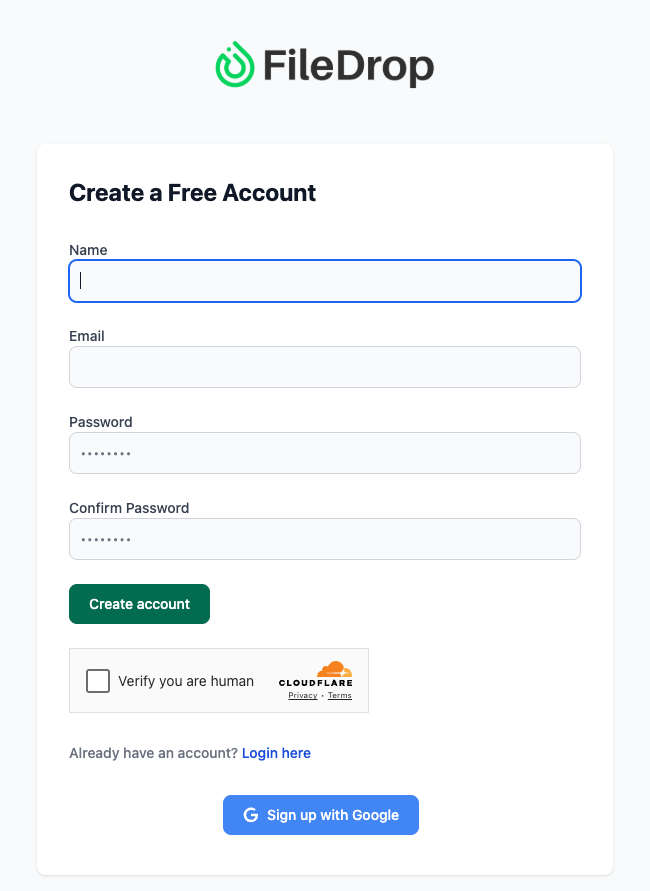
Once your account is set up, you’ll be redirected to the dashboard, where you can access Secure Send, File Forms, and recent activity.
Tip: Use your main delivery email (like projects@youragency.com) so all client files and tracking data are in one place.
Step 3: Open Secure Send
From the dashboard, click Secure Send — this is where you’ll create, send, and track your client file deliveries.
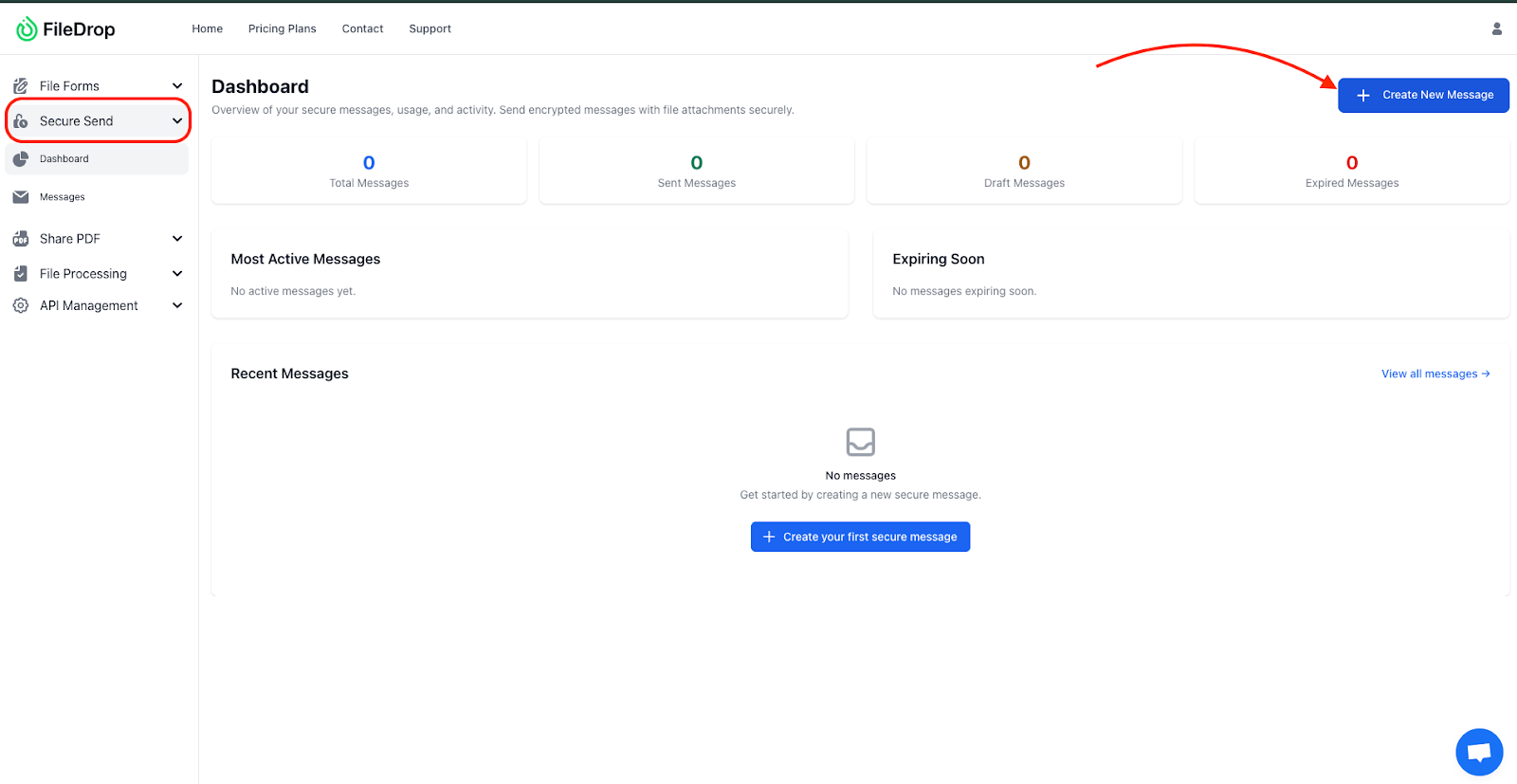
You’ll see:
- Total Messages, Sent, Draft, Expired – overview of your activity.
- Most Active Messages – see which clients are currently viewing files.
- Expiring Soon – reminders to resend or renew links before expiration.
- Recent Messages – your latest deliveries for quick access.
Click Create New Message to start preparing your next file delivery.
Tip: Review “Expiring Soon” links weekly to make sure ongoing clients always have access to the correct version.
Step 4: Create a New Secure Message
This is where you compose your secure delivery page and attach the project files.
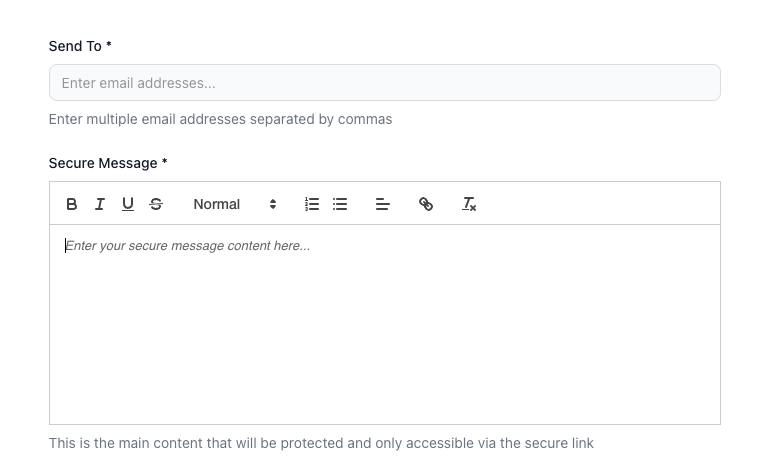
- Send To: Enter your client’s email address (or multiple addresses separated by commas). Example: design@clientbrand.com, marketing@clientbrand.com
- Secure Message: Write a short, professional note that will appear on your secure page. Example:
Hi [Client Name],
Here are your final project assets for the Q4 campaign. Please download and review at your convenience.
This link will expire after [date] for security.
- Attach Files: Upload your project deliverables — brand assets, videos, reports, or PDFs. (FileDrop supports up to 100 files per message, each up to 1 GB.)
- Email Subject: “Your Final Project Files – [Agency Name]”
- Email Body: “Click below to securely view and download your project deliverables. You’ll receive a branded, secure link with your files.”
Tip: Keep filenames organized (e.g., ClientBrand_Q4Assets_Final.zip) to avoid confusion between revisions.
Step 5: Upload Your Files and Monitor Progress
Once you’ve attached your files, FileDrop begins uploading them to secure servers. Here’s what to expect during the upload process:
During upload:
- Progress indicator: You’ll see a visual progress bar showing the upload status for each file, so you know exactly how much has been transferred.
- File queue: If you’re uploading multiple files, they’ll be processed in sequence. You can continue adding files while others upload.
- Upload confirmation: Each file shows a checkmark or success indicator once it’s fully uploaded and verified.
Important: Keep your browser tab open and avoid navigating away during upload. For large files, ensure your computer doesn’t go to sleep. If an upload fails, see the Troubleshooting section below for next steps.
Step 6: Customize the Appearance
Create a delivery page that feels 100% branded.
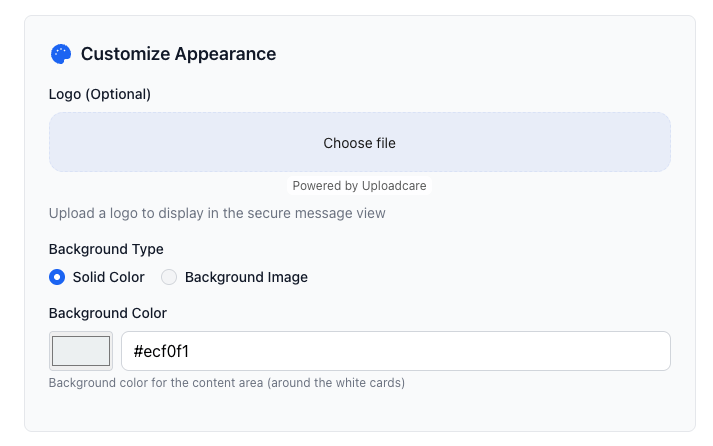
Options include:
- Logo (Optional): Upload your agency logo to appear at the top of the secure page.
- Background Type: Choose Solid Color or Image.
- Background Color: Use your agency’s brand color (default: #ecf0f1).
Tip: Use consistent colors across all client-facing FileDrop pages to strengthen brand recognition.
Step 7: Set Security Preferences
You control how long the files remain accessible.
- Expire After First Download: Best for confidential or sensitive projects.
- Expiration Date: Choose a specific date (default: 7 days, up to 30 days).
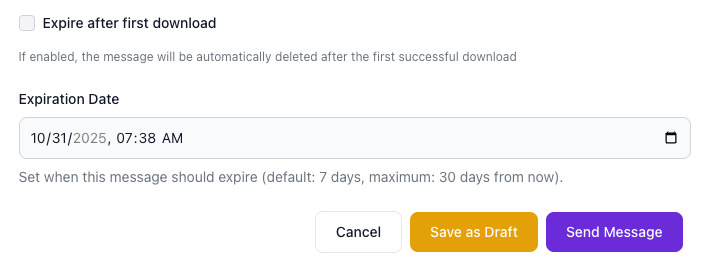
Tip: For deliverables like creative assets or reports that clients may need to revisit, set a longer expiry (e.g., 14 days). For exclusive projects (like unreleased ads or pricing sheets), use “Expire After First Download.”
Step 8: Save or Send Your Message
Once your message is ready:
- Save as Draft – review with your internal team before sending.
- Send Message – deliver it instantly via secure email link.
Your client receives a branded email containing your subject, message, and a link to the secure download page. No attachments — just a clean, professional presentation.
Step 9: Track and Get Notifications
Once your message is sent, FileDrop automatically tracks engagement:
- Opens: See when the client views the link.
- Downloads: Track when and how many times the file is downloaded.
- Notifications: Receive alerts for every view or download.
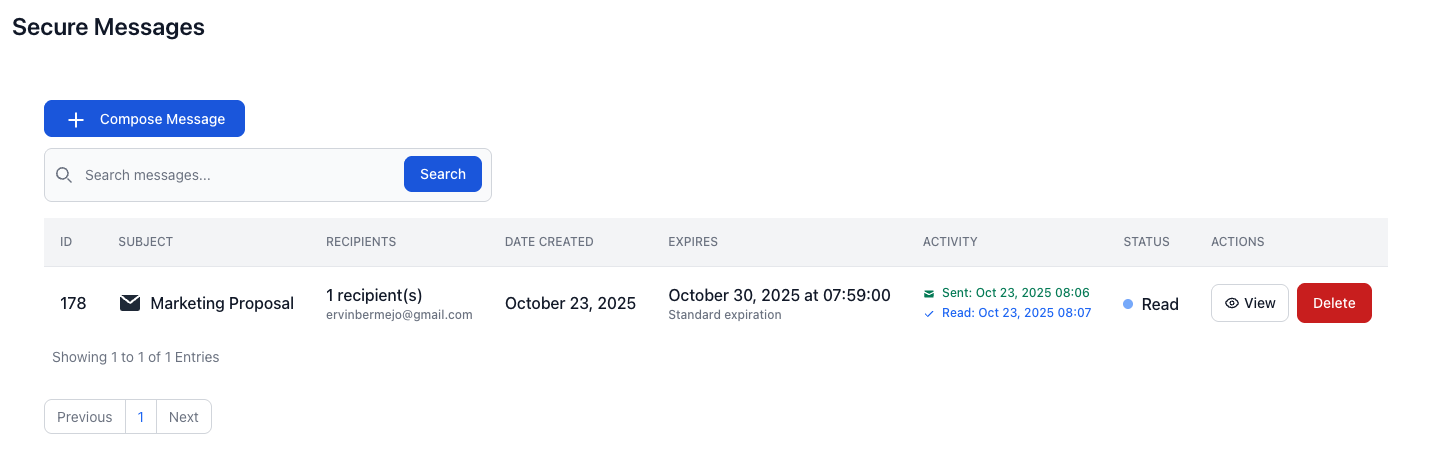
You can also export engagement logs to document delivery or client activity.
Tip: Use this data to improve communication timing.
Example: “Hi Alex, I saw you downloaded the brand package this morning — let’s schedule a review call.”
What Your Client Sees: The Recipient Experience
Understanding the client’s perspective helps you set appropriate expectations and reduces support questions. Here’s exactly what happens when your client receives a FileDrop delivery.
The Email
Your client receives a professional email with the subject line and body text you configured. The email includes a prominent button or link to access the secure download page. There are no attachments to download or worry about — just a single, clear call-to-action.
The Download Page
When clients click the link, they land on your branded download page. Here’s what they experience:
- No login required. The page loads immediately — no account creation, no password prompts, no friction.
- Your branding front and center. Clients see your logo, brand colors, and custom message, reinforcing your professional identity.
- Clear file listing. All attached files are displayed with names, file types, and sizes. Image files show thumbnail previews for easy identification.
- Simple download options. Clients can download individual files or grab everything at once. For multiple files, a “Download All” option simplifies the process.
- Expiration notice. If you’ve set an expiration date, clients see a clear reminder of when the link will expire, encouraging timely downloads.
The Download Process
When clients click to download:
- Files download directly to their device using their browser’s standard download functionality.
- Large files may take several minutes depending on the client’s internet speed.
- Files arrive exactly as you uploaded them — same format, same quality, no compression.
- You receive a notification the moment the download begins, so you know your client has accessed the files.
Tip: If you’re sending large files to clients with slower connections, mention in your message that downloads may take a few minutes and recommend using a stable WiFi or wired connection.
Tracking, Notifications, and Managing Sent Transfers
Once your message is sent, FileDrop automatically tracks engagement and gives you tools to manage deliveries after they’ve been sent.
Real-Time Tracking
- Opens: See when the client views the link, including timestamp and number of views.
- Downloads: Track when and how many times each file is downloaded.
- Notifications: Receive instant email alerts for every view or download, so you’re never left guessing.
You can also export engagement logs to document delivery or client activity for project records.
Managing Sent Transfers
Project timelines change, and FileDrop gives you flexibility to manage deliveries even after they’ve been sent.
- Resend links: If a client can’t find the original email or accidentally deleted it, you can resend the secure link without re-uploading files.
- Extend expiration: Need to give a client more time? You can extend the expiration date on active links before they expire.
- Revoke access: If circumstances change — like a project cancellation or sending to the wrong recipient — you can immediately revoke access to the download page.
- Update files: Need to replace a file with an updated version? Create a new message with the corrected assets and revoke the original link to ensure clients only access the latest version.
Tip: Use engagement data to improve communication timing. Example: “Hi Alex, I saw you downloaded the brand package this morning — let’s schedule a review call.”
Troubleshooting Common Issues
Even with reliable infrastructure, occasional issues can occur. Here’s how to resolve the most common problems.
Upload Issues
Upload fails or stalls:
- Check your internet connection — try loading other websites to confirm connectivity.
- If on WiFi, switch to a wired connection for more stability.
- Refresh the page and retry the upload. FileDrop will resume from where it left off when possible.
- For very large files (500 MB+), try uploading during off-peak hours when network traffic is lower.
- Disable browser extensions that might interfere with uploads (ad blockers, VPNs).
File won’t upload:
- Verify the file is under 1 GB. If it’s larger, compress or split it.
- Check that the file isn’t corrupted by opening it locally first.
- Ensure the file isn’t open in another application (close Photoshop, Premiere, etc.).
- Try a different browser (Chrome typically offers the best performance).
Download Issues (Client-Side)
If your client reports problems downloading files, here’s what to advise:
- Link not working: Check if the link has expired. If so, resend with a new expiration date.
- Download is slow: Large files take time — advise the client to use a stable connection and keep the browser tab open.
- Download fails: Suggest clearing browser cache, trying a different browser, or using a wired connection.
- File appears corrupted: Ask the client to re-download. If the issue persists, verify the original file on your end and re-upload if necessary.
Getting Help
If you’ve tried these steps and still experience issues:
- Contact FileDrop support through the help center or support email.
- Include details about the file (size, format), the error you’re seeing, and any steps you’ve already tried.
- For enterprise accounts, dedicated support channels offer priority assistance.
Best Practices for Marketing Agencies
To get the most from Secure Send when delivering assets:
- Always include your logo and brand colors for a consistent client experience.
- Use expiring links for time-sensitive or confidential projects.
- Keep internal drafts in Draft mode until final approval.
- Organize file names by project and version for easy identification.
- Review engagement analytics weekly to track client activity and follow up at the right time.
Conclusion: Deliver Files Securely, Professionally, and with Confidence
Email attachments and shared links make it impossible to know when clients view your work.
With FileDrop Secure Send, you can:
- Deliver final project assets through a branded, secure page
- Get real-time notifications when clients view or download
- Maintain complete control over access and expiry
- Present your work professionally, every time
Stop guessing if clients saw your files — know for sure with FileDrop Secure Send. Check out FileDrop today!
Frequently Asked Questions (FAQs)
1. Can clients access the files without logging in?
Yes. Clients simply click the link and access your branded delivery page — no account required.
2. Can I see when the client opened or downloaded the file?
Absolutely. FileDrop tracks all views and downloads automatically.
3. What file types and sizes are supported?
You can send up to 100 files per message, each up to 1 GB — including PDFs, ZIPs, videos, or design files.
4. Can I make the link expire after a specific time?
Yes. You can set an expiration date or make it expire automatically after the first download for extra security.
5. What if my file is larger than 1 GB?
For files exceeding 1 GB, consider using video compression, splitting large archives into parts, or separating source files from final deliverables. For enterprise needs requiring larger file limits, contact FileDrop support to discuss custom solutions.
6. Does FileDrop compress my files during transfer?
No. FileDrop transfers files exactly as uploaded — no compression, no conversion, no quality loss. Your clients receive files exactly as you intended.
7. Can I send multiple file types in one message?
Yes. You can mix and match any supported file types — videos, images, documents, design files, and compressed archives in a single delivery. This is perfect for sending complete project packages with diverse asset types.
8. How fast are uploads and downloads for large files?
FileDrop’s infrastructure is optimized for large creative assets. Upload and download speeds depend on your internet connection, but the platform is designed to handle substantial file transfers reliably without timeouts or failed transfers. For best results with files over 500 MB, use a stable wired connection.
9. What happens if my upload fails?
If an upload fails, first check your internet connection and refresh the page to retry. FileDrop will attempt to resume from where it left off when possible. For persistent issues, try switching to a wired connection, using a different browser, or uploading during off-peak hours. See the Troubleshooting section for detailed guidance.
10. Can I revoke access after sending?
Yes. If you need to cancel a delivery — whether due to sending to the wrong recipient, a project change, or any other reason — you can immediately revoke access to the download page from your Secure Send dashboard.
11. What does my client see when they receive files?
Clients receive a professional email with a link to your branded download page. When they click through, they see your logo and brand colors, a list of all files with names and sizes (including image thumbnails for visual assets), and clear download options. No login is required — they can download files immediately.