Wondering how to share a PDF as a link instead of sending bulky email attachments? You’re not alone. Many agencies still rely on outdated methods like attaching PDFs to emails or sharing Google Drive links, only to have files get buried in inboxes, forwarded to the wrong person, or opened without any way to track engagement.
What if you could send every proposal as a secure, branded link — not just an attachment — and track when your client views it? That’s exactly what FileDrop’s Share PDF feature enables.
In this guide, you’ll learn how to share a PDF as a link—specifically, how to turn any proposal into a shareable, trackable link—plus why traditional sharing methods hurt your agency’s client experience and how to fix it.
FileDrop’s Share PDF feature lets agencies turn any proposal into a secure, branded, trackable link—no attachments, portals, or downloads required. Here’s how to do it in just a few minutes.
Step 1: Log In or Create a FileDrop Account
To get started, visit https://app.getfiledrop.com/register.
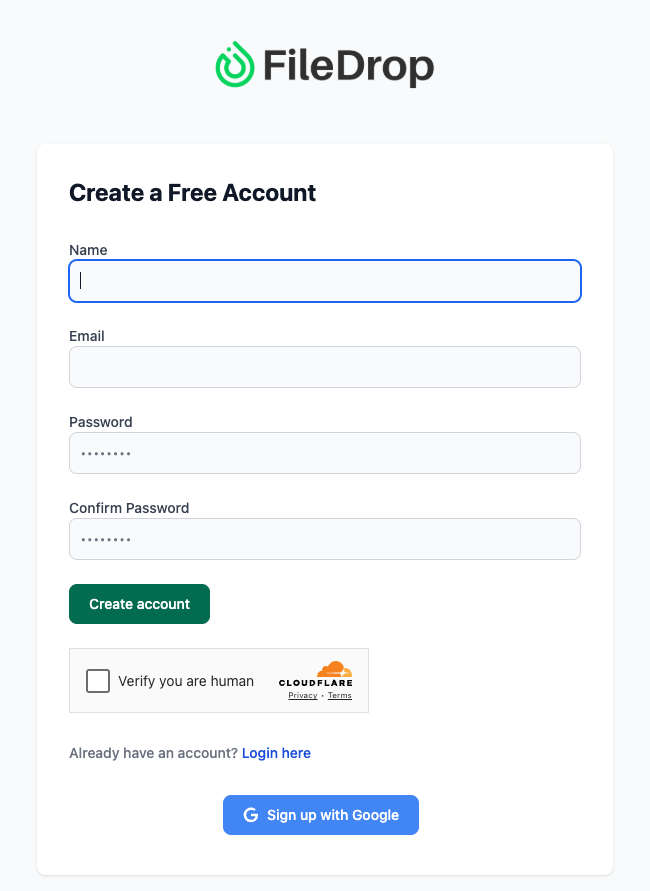
You can sign up using your email address or Google account — no credit card required. Once logged in, you’ll arrive at your FileDrop Dashboard, where you can access all key features:
- File Forms (for collecting uploads)
- Secure Send (for encrypted messages)
- Share PDF (for sharing trackable document links)
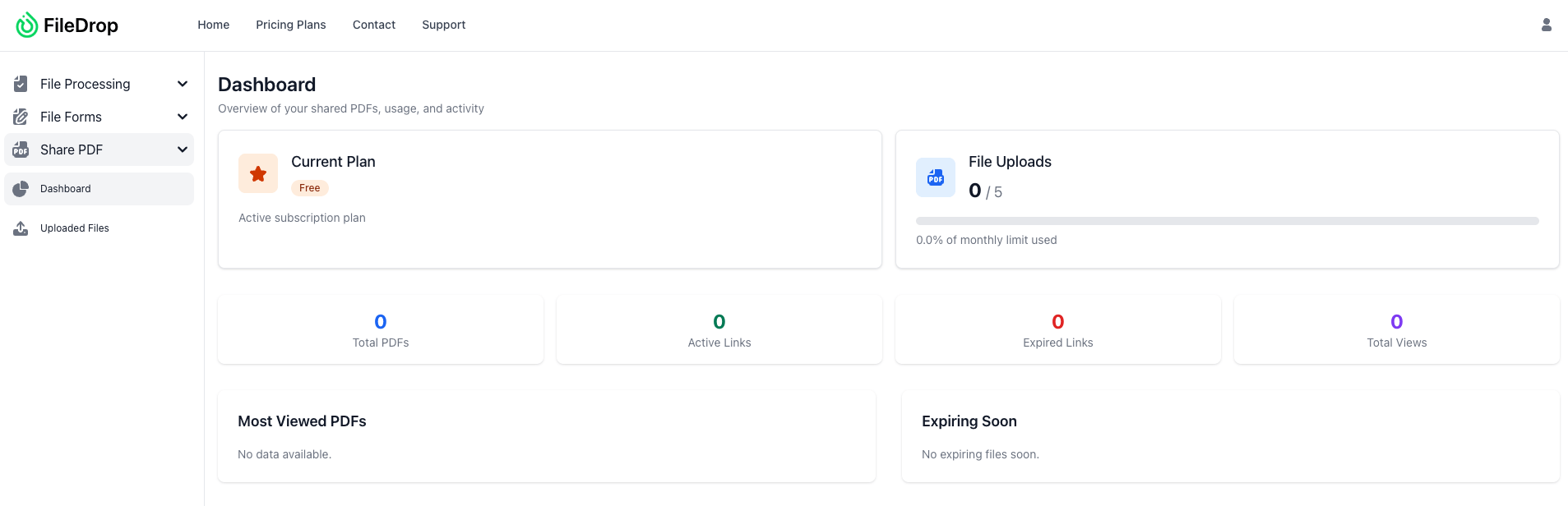
Click Share PDF from the main dashboard to begin.
Step 2: Upload Your PDF Proposal
Click the “Upload PDF” button. From here, you can drag and drop your file or browse from your computer.
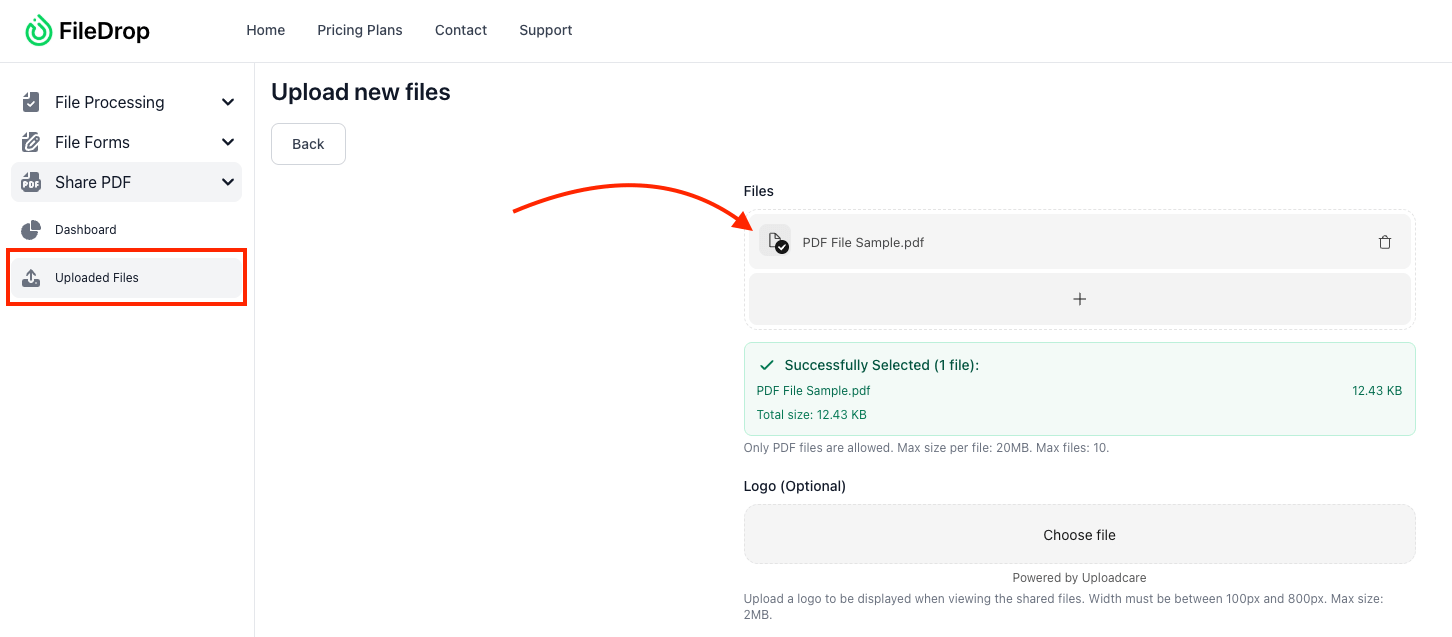
Tip: You can upload proposals, pricing sheets, reports, or presentations — any file saved as a PDF.
FileDrop supports PDFs up to several hundred MB in size, making it suitable for large documents or design-rich files. Once uploaded, FileDrop automatically generates a preview so you can confirm that the file appears correctly before sharing.
Step 3: Customize Your Branded Viewing Page
After upload, it’s time to personalize the sharing experience. This is where FileDrop helps you reinforce your brand identity every time a client opens a proposal.
You can customize:
- Logo: Upload your agency logo to appear on the viewing page.
- Title and Description: Add a clear document title (e.g., “Proposal for Q4 Marketing Campaign – Apex Agency”) and optional summary text.
- Brand Colors: Choose your button, header, and background colors to match your agency’s style.
- Call-to-Action Text: Add a button label such as “Accept Proposal” or “Contact Us to Proceed.”
The result is a professional, on-brand proposal viewer that makes your agency stand out — no more plain PDF downloads.
Step 4: Configure Access and Privacy Settings
FileDrop gives you control over how your PDF is shared and accessed. Before generating the link, you can set:
- Allow or Block Downloads: Let clients view only or download a copy.
- Set Link Expiration: Choose an expiration date (e.g., 7, 14, or 30 days).
- Password Protection (Optional): Add an extra layer of security for confidential proposals.
- View Tracking: Enable notifications when the recipient opens or views your proposal.
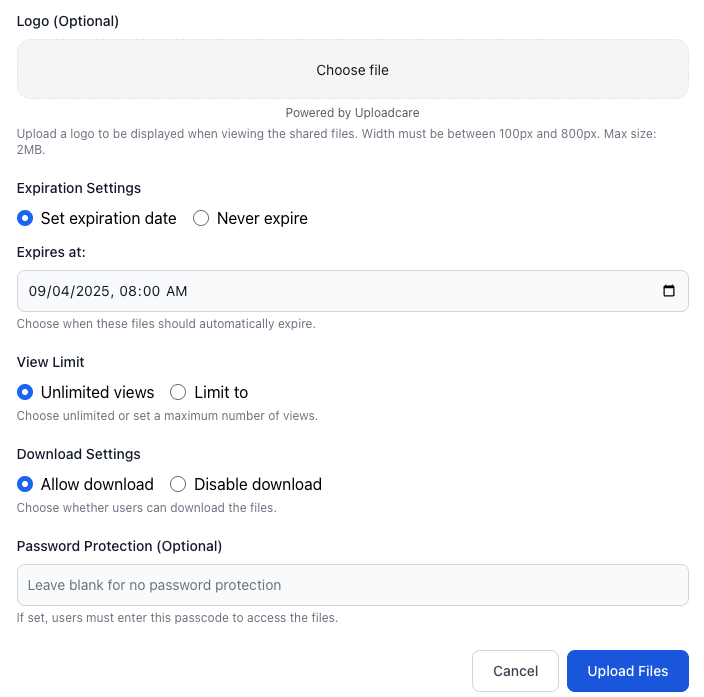
These controls ensure your sensitive client documents stay protected — even after sharing.
Step 5: Generate and Copy Your Secure PDF Link
Once you’ve customized your settings, click Generate Share Link. FileDrop instantly creates a unique, encrypted link for your document. You can copy this link and share it directly with clients through:
- Email or CRM messages
- Slack or project management tools
- SMS or chat platforms
- Calendar invites or meeting notes
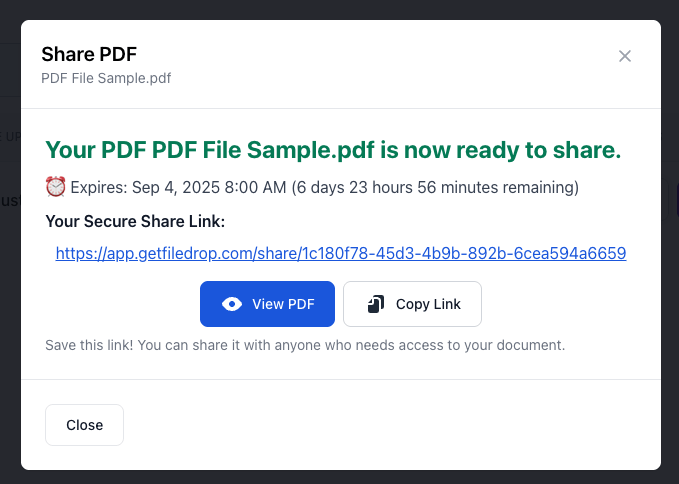
Each client receives a simple, branded viewing page — no downloads, no logins required.
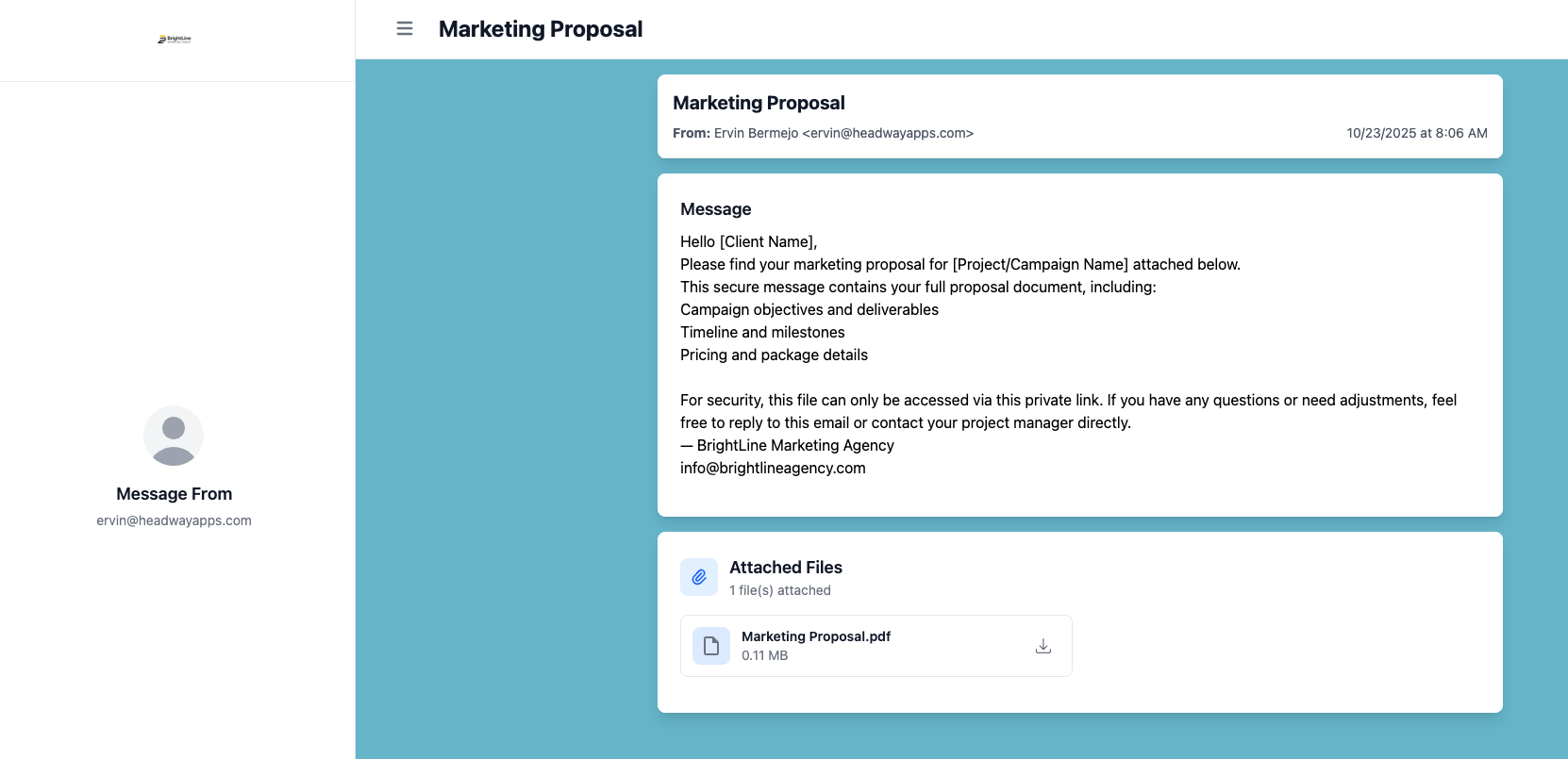
Step 6: Track Views and Engagement
Here’s where FileDrop shines. Inside your dashboard, you can monitor every shared PDF to see:
- When a client viewed the proposal
- How many times it’s been opened
- If it’s been downloaded (if allowed)
- When the link expires
This gives your agency actionable insights — letting you follow up at the right time with data-driven confidence.

Example: If a client opens your proposal twice within 24 hours, your team knows they’re interested — it’s the perfect moment for a follow-up call.
Why Email and Google Drive Links Fail for Proposal Sharing
For agencies, knowing how to share a PDF as a link matters because proposals aren’t just documents — they’re opportunities to win business and showcase professionalism. Yet many teams still rely on email attachments or shared Google Drive links to send them, which often causes more problems than it solves:
- Email attachment limits: Large proposal files often exceed email size restrictions, forcing teams to compress files or split them into multiple messages.
- Lost or outdated versions: Clients may open the wrong email thread or outdated attachment, leading to confusion and delays.
- Uncontrolled sharing: Google Drive links can easily be forwarded, downloaded, or accessed by unauthorized people if link settings aren’t managed properly.
- Unprofessional presentation: Drive links and attachments look generic and lack branding, which diminishes the polished experience your agency wants to deliver.
Once you understand how to share a PDF as a link properly, every proposal looks professional, stays protected, and reaches only the right people—without version chaos or link confusion.
Learning how to share a PDF as a link is only half the equation. While platforms like Google Drive, Dropbox, OneDrive, and Box offer basic file storage and sharing, they weren’t designed with client-facing document delivery in mind. The same goes for hosting PDFs on WordPress or your own web server; you get a link, but nothing else.
For agencies, the difference between a generic file link and a professional document experience can shape how clients perceive your work.
When evaluating PDF hosting platforms, consider these key factors:
Branding & Client Experience: Does the platform let you present documents with your agency’s logo and colors, or does it default to a generic viewer? First impressions matter, especially when sharing proposals and deliverables.
Security & Access Controls: Can you restrict downloads, set link expirations, or require passwords? Client confidentiality depends on more than just a private link setting.
Tracking & Analytics: Will you know when a client opens your document and how many times they’ve viewed it? Without this visibility, you’re left guessing when to follow up.
File Size & Scalability: Can the platform handle large, design-rich files without compression or quality loss? As your agency grows, so will your document volume.
Workflow Integration: Does it fit into how your team already works — sharing links via Slack, embedding in CRM messages, or adding to project management tools?
Free cloud storage platforms check some of these boxes, but rarely all of them. FileDrop’s Share PDF was built specifically for this use case, giving agencies branded, secure, and trackable PDF links without the limitations of general-purpose file storage.
Real-World Example: A Marketing Agency Improves Client Follow-Ups
BrightLine Agency, a mid-sized creative firm, used to send proposals as email attachments and wait days for client feedback. Since switching to FileDrop’s Share PDF, they’ve completely streamlined the process.
Now, they:
- Upload each proposal to FileDrop
- Send clients a branded link instead of an attachment
- Get notified the moment a client opens it
- Follow up within hours — not days
Result: Faster approvals, cleaner workflows, and proof that understanding how to share a PDF as a link transforms the client experience.
- No More Attachments: Send links, not files — faster and safer.
- Professional Branding: Every shared document reflects your agency’s identity.
- Real-Time Tracking: See exactly when clients open proposals.
- Simple Experience: Clients view your proposal instantly — no apps or logins.
- Built-In Security: Encrypted links and expiration options keep files safe.
Now that you know how to share a PDF as a link, sending proposals no longer feels like sending files into a void. With FileDrop’s Share PDF, your agency can share proposals in a secure, branded, and trackable way — all while delivering a modern client experience.
No attachments. No follow-up guessing. Just beautiful, trackable proposals — delivered with your agency’s branding front and center.
Start sharing your proposals securely today at FileDrop.
Frequently Asked Questions
If you’re wondering how to share a PDF as a link, simply upload your PDF to FileDrop, customize your branding and security settings, then click “Generate Share Link.” You’ll get a unique URL you can send to anyone via email, Slack, or any other channel.
Yes. FileDrop provides an alternative to Google Drive that offers branded viewing pages, access controls, and engagement tracking—features not available with standard Drive links.
3. How do I create a URL link for a PDF?
FileDrop automatically generates a unique URL when you upload a PDF. You can customize the viewing experience, set security options, and copy the link to share instantly.
4. Can I track when clients open the link?
Yes. FileDrop provides real-time tracking so you can see when and how many times your PDF was viewed, helping you time your follow-ups perfectly.
Absolutely. You can add password protection, set expiration dates, and control whether recipients can download the file or only view it online.
Share PDF supports all PDF documents including proposals, presentations, invoices, reports, contracts, ebooks, and marketing collateral.
7. Can I customize the look of my PDF sharing page?
Yes. You can upload your logo, use brand colors, add custom titles and descriptions, and personalize the call-to-action button for a fully on-brand experience.