Sending proposals is one of the most important parts of winning new business. But how you share those proposals matters just as much as what’s inside them.
Many marketing and creative agencies still send proposal PDFs as email attachments or Google Drive links, which often leads to lost control, outdated versions, and no insight into whether clients even viewed the document.
With FileDrop’s Share PDF feature, you can transform any proposal into a secure, branded, and trackable link — no attachments, no version confusion, and no guessing.
This guide will walk you through the full process, from uploading your proposal to customizing your branded viewing page, setting permissions, and tracking client engagement in real time.
Why Traditional Proposal Sharing Doesn’t Work
When you email a proposal as a PDF attachment, you lose control the moment you hit “send.” Clients may download, forward, or even edit your file. You also have no idea when — or if — they opened it.
Here are the biggest challenges agencies face with traditional sharing:
- Email attachments are unreliable — Large PDFs can exceed email limits, get filtered as spam, or be lost in cluttered inboxes.
- No tracking visibility — You can’t tell when clients open your proposal, making it hard to follow up at the right time.
- Version mix-ups — Clients sometimes refer to outdated attachments when revisions are sent over email.
- No control over access — Drive links can be shared or downloaded freely, exposing your pricing or strategy to unintended recipients.
- Unbranded presentation — A plain attachment doesn’t reflect your agency’s professional image or attention to detail.
To create a better experience, agencies are now sending proposals as secure, trackable, and branded links through FileDrop — ensuring full control, visibility, and consistency.
Share PDF converts any proposal or report into a professional, secure, web-based viewing link. You simply upload your PDF, customize how it looks, and send the link to your client.
Each shared document is displayed on a branded viewing page with your logo, company colors, and messaging. You can also track when clients open or revisit the document, and even restrict downloads or set expiration dates.
Key Features for Agencies
- Branded Viewing Page: Add your logo, colors, and custom header text for a polished client experience.
- Secure Access Controls: Prevent downloads, set expiration dates, and require passwords when needed.
- Engagement Tracking: Know exactly when and how many times a client views your proposal.
- Centralized Dashboard: Manage all your shared documents and monitor activity in one place.
Step-by-Step: How to Turn Proposals into Secure Trackable PDFs
The following steps outline how your team can create a secure, branded, and trackable proposal link in minutes using FileDrop.
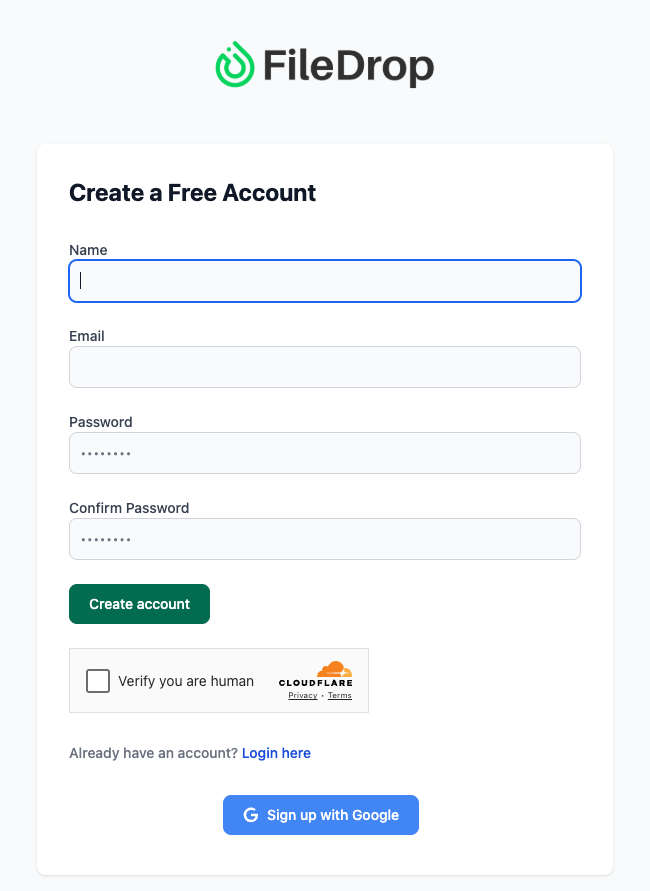
Step 1: Create or Log In to Your FileDrop Account
Visit https://app.getfiledrop.com/register to sign up. You can register using your email address or Google account, and setup takes less than a minute.
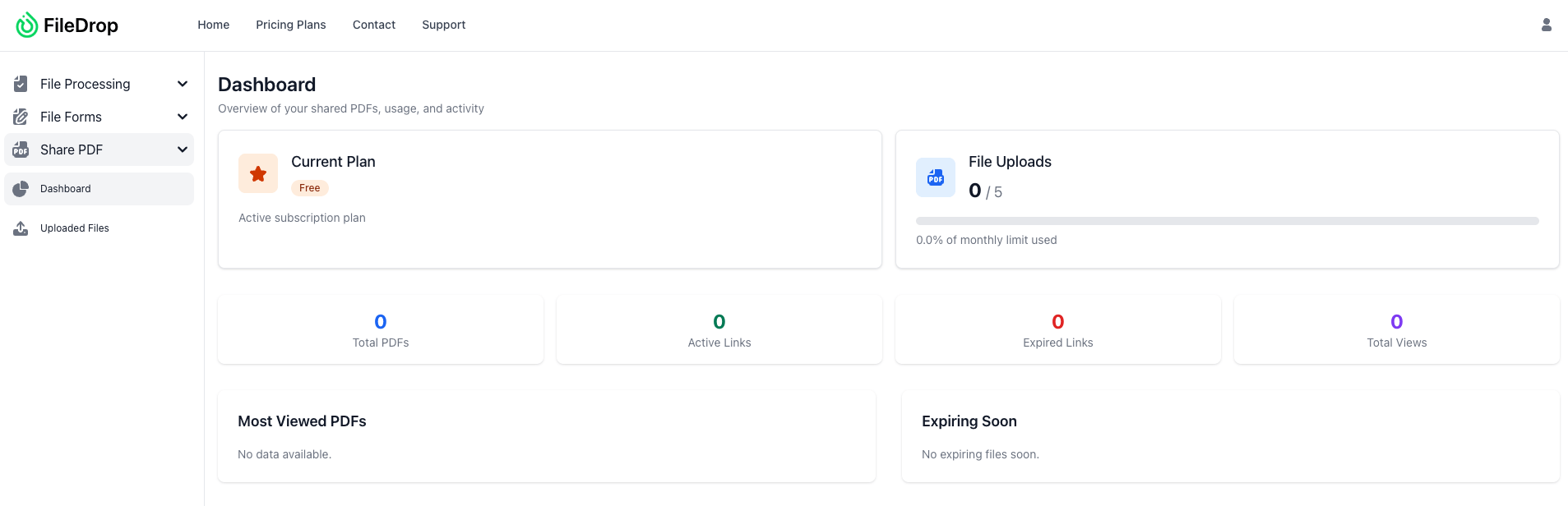
After logging in, you’ll arrive at your FileDrop Dashboard, which includes three key tools:
- File Forms — for collecting documents from clients
- Secure Send — for sending files securely
- Share PDF — for sharing branded, trackable documents
Click Share PDF from the sidebar to begin setting up your proposal.
Tip: For team collaboration, create a shared FileDrop account for your proposals department (e.g., proposals@agency.com). This keeps all shared files and analytics accessible to your sales and project management teams.
Step 2: Upload Your Proposal PDF
Click Upload PDF and drag your proposal file into the upload area, or browse your computer to select it.
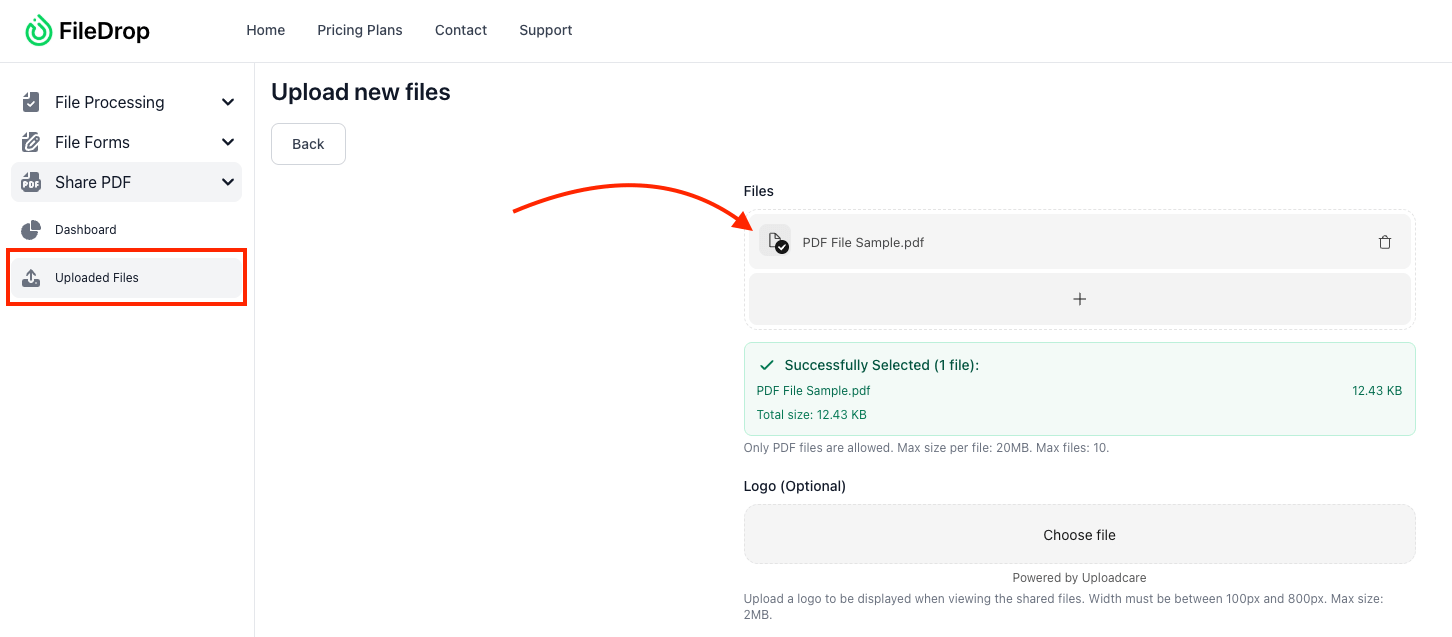
You can upload:
- Marketing or creative proposals
- Retainer or renewal offers
- Pricing breakdowns or service outlines
- Campaign summaries or pitch decks
Once uploaded, FileDrop automatically displays a document preview, allowing you to confirm layout, fonts, and images before sharing.
If your proposal includes large visuals, charts, or design elements, FileDrop maintains the quality of your original PDF — so it always looks clean and professional when viewed online.
Best Practice: Use consistent file names such as ClientName_Project_Proposal_Q1.pdf to make tracking and reporting easier later.
Step 3: Customize Your Branded Viewing Page
Your proposal’s presentation should reinforce your agency’s identity. FileDrop allows you to fully customize how clients see your shared PDF.
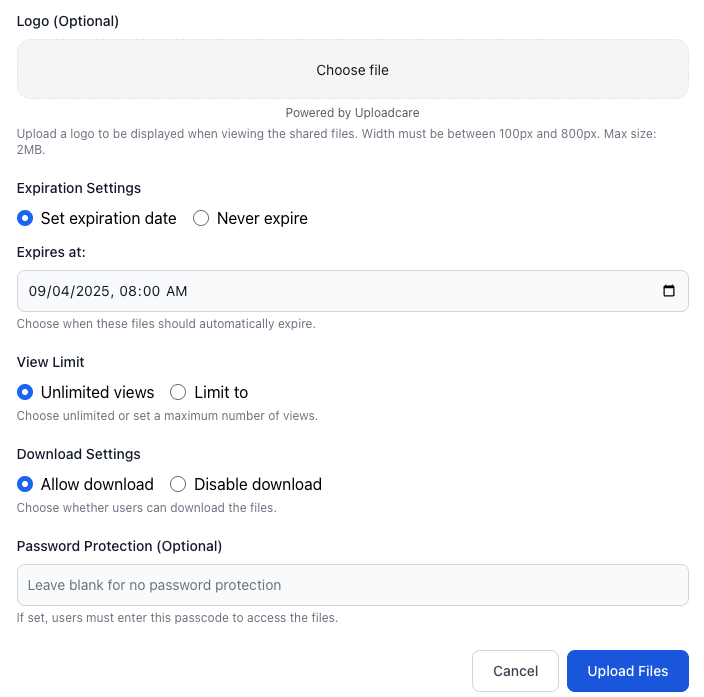
Under the Customization tab, you can:
- Add Your Logo: Upload your agency’s logo to appear at the top of the viewing page.
- Set a Page Title: Use descriptive titles like “Marketing Proposal – Q4 Campaign for GreenTech Inc.”
- Include a Short Message: Add a greeting or context for the client, such as “Please review your proposal below. You can view it online and download a copy once approved.”
- Adjust Brand Colors: Match the viewer’s accent buttons and highlights to your agency’s official color scheme.
- Add a Call-to-Action Button: You can link to your scheduling page, e-signature form, or payment portal. Example: “Book a Call to Approve” or “Proceed to Contract.”
This ensures your proposal isn’t just a PDF — it’s a branded experience that reflects your professionalism and attention to detail.
Step 4: Configure Security and Access Settings
Before generating your link, decide how much access your client should have.
FileDrop provides granular security options under the Access Control settings:
- View-Only Mode: Clients can open and view your proposal but cannot download or copy it.
- Allow Download: Enable this if you want clients to keep a local copy of the file.
- Add Expiration Date: Automatically deactivate links after a set number of days (7, 14, or 30 days).
- Password Protection: Add an extra layer of security for sensitive pricing or confidential proposals.
- Enable Tracking: Activate engagement tracking so you can see when the client opens the file.
Recommended Setup for Sensitive Proposals: Use “View Only” mode, enable tracking, and set an expiration after 7 days. This creates urgency while maintaining security.
Once everything looks right, click Generate Share Link. FileDrop will instantly create a unique, encrypted URL for your proposal.
You can now copy the link and send it through your preferred communication channel, such as:
- Email (ideal for initial proposal delivery or follow-ups)
- CRM platforms (HubSpot, Pipedrive, Zoho, etc.)
- Chat apps like Slack, Teams, or WhatsApp
- Client portals or shared dashboards
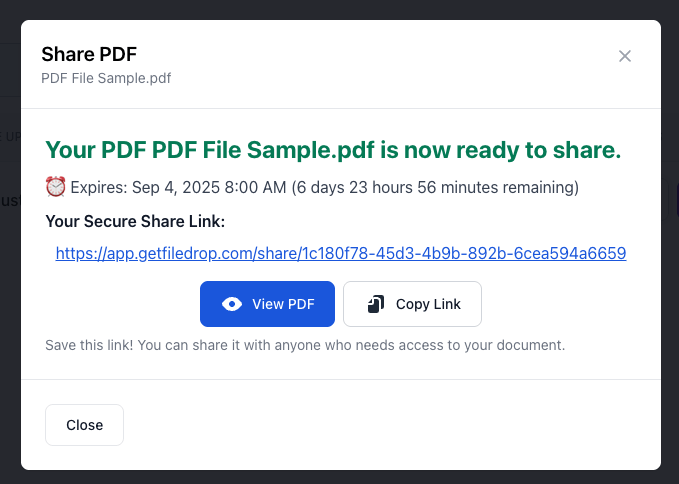
Your client simply clicks the link and views the proposal in their browser — no logins, downloads, or attachments required.
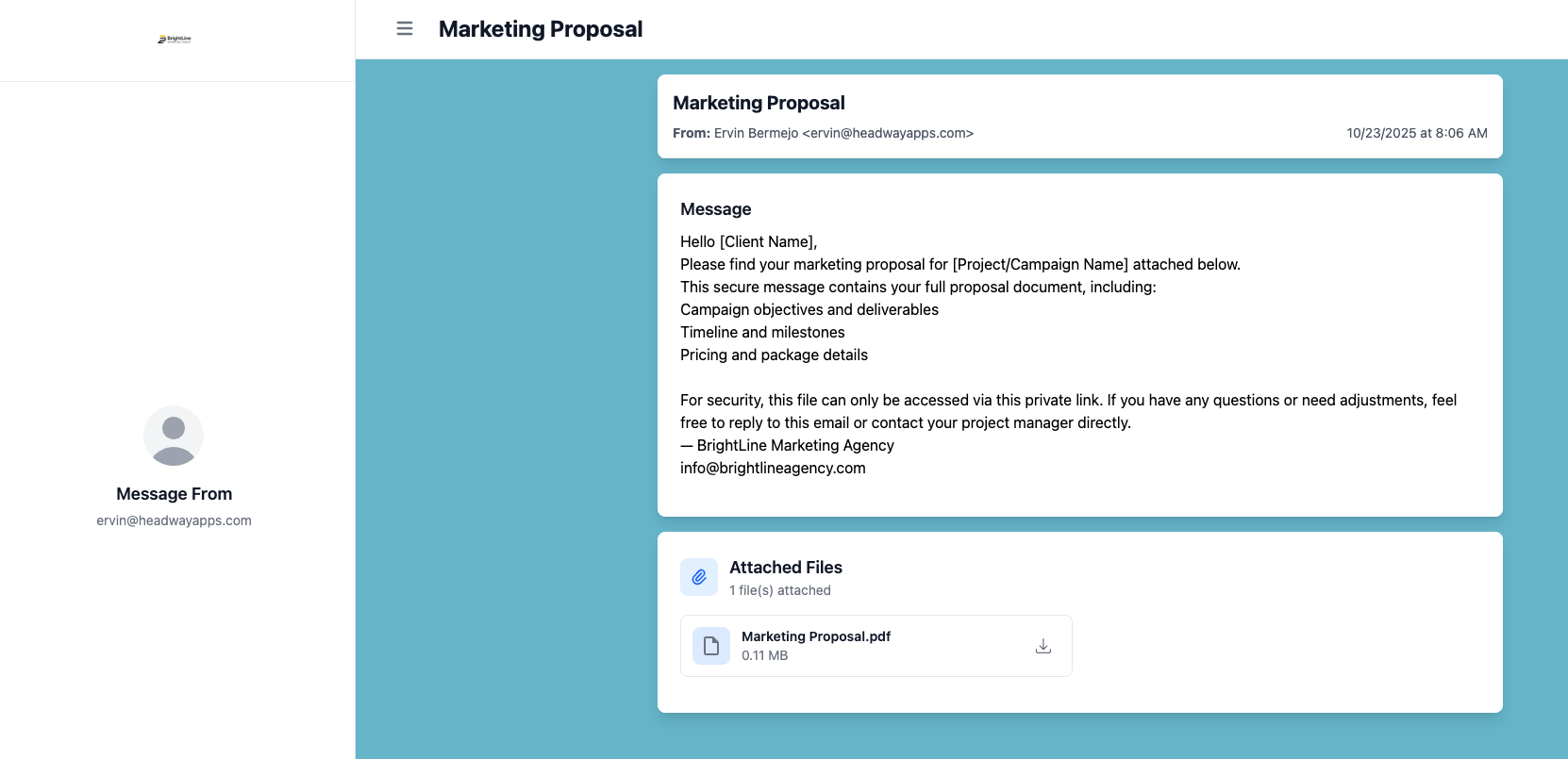
Example message you can send with your link:
| Hi [Client Name], Please review your proposal using the secure link below. You can view it directly online — no attachments or downloads needed. [Your Secure FileDrop Link] Best, [Your Name] [Your Agency] |
This approach looks more polished than a traditional attachment and gives you confidence that the document is secure and trackable.
Step 6: Track Views and Client Engagement
After sending your proposal, go back to your FileDrop dashboard to monitor engagement.

For every shared document, you can see:
- The exact time your client first opened the proposal
- The number of times they viewed it
- Whether the document was downloaded (if allowed)
- The client’s viewing location (optional analytics)
- The current link status (active, expired, or revoked)
These insights are invaluable for your sales team. For instance, if a client opens your proposal twice within the same day, it often indicates serious interest — the perfect time to send a follow-up message or schedule a decision call.
Note: You can disable tracking anytime if you’re sharing internal or non-sensitive files.
Real-World Example: How Agencies Use FileDrop to Close Deals Faster
A digital marketing agency used to send proposal PDFs via email and had no idea when clients reviewed them. Follow-ups were often poorly timed and inconsistent.
After switching to FileDrop’s Share PDF, the agency now:
- Uploads each proposal directly into FileDrop.
- Customizes the viewing page with their brand and logo.
- Enables view tracking and disables downloads.
- Sends the generated secure link through email or their CRM.
- Monitors when clients open and re-open the proposal.
As a result, their sales team can follow up strategically, often within 24 hours of client engagement, leading to higher acceptance rates and shorter sales cycles.
Best Practices for Marketing Agencies
- Always include your logo and brand colors on viewing pages for brand consistency.
- Use “Expire After First Download” for pricing or contract PDFs to maintain confidentiality.
- Keep internal proposal drafts in Draft mode until approved.
- Reference project names, campaign dates, or client names in file titles for quick tracking.
- Review your engagement analytics weekly to improve follow-up timing and client outreach strategy.
Conclusion
Email attachments and shared drive links no longer provide the control or visibility modern agencies need. With FileDrop’s Share PDF, you can send proposals that are:
- Securely hosted and protected from unauthorized sharing
- Professionally branded with your agency’s identity
- Trackable for precise follow-up timing
No more guessing if your client saw the proposal — now you’ll know exactly when they did. Start sending secure, branded, and trackable proposals today by creating your free account at FileDrop.
Frequently Asked Questions
You can share any PDF — including sales proposals, project estimates, campaign plans, or design briefs.
2. Do clients need a FileDrop account to open the link?
No. Clients can access your proposal instantly using their browser, with no sign-up required.
3. Can I track when clients open my proposal?
Yes. FileDrop provides timestamps and total view counts for every shared document.
4. Is it possible to password-protect proposals?
Yes. You can set a password and expiration date for confidential files or sensitive pricing.
5. Can I brand the viewing page with my logo and colors?
Absolutely. FileDrop lets you upload your logo, adjust color themes, and create a professional client experience consistent with your agency’s visual identity.