Real estate document collection and managing client contracts, rental agreements, and signed PDFs is a critical part of any real estate operation. But collecting these documents can become a time-consuming bottleneck. Emails get lost, attachments go missing, and clients often struggle to navigate complex portals.
With FileDrop’s Document Collection Software, real estate teams can securely collect contracts, signed PDFs, and other important documents in minutes — no client portal, no logins, and no confusion.
When Client Portals Work and When They Don’t
Client portals make sense for ongoing relationships where clients need repeated access to multiple documents and services. Property management companies with long-term tenants or brokerages offering comprehensive client dashboards benefit from that setup.
But for one-off document collection for signed contracts, closing paperwork, or disclosure forms, portals often add unnecessary friction:
- Clients forget passwords or access links for a single upload.
- Agents spend time troubleshooting login issues instead of closing deals.
- Files get scattered across email threads, shared drives, or portal folders.
- Teams struggle to find the most recent signed agreement.
For fast-moving transactions where speed matters most, a simpler approach works better. Clients need a one-click way to submit signed contracts. Your team needs a secure, organized system that ensures every PDF lands in the right place.
That’s where document collection software comes in.
Why Document Collection Page Accelerates Real Estate Deals
When you’re collecting signed contracts, disclosures, or closing documents, the priority is speed and simplicity.
Portal-free collection fits this use case perfectly. Clients click a link, upload their signed contract, and they’re done. No account creation, no password recovery, no learning curve.
That simplicity extends to your team as well. The right real estate document collection software eliminates repetitive paperwork, scattered file formats, and endless customer inquiries about where to send files. Files land in the right folder automatically, naming stays consistent, and data security risks drop when documents stop sitting in unsecured inboxes.
Security doesn’t suffer either. Encrypted upload links deliver robust protection without the risks that come with password reuse and phishing attempts on portal login pages.
What you don’t lose is professionalism. Branded upload pages with your logo and custom colors build client trust without requiring another account.
The flexibility goes beyond contracts too. Inspection reports, disclosures, HOA documents can be sent through this one system that adapts to every transaction stage. Paper reduction happens automatically as clients upload digital contracts directly.
For teams weighing the costs, the return on investment becomes clear quickly. Less time chasing documents means more time closing deals. And unlike complex portals requiring extensive team training, simple upload pages make the transition seamless.
FileDrop: Collect Contracts and Signed PDFs — No Portals or Passwords
File Forms give you a professional, branded upload page for clients to submit documents directly to your team. Clients can:
- Upload signed contracts, rental agreements, or other PDFs
- Leave notes or comments if needed
- Identify the property, transaction, or deal name
- Submit files without creating an account
All uploads are securely stored and automatically backed up to your Google Drive, so nothing ever gets lost.
Step-by-Step: How to Set Up a File Upload Page for Client Contracts
Here’s how to create your own Contract Upload Form for real estate clients in just a few minutes.
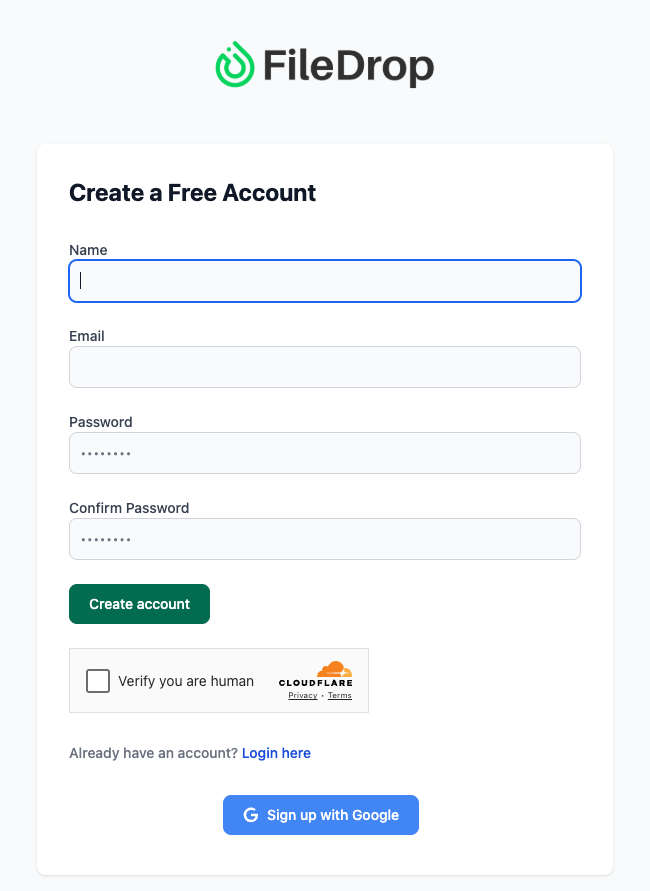
Step 1: Create Your FileDrop Account
Go to https://app.getfiledrop.com/register and sign up with your email or Google account — no credit card required. Once you’re logged in, your dashboard will give you access to:
- File Forms – to collect client contracts and signed PDFs
- Secure Send – to deliver final documents safely
- Share PDF – to share and track signed files
Pro Tip: For team accounts, sign up with a shared email (e.g., deals@realestateco.com) so submissions are centralized for all agents.
Step 2: Access the File Forms Dashboard
From the dashboard menu, click File Forms. This is your workspace for creating upload forms specifically for client documents.
You can set up forms for:
- “Contract Upload Portal”
- “Signed Lease Agreement Submission”
- “Property Transaction Forms”
- “Client Document Collection”
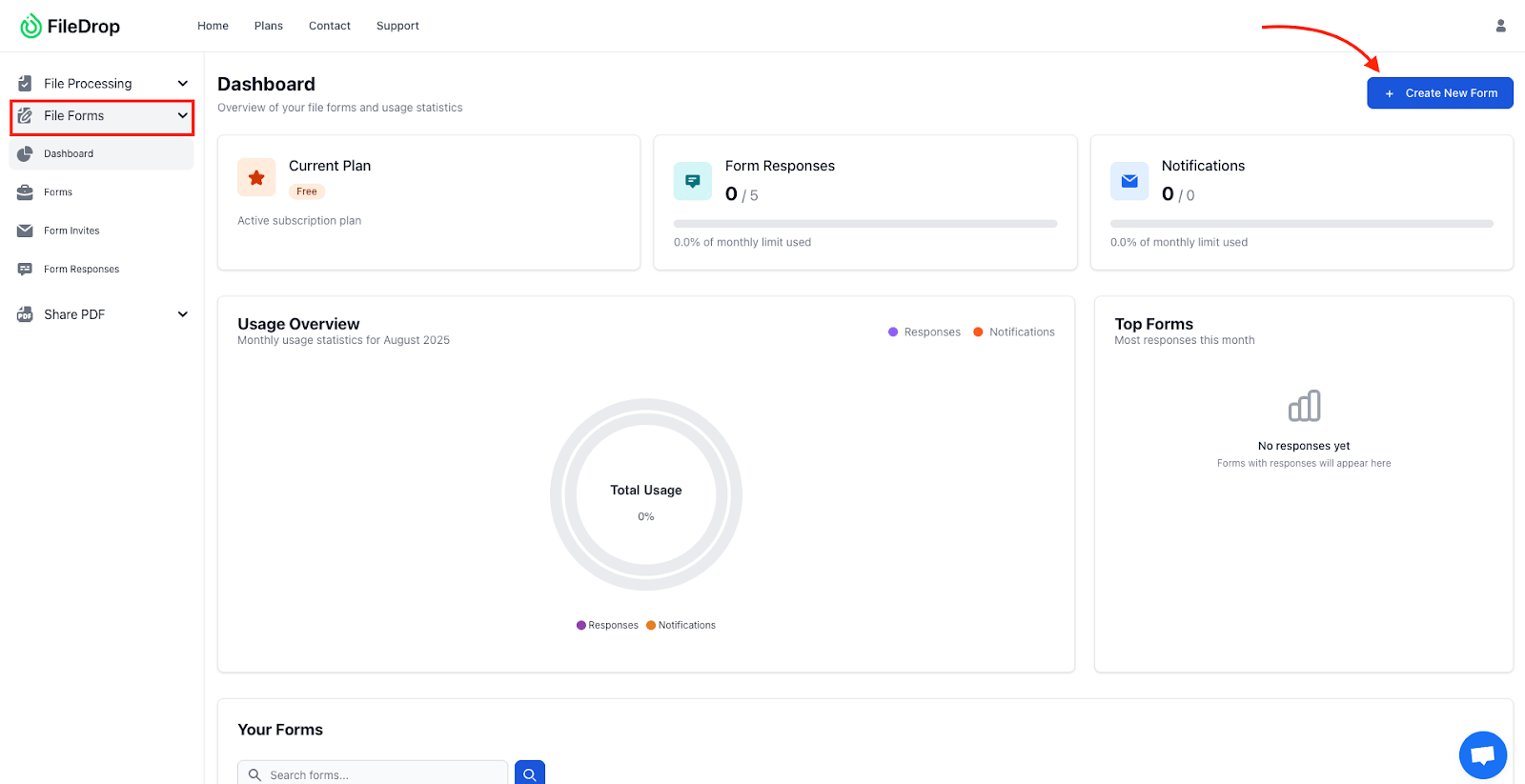
Each form comes with a unique link, branding options, and automatic Google Drive organization.
Organization Tip: Group forms by property type or transaction stage (e.g., Residential, Commercial, Leasing) to keep files easy to find.
Step 3: Create a New File Form
Click New File Form and give it a clear name like:
- “Client Contract Submission”
- “Signed Agreement Upload”
Enable Separate Submission Folders so that every client upload automatically creates a labeled folder in Google Drive, for example:
/Clients/Smith Family/123 Main St/Lease Agreement
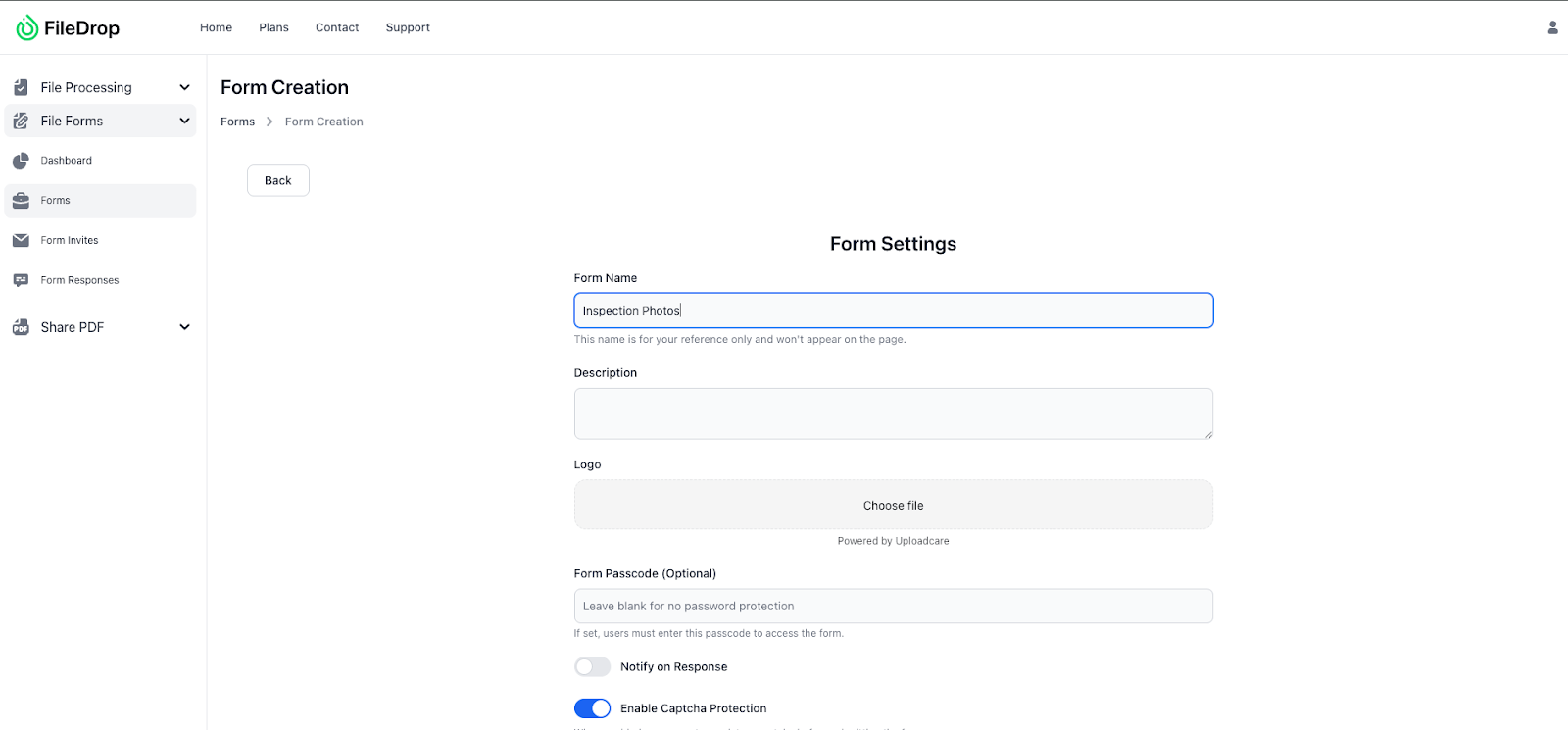
This keeps contracts organized by client and property, preventing any mix-ups between different transactions.
Workflow Tip: Add text fields such as Client Name or Property Address — FileDrop can use these to generate folder names automatically in Drive.
Step 4: Connect Your Google Drive
Scroll down to Google Drive Integration and click Connect Google Drive. Sign in to the Google account where you want contracts stored.
Choose or create a parent folder in Drive, such as:
Google Drive
└── Client Contracts
├── Residential
├── Commercial
└── Leasing
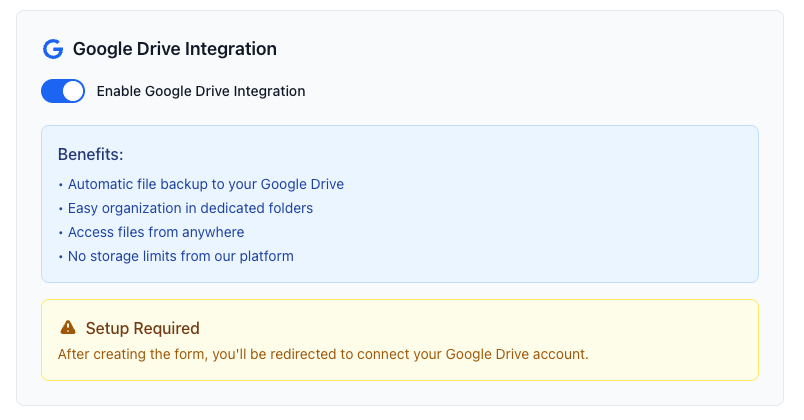
Once connected:
- Each submission saves instantly to your chosen folder
- Subfolders are created per client submission
- File names and timestamps remain intact
Why this matters:
- No manual downloading or sorting
- Automatic, secure backups
- Organized Drive structure across all clients and properties
Perfect for real estate teams handling multiple transactions at once.
Step 5: Add Form Instructions and Branding
Customize your form for a professional client experience.
Title Example: “Upload Your Signed Contract or Agreement”
Instructions Example: “Please use this form to submit signed contracts, lease agreements, or other PDFs. Accepted formats: PDF, JPG, PNG. All uploads are securely stored and automatically backed up to our Drive.”

You can also:
- Upload your agency logo
- Apply brand colors to buttons and headers
- Add a confirmation message, e.g., “Thank you! Your contract has been received and securely stored.”
Branding reassures clients that the upload is legitimate and builds trust.
Step 6: Add Form Fields for Client and Property Details
Add fields to categorize each submission for easy tracking. A recommended setup:
| Field Type | Example Label | Purpose |
| Text Field | Client Name | Label Drive folder |
| Contact Email | For follow-ups | |
| Text Field | Property Address | Identify the property |
| Dropdown | Document Type (Contract / Lease / Other) | Categorize submission |
| File Upload | Upload Signed Contract | Main document |
| File Upload | Upload Additional Docs | Supporting documents |
| Text Area | Notes | Additional comments or instructions |
Pro Tip: Mark key fields like Client Name and Property Address as required to ensure every submission is complete and traceable.
Step 7: Activate and Save Your Form
Toggle Active and click Save Form. FileDrop will:
- Publish your secure upload form
- Generate a shareable link
- Connect submissions automatically to your Google Drive

From now on, every client upload appears instantly in the correct Drive folder — no manual work required.
Distribute the form link through:
- Email to clients during onboarding or contract signing
- Messaging apps like Slack or Teams
- Your internal CRM or project management platform
- QR codes on printed agreements or brochures
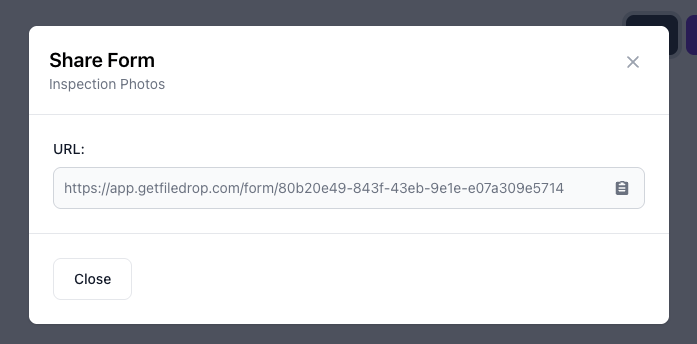
Example Message: “Hi [Client Name], please use this secure link to upload your signed contract for [Property Address]. Your files will be safely stored and automatically organized for our team.”
This removes back-and-forth emails and ensures the latest documents are always easy to access.
Step 9: Review and Manage Submissions
Once clients upload, FileDrop automatically:
- Creates subfolders in Google Drive
- Stores files with client and property labels
- Saves submission timestamps and notes
Each submission includes:
- Uploaded signed contracts or PDFs
- Notes or comments
- Submission date and client details
Office staff or agents can review files directly in Drive, forward to colleagues, or integrate into CRM workflows.
Efficiency Tip: Use Drive search filters like Smith Family Contract 123 Main St to instantly locate any file.
Step 10: (Optional) Log Submissions in Google Sheets
For an overview of all client submissions, connect your form to Google Sheets:
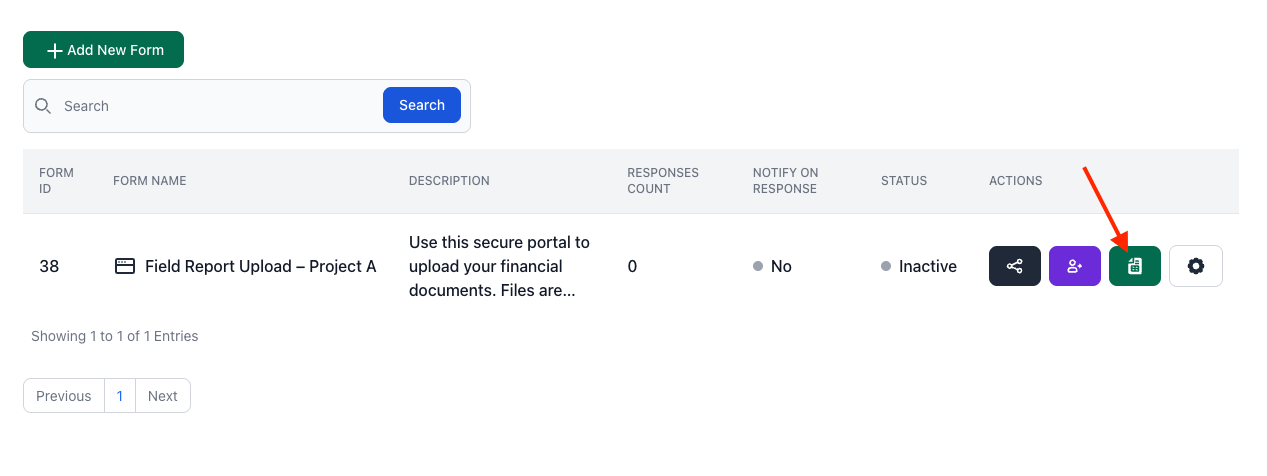
- Go to your File Forms dashboard
- Click the Google Sheets icon next to your form
FileDrop will automatically log each submission with:
- Client Name
- Property Address
- Document Type
- Upload Date
- Google Drive Folder Link
Perfect for agents or managers tracking contract status across multiple transactions without manual entry.
Real-World Example: How a Real Estate Team Uses FileDrop
Consider a five-agent residential brokerage handling 20+ transactions per month. Before FileDrop, they collected signed rental agreements and contracts via email. Files were often lost in threads or submitted late, delaying closings.
By implementing a single File Form per property:
- Clients upload signed contracts directly through a branded link
- Files are organized automatically in Drive by client and property
- Agents access documents instantly without digging through emails
After switching to FileDrop, the team reported faster contract turnaround, zero password-related support requests, and a centralized archive that made audits and compliance reviews significantly easier.
Best Practices for Real Estate Contract Collection
- Use clear file names: Encourage clients to name files like SmithFamily_Lease_2025.pdf.
- Send reminders: Reuse FileDrop links for clients who forget to submit.
- Organize Drive folders by property: Keep /Clients > [Client Name] > Contracts.
- Add confirmation messages: Let clients know their documents were received successfully.
- Regularly clean up expired links: Maintain an organized dashboard.
Why FileDrop Works Better Than Client Portals
| Feature | FileDrop | Client Portal |
| Requires client login | No | Yes |
| Custom branding | Yes | Yes |
| Google Drive integration | Automatic | Manual |
| Setup time | <10 minutes | Hours or days |
| Email notifications | Instant | Limited |
| Security options | Expiration, encryption, auto-delete | Basic |
| Ease of use | One-click upload | Multiple steps |
Choosing the Right Approach for Your Team
The client portal vs. upload pages comes down to your primary use case.
Upload pages works best when:
- You’re collecting one-off documents like signed contracts, disclosures, or closing paperwork
- Your clients vary from transaction to transaction
- Speed matters more than ongoing document access
- You want minimal onboarding friction for clients and team members
Client portals make more sense when:
- Clients need repeated access to multiple documents over time
- You offer a full suite of services through a single dashboard
- Long-term client relationships justify the onboarding investment
Many teams use both — portals for ongoing client relationships and simple upload forms for fast, transactional document collection. The key is matching the tool to the task.
Conclusion
Collecting client contracts and signed PDFs shouldn’t slow down your deals.
With FileDrop, real estate teams can create branded, secure upload forms that let clients submit contracts instantly — no portals, no logins, no confusion. Files are automatically organized in Google Drive, giving your team easy access and peace of mind.
Start collecting signed documents faster today — create your free FileDrop account.
Frequently Asked Questions
1. Can clients upload large contracts or multiple PDFs at once?
Yes. FileDrop supports up to 1GB per file and up to 100 files per upload — perfect for long agreements or multiple documents.
2. Can one File Form be used for multiple clients?
Yes. Including a Client Name or Property Address field ensures each submission creates a separate folder in Google Drive.
3. Do clients need a FileDrop account to upload contracts?
No. Clients just click the secure link, fill out the form, and upload files — no logins required.
4. Can I set an expiration for uploaded files?
Yes. You can set files to auto-delete after download or after a set period for added security.