If you’ve ever tried to exchange a document by email, you know how fast things get messy. A file gets sent, someone replies with edits, another version appears, and suddenly the whole conversation is scattered across inboxes.
FileDrop’s Threads feature solves that by keeping the file and the conversation in one secure place.
That matters because a thread is not just a download link. It’s a controlled space where you can send a file, include a secure message, and keep the back-and-forth tied to that exchange. For client work, contracts, forms, and sensitive documents, that’s a big upgrade over normal email.
Start a thread with a person, not a broadcast
Creating a thread is straightforward. You start from the thread button, add an email address, and write your secure message. That message is important: it appears only in the web interface, not in the recipient’s inbox. So if you want to say, “Please return this document filled,” or “Here is the contract you need to review,” that message stays inside the secure thread.
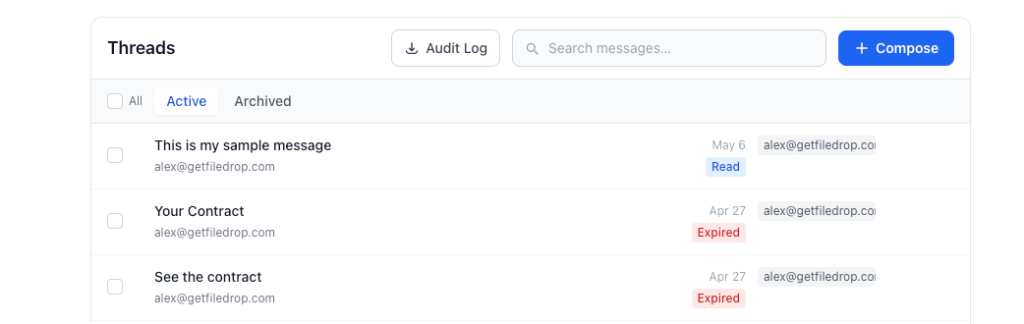
You can also attach a file right away. In the example from the transcript, the sender attaches a sample contract and adds a short note. That keeps the first touchpoint clean: one message, one file, one place to respond.
Branding and verification make it feel intentional
FileDrop lets you customize the thread with a logo, colors, or the default branding set in the profile page. That may sound like a small detail, but it changes the experience. A secure exchange feels more professional when it reflects your brand instead of looking like a generic file portal.
Just as important, the recipient gets PIN verification by email. That extra step confirms the person opening the thread is the right person. If you’re handling private files or anything that should not land in the wrong hands, that verification layer matters.
Set limits on access before the thread becomes a problem
One of the most useful parts of the feature is expiration control. You can make a file available only once, so after it’s downloaded, it’s gone. Or you can set an expiration date in the future.
That gives you control over how long a file or thread stays live. If the exchange is time-sensitive, you don’t want an old link sitting around forever. And if the conversation needs to end cleanly, you can close the thread manually.
That close button is more than housekeeping. It creates a clear endpoint. Once the thread is closed, it’s no longer available for new activity.
Replies stay organized inside the thread
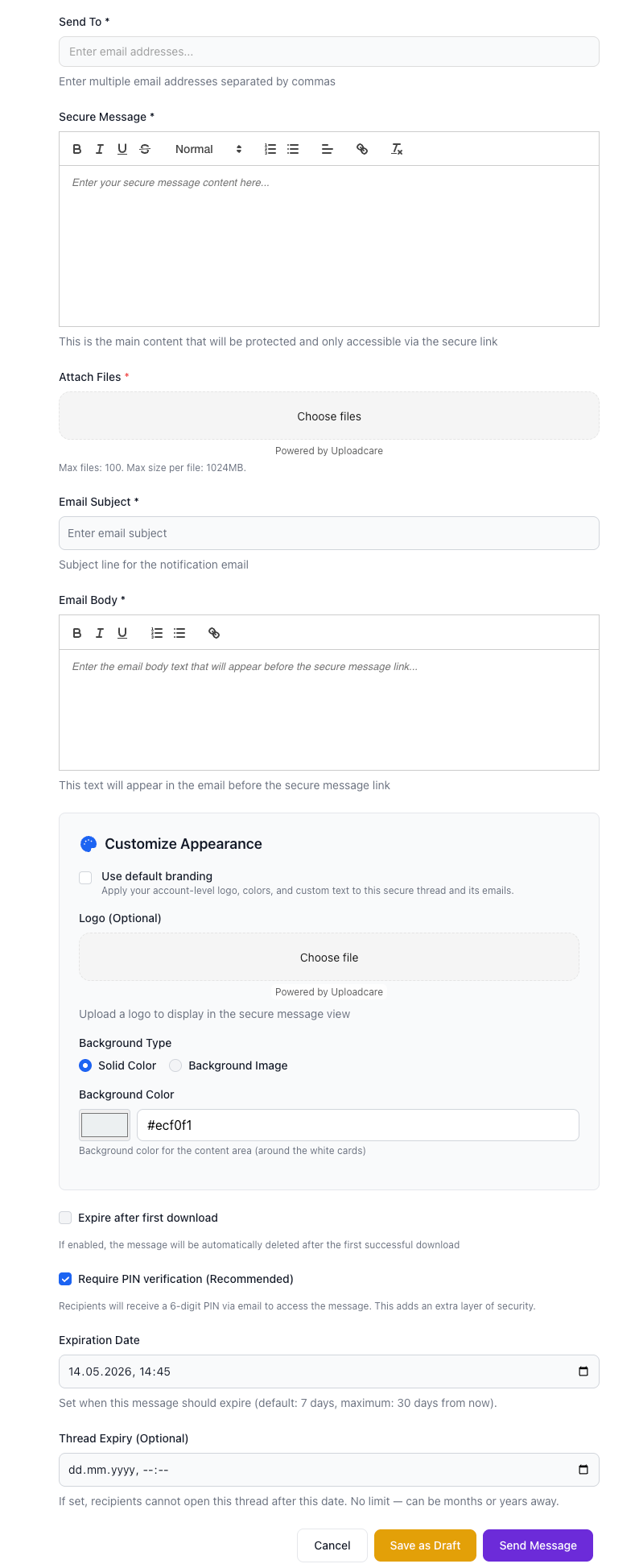
Once the recipient opens the thread, they can see the secure message and the file. They can download the document and respond directly in the same space. The reply editor even supports text, images, links, and additional file attachments.
That makes the thread feel like a working conversation, not just a dropbox. In the transcript, the recipient replies with the completed document, and the sender can come back later, preview the file, download it, and answer again if needed.
The key difference is visibility. On the sender side, you do not see every message in the thread. You only see a notification that the person replied. The actual conversation lives inside the thread itself. That keeps the workflow tidy and avoids cluttering the main interface with a long message history.
Close the loop when the job is done
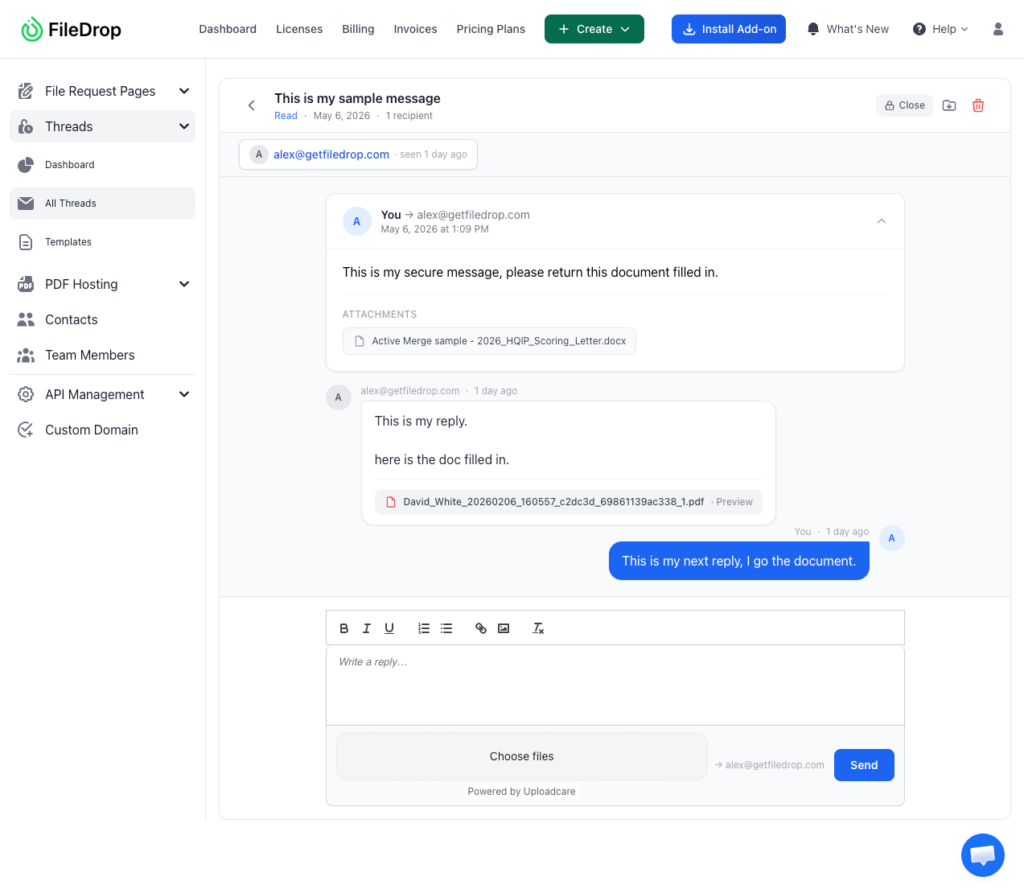
When the exchange is finished, you can close the thread. That removes ongoing access and ends the conversation. If you ever need to continue it, you can reopen it, but the other person will not be able to keep adding replies or files once it’s closed.
That’s a useful balance. You keep the door open for controlled follow-up, but you also get a clean way to shut things down when the work is complete.
Why threads are better than email for file exchange
The real value here is focus. Instead of splitting a file exchange across messages, attachments, and follow-ups, FileDrop keeps everything tied together. You send the file, the recipient responds in context, and you can track the exchange without digging through an inbox.
For anyone handling contracts, forms, approvals, or other document-heavy communication, that means less confusion and more control.
FAQ
What is a FileDrop thread?
A thread is a secure space for exchanging files and messages with a user or client. It keeps the conversation tied to the document instead of spreading it across email.
Does the secure message go to the recipient’s inbox?
No. The secure message appears only in the web interface.
Can the recipient reply inside the thread?
Yes. They can send text replies and attach files, images, or links.
Can I limit access to a thread or file?
Yes. You can set a file to be available once or assign an expiration date. You can also close the thread manually.
What happens when a thread is closed?
The thread is no longer available for new activity. You can reopen it later if needed, but the other person cannot keep adding replies or files while it remains closed.
Is there a verification step?
Yes. The recipient is asked to verify by PIN via email to make sure the thread is opened by the correct person.
The takeaway
FileDrop threads turn a simple file exchange into a controlled conversation. You get secure messaging, file sharing, verification, expiration options, and a clean way to close the loop when the work is done. If you need to keep document workflows organized without relying on email, this is a practical place to start.