


You’ve got a shared folder — client contracts, deliverables, intake documents — and you want to know the moment something new lands in it, without opening Drive every hour to check.
Google Drive has a partial answer to this built in. It’s not quite enough for a team.
What Drive’s built-in “Follow” actually does
Right-click a file (not a folder, in most cases) and you can toggle notifications for edits. This only works per file, only notifies you, and only through Drive’s own notification center or a digest email — there’s no way to route it to a teammate who doesn’t own the file, post it to Slack, or filter it to “only PDFs” or “only files from this one client.”
For a whole folder, Drive doesn’t offer a native “notify me on new upload” setting at all.
Watching a folder properly
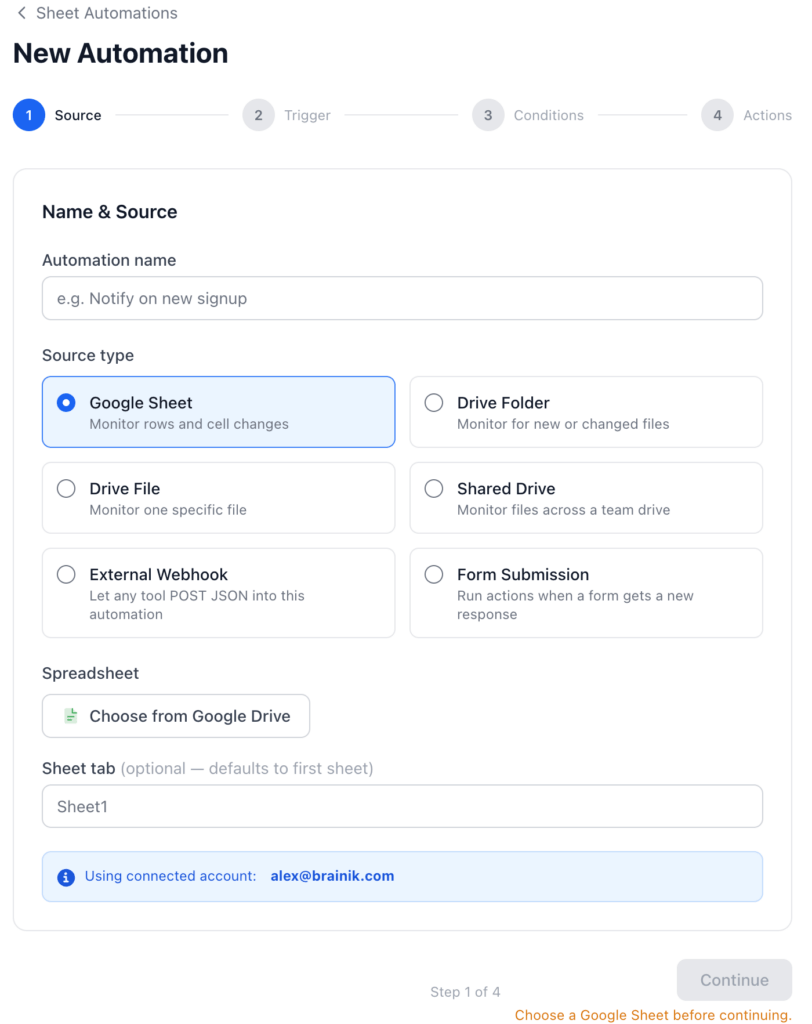
FileDrop’s Automation Drive Folder source watches one folder for file activity and gives you three triggers:
| Trigger | Fires when |
|---|---|
| New file uploaded | A file appears in the folder that wasn’t there before |
| File modified | An existing file in the folder is changed |
| File deleted or removed | A file that was there is gone — deleted, trashed, or moved out |
Detection is usually within seconds, backed up by a periodic check every few minutes as a safety net.
Setup
- Connect your Google account.
- Choose the folder with the Drive picker.
- Pick New file uploaded as your trigger.
- Optional conditions, chosen from a dropdown rather than typed freehand:
- File type — extension (
pdf,docx,jpg…) or Google type (docs,sheets,slides…); use “is one of” to list several - Owner, Writer, Reader, Modified by
- Content text — the file’s actual extracted text (FileDrop only reads the file’s content for automations that filter on this, so it doesn’t slow down folders that don’t need it)
- File type — extension (
- Add an action — Get notified via Email, Slack, or Google Chat, with a message built from placeholders like
{file_name}and{file_url}that you can send to you or another team mate. You can even send a webhook to a different external software. - Save.
A real example: contract uploads to legal
- Source: Drive Folder, watching
/Contracts - Trigger: New file uploaded
- Condition: File type is one of
pdf, docx - Action: Email to the legal team’s shared inbox —
New contract uploaded: {file_name}. Open it here: {file_url}
Legal finds out the moment the file lands, with no one manually forwarding anything.

Beyond notifying — act on the file itself
Because this is a Drive-file trigger, you’re not limited to alerts. The same automation can:
- Copy/move file — automatically sort the new upload into a destination folder, optionally routed by a placeholder
- Convert to Doc — turn a scanned PDF or image into a searchable Google Doc via OCR (with a table-detection mode if the scan contains tabular data)
- Send file — forward the actual uploaded file to an external service
- New row — log the upload (
{file_name},{file_url},{triggered_at}) into a tracking spreadsheet, since this source has no row of its own to write back to
If you need to watch more than one folder
- Drive File — watches one specific file for edits or deletion, if a folder-wide watch is more than you need.
- Shared Drive — watches an entire Shared Drive (Team Drive) rather than a single folder, useful when uploads could land anywhere across a team’s whole drive rather than one designated intake folder.
FileDrop Automations tool is very versatile and can give many options to automate different work related scenarios. Also is great automation alternative to tools like Make or Zapier for an unbeatable price.
Start your first automation free
The Bottom Line:
One keeps you awake. The other gets work done.
A month of coffee: $80
A month of FileDrop: $19
Why not have both?


