


From one uploaded file, you can build an entire content engine. The idea is simple: take a video or audio recording, transcribe it automatically, and turn that transcript into a blog post, social posts, a YouTube subtitle file, or a polished draft for WordPress.
Instead of handling each step by hand, FileDrop and VideoSnack connect the workflow for you, upload once, then let the automation do the rest.
Automating transcription from a Google Drive folder
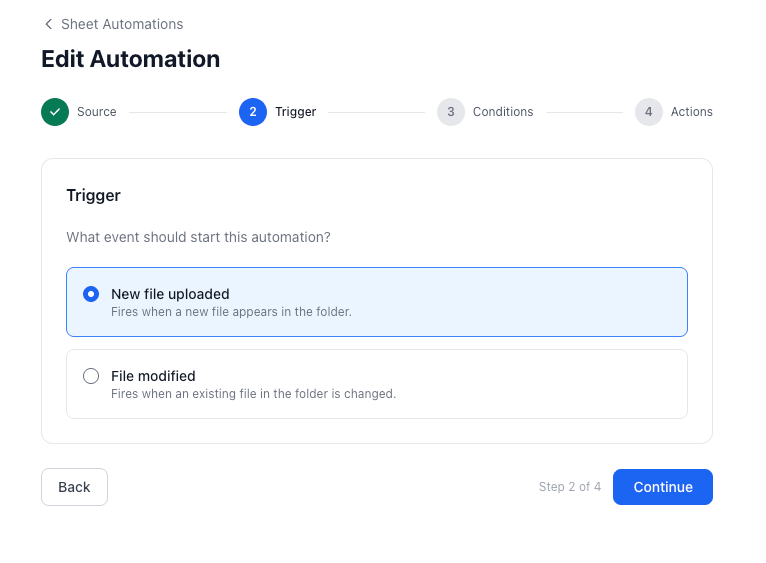
The automation starts with a simple trigger: a Google Drive folder. When a new file lands in that folder, FileDrop starts the workflow automatically.
That setup gives you a few options for how to trigger things. Google Drive is one choice, but there are others too: monitoring a Google Sheet row or cell, watching a single drive file, using shared drives, accepting form submissions, or receiving an external webhook. For this use case, the folder route is the cleanest.
You choose the folder, name the automation whatever you want, and move forward. From there, you can add conditions if needed. Maybe you only want certain file types. Maybe you want files with a specific name, owner, or text content.
For this workflow, no condition is needed, any new upload in the folder begins the process.
Sending files into VideoSnack
Once the file arrives, FileDrop sends it to a destination URL tied to VideoSnack via a webhook. That is where the transcript is created and the content workflow begins.
VideoSnack is built to turn video and podcast material into usable content. You import the file, generate a transcript, and then decide what you want that transcript to become. A single recording can become:
- a blog post
- an interview-style article
- a summary
- social posts
- an audio-based content output for podcast material
The point is not just transcription. The point is transformation. A long-form recording becomes a reusable content source.

Cleaning up the transcript before reuse
Transcripts are useful, but they are rarely perfect on the first pass. Names can be miswritten. Tools, places, and brand references can come out wrong.
VideoSnack handles speaker detection and lets you fix and replace terms directly, which matters if you want the final content to sound natural and accurate.

That matters especially for podcasts and interviews, where names and speaker turns shape the whole reading experience.
If the transcript is sloppy, every downstream asset suffers. If it is cleaned up early, the rest of the workflow becomes much smoother.
From there, you can export a subtitle file like SRT for YouTube, or turn the content into a draft for WordPress, a markdown file, HTML, PDF, Google Docs, or a Notion page. The transcript becomes a master file, and everything else branches off from it.
From transcript to distribution
The real value shows up after transcription. Once the content exists in text form, you can reuse it across channels without starting over.
VideoSnack can generate platform-specific social content too. That means:
- an X post or thread
- a LinkedIn post
- a Facebook post
- an Instagram carousel
Those formats are tied to the platform you choose, so the output feels more native instead of copy-pasted.
For video content, the workflow can go further. You can create clips and repurpose them for short-form platforms like YouTube Shorts, TikTok, or Instagram.
If you already have a library of recordings, the search feature also helps you find older projects and reuse them instead of starting from scratch.
Why this workflow matters
This setup is built for people who publish often and do not want to rebuild every asset by hand. Record once, upload once, and let the system turn one piece of source material into multiple formats.
That saves time, but it also helps with consistency. A transcript becomes the foundation for your blog, subtitles, social distribution, and search. Instead of treating each channel as a separate job, you treat the original recording as raw material.
FAQ
What triggers the automation?
A new file uploaded to a selected Google Drive folder.
Can you add conditions to the file trigger?
Yes. You can filter by file type, file name, owner, or content text.
What kinds of content can VideoSnack create?
It can generate blog posts, interviews, summaries, social posts, subtitle files, and more.
Can you edit the transcript before exporting?
Yes. You can correct speaker names, replace terms, and clean up inaccuracies before creating other content.
Can the output be published elsewhere?
Yes. Blog drafts can go to WordPress, and other formats can be exported as markdown, HTML, PDF, Google Docs, Notion pages, or SRT files for YouTube.
The takeaway is simple: if transcription and content repurposing are slowing you down, this kind of automation turns one recording into a complete publishing workflow.
The Bottom Line:
One keeps you awake. The other gets work done.
A month of coffee: $80
A month of FileDrop: $19
Why not have both?


