


Google Sheets doesn’t tell you when something important happens in it — not by default, and not in a way you can hand to someone who isn’t a collaborator on the file.
If you’ve ever searched for how to get an email when a cell changes or a new row lands, you’ve probably run into the same wall: Sheets’ native notification settings are limited, and Apps Script means writing and maintaining code.
Here’s what’s actually possible, starting with what Google gives you for free.
What Google Sheets can do natively
Under Tools → Notification settings, Sheets can email you (and only you — or other people who already have edit access to the file) either immediately on any edit, or as a daily digest. That’s it. You can’t:
- Filter by which column changed, or what it changed to
- Send the notification to someone who isn’t already a collaborator
- Customize the subject or body
- Trigger a different action (Slack, a webhook, writing to another sheet) instead of email
So if you’ve searched something like “can Google Sheets send notifications to other users” — the honest answer is no, not without giving that person edit access to the whole file first.
Doing it properly with FileDrop Automations
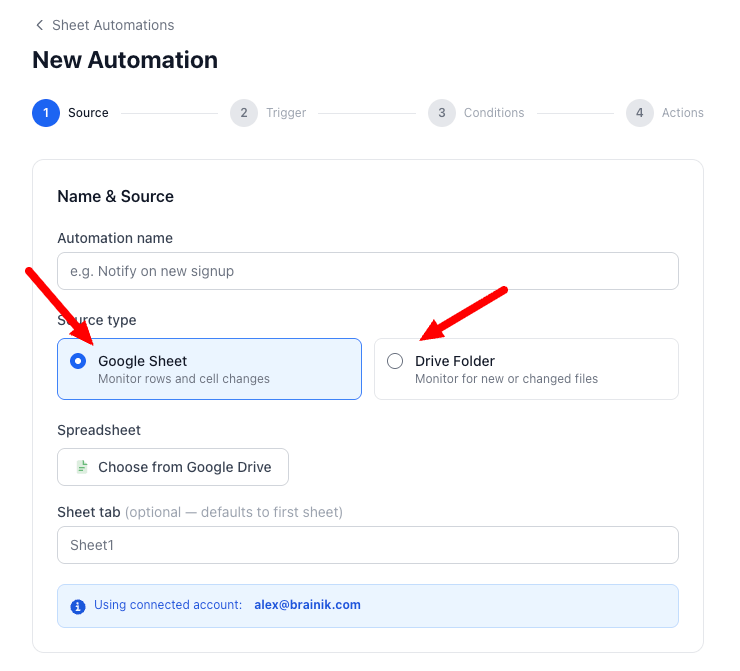
FileDrop Automations watches a spreadsheet the same way Google’s own notifications do, but with real conditions and a real destination. The setup is a Google Sheet source with one of two triggers, depending on what you’re watching for:
Notify on a new row
Use the New row added trigger. It fires when a row is appended to the bottom of the sheet — this covers rows coming from a connected Google Form, a FileDrop form syncing in, or anyone typing directly into the sheet.
Notify on a specific change
Use the Cell / status change trigger. This is the one that answers “email me when a cell value changes” precisely, because you can scope it two ways:
- Column — only fire when this column changes (
Status, or a letter likeC) - Only when new value equals — only fire when the new value matches exactly, e.g.
Approved
Together, that’s “email me only when the Status column changes to Approved” — something Sheets’ native notifications simply can’t express.
Setting it up
- Connect your Google account (one-time).
- Choose the spreadsheet and, optionally, the specific tab.
- Pick your trigger — New row added or Cell / status change — and configure it as above.
- Add an Email action:
- To — a fixed address, or a placeholder like
{column:Email}to route it based on the row itself - Subject and Body — write these however you like, pulling in real values with placeholders such as
{column:Name},{old_value},{new_value}, or{row_number}
- To — a fixed address, or a placeholder like
- Save. FileDrop takes a snapshot of the sheet as it stands right now — the automation starts reacting from the next change onward.
A typical setup: Cell/status change trigger scoped to Status = Approved, an Email action to {column:Manager Email} with a subject like {column:Client Name} — approved, and the body pulling in whatever else is useful from the row.
Add more than email
Because this runs on the same trigger, you’re not limited to email. The same automation can fire a Slack or Google Chat message instead of (or alongside) the email, or send the change as JSON to a Webhook if you want another tool to pick it up.
You can also chain an Update cell action afterward to stamp a Notified at timestamp back into the row, so you have a record that it fired.

Why this beats scripting it yourself
The Apps Script route — an onEdit trigger that calls MailApp.sendEmail() — works, but it’s code you own: you’re the one debugging it when Google’s trigger quotas change, when someone edits the wrong cell, or when you need to add a second recipient six months from now.
A FileDrop automation is the same idea without a script to maintain, and it comes with run logs showing exactly what fired and when.
Start your first automation free
Coffee vs. FileDrop – The Productivity Showdown
The Bottom Line:
One keeps you awake. The other gets work done.
A month of coffee: $80
A month of FileDrop: $19
Why not have both?


