
Google Sheets and Drive automations that fire in seconds
FileDrop watches your Sheets and Drive folders and fires emails, Slack messages, webhooks and backups the moment something changes. No Apps Script, no separate automation platform, no monthly Zapier bill.
- Set up in minutes
- Real-time, not polling
- Schedule or trigger

If this, then that
Sales TrackerifStatus is ApprovedthenSlack #sales/ContractsthenEmail legal with {file_url}.xlsxWorks with
Google Sheets triggers
Run a workflow when data is added or updated in a sheet.
Google Drive triggers
Run a workflow when a file lands in a folder, or an existing one is modified.
Actions
Send a Slack message or an email, update a row, POST a webhook, back the sheet up — or several at once.
Five steps
How it works
Your business data already lives in Google Sheets — orders land there, status columns get updated, files pile up in Drive. Getting those events to actually do something has always meant duct-taping Zapier, Make or Apps Script together. FileDrop does it natively.
Connect your Google account
A one-time OAuth connection. FileDrop gets read and write access to the Sheets and Drive folders you choose — nothing else.
Choose what to watch
Pick a spreadsheet, a specific tab, or a Drive folder. FileDrop registers a real-time push notification rather than polling, so it fires within seconds of a change instead of minutes.
Set your trigger
- New row added
- Cell value changes, optionally scoped to a column and a specific value
- New file uploaded to a folder
- File modified in a folder
- On a schedule — hourly, daily or weekly
Add conditions (optional)
Only fire when certain columns match. “Only when Priority is High.” “Skip rows where Email is blank.” Conditions stack with AND logic.
Fire actions
One action or several, for every matching event: email, Slack, Google Chat, webhook, update the row that triggered it, or back the whole sheet up.
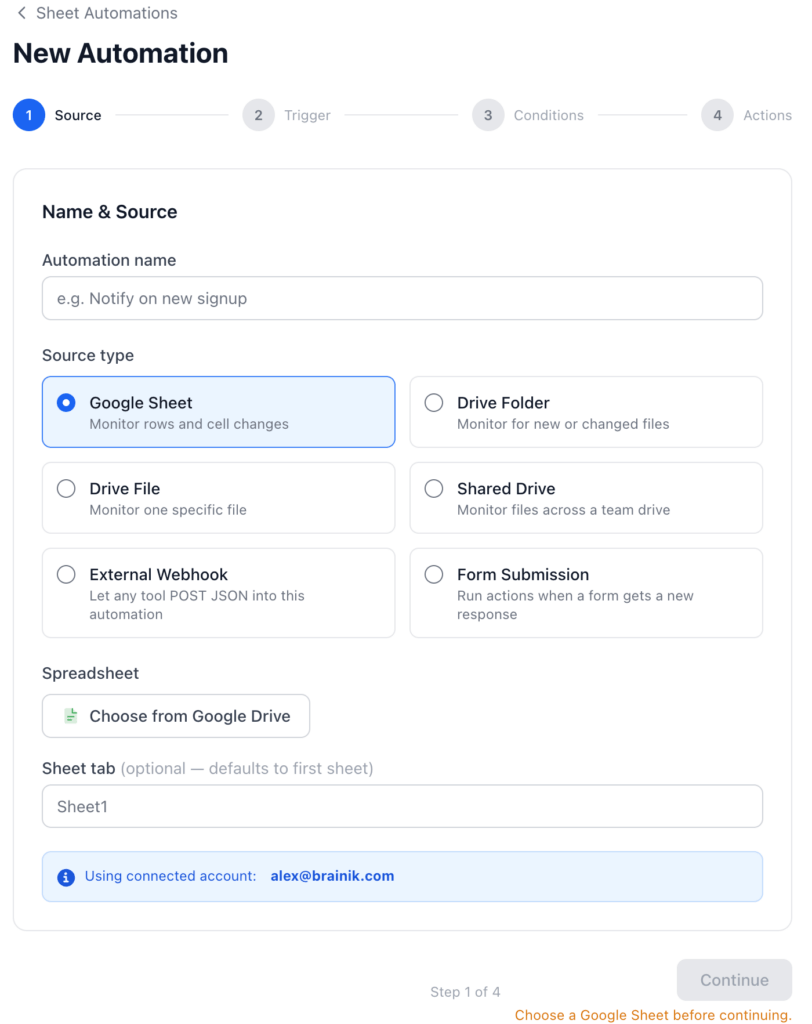
Monitoring a Drive folder for new uploads.
Side by side
What makes it different from Zapier
Zapier is a fine product with a much wider catalogue of apps. The difference shows up when the thing you want to watch is a Google Sheet you already own.
| FileDrop Automations | Zapier | |
|---|---|---|
| Latency | Real-time — Google Drive push notifications | 1–15 min polling on the free tier |
| Setup | Inside FileDrop, no second account to create | A separate platform to learn and administer |
| Price | Included in your FileDrop plan, Pro and above | From $29/mo for multi-step zaps |
| Backup sheet action | Native, delivered to Drive or by email | Needs a separate Google Drive step |
| AI automation builder | Describe it in plain English, get a draft | Yes |
| Works with FileDrop Forms | Forms feed sheets, sheets fire actions — nothing to wire up | Yes, wired up manually |
| Run logs | Built in, with the change data for every run | Zap history on paid tiers |
Zapier plan details as published at the time of writing; check their pricing page for current figures.
The when
Triggers in detail
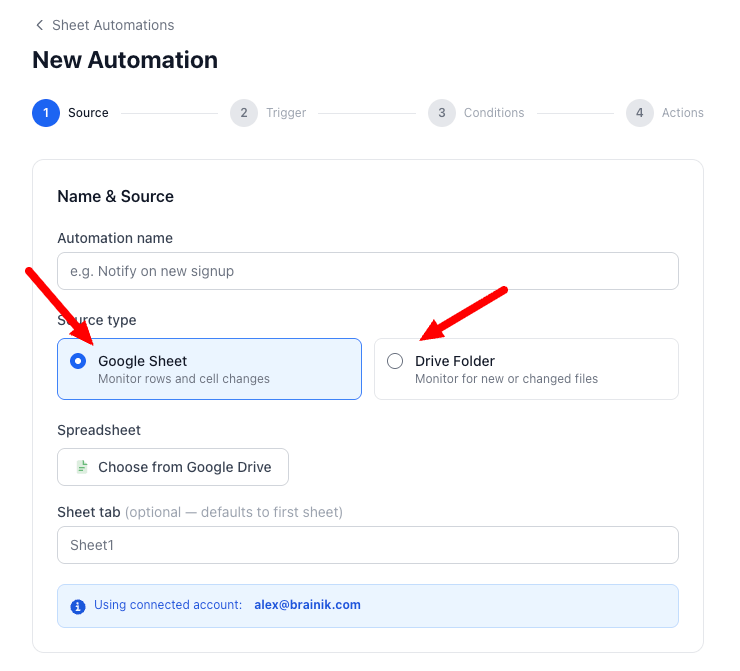
Google Sheet triggers
New row added
Every time a row is appended to the bottom of a sheet. Fires once per new row, even when several are added in the same save.
Use forForm submissions, order entries, signups, job applications, leads — anything that arrives as a new row.
Cell value changes
Fires when a cell is edited. Scope it to a column such as Status and, if you want, to a specific value such as Approved, so it only fires on changes that mean something.
Use forStatus pipelines, approval flows, assignment changes, priority escalations.
Drive folder triggers
New file in folder
Fires the moment a new file appears in a monitored Drive folder.
Use forContract uploads, deliverable submissions, client intake folders, shared team upload folders.
File modified
Fires when an existing file in the folder is edited.
Use forDocument change alerts, version-control notifications, compliance monitoring.
Scheduled trigger
On a schedule
Run an automation on a fixed schedule with no change event at all. Hourly fires at the top of every hour; daily and weekly let you choose the hour, and the day.
Use forWeekly backups, daily summary emails, end-of-day exports, Friday Excel reports.
The then
Actions in detail
Every action can run on its own or alongside the others on the same trigger.
A fully customised subject, body and recipient. Pull values out of the row with template variables like {column:Email}, or route the message to whoever is named in the row with to: {column:D}.
Slack
Post to any channel through an incoming webhook. Compose the message with sheet variables, file links and row data — it arrives before a person could have noticed the change.
Google Chat
Post to any Chat space. The same flexibility as Slack; paste your Chat webhook URL and go.
Webhook
POST the whole change payload as JSON to any HTTPS endpoint — your own API, Make, n8n, anything that accepts a webhook. FileDrop sends row data, headers, old and new values, and timestamps.
Update sheet row
Write values back into the row that triggered the automation: a Processed At timestamp, a status flag, a computed field.
Backup sheet
Take a dated copy of the whole spreadsheet, to Drive or to an inbox. Details below.
Connects with

Pro plan and above
Back up a Google Sheet on a schedule
Take a dated copy of any sheet. Choose the format and where it goes.
| Format | Delivery |
|---|---|
| Google Sheet | Saved to a Drive folder |
| Excel (.xlsx) | Saved to a Drive folder |
| Google Sheet | Link emailed to up to 5 addresses |
| Excel (.xlsx) | Attached to an email to up to 5 addresses |
File names take variables too — {sheet_name} — {date} or Weekly export {date}.

Reference
Template variables
Drop any of these into an email subject or body, a Slack message, or a backup file name.
{column:A}Value in column A of the changed row
{column:Status}Value in the column headed “Status”
{row_number}Row number of the changed row
{old_value}Previous cell value (cell change trigger)
{new_value}New cell value (cell change trigger)
{file_name}Name of the new or changed Drive file
{file_url}Google Drive link to the file
{sheet_url}Link that opens the source spreadsheet
{sheet_name}Name of the spreadsheet
{folder_name}Name of the monitored Drive folder
{triggered_at}Timestamp of when the automation ran
{date}Today’s date, as YYYY-MM-DD
Fastest route
Describe it and let the AI build it
Don’t want to click through a setup wizard? Type what you want in plain English.
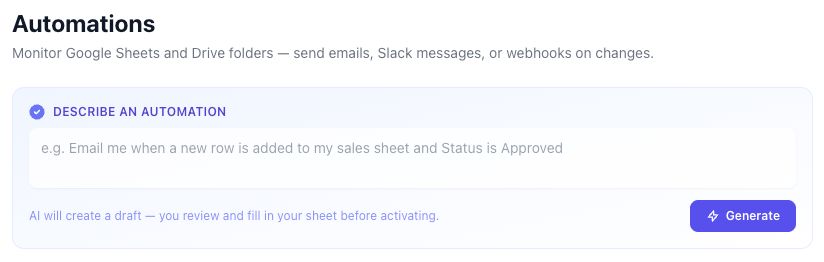
“Email me when a new row is added to my sales tracker and Status is Approved”
The AI reads it and creates a draft with the trigger, conditions and actions already configured. You review it, pick your spreadsheet and activate. Most automations go from a sentence to live in under two minutes.
Describe it
Type a plain-English description on the Automations page, or in the dashboard launcher.
The AI drafts it
Trigger, conditions, actions and message copy, all generated.
Review
You land on a review page with everything pre-filled.
Point it at your data
Add your Google Sheet or Drive folder with the file picker.
Activate
It goes live immediately.
Eighteen recipes
Use cases by team
Every automation is the same sentence: when something happens, do something about it.
Sales
Status becomes Closed WonthenEmail the account manager with the deal detailsOperations
/ContractsthenEmail the legal team a linkStatus becomes Needs ReviewthenWebhook to your ticketing systemHR & Recruiting
Status becomes Interview ScheduledthenSlack the recruiterFinance
Payment status becomes OverduethenGoogle Chat alert to the finance spaceClient Services
{column:Email}Marketing
Status becomes LivethenWebhook to your analytics platformUnder the hood
Reliability
Real-time, not polling
FileDrop uses Google Drive push notifications — the same mechanism Google uses internally. A change reaches FileDrop within seconds. There is no 15-minute polling delay.
Automatic renewal
Drive watch channels expire after 7 days. FileDrop renews them every night. You never have to think about it.
Self-healing
A failed action is retried and logged. After 5 consecutive failures the automation pauses itself and puts a clear error in the log, so nothing fails silently for weeks.
Full run logs
Every run shows what changed, which actions fired, what each one returned and whether it worked. Filter by automation, date or status.
Plans
Pricing
Automations are part of your FileDrop plan — there is nothing extra to buy.
| Plan | Runs per week | Backup sheet | AI builder |
|---|---|---|---|
| Free | 5 | — | ✓ |
| Lite | 50 | — | ✓ |
| Pro | Unlimited | ✓ | ✓ |
| Business Plus | Unlimited | ✓ | ✓ |
| Max | Unlimited | ✓ | ✓ |
Runs that hit a weekly limit are logged rather than silently dropped, so you always know what happened.

Frequently asked questions
Do I need a Chrome extension or a Google add-on?
No. Automations is web based. You connect your Google account once through OAuth — no extension, no add-on.
Does it work with Google Forms responses going into Sheets?
Yes. A Google Form that writes to a sheet is just a sheet. FileDrop watches the response tab and fires the moment a new row arrives.
Can I watch several sheets or folders?
Yes — create a separate automation for each source. There is no limit on how many automations you create.
What happens if I edit several cells at once?
For the cell change trigger, FileDrop works out the net difference after each notification from Google. Every changed cell in that notification is evaluated against your trigger config.
Can I write back to the sheet?
Yes. The Update sheet row action writes values into the row that fired the trigger — timestamps, computed values, status flags, whatever you need.
Will it break if I rename a tab?
No. FileDrop monitors by spreadsheet ID rather than by name, so renaming a tab does not break the watch.
Is my data stored by FileDrop?
FileDrop keeps a snapshot of the last known sheet state so it can detect what changed. That snapshot lives in FileDrop’s database, scoped to your account. It is never shared or used for anything else.
Can I pause an automation without deleting it?
Yes. Toggle it to Paused in the list. The Drive watch is released while it is paused and re-registered when you resume.
Your sheet changes. Something should happen.
Connect Google once, describe what you want, and watch the first run land in the log. Automations are included from the free plan up.