Running an online store or managing product sales often comes with refunds and returns. If you’re not keeping track, it’s easy to lose sight of how much you’re giving back to customers and why.
Google Sheets is a free, flexible tool that makes it simple to organize this information so you’re not caught off guard by patterns or mistakes.
Why Should You Track Refund & Return?
Tracking refunds and returns isn’t just about managing money, it’s also about understanding your business better. Here’s why it matters:
- Spot product issues early: If one item keeps getting returned, it may be faulty or misleading in its listing.
- Improve customer service: Knowing why customers ask for refunds helps you improve how you handle complaints or issues.
- Manage cash flow: Returns and refunds affect your profits. A tracker helps you plan better financially.
- Stay organized: Having one place for this data means less stress when you need to review records or share reports with your team or accountant.
Step 1. Set Up Your Google Sheet
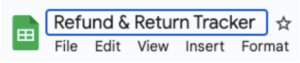
Open Google Sheets and give your file a name like “Refund & Return Tracker.”
Then, set up your columns in Row 1 with headers such as:
- Order ID
- Customer Name
- Product Name
- Order Date
- Return/Refund Date
- Return Type (Return or Refund)
- Reason for Return
- Status (Pending, Approved, Denied, Completed)
- Refund Amount
- Notes
You can add or remove columns based on what your business needs.

Step 2. Use a Dropdown for Consistency
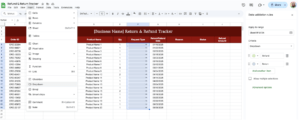
To avoid typos and make your data easy to sort and filter, add dropdowns. Select the cells under “Return Type” (e.g., B2:B1000). Click Insert > Dropdown, then and type: Return, Refund. Do the same for “Status” using: Pending, Approved, Denied, Completed
This way, you’ll have neat dropdowns for selecting instead of typing manually.
Step 3. Add a Formula to Calculate Total Refunds
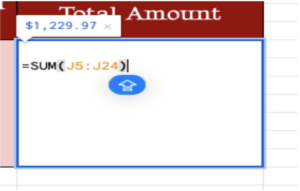
Let’s say the “Refund Amount” is in column J. At the bottom of that column, type:
=SUM(J2:J)
This will total up all the refund amounts automatically so you know how much you’ve refunded overall.
Step 4. Filter Your Data
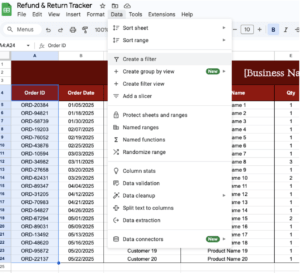
Use filters to search by date, product, customer, or refund status. Select Row 1 (your headers). Click Data > Create a filter. You’ll now see filter icons next to each header—click these to sort or search for specific values.
Step 5. Protect the Sheet (If You Work with a Team)
To avoid accidental changes, click Data > Protect sheets and ranges. Choose the range or sheet to protect. Set permissions so only you or trusted team members can edit sensitive parts.
If others need access to view or update the tracker, like a teammate handling returns or a customer service rep, you can easily share the file.
Click the “Share” button in the top-right corner of your Google Sheet, then enter the email addresses of your teammates. Choose their access level:
- Viewer – Can see but not edit.
- Commenter – Can leave notes but not change anything.
- Editor – Can add and change data.
You can also create a shareable link to send in email or chat. Make sure to double-check permission settings before sharing.

Get the Free Return & Refund Tracker
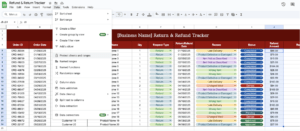
Get a copy of the Free Return & Refund Tracker. I’ve populated some cells as examples, but you can customize them as needed.
Final Thoughts
Tracking returns and refunds is about understanding how your customers interact with your business. Google Sheets gives you a simple but powerful way to keep things organized without extra costs or tools. Over time, a clear tracker can help you make smarter decisions, fix recurring problems, and even improve customer satisfaction.
Frequently Asked Questions
What’s the best formula to count the number of pending returns?
Use the COUNTIF function. Example:
=COUNTIF(H2:H, “Pending”)
This will count how many times “Pending” appears in the “Status” column.
Can I automate timestamps for entries?
Yes, but using formulas like NOW() can update constantly. For stable timestamps, use Google Apps Script to set a timestamp only once when the data is entered.
How do I avoid duplicate entries in my tracker?
Use Data > Data validation with a custom formula or set up conditional formatting to highlight duplicates in the Order ID column using:
=COUNTIF(A:A, A2)>1