Managing employee documents — like tax forms, contracts, ID verifications, and onboarding paperwork — is a critical HR function. But for many companies, the process is still stuck in the past.
Chasing emails, sending reminder after reminder, searching inboxes for scattered attachments, and manually uploading files to shared drives are a recipe for inefficiency, errors, and security risks.
The good news? There’s a better way to collect employee documents online — one that’s fast, organized, and secure FileDrop’s File Upload Forms.
In this post, we’ll walk you through how your HR or operations team can use FileDrop to automate and streamline the collection of sensitive employment files. If you’re looking for an employee documents solution that reduces administrative overhead and improves compliance, read on.
Why Email Is Not a Reliable Way to Collect Employee Documents
Email might be familiar, but it’s far from ideal when dealing with sensitive employment information.
- Security gaps: Standard email lacks robust encryption and can be intercepted, forwarded, or mistakenly sent to the wrong person. This puts confidential data — like W-4s, NDAs, or passports — at risk.
- No visibility: With email, there’s no audit trail. You can’t easily track who submitted what, or when. This makes it harder to stay compliant during audits or reviews.
- Manual chaos: Incoming attachments often require downloading, renaming, and filing into the correct folders — a process prone to mistakes, especially when scaled across dozens or hundreds of employees.
- Low response rate: Employees may miss your request, delay responding, or send partial submissions, forcing your HR team to follow up multiple times. It creates friction for both sides.
If your HR team is constantly sending email reminders, following up with new hires, or sorting attachments manually, it’s time to adopt a purpose-built employee documents solution that brings structure and automation to your workflow.
Introducing FileDrop: A Modern Way to Collect Employee Documents
FileDrop’s File Forms allow HR teams to create secure, branded upload forms that employees can access from any device — no login required.
Whether you’re onboarding new hires, updating compliance paperwork, or gathering annual tax forms, FileDrop transforms the way you collect employee documents:
- Secure file requests: Generate password-protected, time-limited upload links to ensure only authorized users can send documents.
- Direct Google Drive storage: Employee files are uploaded directly into pre-defined folders within your Google Drive, eliminating manual sorting and minimizing risk.
- Custom metadata fields: Collect structured data along with documents — such as employee name, department, or position — to streamline classification.
- Real-time alerts: Get notified the moment an employee submits their documents, so your team can act quickly and keep records up to date.
- Audit logs via Google Sheets: Every submission is automatically logged with timestamps, names, and file types, giving you a built-in audit trail for compliance and internal reporting.
- Branding and employee-friendly UX: Customize forms with your company’s logo, colors, and instructions. Employees get a professional, intuitive experience that builds trust and reduces confusion.
FileDrop is more than a file upload tool — it’s a complete employee documents solution designed to make HR operations smarter, safer, and simpler.
Real Example: Onboarding Remote Employees
Let’s say your company is onboarding five new remote employees this month. You need to collect:
- A signed employment agreement
- A W-4 tax form
- A copy of a government-issued ID
- Direct deposit information
Instead of sending separate emails with a list of instructions, you create a FileDrop form titled:
“Onboarding Documents – Company Inc.”
You customize the form with fields for:
- Full Name
- Start Date
- Department
- Optional Comments
Then you:
- Connect the form to a “New Hires” folder in Google Drive.
- Set password protection and a 7-day expiration for the link.
- Enable notifications so HR gets an alert upon each submission.
Now, each employee gets a single secure link. They upload their files, fill out the form, and you receive everything in one place — organized, secure, and instantly accessible.
No chasing. No confusion. Just a better way to collect employee documents.
Step-by-Step: How to Set Up a FileDrop Form for Employee Documents
Setting up a secure FileDrop form to collect employee documents takes just a few minutes. Here’s how to do it from start to finish:
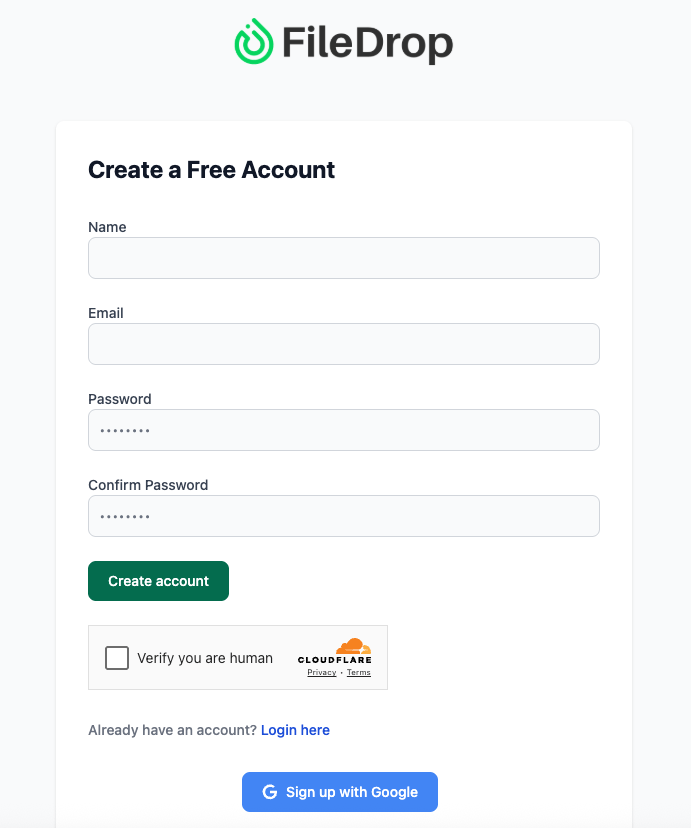
Step1: Create an Account
Start by visiting https://app.getfiledrop.com/register and signing up for an account using your email or Google Workspace credentials. This connection allows FileDrop to store uploaded documents directly into your company’s Google Drive for easy access and organization.
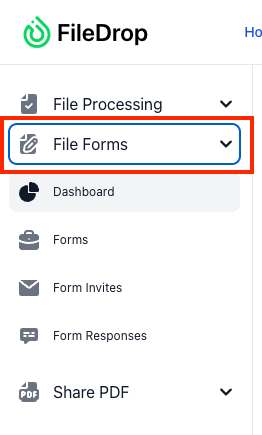
Step 2: Access the File Forms Dashboard
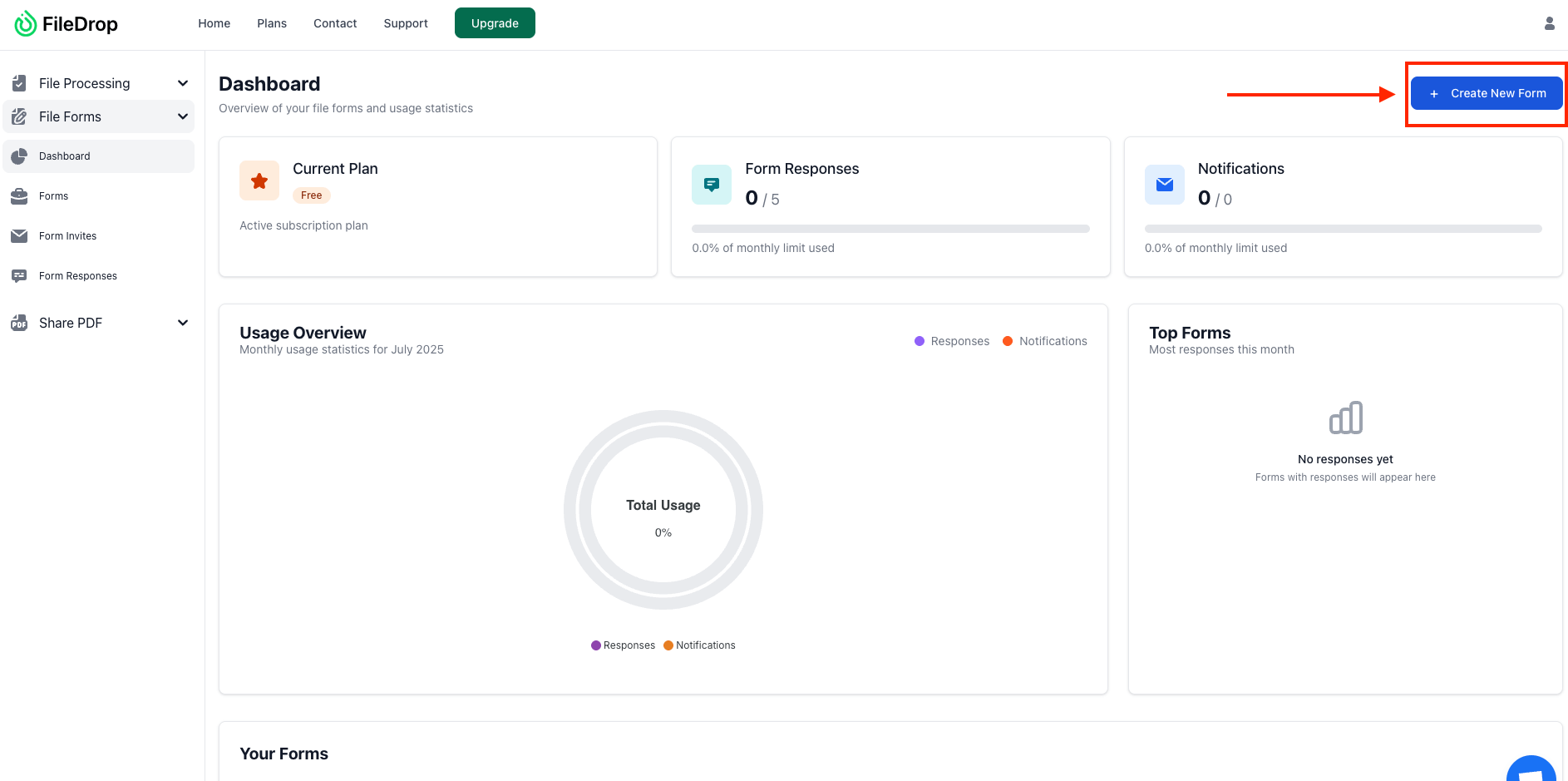
Once logged in, navigate to the “File Forms” section in your dashboard. This is where you’ll manage all of your secure file upload forms — whether it’s for onboarding, HR compliance, or document updates.
Step 3: Create a New File Form
Click on “Create New Form” and give your form a clear, descriptive name that employees will recognize. For example:
- New Hire Document Submission
- Employee Compliance Upload
- Remote Onboarding Form
This name will appear at the top of the upload page, so choose something that aligns with your process and makes the purpose of the form obvious.
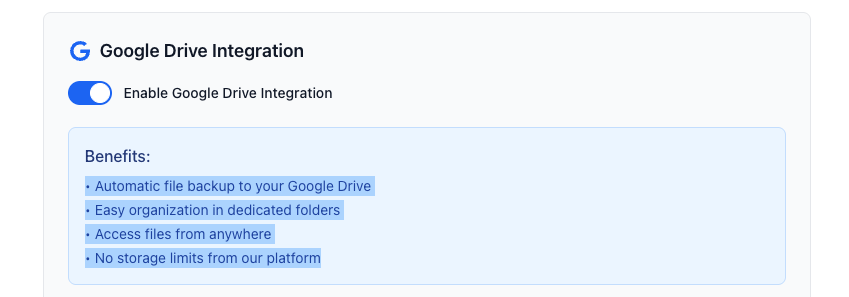
Step 4: Enable Google Drive Integration
Select the Google Drive folder where uploaded files should be saved. This is the destination folder that will receive all employee submissions.
You can also enable automatic subfolder creation based on employee name, email, or any form field — a great way to keep your Drive clean and organized by individual or department.
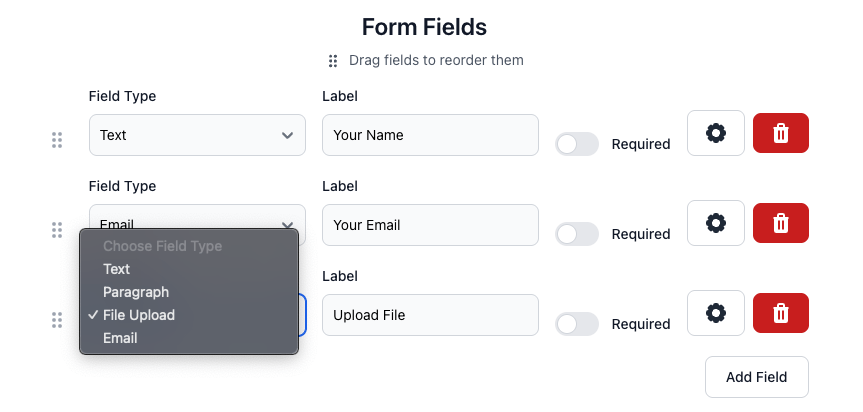
Step 5: Add Form Fields
Customize the form to collect structured information alongside the uploaded files. This data helps categorize and track submissions.
Common fields include:
- Employee Full Name
- Department or Role
- Start Date
- Document Type or Description
- Comments or Additional Instructions
These fields appear above the file upload box, guiding employees to provide the right context with each submission.
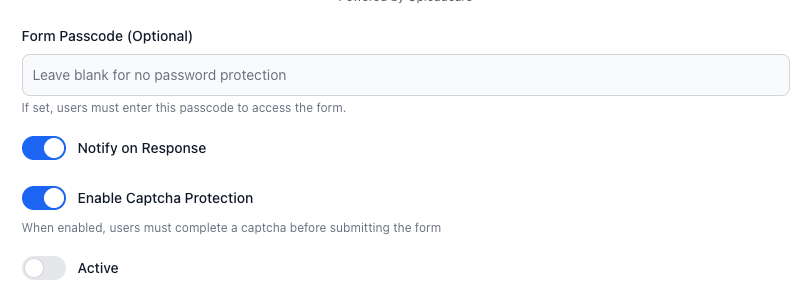
Step 6: Enable Notifications
Turn on real-time email notifications so your HR or operations team is immediately alerted whenever a new submission comes in. This helps you stay responsive and ensures nothing gets missed during onboarding or compliance processes.
Step 7: Set Security Controls
FileDrop offers flexible security settings to control how and when files are submitted. You can configure:
- Password protection: Require a shared password before files can be uploaded.
- Link expiration: Set a time limit so the upload link automatically expires after a certain date.
- Upload limits or file type restrictions: Restrict uploads to specific formats (e.g., PDF, DOCX) or limit file sizes to keep everything manageable.
These controls help protect sensitive employee documents and keep your process compliant with data protection policies.
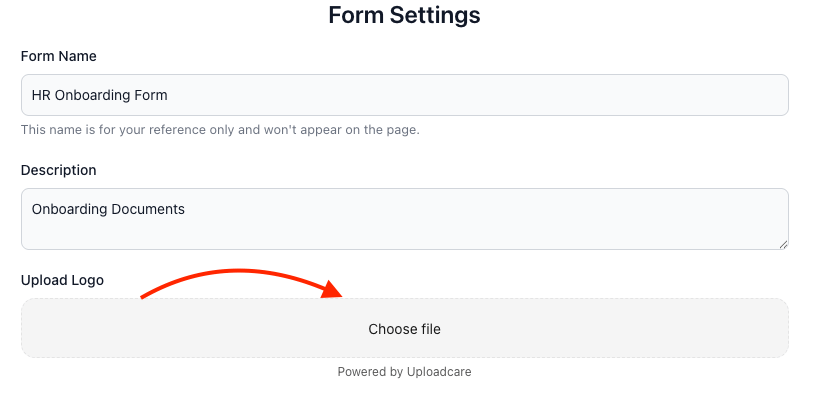
Step 8: Add Company Branding
Make the upload experience look professional and trustworthy by customizing your File Form with company branding. You can:
- Upload your company logo
- Apply your brand colors
- Add a personalized message or clear instructions
This gives employees confidence that they’re submitting information to the right place — especially helpful for new hires or remote workers.
Once your form is ready, copy the secure upload URL and share it through your preferred communication channels, such as:
- HR onboarding emails
- Internal messaging platforms like Slack or Microsoft Teams
- The employee portal or intranet
- Secure messaging apps (e.g., Signal, WhatsApp for HR-sensitive roles)
Employees can access the link from any device — phone, tablet, or computer — and upload their documents without needing to create an account or remember a login.
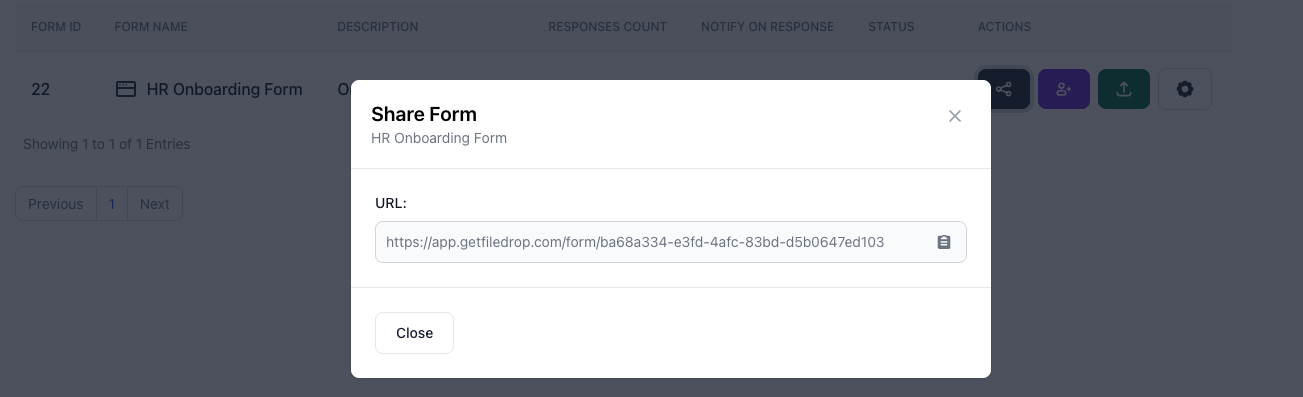
By following these steps, you can set up a secure, user-friendly, and fully trackable system to collect employee documents — without relying on back-and-forth emails or clunky HR portals. It’s a fast, efficient way to modernize your document intake process and support your HR operations at scale.
Let me know if you want a printable checklist version of this setup process or a follow-up guide for managing documents after collection.
Automatically Track Uploads in Google Sheets
Need a simple, centralized way to keep track of every document your clients submit? FileDrop has you covered.
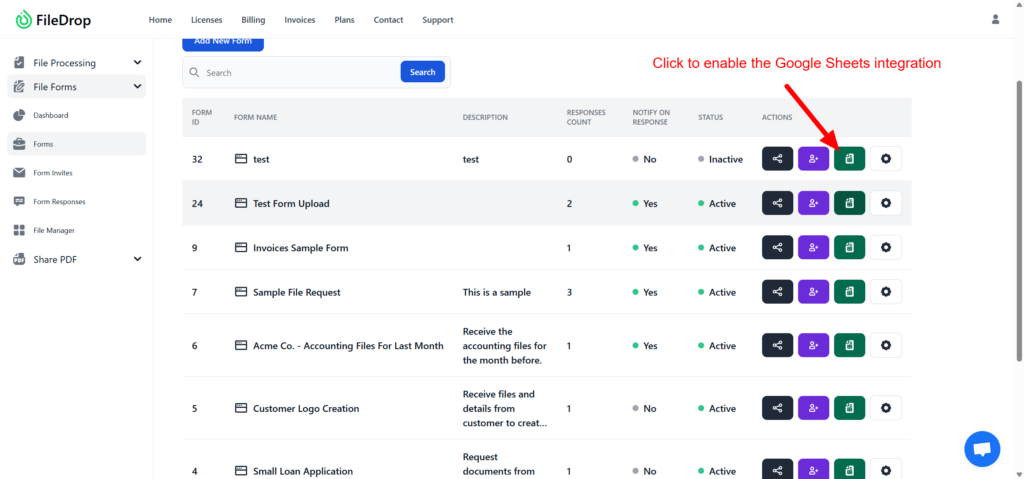
With the built-in Google Sheets integration, each File Form can automatically log upload activity in real time. No extra setup or manual entry required.
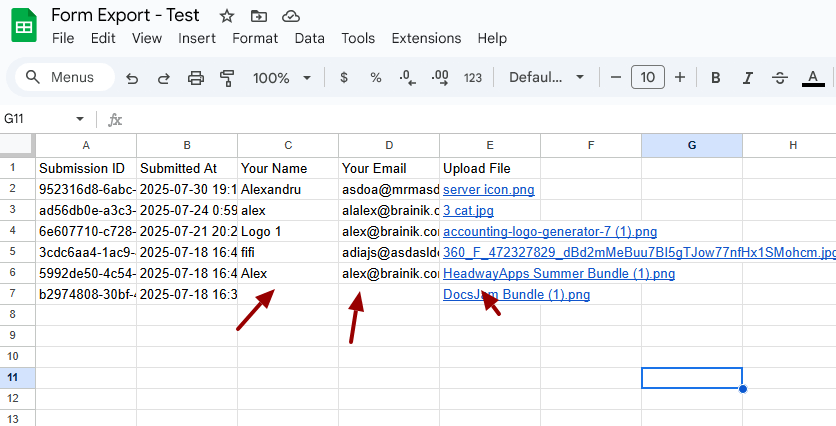
For every submission, your synced Sheet will capture:
- The submission date and time
- The client’s name and other form field responses (such as case number or document type)
- The file name(s) and upload status
This auto-generated record helps your team:
- Monitor incoming files at a glance
- Simplify auditing and compliance tracking
- Create reports or follow-ups based on live intake data
It’s a powerful way to stay organized — especially for firms managing dozens of cases or multiple team members. When paired with FileDrop’s secure upload system, this feature ensures you’re not just collecting legal documents efficiently, but also documenting every step of your client intake process.
Bonus:
If you want to share secure PDF files like agreements, contracts or other sensitive PDF files with secure access see our PDF Hosting tool.
Final Thoughts
If you’re still relying on email to collect sensitive employee documents, you’re wasting time and opening the door to costly errors or data breaches.
FileDrop gives HR teams a secure, streamlined way to manage onboarding, offboarding, and everything in between. It’s a modern employee documents solution designed to eliminate inefficiencies and build trust with every hire.
Start your first secure form today at getfiledrop.com — and say goodbye to email follow-ups for good.
The Bottom Line:
One keeps you awake. The other gets work done.
A month of coffee: $150
A month of FileDrop: $19
Why not have both?