Key Takeaways
- Most read-only PDF protections can be bypassed if the file is shared
- Flattening or locking PDFs reduces editing but is not foolproof
- The safest approach is not sharing the actual file
- FileDrop allows secure, view-only PDF sharing with download prevention
- Professional tools provide branding, access control, and tracking
If you’re searching for how to make a PDF read only, you probably want to share a document without letting recipients edit, copy, or modify it. This could be a contract, proposal, HR form, report, or any sensitive document.
The challenge: Most traditional “read-only” methods are easily bypassed. Permissions, passwords, or flattened PDFs may deter casual editing, but determined recipients can still copy, modify, or extract content.
In this guide, we’ll walk through five practical methods, including the most reliable approach: sharing your PDF as a view-only link with FileDrop, which offers professional control, branding, and tracking.
What Does “Read Only” Mean for a PDF?
A read-only PDF is intended to allow recipients to view the content without making changes. In an ideal scenario, they shouldn’t be able to copy text, modify pages, or extract data.
Common use cases:
- Contracts and agreements
- Proposals and pricing documents
- HR forms and policies
- Internal reports
- Published guides or manuals
Important limitation: Traditional methods—like setting permissions or passwords—cannot guarantee complete protection once the file is shared. Anyone with basic technical knowledge or free tools can bypass restrictions.
Key insight: The only truly secure way to make a PDF “read only” is not giving away the file itself, but instead sharing a controlled, view-only link.
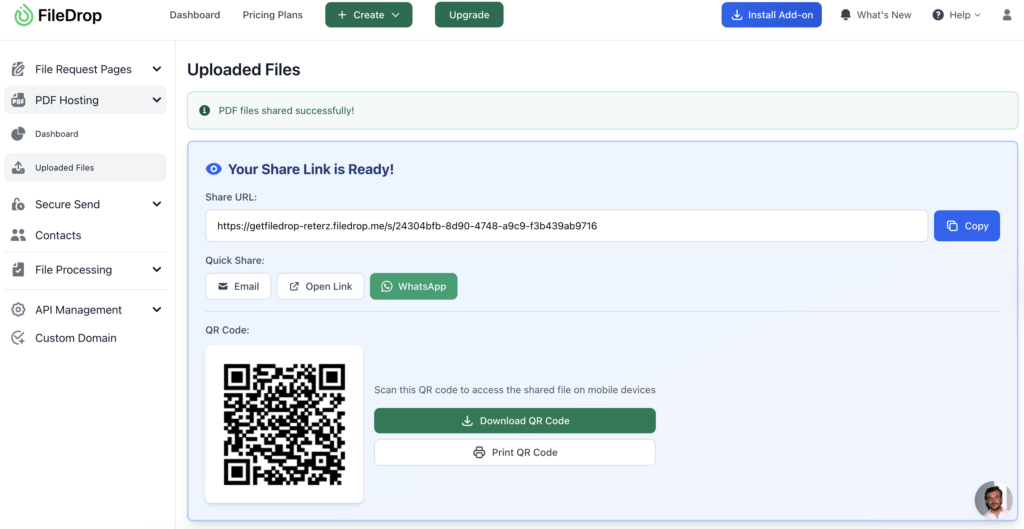
The most reliable way to make a PDF read-only is to never give away the file. FileDrop allows you to share a PDF via a secure, view-only link, ensuring recipients can view but cannot download or edit the file.
How FileDrop Works
1. Upload your PDF to FileDrop


2. Disable downloads in the settings

3. Optionally add password protection and set expiration dates

Key Advantages
| Feature | FileDrop | Traditional PDF Permission | Flattened PDF |
|---|---|---|---|
| True Read Only | Yes | No | Partial |
| Row 2, Col 1 | Yes | No | No |
| Row 3, Col 1 | Yes | No | No |
| Row 4, Col 1 | Yes | No | No |
| Row 5, Col 1 | None | 20–25 MB | Large if image-based |
Best for: Contracts, proposals, HR forms, reports — any PDF where security, professional presentation, and control matter.
Limitations:
- Requires internet access to view
- Screenshots are still possible, though this is true for all PDF methods
Method 2: Set File Properties to Read-Only (Windows/Mac)
You can mark a PDF as read-only locally, which prevents accidental editing on your own computer. However, this method does not protect the file once it is shared.
How to Set a PDF as Read-Only
Windows:
- Right-click the PDF → Properties → Check “Read-only” → OK

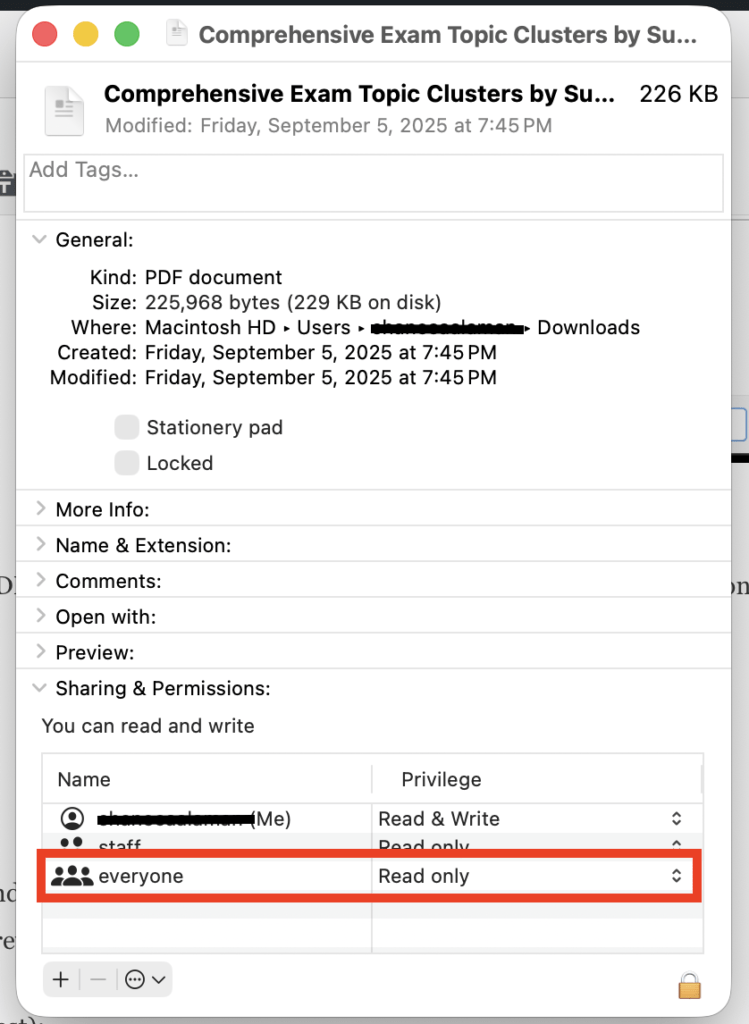
Mac:
- Select PDF → Get Info → Sharing & Permissions → Set to “Read only”
Pros:
- Quick and requires no additional software
- Helps prevent accidental edits on your own machine
Cons (Be Honest):
- Only applies to the file locally
- Recipients can remove the read-only setting easily
- Does not secure the PDF for external sharing
Best for: Preventing accidental changes on your own system before sharing.
Method 3: Use Mac Preview or Adobe Acrobat Permissions
Mac Preview and Adobe Acrobat allow you to set editing restrictions via passwords.
Mac Preview Steps:
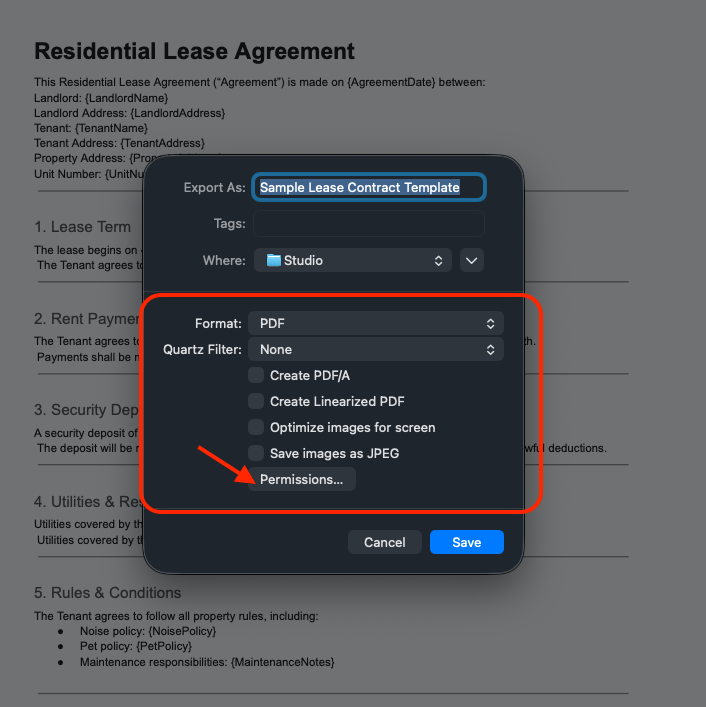
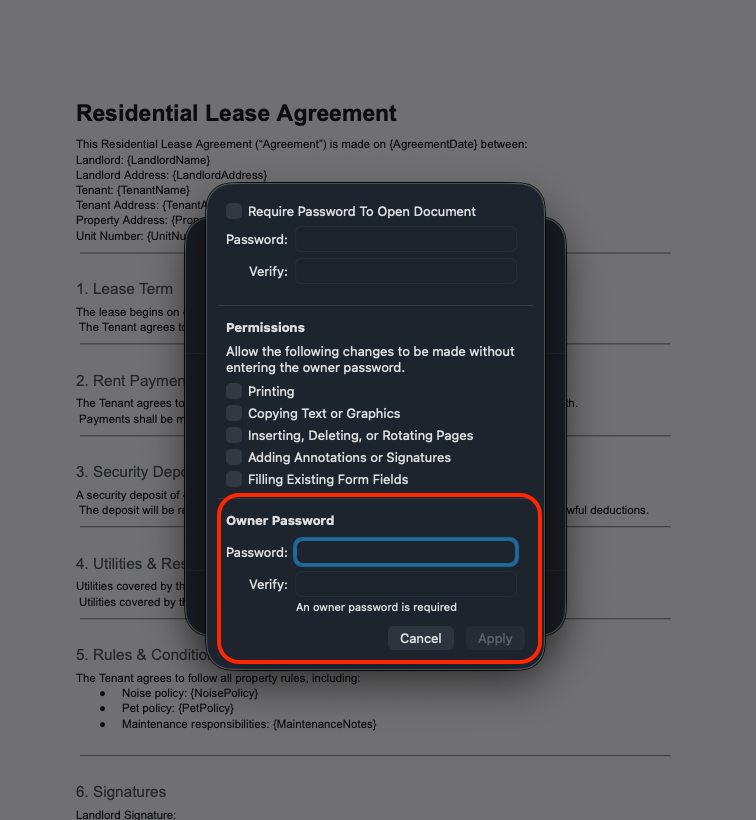
- Open PDF → File → Export as PDF → Security Options
- Set a permissions password to restrict editing, copying, and printing
Adobe Acrobat Steps:
- Open PDF → File → Protect → Restrict Editing
- Set password permissions for editing
Pros:
- Built-in tools for Mac or Adobe users
- Password protection discourages casual edits
Cons:
- Restrictions can be bypassed using online tools or free software
- Does not prevent copying or screenshots in all cases
- Recipients need to respect passwords for protection to be effective
Best for: Light protection where recipients are trusted and casual editing needs to be limited.
Method 4: Flatten the PDF (Convert It to an Image-Based PDF)
Flattening a PDF means converting each page into an image and then combining those images back into a single PDF file. Because the text is no longer “real” text—just pixels—most standard editing tools can’t easily select, copy, or modify the content.
This method is often used when you want to reduce casual editing rather than apply true security controls.
How flattening a PDF works
There are two common approaches:
- Export pages as images – Use a PDF editor or online tool to export each page as a JPG or PNG file.
- Recombine images into a PDF – Merge those images back into a single PDF using a PDF creator or online converter.
Popular tools that can flatten PDFs include:
- Adobe Acrobat (export to image, then reassemble)
- Preview on macOS (export as image-based PDF)
Why do people use flattened PDFs
Flattening is appealing because it:
- Makes text harder to copy or edit using basic PDF editors
- Preserves the visual layout exactly as designed
- Works without requiring passwords or special software on the recipient’s side
For simple use cases—like sharing a finalized presentation or reference document—this can be “good enough.”
Important limitations to understand
Flattening does not make a PDF truly read-only.
Key drawbacks include:
- File sizes often increase significantly, especially for multi-page or image-heavy PDFs
- OCR software can still extract text, meaning determined users can recover editable content
- Accessibility is lost, including selectable text, searchability, and screen reader support
- Screenshots are always possible, just like with any other PDF protection method
Once you send a flattened PDF, you’ve still given away the file—so you lose control over how it’s shared or reused.
When flattening makes sense
Flattening works best when:
- You’re sharing archival or presentation PDFs
- You want to discourage casual copying, not prevent it entirely
- Accessibility and text search are not critical requirements
When flattening is not enough
If the document is sensitive, confidential, or tied to a business process—contracts, HR documents, reports, or client deliverables—flattening alone is rarely sufficient.
In those cases, not distributing the file at all is the safer approach. Sharing a view-only PDF link (for example, using FileDrop) ensures recipients can read the document without ever receiving an editable copy, while still allowing you to control access, track views, and revoke links if needed.
Best for: Archival documents or visual-only PDFs where discouraging casual editing is the primary goal—not full document security.
Method 5: Other Document-Sharing Tools
Dedicated document-sharing tools are built specifically for sending files through secure, link-based access instead of email attachments. Rather than giving recipients a downloadable file, these platforms host the PDF and control how it can be viewed.
Apart from FileDrop, common examples include:
- DocSend – document sharing with engagement analytics, commonly used by sales teams
- PandaDoc – document workflows with viewing, approvals, and e-signatures
- SendSafely – secure file delivery with strong encryption and compliance focus
- Box – enterprise content management with advanced permission controls
How these tools work
In most cases, the process looks like this:
- Upload your PDF to the platform
- Configure access settings (view-only, passwords, expiration, etc.)
- Share a secure link with recipients
- Recipients view the document in a browser instead of downloading the file
This approach avoids email attachment limits and provides more control than traditional file sharing.
Benefits of document-sharing platforms
These tools typically offer:
- Link-based delivery instead of attachments
- Access controls such as passwords or email verification
- View tracking or audit logs
- Optional expiration dates or revocable links
For sensitive or professional documents, this is a major improvement over emailing PDFs directly.
Limitations to consider
Not all document-sharing tools are ideal for simple PDF delivery:
- Added complexity — many platforms are designed for sales workflows or enterprise content management
- Recipient friction — some require verification steps, gated viewers, or account creation depending on settings
- Plan-based restrictions — storage limits, bandwidth caps, or locked security features may apply
- Overkill for everyday use — advanced features can slow down simple sharing tasks
Why FileDrop is different
FileDrop is purpose-built for simple, secure, view-only PDF sharing without portals or unnecessary steps:
- No recipient accounts or logins required
- Clean, professional, branded PDF viewer
- Disable downloads to keep PDFs read only
- Password protection, expiration dates, and revocable access
- View tracking without workflow complexity
For teams that want control without friction, FileDrop offers the most practical way to share PDFs as view-only documents—without giving away the file itself.
Comparison Table
| Method | Best For | Pros | Cons |
|---|---|---|---|
| FileDrop Link | Any professional PDF | True read-only, branding, tracking, and download prevention | Internet required, screenshots possible |
| File properties | Local editing | Quick, no software | Not secure once shared |
| Preview / Acrobat lock | Trusted recipients | Password protection | Easily bypassed, no download control |
| Flatten PDF | Presentations / archival | Harder to edit | Large files, OCR possible, lose accessibility |
| Other tools | Enterprise / specialized | Security, tracking | Complexity, may require accounts |
Tips for Sharing PDFs Securely
- Use clear, descriptive file names
- Test PDFs or links on multiple devices before sending
- Set expiration or password protection for sensitive documents
- Combine methods (e.g., flatten + view-only link) for extra protection
- Avoid sending the file if full control is required; always use view-only links
The Bottom Line: How to Make a PDF Read Only
Most traditional “read-only” techniques—changing file properties, adding passwords, or flattening PDFs—offer limited protection. Once you share the file itself, those restrictions can usually be removed, bypassed, or worked around with basic tools.
If you need real control over how a PDF is accessed, the most effective approach is not sharing the file at all. FileDrop lets you share PDFs as view-only links, so recipients can open and read the document without downloading or editing the original file. You also gain practical controls like view tracking, branding, link expiration, and the ability to revoke access at any time.
Try FileDrop today and share a PDF securely in minutes!
Frequently Asked Questions
Can you make a PDF completely non-editable?
No. Once the file is shared, it can eventually be edited. Only view-only links prevent all editing.
How do I make a PDF read only without Acrobat?
Use Mac Preview, flatten the PDF to images, or share it via FileDrop.
Can someone bypass PDF read-only protection?
Yes. Password restrictions, file properties, or flattened PDFs can be bypassed with free tools or OCR software.
Do not share the file. Use a view-only link with downloads disabled, like FileDrop.