

Following up with leads can make or break a business deal.
Whether you’re in sales, marketing, real estate, or offering services, staying on top of your lead follow-ups helps you build trust and close more deals.
But keeping track of everything in your head or scattered across emails and notebooks? That gets messy fast.
That’s where a simple Google Sheet can help. With just one template, you can track who you’ve contacted, when to follow up again, and what stage each lead is in.
Why Is a Lead Follow-Up Tracker Important?
People get busy. Sometimes your leads won’t respond right away unless you reach out again. A lead follow-up tracker helps you:
- Stay organized
- Remember when and how you last followed up
- Know when it’s time to reach out again
- Spot your warmest leads
- Avoid losing touch with potential clients
Using a Google Sheet keeps things simple and free. Plus, you can customize it however you want.
Step 1. Set Up Your Sheet Columns
Open a new Google Sheet. Create the following columns in the first row:
- Lead Name
- Contact Info
- Source (website, ad, referral)
- Last Contact Date
- Next Follow-Up Date
- Status (New, Contacted, Interested, Not Interested)
- Notes
You can always add more fields later, but these basics cover most follow-up needs.

Step 2. Add Your Lead Information
Start entering the leads you already have. Include names, emails, phone numbers, and how you got in touch with them.
Use the “Notes” column for anything helpful, like what they’re interested in or personal details.

Step 3. Use Date Formulas for Follow-Ups
Want Google Sheets to tell you when it’s time to follow up? Try a formula like this:
=IF(TODAY()>=E2, “Follow Up”, “”)
Let’s say Column E is “Next Follow-Up Date.” This formula checks if today is on or after that date. If yes, it tells you “Follow Up.” Add this in a new column called “Action.”

Step 4. Add Drop-Downs for Status
To keep things tidy, use the Dropdown menu for the “Status” column. Select the “Status” column Click Insert > Dropdown. Enter: New, Contacted, Interested, Not Interested. Now you’ll get a drop-down in each cell so you can update statuses easily.

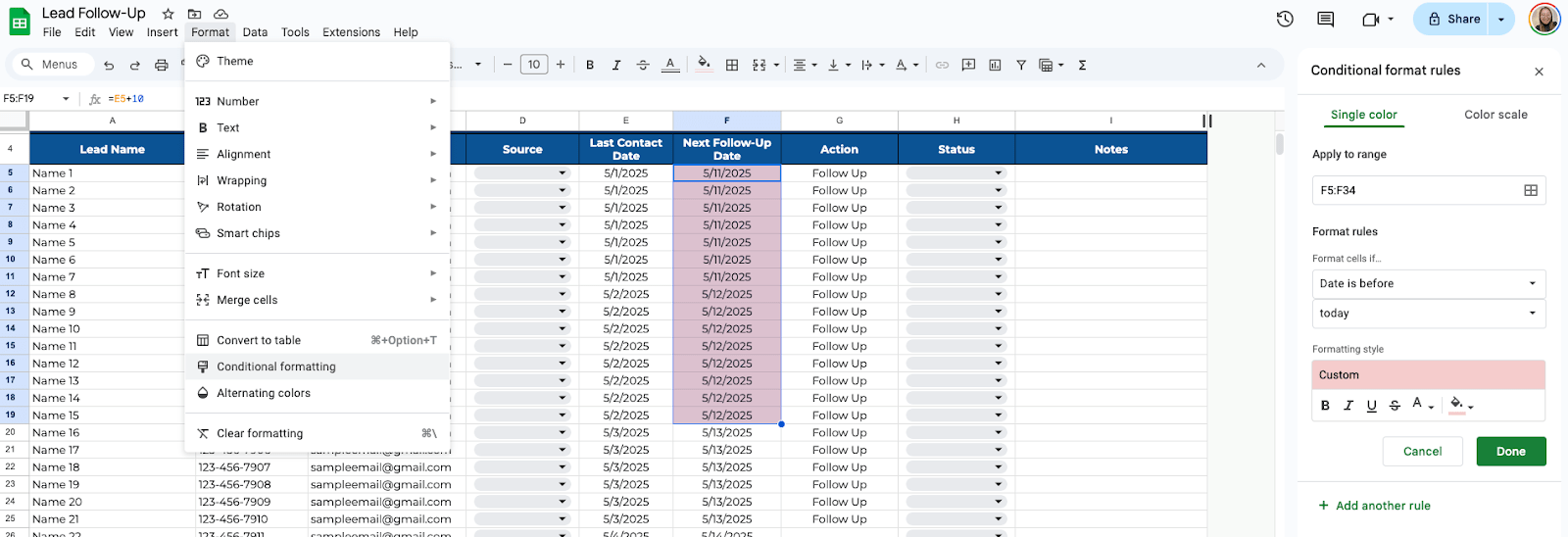
Step 5. Apply Conditional Formatting
Want overdue follow-ups to stand out? Highlight the “Next Follow-Up Date” column. Go to Format > Conditional formatting. Set the rule: “Date is before today.” Pick a red fill color. This way, overdue tasks pop out so you don’t miss them.
If you work with others, click the Share button and add their emails. You can all update the sheet in real time without sending files back and forth.

Get the Free Lead Follow-Up Template
Get a copy of the free Lead Follow-Up Template. I’ve populated some cells as examples, but you can customize them as needed.
Final Thoughts
You don’t need expensive tools to stay on top of lead follow-ups. A simple sheet can go a long way, as long as you stay consistent with updating it. The most important part isn’t the tool itself, but using it regularly. If you do, your chances of closing deals will definitely improve.
Frequently Asked Questions
How do I make sure I don’t miss follow-ups?
Use a formula like =IF(TODAY()>=E2, “Follow Up”, “”) to alert you when it’s time. You can even color-code those rows with conditional formatting.
How can I sort leads by follow-up date?
Click the filter icon and sort the “Next Follow-Up Date” column by A-Z to see the earliest follow-ups first.
What formulas are helpful in a lead tracker sheet?
- =TODAY() gives you today’s date
- =IF(TODAY()>=E2, “Follow Up”, “”) helps you track follow-ups
- You can also use COUNTIF to see how many leads are in each status:
- =COUNTIF(F:F, “Interested”)
The Bottom Line:
One keeps you awake. The other gets work done.
A month of coffee: $80
A month of FileDrop: $19
Why not have both?


