
Law firms exchange sensitive documents daily — contracts, ID proofs, financial disclosures, discovery evidence, court submissions, medical records, affidavits, and more. Yet, many legal teams still rely on email attachments or basic file-sharing links to collect documents from clients. To protect client data and streamline intake, legal professionals need a dedicated, secure file upload page for law firm operations.
This causes several problems:
- Files are scattered across long email threads.
- Attachments get lost, mislabeled, or duplicated.
- Clients forget to include case reference numbers.
- Sensitive materials travel through unsecured channels.
- Staff members spend time downloading, sorting, and filing documents manually.
A branded document submission portal solves this. Instead of emailing files, clients upload them through a secure link that looks like part of your firm’s official system. Documents are automatically organized, timestamped, and stored in one place — ready for immediate review by your legal team.
With FileDrop File Request Pages, you can create a secure file upload page in minutes — without IT setup, custom development, or client logins. It’s the fastest way to create a file upload page for law firm document intake.
Why Law Firms Need a Secure File Upload Page Instead of Email
Here’s how FileDrop improves legal document workflows:
| Challenge with Email | Benefit with a FileDrop Upload Portal |
| Attachments are scattered in email threads | All submissions in one dashboard or Drive folder |
| Files are mixed together or lost | Automatic folder creation per client or case |
| Clients forget to label or categorize documents | Form fields collect names, case numbers, and notes before upload |
| No compliance trail for submission time | Each upload is timestamped and logged |
| Security risk — email is not end-to-end encrypted | FileDrop forms use secure encrypted transfer and controlled access |
| Looks informal and unprofessional | Upload page is branded with your law firm identity |
A professional file upload page for law firm builds client trust and reduces admin burden — especially for firms handling high volume intake, discovery uploads, or multi-step case updates.
Why Branding Your Law Firm’s File Upload Page Builds Client Trust
When clients use a file upload page for law firm document submission, the experience reflects on your firm’s professionalism and credibility. A generic file-sharing link or an email request to “just attach and send” can feel impersonal and raise security concerns.
A branded client portal signals that your firm takes document handling seriously. Clients see your logo, your colors, and clear instructions written in your voice. This consistency builds trust before a case even begins.
Branding also reduces friction and errors:
- Clients recognize the portal as official, not a phishing attempt
- Clear instructions prevent incomplete submissions or mislabeled files
- A professional interface encourages clients to treat the process seriously
- Consistent branding across intake, case updates, and discovery creates a unified client experience
For firms handling high-value litigation, estate planning, or corporate matters, this perception of professionalism can influence client confidence and referrals. The upload experience becomes an extension of your firm’s reputation.
How To Create a File Upload Page for Law Firm (Step-by-Step)
Follow these steps to set up a professional and secure system your clients can use immediately.
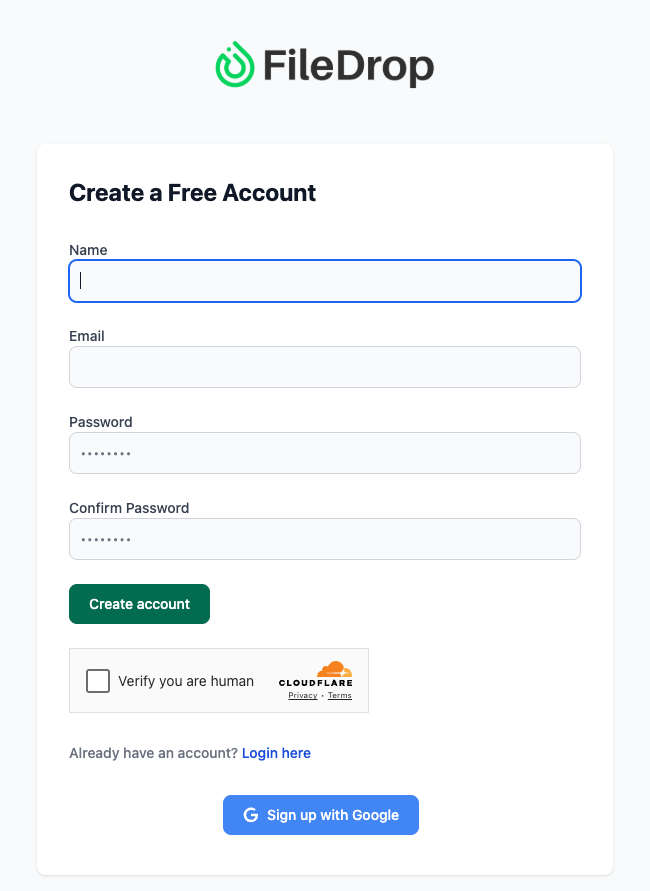
Step 1: Create Your FileDrop Account
Go to https://app.getfiledrop.com/register
- Register using your law firm email domain (example: @smithlegalgroup.com) to ensure secure access and collaboration.
- You can also continue using Google login, which is useful if your team plans to connect uploads directly to Google Drive later.
- After confirming your email, you’ll access your FileDrop dashboard.
Setup Tip: Many legal teams create a dedicated account like intake@firmname.com or documents@lawoffice.com so all case uploads are centralized rather than tied to one attorney’s email.
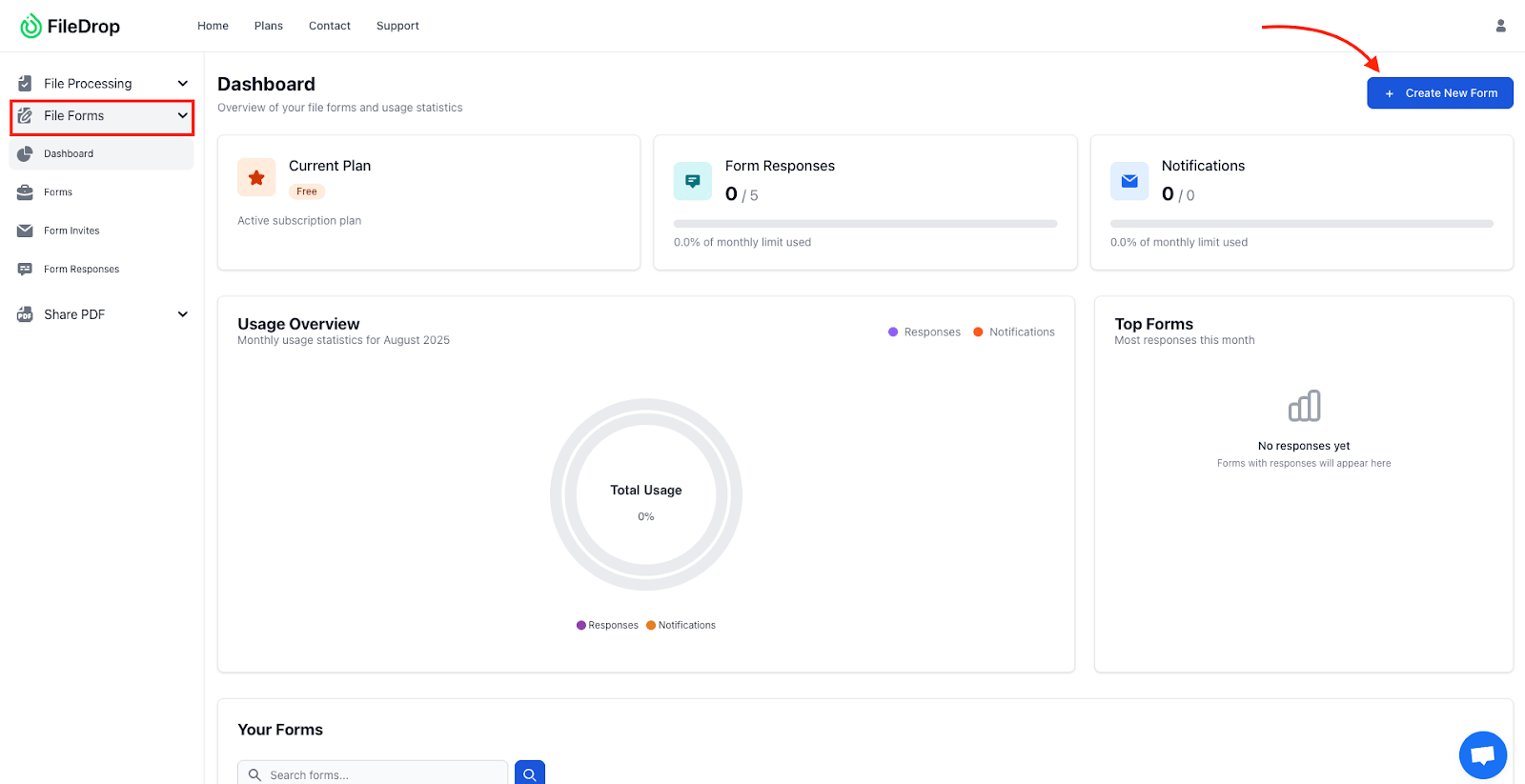
Step 2: Open the File Request Pages Dashboard
- From the left navigation panel, click File Forms.
- This is where all your client submission portals will live.
- Your firm can create multiple portals for specific workflows such as:
- New Client Intake – Family Law
- Evidence Submission – Criminal Defense
- Discovery File Upload – Corporate Litigation
- Immigration Case Document Portal
Law Firm Workflow Insight: Creating a separate file upload page for law firm departments or case types ensures paralegals and attorneys can track submissions clearly without mixing client files.
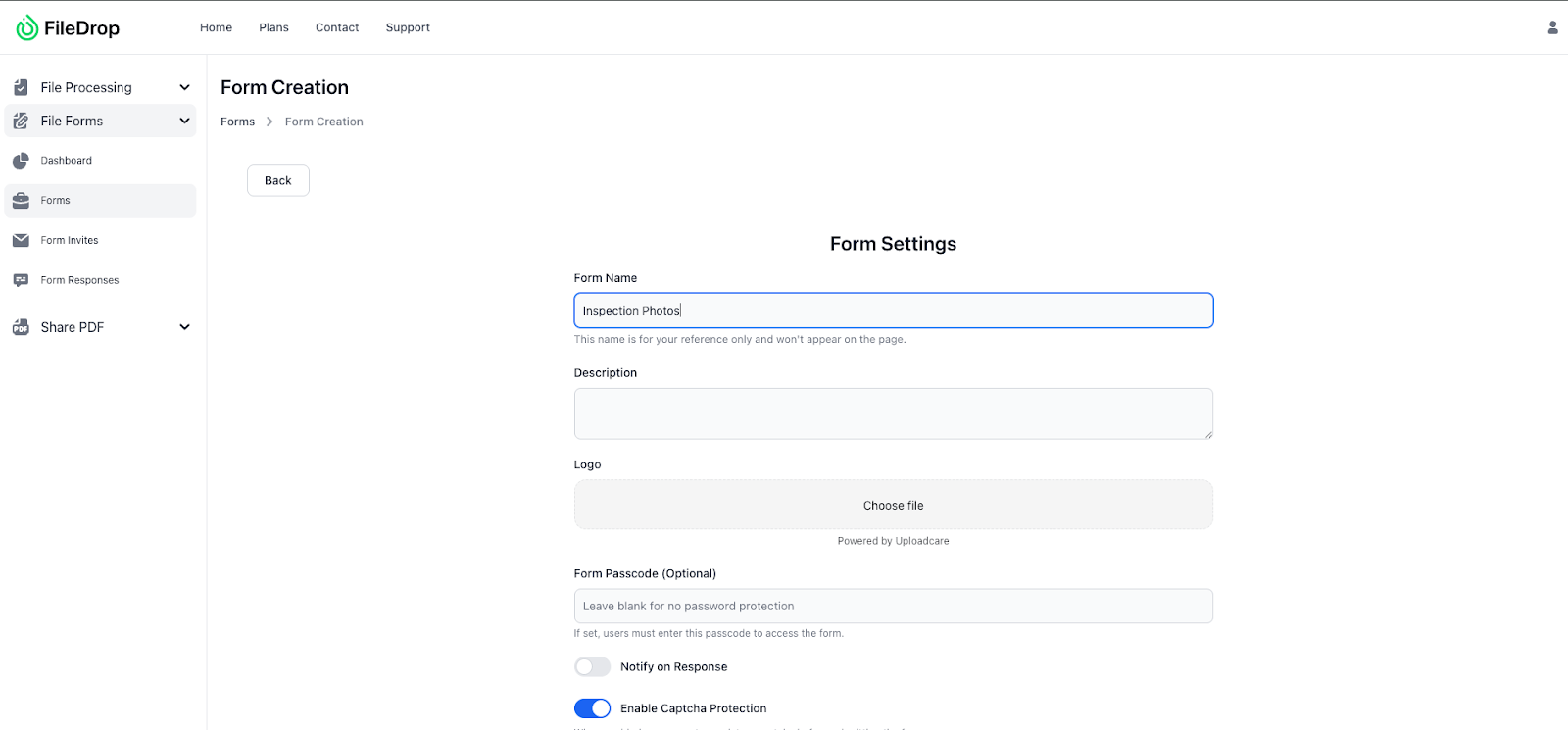
Step 3: Create a New Legal Document Upload Page
- Click New File Page (top right).
- Name your portal clearly so both staff and clients know its purpose.
Examples:
- Secure Document Upload – Smith & Co. Legal Intake
- Discovery Evidence Submission Portal
- Contract Review Upload – Legal Team
- Court Filing Documents – Secure Client Drop-off
- Activate “Separate Submission Folders” — this automatically generates a separate folder for each client submission using their name or email input.
Why this matters for legal compliance:
- Each submission is timestamped and separated.
- Audit trails become easier during discovery and case review.
- Prevents accidental mixing of evidence between cases.
Step 4: (Optional but Recommended) Connect Google Drive for Automatic Storage
If your firm stores case files in Google Drive:
- Open your Page and scroll to Google Drive Integration.
- Click Connect Google Drive and authorize.
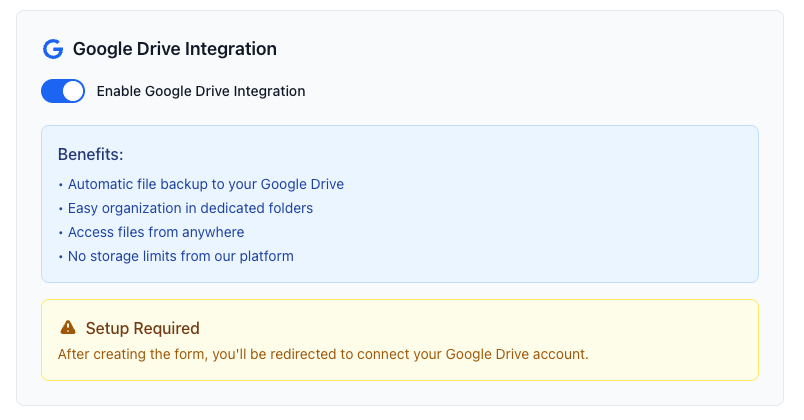
- Select a base folder like:
| Google Drive └── Legal Client Uploads ├── Intake Submissions ├── Discovery Files ├── Court Document Uploads |
Once connected:
- Every upload appears instantly in Drive.
- Folders are automatically created by client name.
- Paralegals and attorneys can access submissions without digging through FileDrop or email records.
Compliance Benefit:Connecting a file upload page for law firm use to Google Drive creates a clear audit trail with timestamps—useful for documenting received materials in litigation or arbitration scenarios.
Step 5: Add Clear Instructions and Apply Company Branding
This step makes your upload portal feel official and easy to use — especially important when field teams are submitting reports from mobile devices.
Here’s how to set it up:
- Set a clear page title such as: “Secure Field Report Upload – [Project Name or Site Code]”
- Add a short instruction block to guide users before they upload: “Use this secure form to submit your daily site reports, inspection files, delivery confirmations, and incident photos. All uploads are automatically backed up to our Google Drive and organized by project.”
- Apply your company branding to build trust and consistency:
- Upload your company logo or project badge
- Select brand colors to match your uniforms, dashboards, or internal systems
- Optionally add a footer note like: “No login required. All submissions are timestamped and will be reviewed by the office team.”
Why this matters: When the upload page looks branded and professional, field staff take it seriously, reducing messy submissions and increasing compliance across all teams.

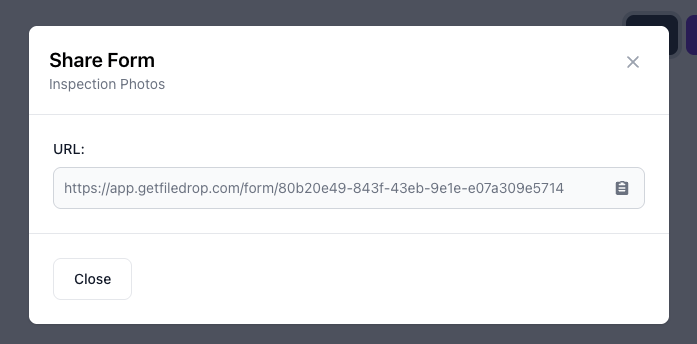
Once saved, your file upload page for law firm generates a secure share link you can start using immediately.
You can:
- Add it to your email signature (“Secure Document Upload Link”)
- Include it in client onboarding emails
- Embed it on your law firm website under “Upload Legal Documents”
- Send it through CRM follow-up sequences or appointment confirmations
- Print a QR code for in-office clients to upload via mobile instead of handing paper copies
Sample client instruction email:
| Dear Client, For secure document submission, please use our official upload portal below. Your files will be encrypted and delivered directly to your legal team: [Insert FileDrop Link] No login is required. Simply attach your files and click submit. |
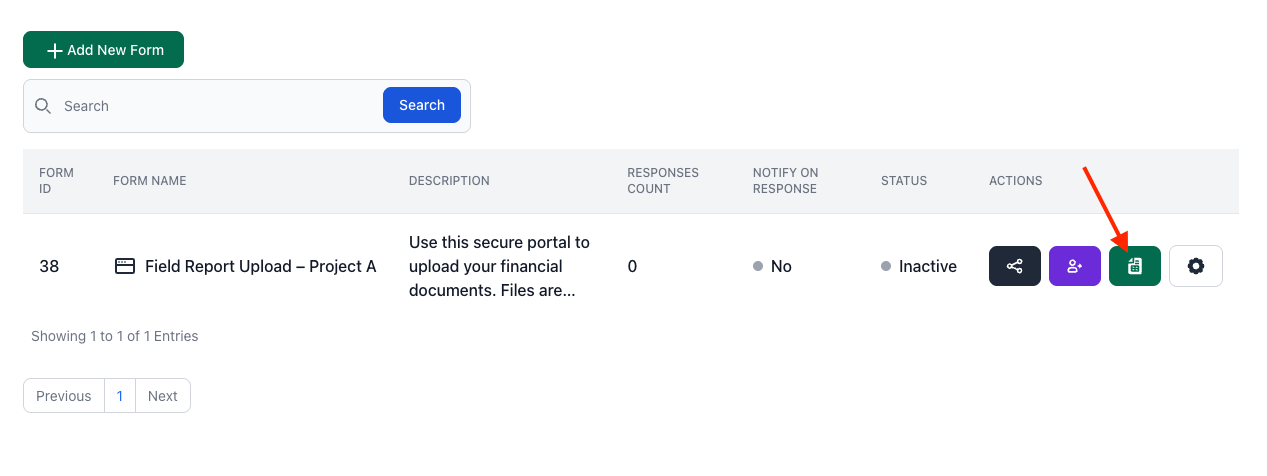
Step 7: Review, Track, and Organize Submissions Automatically
Once clients start uploading:
- Each submission appears with a timestamp in your FileDrop dashboard.
- If Separate Submission Folders is enabled, each client gets a folder named after their inputs — like “John_Doe_Case123_Submission”.
- If connected to Google Drive, files are available for review instantly.
Efficiency Tip for Paralegals: Use Drive search to quickly locate folders by client name without sorting through email attachments.
Security Features Every Law Firm File Upload Portal Needs
A secure file upload page for law firm use isn’t just convenient—it’s an ethical obligation. FileDrop gives your firm oversight at every stage with built-in controls designed for legal workflows.
Password Protection: Add a passcode to any upload portal. Only clients with the code can access the submission page. This is useful for sensitive matters involving privileged attorney-client communications or when sharing links via less secure channels.
Submission Notifications: Receive instant alerts when files are uploaded. Your team knows immediately when a client submits discovery materials or case documents.
Timestamped Audit Trail: Every upload is logged with date, time, and submitter information. This creates a defensible record for litigation, arbitration, or compliance audits and supports chain of custody documentation for evidence.
Controlled Storage Access: When connected to Google Drive, you decide which folders receive uploads and who on your team can access them. Files stay within your firm’s controlled environment.
These controls help your firm meet confidentiality obligations and maintain the chain of custody for evidence and client materials.
How One Law Firm Streamlined Discovery Intake With a Secure Upload Page
A litigation-focused firm was receiving large evidence files via email and WeTransfer links. Files arrived in different formats, some expired before download, and assistants often renamed files manually.
After switching to FileDrop:
- Each discovery batch was uploaded through a branded legal upload portal
- Folders were automatically created and labeled per submission
- The firm no longer chased clients for missing case references or mislabeled files
- All materials were stored securely and could be moved directly into their case management system
The result of implementing a file upload page for law firm intake: fewer follow-up emails, faster document processing, and a more professional client experience from first contact through case resolution.
Modernize Your Law Firm’s Document Intake — No IT Required
Replacing email attachments with a secure, branded upload portal transforms your legal workflow.
With FileDrop, your firm gains:
- Secure, encrypted document intake
- Professional experience that builds client trust
- Automatic file sorting per client or case
- Instant Drive storage and clear audit trails
You get a more organized document system — and clients get a smoother, more trustworthy way to submit sensitive legal files.
Frequently Asked Questions
1. Do clients need to create an account to upload files?
No. They simply click the link, upload, and submit — no login or technical setup required.
2. Can we create multiple upload portals for different legal teams or case types?
Yes. Many firms create a dedicated file upload page for law firm intake, discovery, contract drafts, and court documents.
3. Is the portal encrypted for legal compliance?
Yes. All file submissions use secure encrypted transfer and are stored within your controlled environment.
4. Can we track submission timestamps for evidence logging?
Yes. Each upload is timestamped, which is useful during case audits and discovery timelines.
5. Can we restrict access to the upload page?
Yes. You can add password protection to any portal, ensuring only authorized clients can submit files.
6. How does FileDrop help with attorney-client confidentiality?
Encrypted transfers, controlled storage, and timestamped logs help your firm meet confidentiality obligations. Files stay within your firm’s environment and are not exposed through email threads.