Sales and marketing teams rely heavily on PDFs—proposals, brochures, case studies, whitepapers, and pricing sheets. For agencies, proposals are more than documents; they’re opportunities to win business and showcase professionalism. However, how these files are delivered is just as critical as their content.
Sending PDFs as email attachments often creates challenges:
- Large files that bounce or get lost in spam filters
- No control over who accesses them or for how long
- Security risks if sensitive documents are forwarded to the wrong person
- A clunky, unpolished experience for prospects and clients
- No visibility into when clients actually review your proposals
The solution? Hosting PDFs on a secure portal instead of sending them as email attachments. With FileDrop, your team can share PDFs professionally in minutes, with full control over access, presentation, and engagement tracking. This secure sharing capability complements the need for secure and efficient document collection when presenting proposals, sharing marketing collateral, and managing client files.
Step-by-Step: Hosting & Sharing PDFs with FileDrop
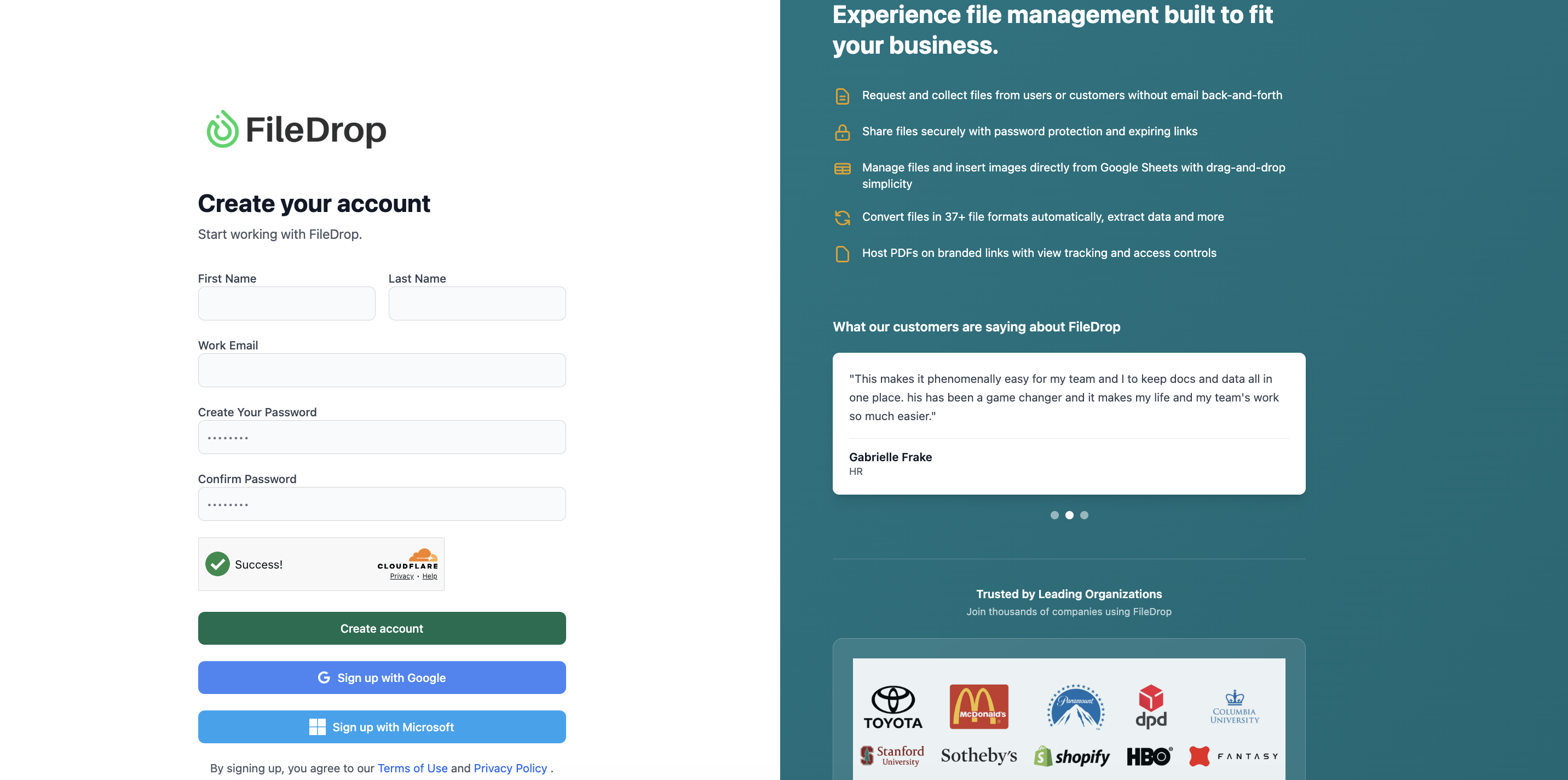
Before you can host or share files, you’ll need a FileDrop account. The process is quick and takes less than one minute.
Step 1: Create Your Free FileDrop Account
- Go to https://app.getfiledrop.com/register
- Sign up with your work email and create a password.
- Verify your email through the confirmation link.
Once logged in, your FileDrop Dashboard becomes your control center for managing PDFs.
Step 2: Explore the Dashboard
The Dashboard gives an overview of your PDF hosting activity, so you can track usage and performance before uploading anything:
- Current Plan – Free or paid subscription plan.
- File Uploads – How many PDFs you’ve uploaded and your monthly usage percentage.
- Total PDFs, Active Links, Expired Links – Quickly see the state of your hosted files.
- Total Views & Most Viewed PDFs – Identify which content is engaging prospects.
- Expiring Soon – Keep track of links set to expire soon.
The Dashboard is the hub for managing hosted PDFs, giving you visibility into every file you share.

Step 3: Upload PDFs and Customize the Hosted Page
Now it’s time to host the PDFs your team shares most. FileDrop makes this easy, and all customization happens during the upload process, so your PDFs automatically appear on professional, branded pages.
- In the Dashboard, click ‘Upload New File’
- Select the PDF(s) you want to host (max 10 files, 20MB each).

Optional Settings During Upload (Controls the Hosted Page)
Logo – Add your company logo (100–800px width, max 2MB) to display on the hosted PDF page.

File Name & Description: The name and description you set here appear as the title and instructions on the hosted page. Example: “Your Proposal is Ready” or “Click below to securely view or download this PDF”

After adding your pdf’s basic information, you can further customized how your pdf is shown through the following settings: :
Expiration Settings: Choose “Never expire” or set a specific expiration date
View Limit: Allow unlimited views or set a maximum number of times the file can be accessed
Password Protection (for paid subscription): Add a passcode for sensitive files; leave blank if not required
Download Settings: Allow or disable downloads, which is key for making a PDF read-only, depending on your content strategy

Search Engine Indexing: Choose whether to allow search engines to discover your hosted PDFs. This is useful for public content like whitepapers or case studies that you want to be searchable.
QR Code Display (for paid subscription): Enable this option to display a QR code directly on the hosted viewing page for easy mobile access and sharing.
Email Verification (for paid subscription): Require viewers to verify their email address before accessing the PDF. This is perfect for lead generation campaigns, as it allows you to collect viewer data and track individual engagement.

Additional Pro-features
For the highest level of protection against unauthorized sharing and leaks, utilize Dynamic Watermarking (Pro feature). This advanced security measure automatically overlays viewer-specific information—such as their email, IP address, and timestamp—onto the PDF, creating an unforgeable trace for every shared document.

For enhanced content presentation, FileDrop also includes Flipbook Mode, which transforms static PDFs into interactive digital flipbooks complete with realistic page-turning animations—perfect for professional catalogs, reports, and portfolios.

Once uploaded, the PDF is hosted securely on a page. Prospects and clients access the file via a permanent link, with all your settings applied automatically.
Once your PDF is uploaded and hosted, FileDrop provides a secure link and sharing options:

Step 5: Track Engagement
FileDrop provides engagement insights for each hosted PDF, helping your team monitor interest and time follow-ups:
- View Count: See how many times each PDF has been accessed
- Status: Check whether the link is Active or Expired
- Expiration Info: Track when hosted links will automatically expire

If you are a paid user, you have access to advanced PDF statistics. This feature provides deeper insights into viewer behavior, including data on viewer location, time spent reading the document, and detailed session activity, which is crucial for qualifying leads and prioritizing immediate follow-ups.

Important: FileDrop currently tracks total engagement only. It does not identify individual viewers, record exact timestamps, or integrate directly with CRMs. This ensures privacy while still providing a clear overview of overall PDF activity.
Best Practices for Hosting PDFs
To maximize the value of FileDrop when hosting your PDFs, consider these tips:
- Set Expiration Dates – Control how long proposals, brochures, or marketing collateral remain accessible. This reduces security risks and helps maintain urgency with clients.
- Use Passcodes for VIP Clients – Add a password to sensitive or high-value documents to ensure only approved recipients can access them.
- Enable or Restrict Downloads – Choose whether recipients can download the file or view it exclusively online. This flexibility helps you protect proprietary content while still making it easy to review.
- Share Multiple Files Under One Link (Optional) – Combine related documents, such as a proposal, case study, and pricing sheet, into a single secure link to create a more seamless client experience.
- Adding Dynamic Watermark (Optional): Deter unauthorized sharing and protect highly sensitive proprietary files by adding a dynamic watermark that overlays the viewer’s identifying information (like their email address) onto the document.
While platforms like Google Drive, Dropbox, OneDrive, and Box offer basic file storage and sharing, they weren’t designed with client-facing document delivery in mind. For agencies and sales teams looking for the best pdf hosting software, the difference between a generic file link and a professional document experience can shape how prospects and clients perceive your work.
When evaluating PDF hosting platforms, consider these key factors:
- Security & Access Controls: Can you restrict downloads, set link expirations, or require passwords? Client confidentiality depends on more than just a private link setting.
- Tracking & Analytics: Will you know when a client opens your document and how many times they’ve viewed it? Without this visibility, you’re left guessing when to follow up.
- File Size & Scalability: Can the platform handle large, design-rich files without compression or quality loss? As your team grows, so will your document volume.
- Workflow Integration: Does it fit into how your team already works—sharing links via Slack, embedding in CRM messages, or adding to project management tools?
FileDrop’s Share PDF was built specifically for this use case, giving sales, marketing, and agency teams branded, secure, and trackable PDF links without the limitations of general-purpose file storage.
Benefits for Sales, Marketing Teams, and Agencies
Hosting PDFs properly saves time, improves professionalism, and increases security. Key advantages include:
- Security: Encryption and optional passwords keep files safe from unauthorized access
- Efficiency: Avoid email size limits, bounced attachments, and cluttered inboxes
- Tracking: Monitor total views to gauge engagement and time follow-ups
- Scalability: Share dozens or hundreds of PDFs without overwhelming recipients
Conclusion: Modernize PDF Sharing for Your Team Using FileDrop
Email attachments are outdated, insecure, and untrackable. FileDrop allows your sales, marketing, and agency teams to:
- Customize the viewer experience for a polished, client-friendly look
- Track engagement to see which files are accessed and when
- Share effortlessly without worrying about email limits or lost attachments
Transform how your team delivers content—securely, efficiently, and professionally. Use FileDrop to convert any PDF to link. Create your free FileDrop account and start hosting PDFs the smart way today.
FAQs: Hosting & Sharing PDFs with FileDrop
- Can I control who can access my hosted PDFs? Yes! FileDrop lets you restrict access using expiration dates, view limits, and optional password protection. You can ensure that only the intended recipients can access sensitive proposals, brochures, or pricing sheets.
- Can I allow recipients to download PDFs, or only view them online? If you’re on the paid version, you have full control over download permissions. During upload, you can choose to allow recipients to download the file or make it view-only on the hosted page, depending on your content strategy.
- What is the maximum file size and number of PDFs I can host? Each PDF can be up to 20MB in size. You can upload up to 10 files at a time, making it easy to host multiple proposals, brochures, or marketing collateral at once.
- Can I track who has viewed my PDFs? FileDrop provides view tracking, showing how many times each PDF has been accessed and when it was opened. While it doesn’t track individual viewer names, it helps you gauge overall engagement and time your follow-ups with confidence.
- How do I turn a PDF into a shareable link? Simply upload your PDF to FileDrop, customize your branding and security settings, then click “Generate Share Link.” You’ll get a unique URL you can send to anyone via email, Slack, or any other channel.
- Can I share a PDF as a link without Google Drive? Yes. FileDrop provides an alternative to Google Drive that offers branded viewing pages, access controls, and engagement tracking—features not available with standard Drive links.
- Is it possible to password-protect shared PDFs? Absolutely. You can add password protection, set expiration dates, and control whether recipients can download the file or only view it online in the paid version.
- Can I customize the look of my PDF sharing page? Yes. You can upload your logo, add custom titles and descriptions for a fully on-brand experience.
- What types of files can I share? Share PDF supports all PDF documents, including proposals, presentations, invoices, reports, contracts, ebooks, and marketing collateral.
The Bottom Line:
One keeps you awake. The other gets work done.
A month of coffee: $80
A month of FileDrop: $19
Why not have both?