
A practical guide for warehouses and distributors handling credit notes, damaged goods, and missing items — without the friction of Google Forms.
The Problem With Google Forms for Customer Returns
If you run a warehouse or distribution business — say, a product depot supplying retailers and trade customers — you will eventually need a simple way for customers to report damaged items, missing products, or anything that warrants a credit note.
The natural first instinct is Google Forms. It’s free, familiar, and quick to set up.
But there’s a catch that catches many businesses off guard: Google Forms requires anyone submitting a response to be signed into a Google or Gmail account.
For trade customers, hauliers, or retail buyers who don’t use Google Workspace, this is an immediate dead end. The form you built doesn’t work for them.
FileDrop’s File Request Pages solve this directly. Anyone with the link can open the form and submit — no account, no login, no Google. Just a clean, professional upload page that works on any device. And you can still receive the responses in your Google Sheet and files in your Google Drive folders with our integrations.
A Real Scenario: 20 Credit Note Requests per Month
Consider a product warehouse managing around 20 return or credit note requests each month. These typically fall into two categories: a single broken item in a delivery, or a product that arrived missing from an order.
For some cases, a photo of the damage is helpful — for others, a written description with the order details is all that’s needed.
The return form needs to be flexible: photo upload should be available but not mandatory. Customers should be able to submit without a photo when none is needed, and attach one or two images when they have visible damage to document.
This is exactly the kind of form FileDrop handles well. Upload fields can be set as optional, so customers are never blocked from submitting just because they don’t have a photo to hand.

How to Build the Return Form in FileDrop
Setting up a customer return form on FileDrop takes about five minutes. Here is the recommended structure:
- Create a new File Request Page. Log into FileDrop and create a new page. By default, a name and email field are included. Keep both — you need these to identify the customer and follow up with a credit note.
- Add fields for the return details. Add a text field for the order or invoice number, a dropdown or text field for the reason (Damaged Item / Missing Product / Other), and a text area for any additional description. These are quick to configure and make the credit note process much smoother on your end.
- Add an optional photo upload field. Add a file upload field and mark it as optional. Set it to accept image files (JPG, PNG) and limit it to two uploads. Customers with a broken or visibly damaged product can attach a photo; those reporting a missing item can skip it and submit without one.
- Brand the page. Add your company logo and a short line of intro text explaining what the form is for and what customers should expect — for example, ‘We will review your request and issue a credit note within 2 working days. Add your domain and personalize the entire user journey. Users can feel like they are still on your website.
- Share the link. Copy the page link and add it to your delivery notes, invoices, or email signature. Customers can access it immediately, from any device, without creating any kind of account.
DEMO FORM
Suggested form fields at a glance:
| Field | Notes |
| Customer name | Required — identifies who is submitting |
| Email address | Required — for credit note follow-up |
| Order / invoice number | Required — links the return to a specific transaction |
| Reason for return | Required — Damaged / Missing / Other |
| Description | Optional — additional context in the customer’s own words |
| Photo upload (max 2 files) | Optional — attach only when damage is visible |
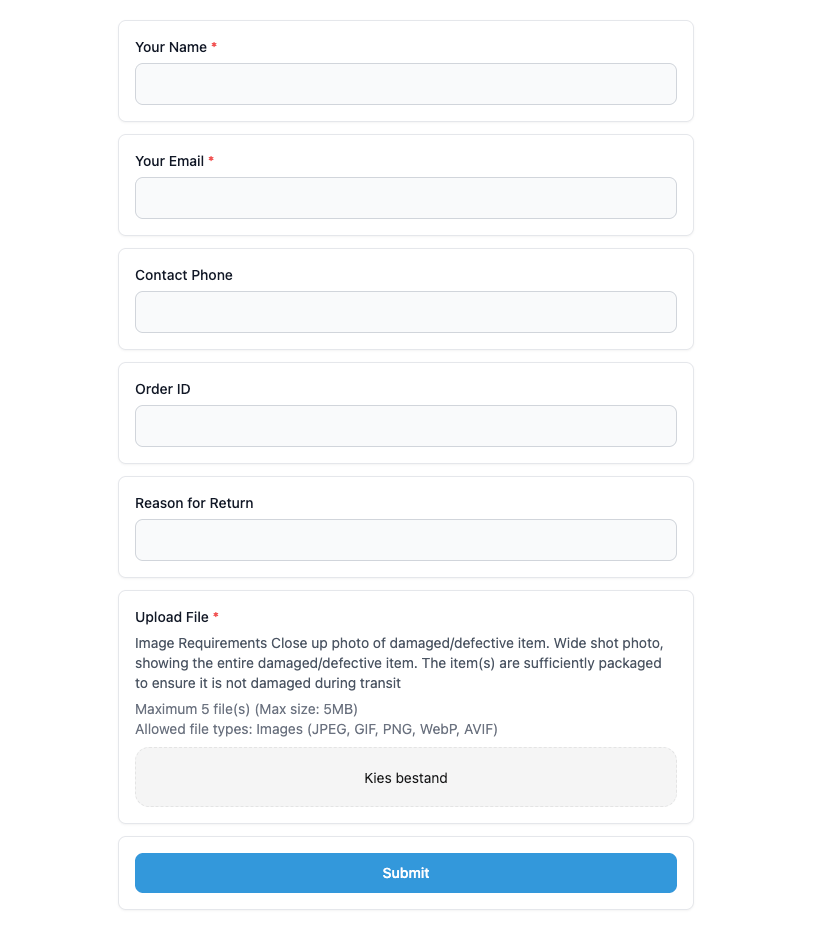
Click here to see a demo form with a personalized domain.
Track Responses
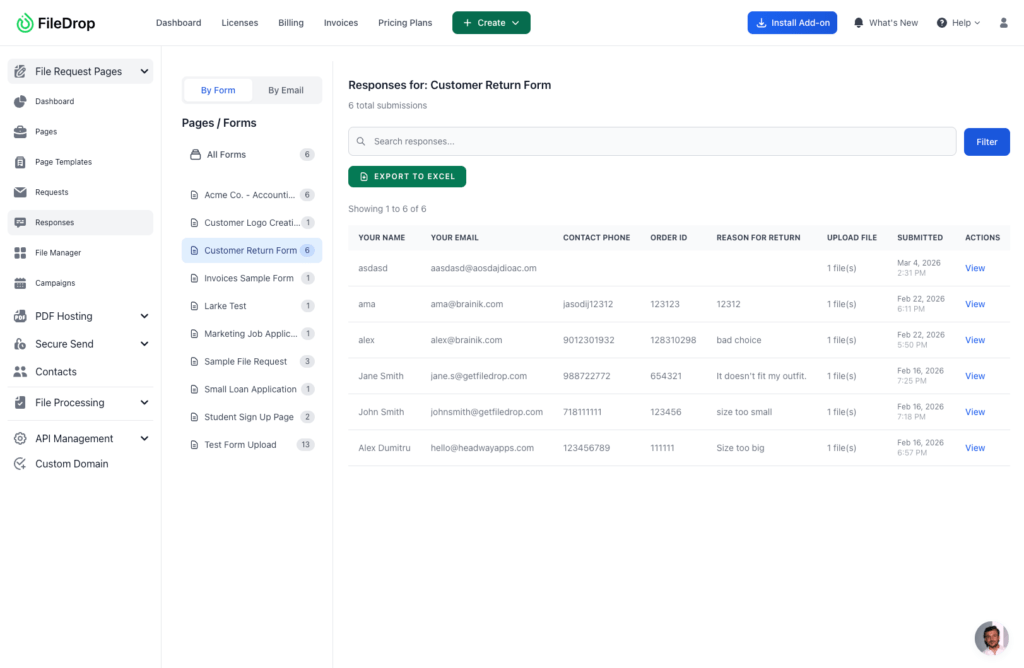
FileDrop offers an easy way to track responses submitted by your users in our Dashboard or via the Airtable or Google Sheets integration.
Why FileDrop Beats Google Forms for This Use Case
- No Google account needed. Any customer — regardless of what email provider or device they use — can open the form and submit. No sign-in barrier.
- File upload built in. Google Forms can accept file uploads, but only from signed-in Google accounts. FileDrop accepts uploads from anyone, from any device, including direct camera uploads from a phone.
- Optional upload fields. Not every return needs a photo. FileDrop lets you mark the upload field as optional so customers aren’t blocked when no image is required.
- Automatic organisation. All submissions land in a single dashboard. Export to Google Sheets for your credit note records, or save photos directly to a Google Drive folder.
- Professional appearance. Add your logo and colours. Customers see a branded page, not a generic Google form — which matters when you’re asking them to report an issue and trust that it will be handled.
- Email notifications. Receive an email the moment a customer submits a return request, so nothing slips through unnoticed.
Conclusion
For any warehouse or distribution business handling returns, credit notes, or damaged goods reports, FileDrop gives you a professional intake form that works for every customer — no Gmail required, no friction, no lost photos in an inbox.