

Managing legal cases can get overwhelming fast. Deadlines, client details, court dates, documents—it’s a lot to juggle. If you’ve ever found yourself digging through email threads or scrolling endlessly to find the latest case status, it might be time to set up a simple, organized system.
Google Sheets is a free, flexible tool that can help you keep track of all your cases in one place. No fancy software needed. Just clear, easy-to-update rows and columns that you can access anytime, anywhere.
Why Use Google Sheets as a Legal Case Tracker?
Google Sheets is a simple, free way to keep all your legal cases organized in one place. You can track deadlines, client info, and updates without digging through emails or messy notes. Plus, your whole team can access it anytime, so everyone stays on the same page.
Step 1: Open a New Google Sheet
Head over to Google Sheets and start a blank spreadsheet. Give it a name like “Legal Case Tracker” so it’s easy to find later.

Step 2: Set Up the Column Headers
Think about the basic details you want to track for every case. Here’s a good starting list for your column headers:
- Case Number
- Client Name
- Case Title
- Case Type
- Court
- Filing Date
- Next Deadline
- Status
- Notes
Of course, you can add more columns based on your needs—like attorney assigned, hearing dates, or billing info. But keep it as simple as possible at first to avoid overwhelm.

Step 3: Add Sample Data
Before filling it with real cases, try adding a few sample rows. This helps you spot any missing details or confusing parts early on. For example:

Seeing it in action can give you ideas on what else might help.
Step 4: Use Dropdown for Recurring Information
Google Sheets can help you keep all the information consistent and accurate through its Dropdown feature. To add this in your template, select the column where you would like to see it and click Insert > Dropdown. Then, on the sidebar, enter the options specific for every column. You may also customize each item to make it distinctive.

Now, every time you update a case, you can just pick from the list instead of typing it out. This keeps things neat and avoids typos.
Step 5: Freeze the Header Row
If your case list gets long (and it will), you don’t want your headers disappearing as you scroll. Click the header row, and go to View → Freeze → # of row. Now your column titles stay at the top no matter how far you scroll down.

Google Sheets makes collaboration easy. Hit the big blue Share button in the top right corner. Add your teammates’ emails and choose if they can view or edit. This way, everyone stays on the same page, and you won’t need to send constant email updates.

Adding Files Using FileDrop
Step 1: Install FileDrop
FileDrop is a Google Sheets add-on that allows you to insert and upload files from your computer or Google Drive with just a few clicks. You can get FileDrop on Google Workspace Market.

Step 2: Create a New Tab
Add a new tab in your spreadsheet where you can add the important files you need for your cases. To add a new tab, click the “+” tab at the bottom corner of your spreadsheet, then double-click the “Sheet” to rename it.

Step 3: Create Headers
In your new tab, you may want to create headers, such as the case numbers and file numbers.

Step 4: Get the Case Numbers
Get the case numbers from your main tab and paste it to the new tab.
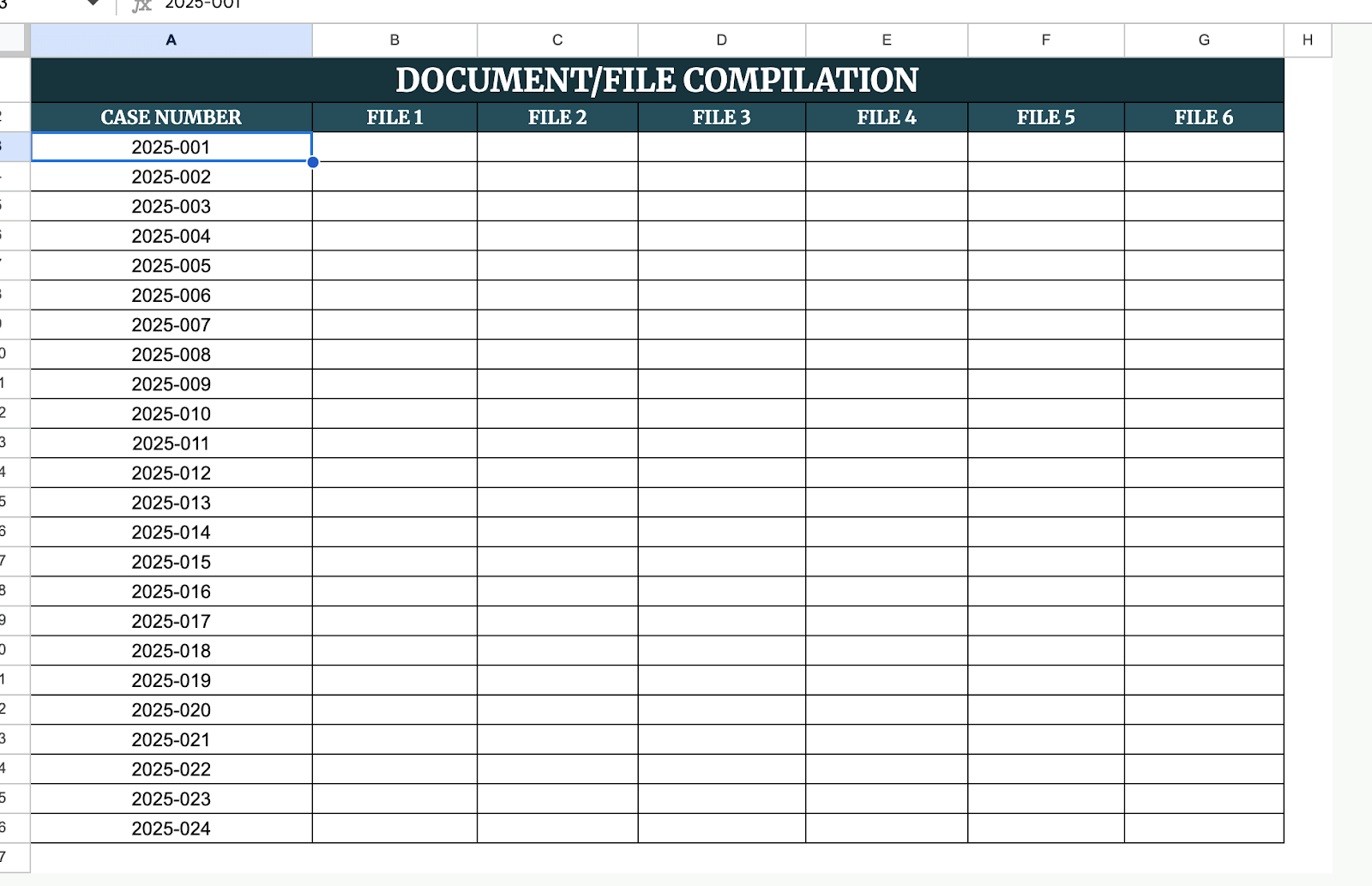
Step 5: Open FileDrop
Now that you have the new table for your files, it’s time to insert them using FileDrop. To open FileDrop, click Extension > FileDrop > Start FileDrop. Once the sidebar appears, you will see three (3) tabs—Upload, Library, and Drive.

Let’s use the drag-and-drop feature of FileDrop to get files from your computer.
Select the Upload tab and choose the file you would like to use. Then, drag the file from your computer folder to the Upload tab.

Here’s what it will look like once you drag the file from your computer to the Upload tab:

Uploaded files will be saved directly to your Google Drive and automatically linked within your spreadsheet cells, allowing for quick and easy access. If the files are already stored in your Drive, you can conveniently add them using the Drive Browser.
Get the Free Legal Case Tracker
Get a copy of the free legal Case Tracker. I’ve populated some cells as examples, but you can customize them as needed.
Final Thoughts
Staying organized doesn’t have to be complicated or expensive—sometimes the simplest tools are the ones that work best. Find a system that feels easy to maintain, and stick with it. The real goal is peace of mind, so you can focus less on tracking details and more on doing your best work.
Frequently Asked Questions
What Google Sheets formulas are helpful for a legal case tracker?
Formulas like =TODAY() can automatically fill in the current date, =IF() helps flag upcoming deadlines, and =COUNTIF() can count how many cases are marked as “Pending” or “Closed.” These keep your tracker smart and updated without extra work.
Is there a way to filter cases by status or date?
Absolutely! Turn on Filters through the Data → Create a filter option, which lets you sort and filter by any column, like “Status” or “Filing Date,” to quickly find what you need.
How do I highlight overdue tasks automatically?
Use Conditional Formatting to change the cell color if a deadline has passed. For example, set a rule that if the date in the “Next Deadline” column is less than =TODAY(), it turns red.
The Bottom Line:
One keeps you awake. The other gets work done.
A month of coffee: $80
A month of FileDrop: $19
Why not have both?


