
Meetings can be productive or a waste of time—it all depends on how well you keep track of discussions and follow-up actions. A structured way to do this is by using Google Sheets to take notes and create action plans. It’s free, easy to use, and allows for real-time collaboration.
Why Use Google Sheets for Meeting Notes and Action Plans?
Keeping track of meeting notes and action items can feel overwhelming, especially when emails and sticky notes start piling up.
Google Sheets simplifies this by offering a single, accessible space where everyone can contribute in real-time.
Plus, with built-in collaboration features, your team can stay aligned and accountable without the back-and-forth confusion.
Step 1: Set Up a New Google Sheet
Open Google Sheets and create a new document. Give it a clear name, like “Team Meeting Notes” or “Project Action Plan,” so everyone knows what it’s for.

Step 2: Create a Simple Header
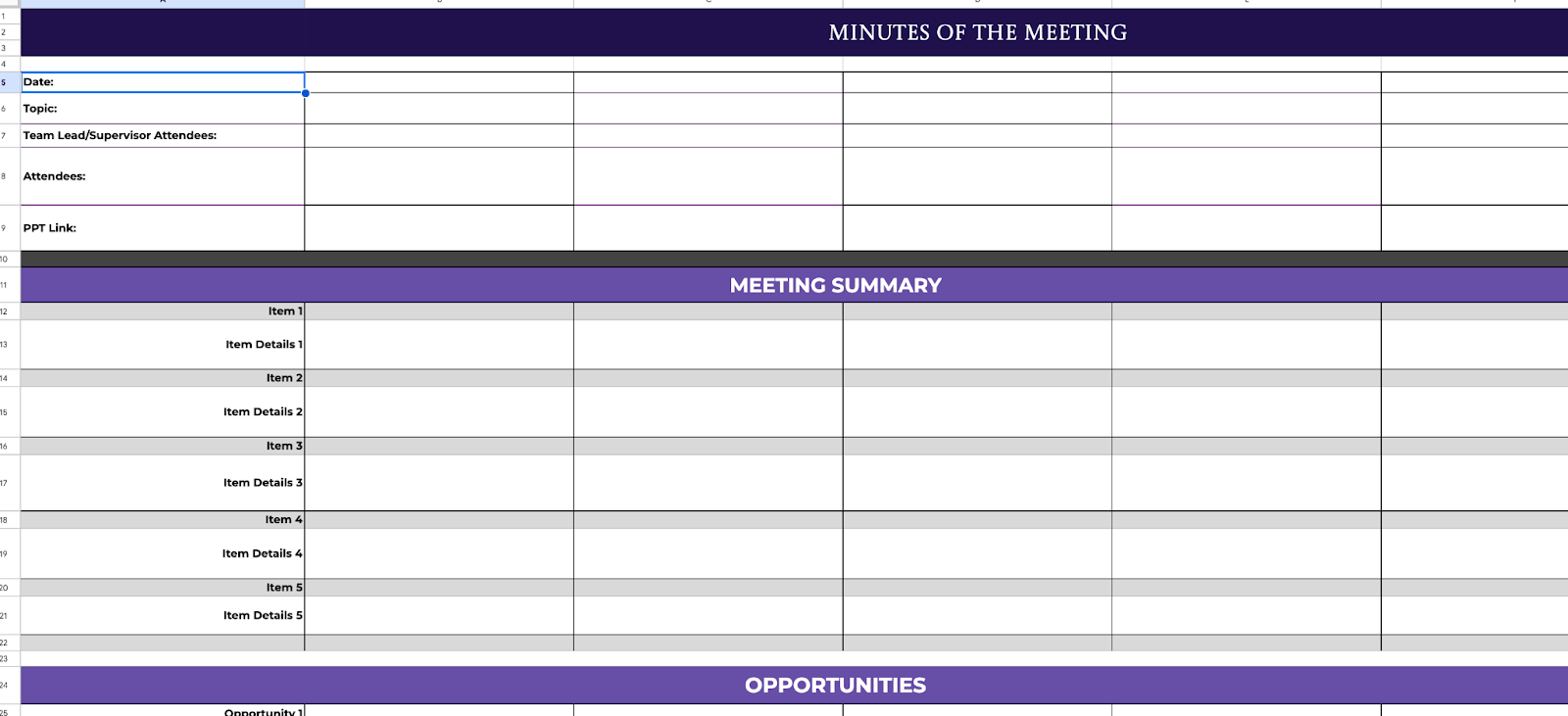
At the top of the sheet, add column headers to keep your notes organized. Here are some useful headers:
- Date
- Attendees
- Topics Discussed
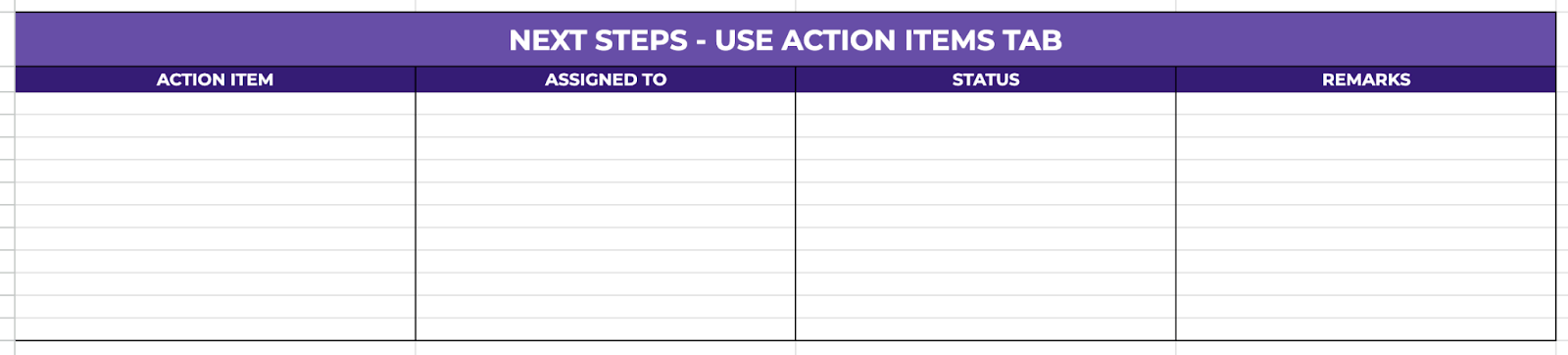
- Action Items
Step 3: Format Your Sheet for Better Readability
Make the header row bold so it stands out. You can also use different colors for certain sections. For example, highlight the “Action Items” column in your preferred color to draw attention to tasks.
Step 4: Use Data Validation for Consistency
To keep things organized, set up dropdown lists for the “Status” column. Click on the column where you want the dropdown. Go to Insert > dropdown. Enter options like Not Started, In Progress, Completed. Click Save. Now, instead of typing statuses manually, you can simply select from the dropdown menu.

Click the Share button in the top-right corner and enter the email addresses of your team members. Set their access level to Editor if you want them to update the sheet or Viewer if they only need to read it.

Get the Free Meeting Notes and Action Plans Template
Get a copy of the free Meeting Notes and Action Plans Templates. I’ve populated some cells as examples, but you can customize them as needed.
Final Thoughts
A well-organized system is only as good as the people using it. Encourage a culture of responsibility and collaboration within your team.
The more effort you put into maintaining it, the more valuable it becomes. So take charge, stay consistent, and watch your meetings become more efficient and productive.
Frequently Asked Questions
What formulas can I use to automatically update dates?
You can use formulas like:
- =TODAY() to display the current date.
- =WORKDAY(start_date, days) to calculate a due date by adding working days to a start date.
For example, =WORKDAY(A2, 5) will give a date 5 working days from the date in cell A2.
How do I use conditional formatting to highlight overdue tasks?
To highlight overdue tasks, select the column or cells you want to format. Go to “Format” > “Conditional formatting.” Under “Format cells if,” choose “Custom formula is.” Enter a formula like =AND($E2 <> “”, $E2 < TODAY(), $F2 <> “Completed”) where $E2 is the due date and $F2 is the status column. Choose a formatting style and click “Done.”
How can I create reminders for upcoming deadlines?
To create reminders, use conditional formatting to highlight upcoming deadlines. Use a formula like =$E2-TODAY() <= 3 to highlight tasks due within 3 days. Follow the same steps for setting up conditional formatting as above.