
Google Docs offers a built-in feature for voice typing, turning your spoken words into text without the need for expensive software.
Let’s explore the step-by-step guide on setting up voice typing in Google Docs and some tips to use it efficiently.
Getting Started with Voice Typing
Voice typing is a handy feature built into Google Docs, which turns your spoken words into written text.
To use it, you’ll need a working microphone, a quiet space, and a stable internet connection. Here’s how you can set it up:
Step 1: Open Google Docs
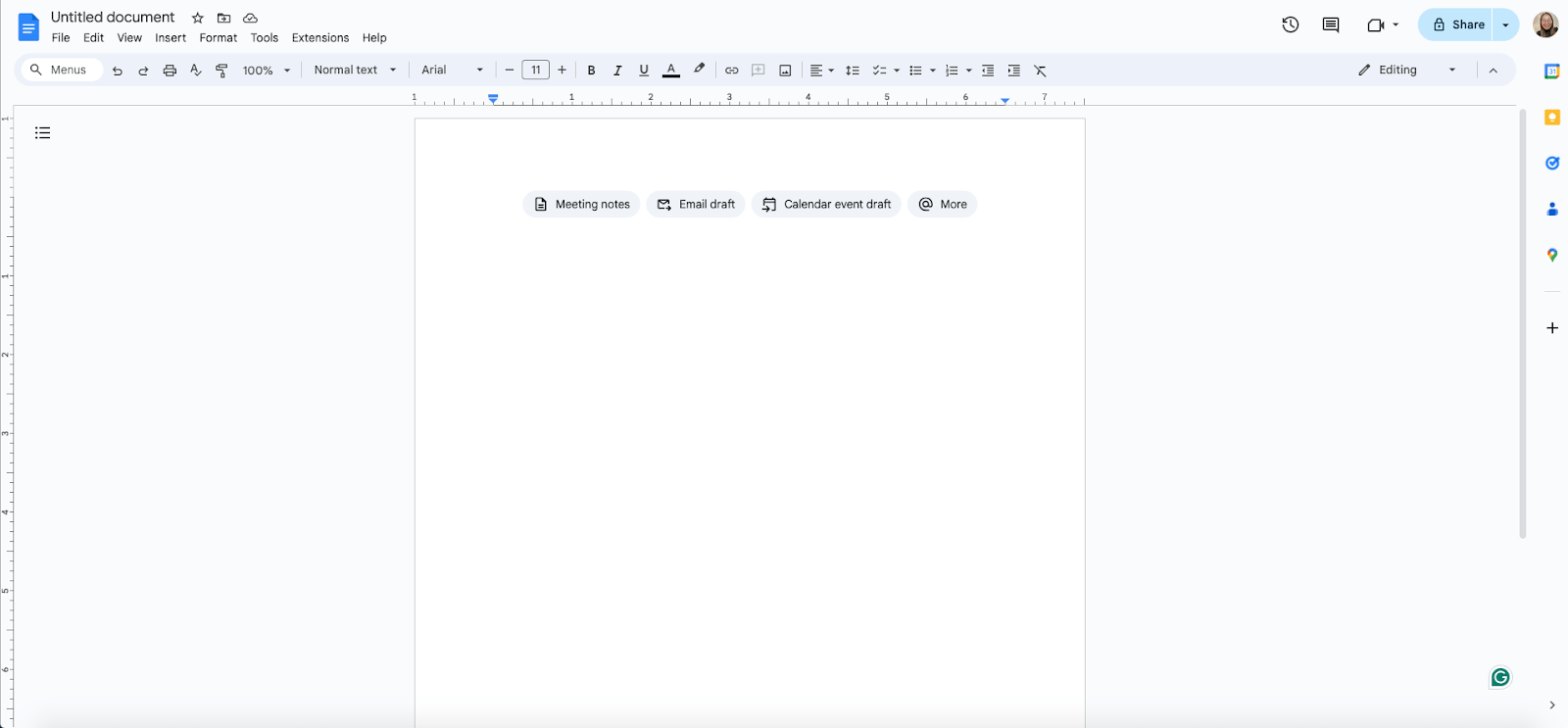
Open Google Docs. If you’re not already signed in, do so with your Google account. You can either open a new document or select an existing one where you’d like to use voice typing.
Step 2: Find Voice Typing
Look for the “Tools” option in the menu bar at the top of your screen. Click on it, and you’ll see a dropdown menu. One of the options there is “Voice typing.” Click on it to activate the voice typing mode.

Step 3: Start Speaking
Click the microphone icon when you’re ready to start speaking. It will turn red, indicating that it’s now listening. Simply start talking, and you’ll see your words being typed out in real time on the document.

Step 4: Punctuation and Editing
To keep your document clean, add punctuation. Do this by saying the name of the punctuation mark you want to add. For example, saying “comma” will insert a comma, and “period” will end your sentence with a full stop. You can also give commands like “new line” to move to the next line or “new paragraph” to start a new paragraph.
Video Tutorial
Tips for Efficient Voice Typing
To make the most out of voice typing, here are some tips to keep in mind:
- Articulate your words and speak naturally but clearly. Background noise can affect recognition, so try to work in a quiet environment.
- Learn the voice commands for editing and formatting your document. Saying things like “select a paragraph,” “italicize,” and “go to the end of the line” can help you format your document without touching the keyboard.
- Voice typing isn’t perfect, and words can sometimes be misinterpreted. Always read through your document to correct any mistakes.
Enhancing Your Experience with FileDrop’s Docs AI
While voice typing in Google Docs offers incredible convenience, pairing it with FileDrop’s Docs AI takes productivity to the next level. FileDrop seamlessly integrates ChatGPT capabilities into Google Docs, offering a suite of powerful features to enhance your document creation process.
Step 1: Install FileDrop
To get started, you’ll need to add FileDrop to your Google Docs. Get the add-on from the Google Workspace Marketplace or click here. Follow the installation instructions provided to set it up.

Step 2: Select Text for Enhancement
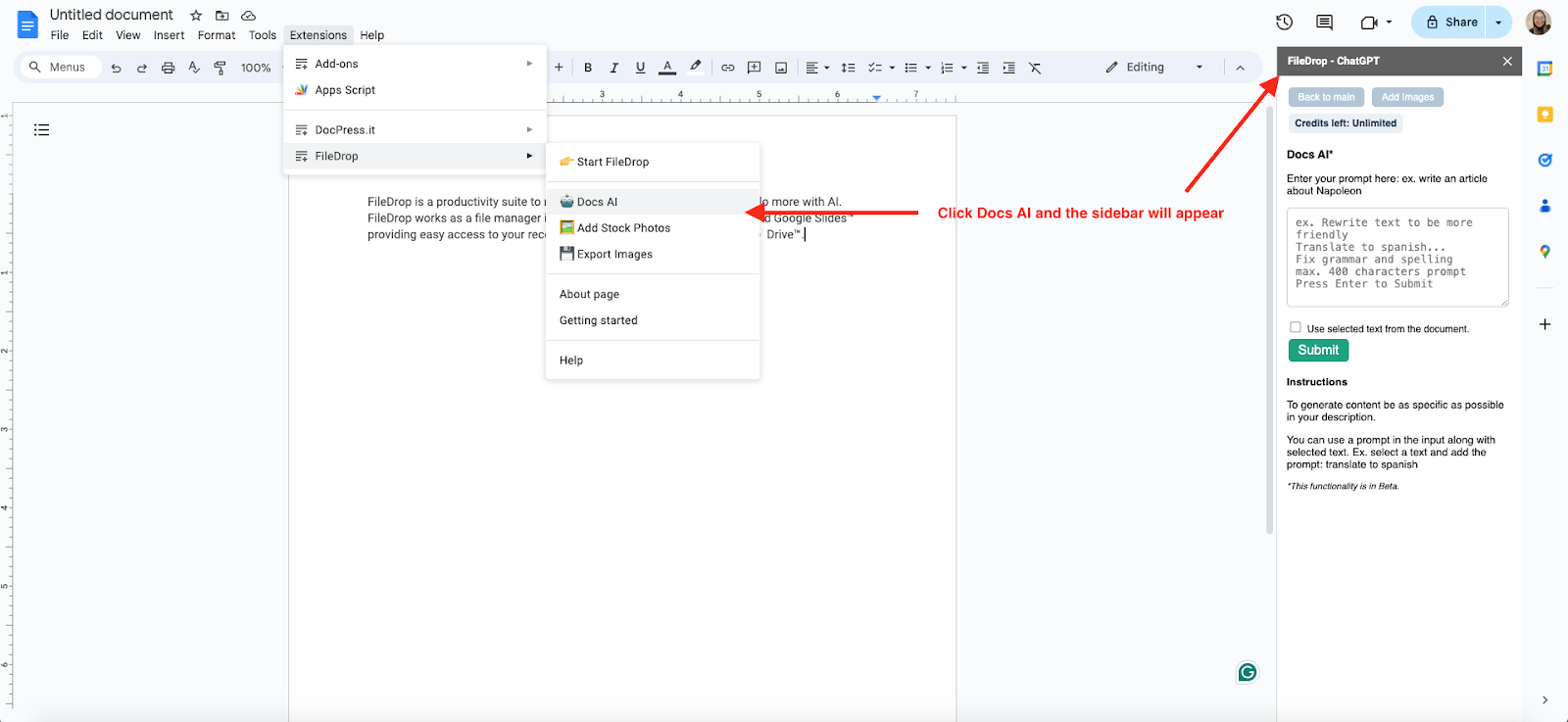
Click “Extensions,” then select “FileDrop” and click on “Docs AI.” Once the sidebar appears, you can now use the feature to improve the text within your document.
Step 3: Use the Specific Prompts
Choose the text you want to improve in your document. You can either click the “Use selected text from the document” box or copy and paste the text to the Docs AI sidebar, add your prompts, and click Submit.

For example:
- Rewrite the sentence and use a conversational tone.
- Fix the grammar and spelling in the sentence.
FileDrop’s Docs AI processes your request in seconds, providing high-quality outputs based on advanced AI.
Step 4: Apply Changes
Review the suggestions or changes provided by FileDrop’s Docs AI and apply them to your document with just a click.
Once the Docs AI processes your request, you will see the “Copy” and “Insert in Doc” options. The “Copy” button allows you to copy the text, while the “Insert in Doc” option automatically inserts the AI-generated result in your document.

Video Tutorial
Conclusion
Voice typing eliminates the need for manual typing, allowing you to focus solely on articulating your thoughts. Plus, with FileDrop’s Docs AI, you can fine-tune your text for clarity, correctness, and tone, ensuring your message resonates with your audience effectively.
Take the time to explore the features, experiment with different commands, and adapt them to fit your workflow seamlessly.
Frequently Asked Questions
Is voice typing in Google Docs available in multiple languages?
Yes, Google Docs’ voice typing feature supports multiple languages. Before starting, you can select the language you plan to speak by clicking on the microphone icon and choosing from the list.
Can I use voice typing on Google Docs with my mobile device?
On mobile devices, you can use the voice typing functionality of your native keyboard within the Google Docs app to dictate text. However, the integrated ‘Voice typing’ feature from the ‘Tools’ menu is designed for use on desktop browsers.
The Bottom Line:
One keeps you awake. The other gets work done.
A month of coffee: $80
A month of FileDrop: $19
Why not have both?


