

Renaming files one by one in Google Drive can take a lot of time, especially when you’re managing folders full of documents.
Whether you’re organizing school files, cleaning up shared team folders, or sorting client uploads, knowing how to rename files manually and in bulk makes a big difference.
Why Use FileDrop for Bulk Renaming Files in Google Drive?
Google Drive lets you rename files manually, but there’s no built-in way to rename many files at once. That’s where FileDrop comes in.
With its Folder Tools, you can list all files in a folder, make edits in Google Sheets, and apply new names across the board. It’s fast, simple, and helps you stay organized, especially if you deal with large batches of uploads or client folders.
Steps on How to Manually Rename Files in Google Drive
Manually renaming files in Google Drive is useful when you’re only updating a few filenames and don’t need advanced tools. Here’s how to do it, step by step:
Step 1: Open Your Google Drive Folder
Go to Google Drive and navigate to the folder where your files are stored. You can use the left sidebar to explore “My Drive,” “Shared with me,” or other folders until you find the one you need.

Step 2: Right-click the File You Want to Rename
Once you find the file that needs a new name, place your mouse cursor over it, right-click, and a drop-down menu will appear with several options.

Step 3: Click “Rename” from the Menu
From the dropdown, select “Rename.” A small pop-up window will appear where you can type in a new file name. This window also highlights the current name so you can easily replace or edit it.
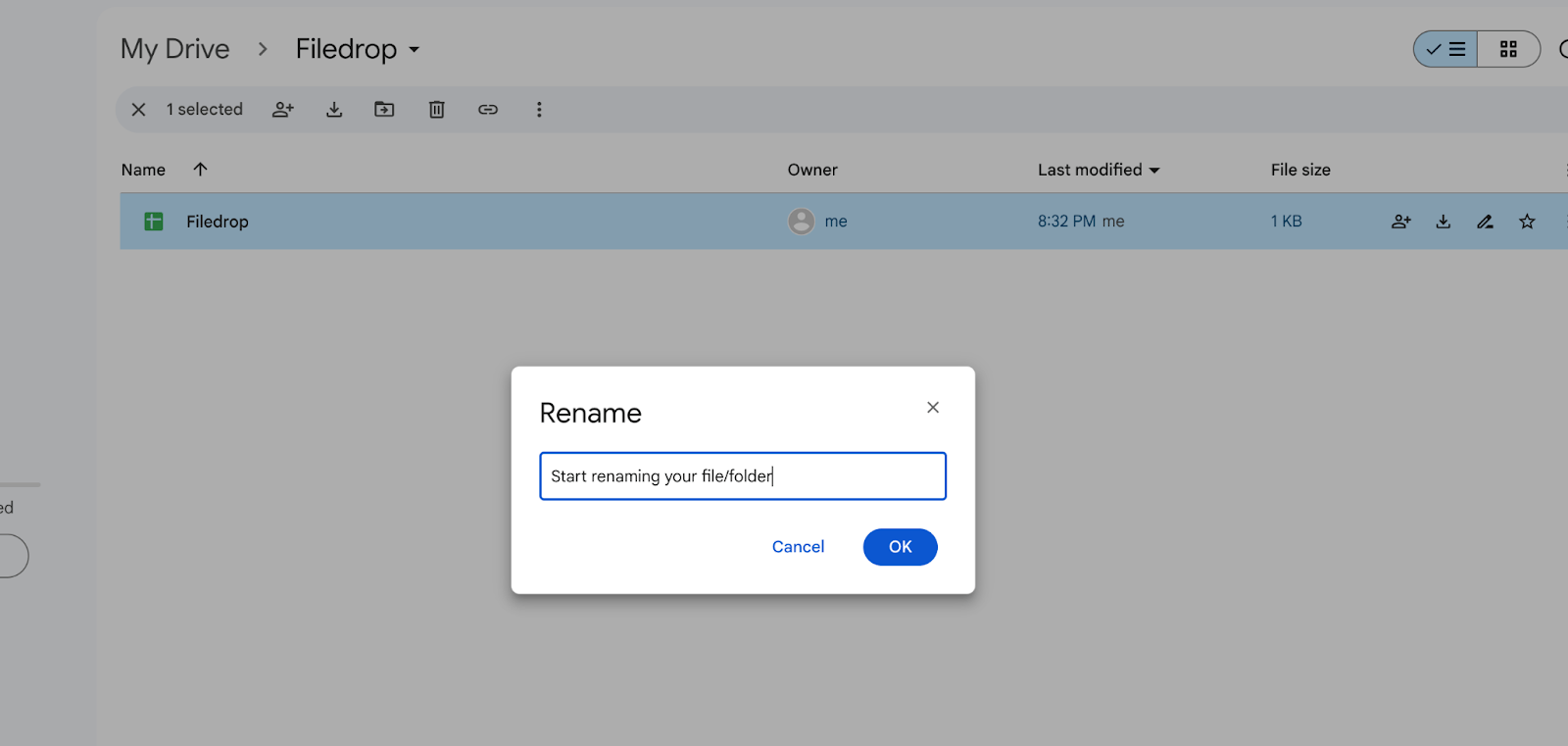
Step 4: Press Enter or Click “OK”
Once you’ve typed the new name, press Enter on your keyboard or click the “OK” button to apply the changes. The file name will immediately update in the folder view.

Repeat for Other Files
You’ll need to repeat this process for each file you want to rename. While this is easy for 3–5 files, it can be time-consuming for dozens or hundreds, this is where FileDrop’s batch renaming tool becomes a real time-saver.
How to Batch Rename Files in Google Drive Using FileDrop
Renaming Files Using the Free Rename Tool
Before you begin, make sure you have the FileDrop extension installed in your Google Sheets. You can get it from Google Workspace Marketplace. Once you have the extension, you may now proceed to the first step.
Step 1: Open FileDrop Extension
Head to your FileDrop dashboard. Choose the folder in Google Drive that holds the files you want to rename.
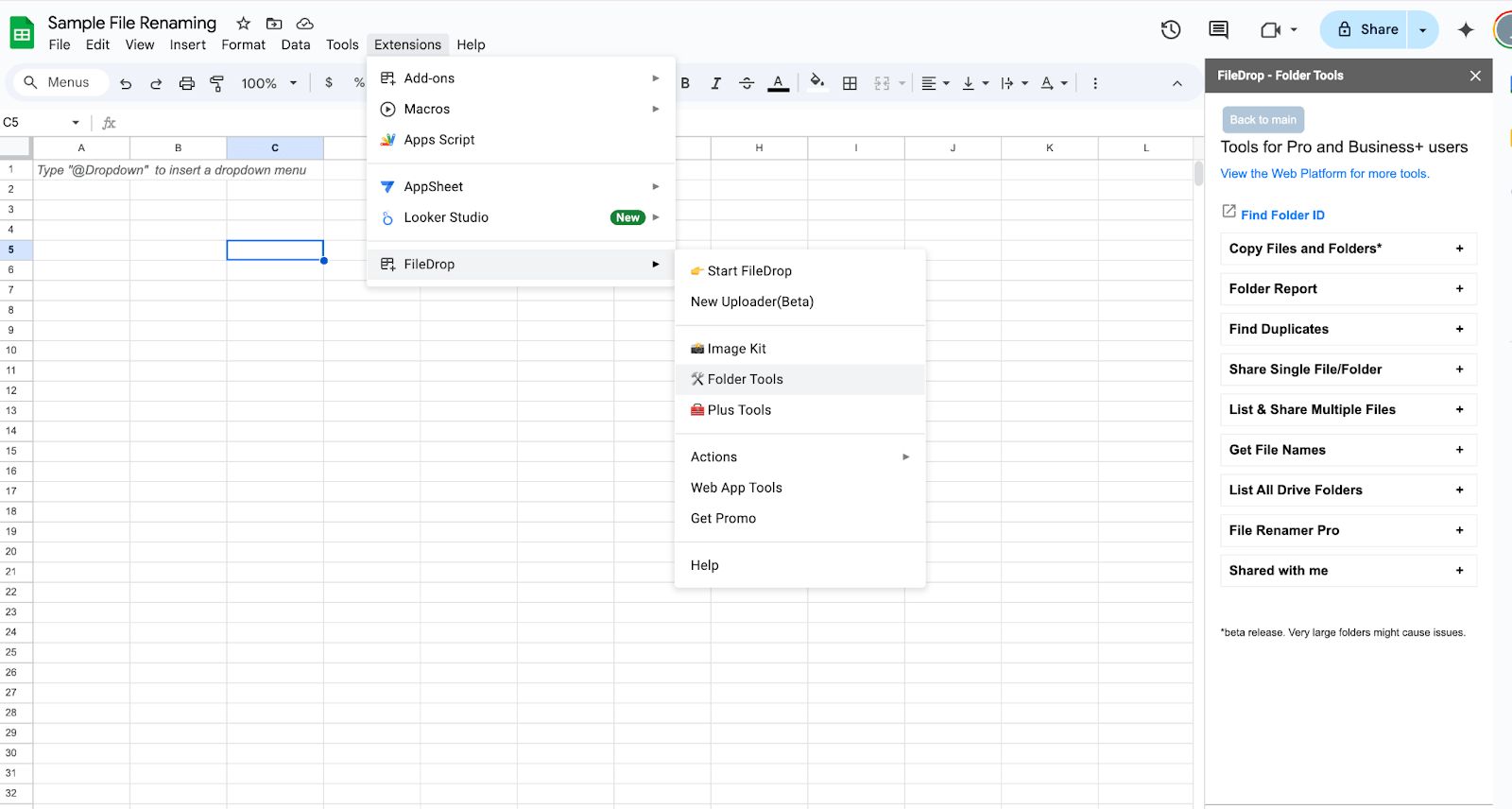
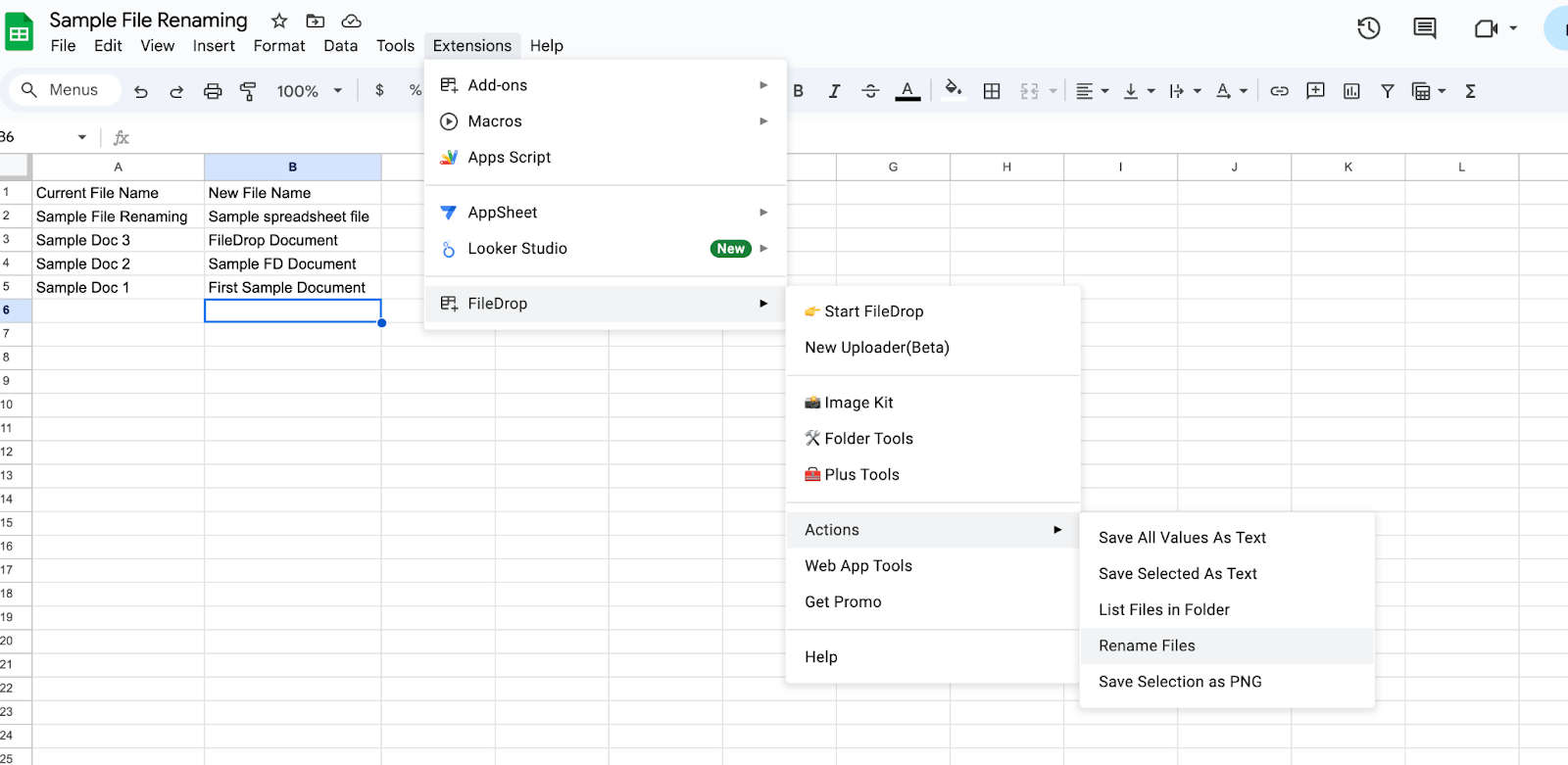
Step 2: List the Files in a Google Sheet
Click “Actions” > List Files in Folders.

Then provide the folder ID where the files you would like to rename can be found.

Once done, you will see an automatic list of current file names and a column for new file names.

Step 3: Edit the Names in the Sheet
In the “New File Name” column, type the new name you want for each file.

Step 4: Click “Rename Files” in the Sidebar
Once you’re done editing the new names, go to the FileDrop sidebar and click “Rename Files.” The tool will rename all files in Drive using the names you provided in the sheet.
You will then get a prompt saying that your field was renamed successfully.

Step 5: Confirm It Worked
Refresh your Google Drive folder to see the updated file names.

Bulk Rename Files Using the File Renamer Pro
Step 1: Open FileDrop Folder Tools
Head to your FileDrop dashboard. Choose the folder in Google Drive that holds the files you want to rename.
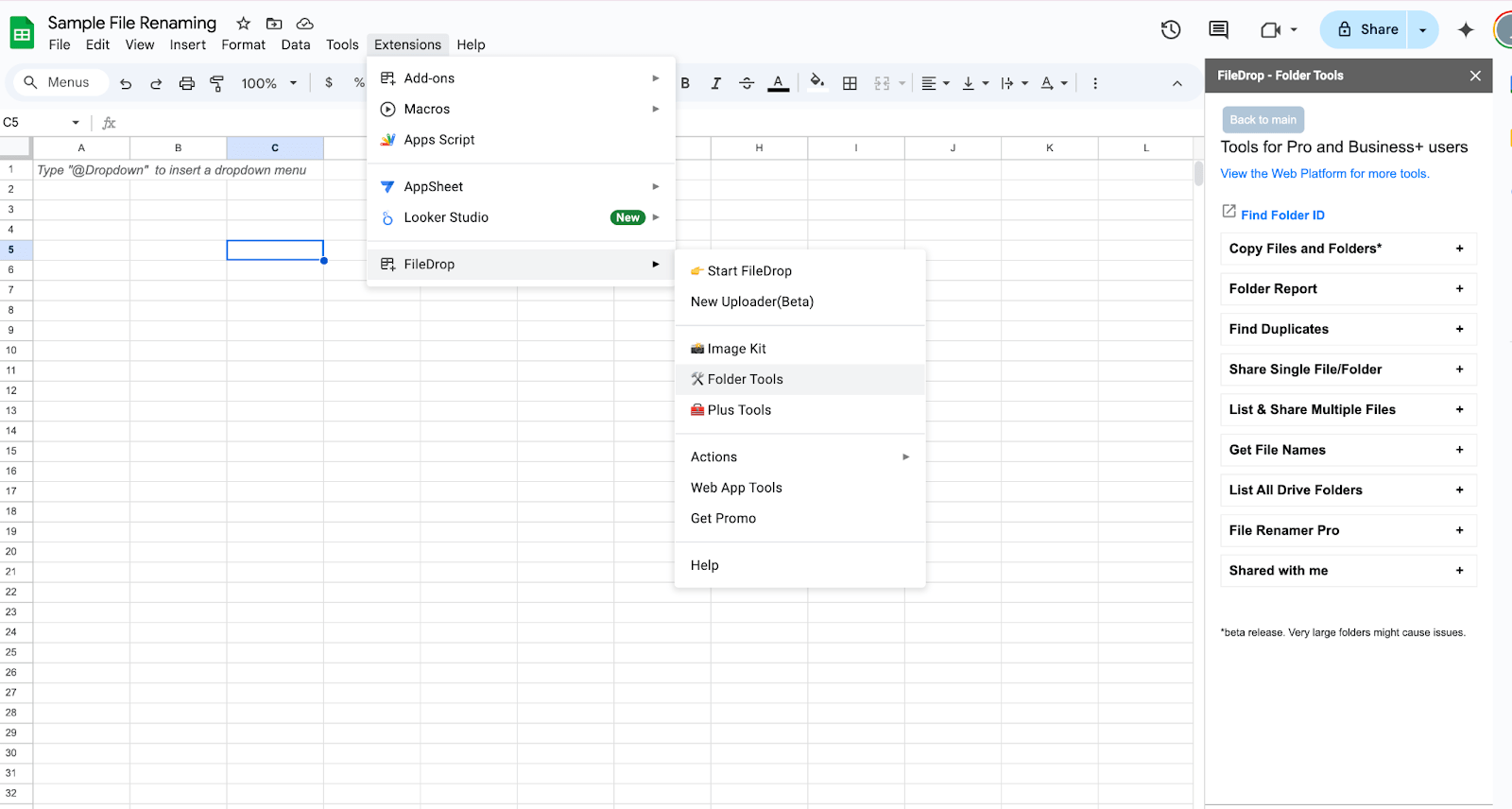
Step 2: Go to File Renamer Pro
On the Folder Tool sidebar, you can see a lot of useful file management features that you can use in organizing your files. But this time, we will focus on the File Renamer Pro tab to bulk rename files in your Google Drive folder.
To do this, click on the “File Renamer Pro. ”

Rename your files in Google Drive folders with our easy-to-use tool. This is a tool you will find in the Folder Tools sidebar, available to Pro and Business+ users alike.
Options:
- Prefix
- Sufix
- Replace
- Change case: uppercase or lowercase
- Remove, add or replace spaces

Step 3: Get Your Google Drive Folder Information
You need your folder ID, which can be found on your Google Drive link:

Copy and paste your folder ID into the File Renamer Pro field
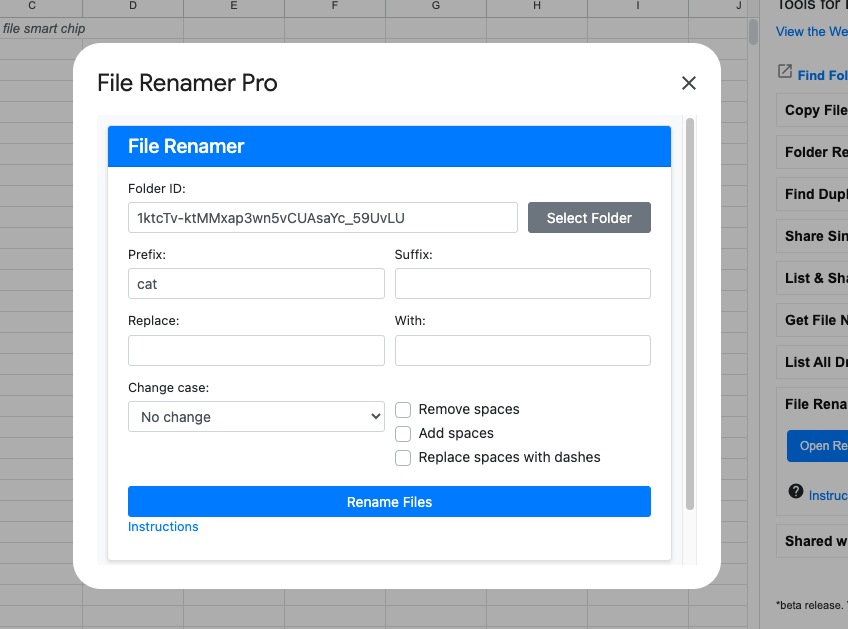
Then, choose the renaming options that you would like to use. For instance, you would like to use “Cat” or any other prefixes or suffixes.
In this example, I’ll use “cat” as the prefix for the files that I want to rename. Now, click “Rename Files.” It may take a few seconds, depending on how many files need to be renamed.
Once done, you will see this information:

Step 4: Confirm It Worked
Refresh your Google Drive folder to see the updated file names.
Before:

After:

Final Thoughts
Clean file names help you work faster, avoid mistakes, and keep shared folders from becoming a mess. Doing it manually works fine for a few files, but when things pile up, FileDrop gives you a smarter way to stay organized. Once you start using it, you’ll wonder how you ever managed without it.
Frequently Asked Questions
Can I use formulas in Google Sheets to rename files with FileDrop?
Yes. FileDrop reads the new file names directly from your sheet. You can use formulas like =A2&”_v2″ or =TEXT(B2, “000”) to rename files in bulk.
Is the File Renamer Pro Free?
The Fiel Renamer Pro feature is currently available for Pro and Business+ users alike.
Will the file links stay the same after renaming?
Yes. File IDs do not change, so any shared links will continue to work even after renaming.
The Bottom Line:
One keeps you awake. The other gets work done.
A month of coffee: $80
A month of FileDrop: $19
Why not have both?


