
Ever been stuck with a file you couldn’t open or edit, right when you needed it most? Maybe it was a PDF you had to turn into a Word document, or a PowerPoint file you needed in a different format—but the software was clunky, expensive, or just didn’t work.
That’s a common headache, especially when you’re on a deadline or switching between devices.
FileDrop’s file processing tools offers a fast, simple way to convert documents online. Whether you’re at home, at work, or on the go, it’s the tool that makes file conversion feel effortless.
Why Use FileDrop for Document Conversion?
When it comes to converting documents, most people just want something that works, no extra software, no sign-ups, and no surprises.
That’s where FileDrop stands out. It’s designed to be simple, fast, and surprisingly flexible.
Whether you’re a student converting class notes, a small business owner editing a client file, or someone sharing content across formats, FileDrop removes the usual tech barriers.
With just a few clicks, you can convert documents directly in your browser. Here’s why users love it:
- No installation needed
- Works on any browser
- Over 37 supported file types
- Automatic file type detection
- Fast processing speed
- Clean, user-friendly interface
- Preserves layout and formatting
- Safe and secure file handling
You don’t have to be tech-savvy or hunt for file-specific tools. FileDrop takes care of the complicated parts behind the scenes, so you can focus on getting the file you need quickly and painlessly.
Steps to Convert Files Using FileDrop
Here’s a step-by-step guide to walk you through the process, from uploading your file to downloading your converted document.
Step 1. Prepare Your File
Before uploading, make sure your file is supported by FileDrop. The platform accepts a wide range of document, image, and ebook formats. Some examples include:
Input formats supported:
- DOC / DOCX
- XLS / XLSX
- PPT / PPTX
- TXT
- RTF
- CSV
- ODT
- EPUB
- JPG / PNG / GIF
- Markdown (MD)
- Apple Pages / Numbers / Keynote
- Visio files (VSD, VSDX)
Popular conversions include:
- PDF to Word
- Word to PDF
- Excel to CSV
- Markdown to PDF
- EPUB to DOCX
- PowerPoint to PDF
- Image to Text (OCR in some cases)
Double-check that your file isn’t corrupted and that it’s under the 25MB size limit for smoother uploads.
Sample File:
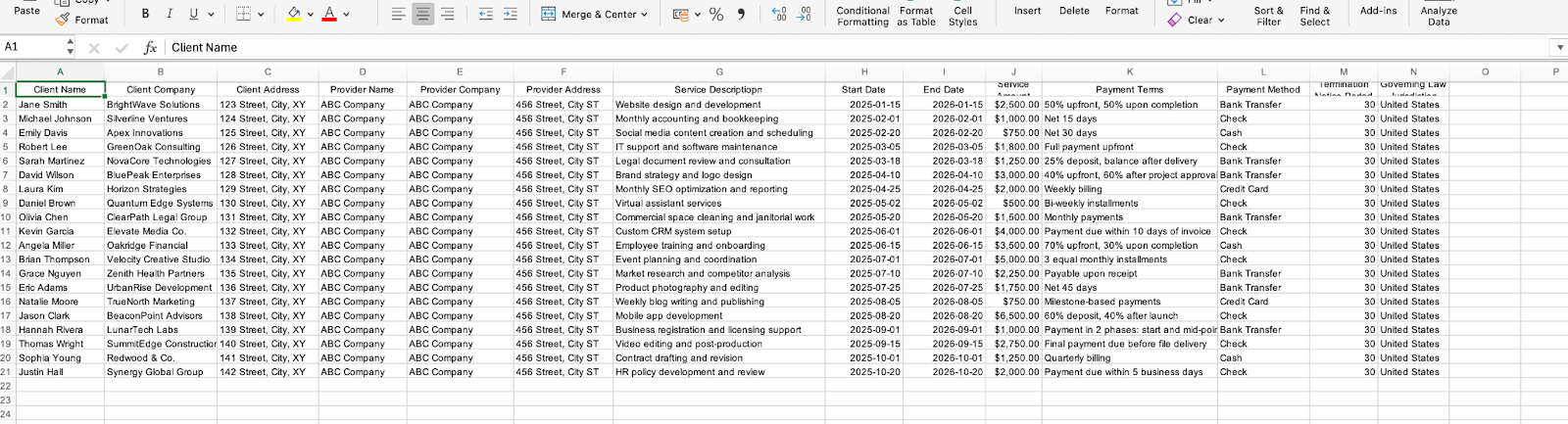
Step 2: Visit the FileDrop Document Conversion Page
Open your browser and head to app.getfiledrop.com. Log in to your account, and once in, click the “File Conversion” tab. The platform works smoothly on Chrome, Safari, and Edge—no software installation needed.
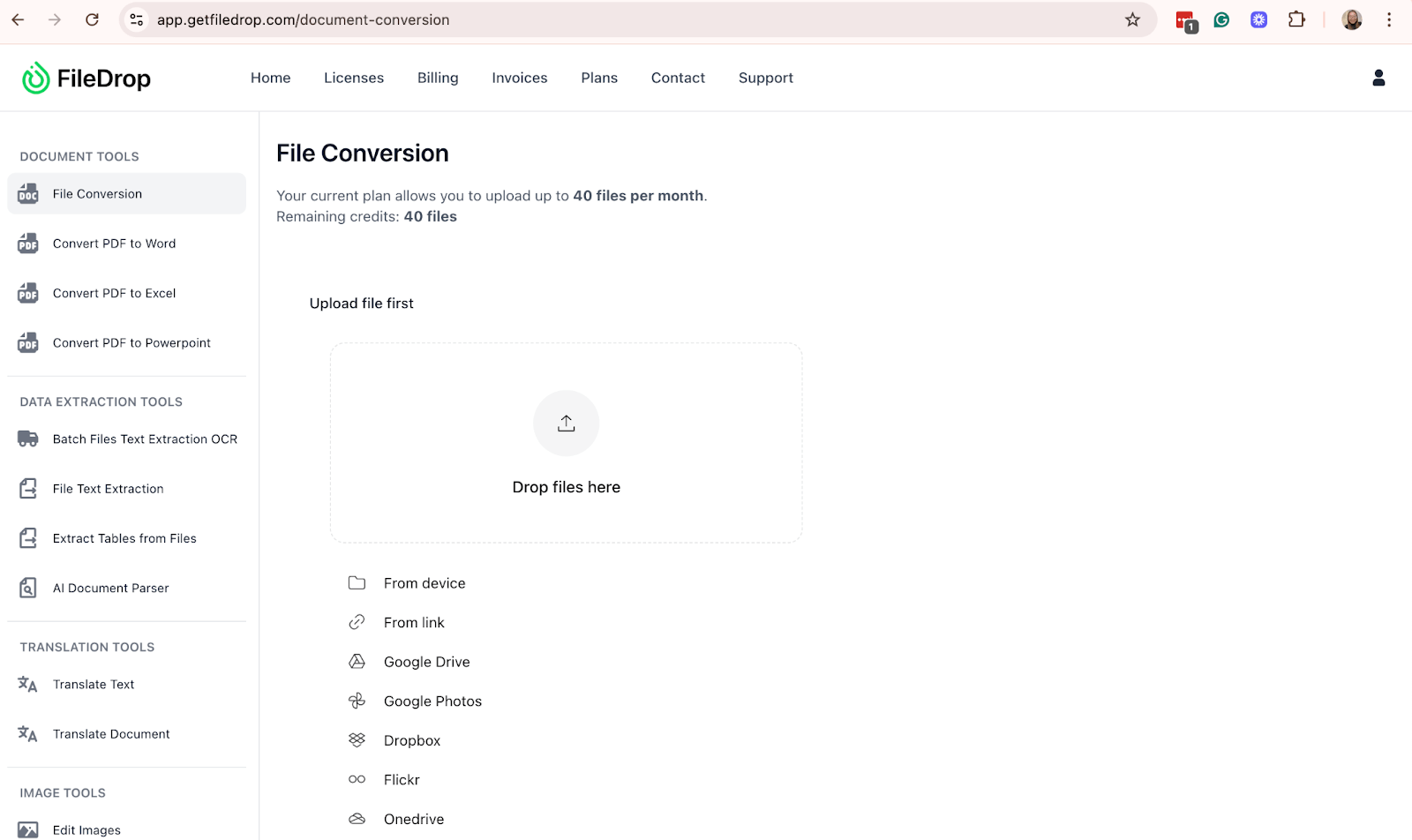
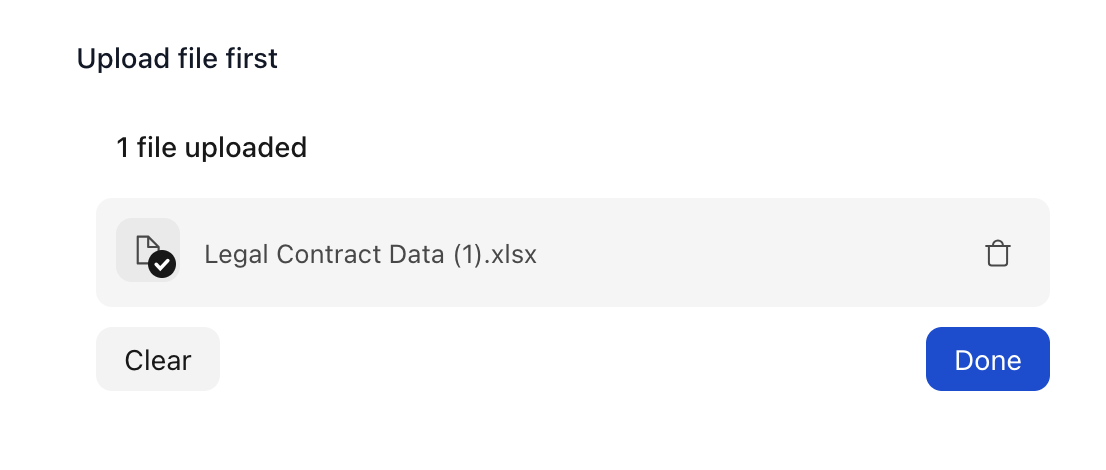
Step 3: Upload Your File
Once you’re on the page, you’ll see a large upload area in the middle of the screen. Drag and drop your file directly into the upload box. Or click the box to browse files on your computer or device
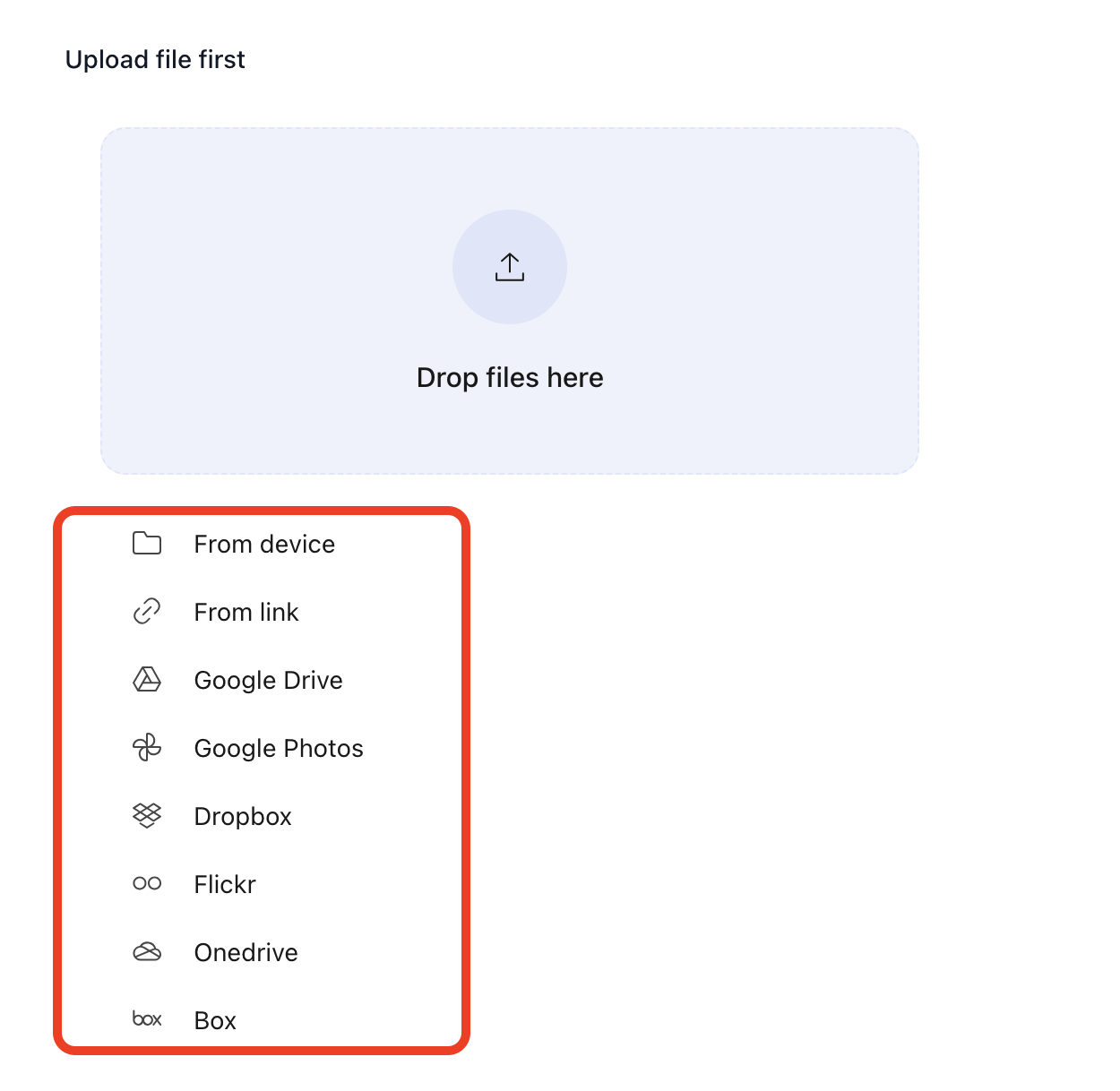
FileDrop supports 37 file types, including PDF, Word, Excel, and more.
Step 4: Let FileDrop Detect Your File
After uploading, FileDrop will automatically scan your file to detect its format. This smart detection means you don’t need to figure out what type of file it is—it’s done for you.
Step 5: Choose the Format You Want
Once the file is detected, FileDrop shows you all the compatible output formats you can convert to. For example:
- PDF to Word (.docx)
- Word to PDF
- Excel to CSV
- PowerPoint to PDF
Click on the format you need for your project or task.

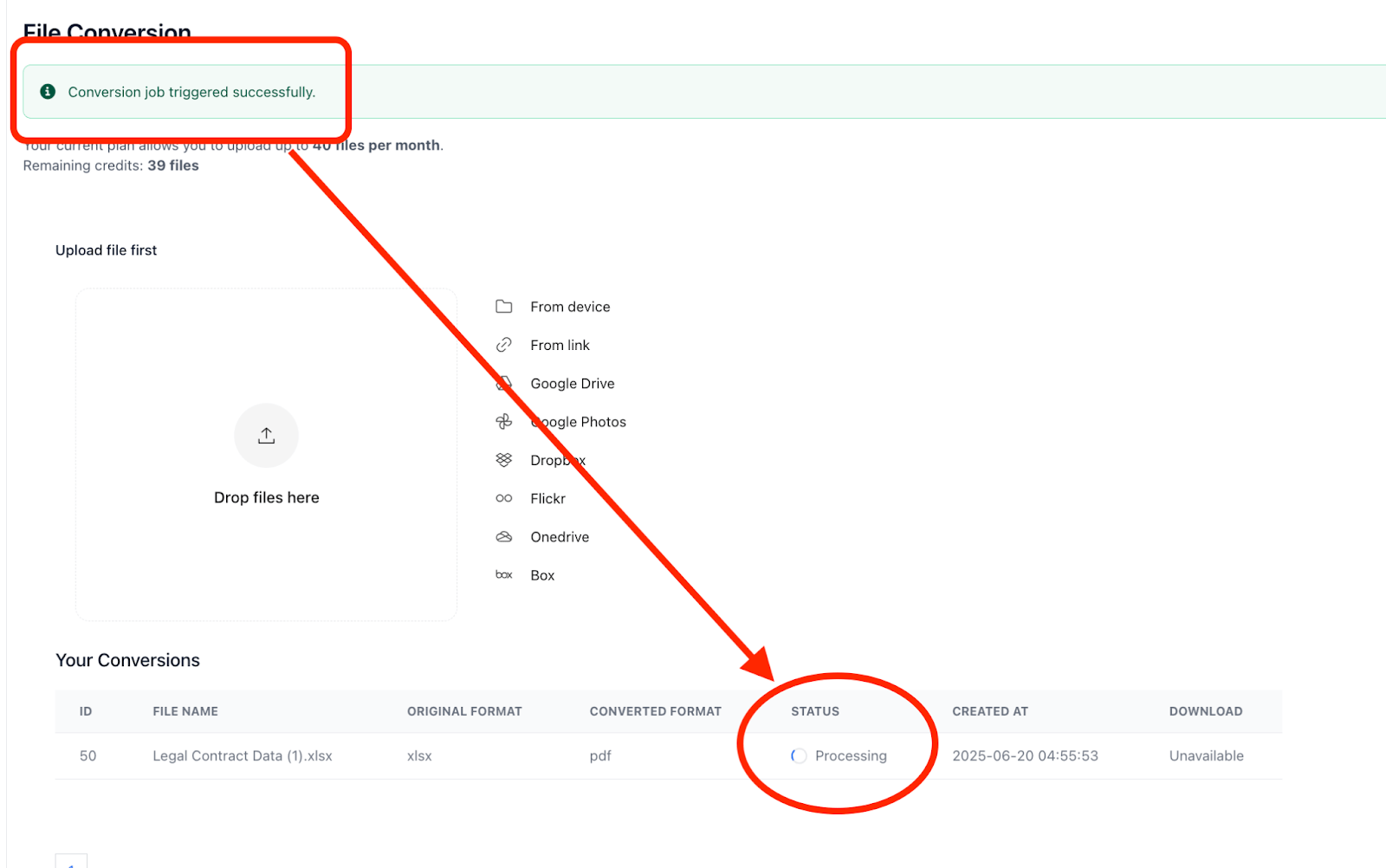
Step 6: Click “Start Conversion”
After choosing your desired format, hit the Start Conversion button. The system will begin processing your file immediately. Most conversions only take a few seconds to a minute, depending on the file size and format.
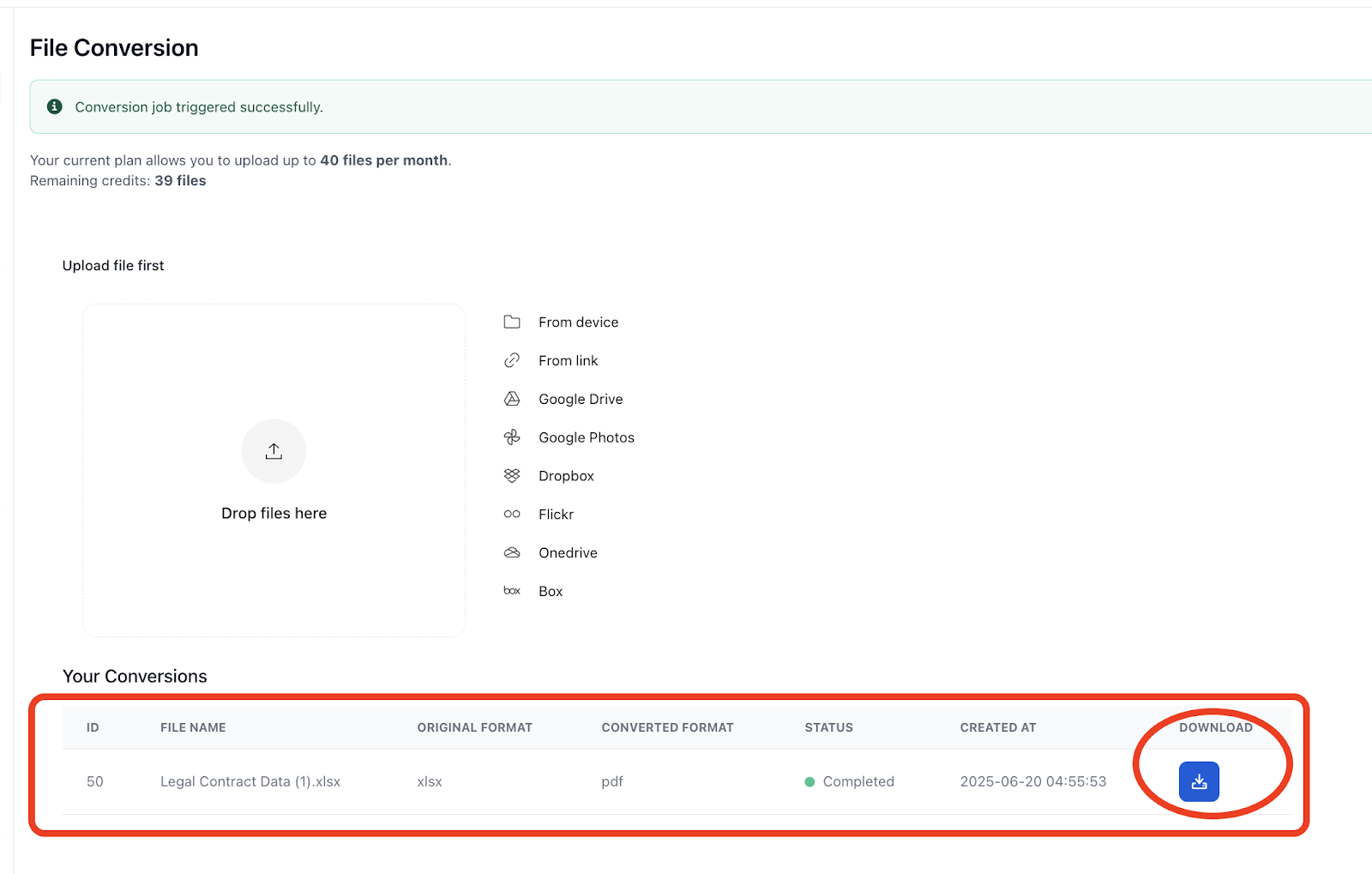
Step 7: Download Your Converted File
Once the conversion is complete, a Download button will appear. Click it to save the newly converted file to your device. That’s it; you’re done!
Final Thoughts
This tool highlights how user-friendly software can open up productivity for everyone. FileDrop cuts through complexity and just works when you need to convert documents quickly. Use it wherever you are and move on with your day.
Frequently Asked Questions
What types of files can I convert?
You can convert over 37 file formats, including PDF, Word, Excel, PowerPoint, images, and more
Does FileDrop preserve formatting?
Yes. It tries to maintain the original layout, fonts, and structure when converting
Can I batch-convert multiple files?
Not yet on the web app. It handles one file per batch, but you can re-upload and repeat the process easily.
The Bottom Line:
One keeps you awake. The other gets work done.
A month of coffee: $80
A month of FileDrop: $19
Why not have both?


