
To receive notifications in your Slack channel for any File Upload Form follow these steps.

Step 1
Create a new Channel for your submissions notifications – Optional, you can select any channel.
Click the Edit Settings option.

Now we need to Add an app.

Here we search for webhook and select Incoming-webhook.

Step 2
In the next step Add to Slack and in the configuration we see Post to Channel.
Here we select the channel we want to receive the notifications.
Click the Add Incoming Webhooks Integration.

Now we need to copy the Webhook url.

Step 3
In the Notifications page enter the name, select channel as Slack.
Select the form or all forms.
Paste the webhook URL generated earlier and click Add Destination
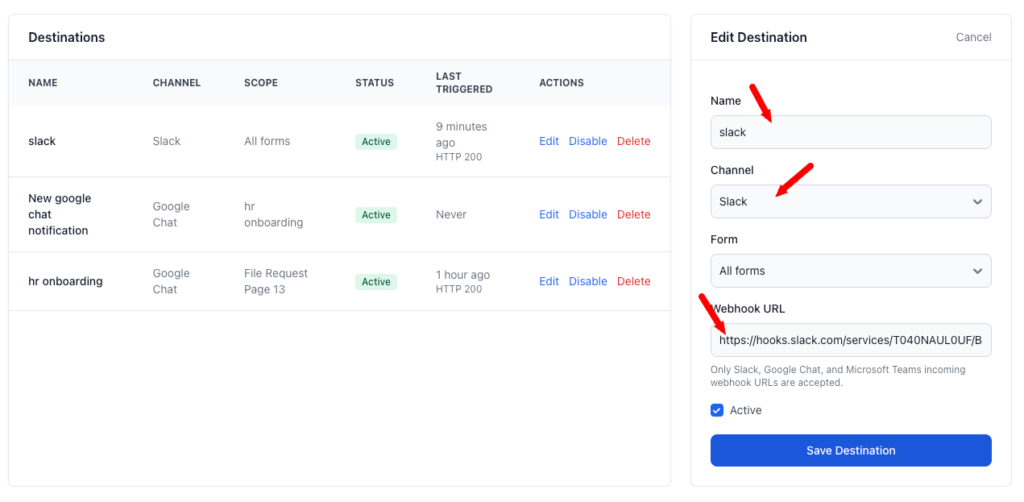
Now the notification is live. You can edit, and disable and enable again at any time.