


If you spend time copying file names, links, or other updates from Google Drive into a spreadsheet, that work can add up quickly. FileDrop’s new Automations feature is built for that kind of repetitive task: watch a Google Drive folder or Google Sheet for changes, then trigger an action automatically.
The idea is simple, but the payoff is real. Instead of checking folders by hand and updating rows yourself, you can set a rule once and let the system keep up with the changes for you.
What FileDrop Automations does
FileDrop Automations lets you create flows that monitor either:
- Google Drive folders and files
- Google Sheets rows and columns
When something changes, the automation can respond with an action. One common setup is to watch a Drive folder for new files and then write that file information into a Google Sheet.
That makes it useful for lightweight operational tasks, logging uploads, or keeping a spreadsheet in sync with activity in a shared folder.
Building a Drive-to-Sheet automation
The setup starts from the FileDrop admin panel, which is intentionally simple. There is a prompt area where you can describe what you want the automation to do, and there is also a button to create one directly.

For this example, the automation request was straightforward:
- Monitor a Google Drive folder for new files
- Update a Google Sheet with a new row
After generating the flow, FileDrop fills in a starting version of the automation. From there, the main job is selecting the right Drive folder and the spreadsheet you want to update.
The trigger can be set to:
- New file upload
- File modified
That gives you a choice between watching for completely new uploads or responding when an existing file changes.
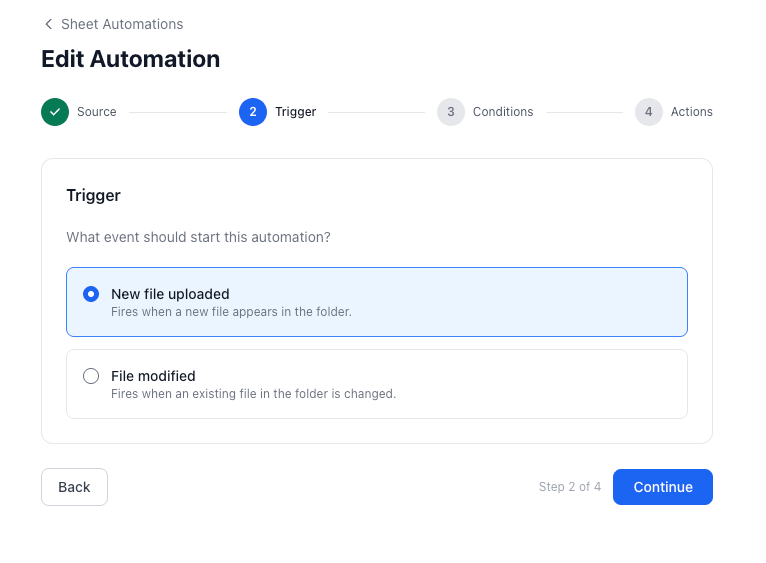
Choosing what gets written to the sheet
Once the trigger is set, the next step is the action. In this case, the action writes data into Google Sheets.
The sheet can receive different values in different columns. A simple setup might include:
- Column A: file name
- Column B: file URL
FileDrop also includes template variables, which makes it easier to map file details into the sheet without manually entering each value. That flexibility matters because the workflow may need to change later. You might start with just the name and link, then expand it to include timestamps or other metadata.

There is also a conditions step available between the trigger and the action. For this example, no conditions were needed, but you can use the option if you want the automation to respond only when specific rules are met.
Testing the workflow
After activation, you can test the setup immediately.
Testing the workflow A new file was added to the selected Google Drive folder, and a matching row appeared in the connected Google Sheet. The update took a short moment to show up in the browser, but the file name and link were both written correctly.
The automation logs also made it easy to confirm the last run time. That is useful when you want to know whether the flow fired recently or whether something needs adjustment.
Why this kind of automation matters
The real value here is not complexity. It is consistency.
A small workflow like this removes one more manual step from your day. If your team uploads files into a Drive folder and needs a record of those files in a spreadsheet, this keeps the log current without anyone remembering to do it.
It also leaves room to refine the workflow later. If the first version only captures file name and URL, you can edit it and add more fields or change the logic as your needs grow.
FAQ
What can FileDrop Automations monitor?
FileDrop can monitor Google Drive folders, files, and Google Sheets for changes.
What triggers can I use?
For Google Drive folders, you can trigger on new file uploads or file modifications.
Can I add conditions before an action runs?
Yes. Conditions are available in the automation flow if you need extra filtering.
What kind of data can be sent to Google Sheets?
You can map file details into columns, such as file name and file URL, and use template variables for more customized values.
How do I test whether the automation works?
Activate the automation, add a new file to the monitored Drive folder, and check whether a new row appears in the connected sheet.
If you want to try it yourself, create an account at Getfiledrop.com and build a workflow around the repetitive file tracking tasks you already do by hand.
The Bottom Line:
One keeps you awake. The other gets work done.
A month of coffee: $80
A month of FileDrop: $19
Why not have both?


