


FileDrop’s new Receipts Tracker is built for a problem most teams know too well: expense receipts pile up, get lost in pockets and wallets, and turn into a messy back-and-forth when it is time to approve, file, or report them. Instead of treating receipts like loose paperwork, FileDrop turns them into a structured workflow for collection, review, and export.
That makes it especially useful for small businesses, freelancers, accounting teams, and anyone who needs a faster way to manage expenses.
A cleaner way to collect receipts
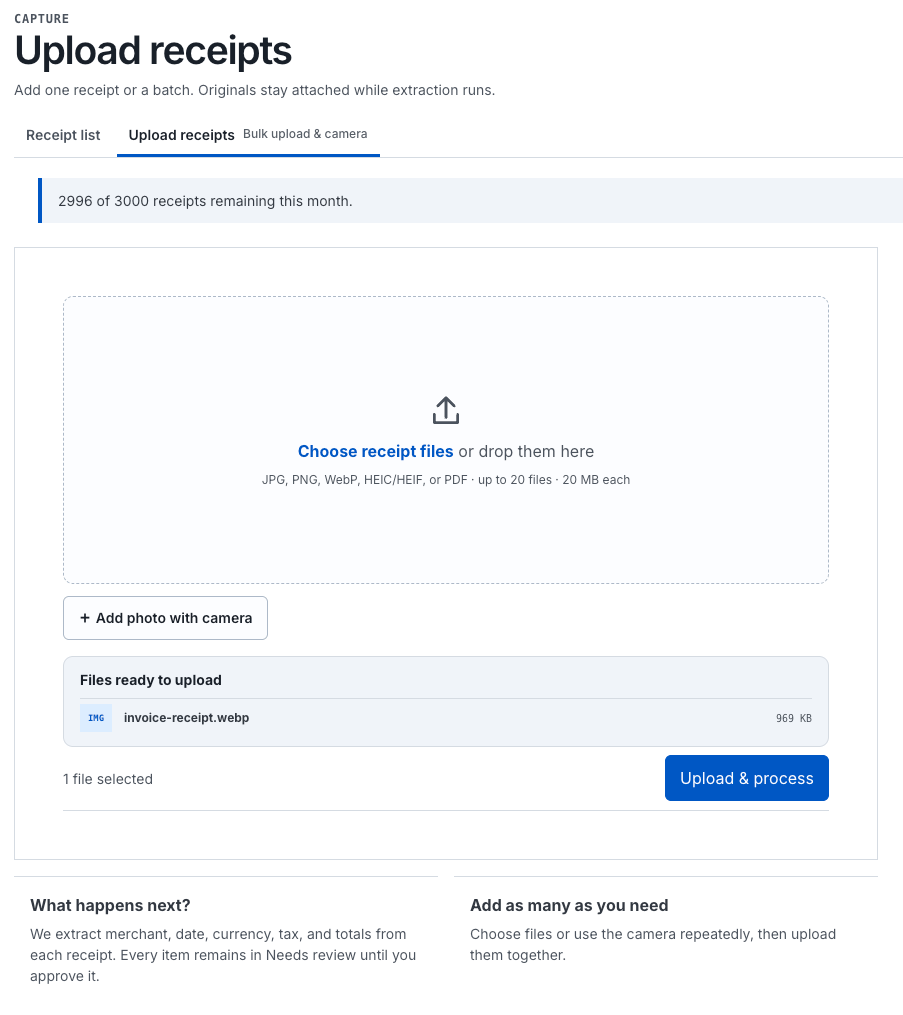
The first thing the Receipts Tracker gets right is simple intake. You can upload receipts by dragging and dropping up to 50 files at once, or by using a camera to capture one or more photos directly. That flexibility matters because receipts rarely arrive in one neat format. Some come from email, some from a lunch counter, and some are crumpled into a bag by the end of the day.
Once a receipt is uploaded, processing happens asynchronously, so you do not have to wait for each file to finish before adding the next one. That makes the workflow feel practical rather than fragile. It is built for people who need to move quickly and keep receipts flowing in without friction.
FileDrop also supports teammates and submitters. In a company setup, that means employees can send receipts in, while an account manager or finance lead reviews them later. For teams handling travel expenses, meals, office supplies, or marketing spend, that structure keeps submissions organized from the start.

AI extraction does the heavy lifting, but you stay in control
After upload, FileDrop uses AI and OCR to extract the details from each receipt line by line. It pulls out the merchant, merchant address, date, and even time when the receipt is legible enough to support it.
That saves a lot of manual entry, especially when the same fields repeat across dozens of receipts.
Still, the important part is that every field stays editable. If the OCR misses something, the user can correct it before moving on. That matters because receipts are often damaged, folded, faded, or shoved into a pocket until the ink is barely readable. In those cases, the system is useful precisely because it does not force a rigid outcome. You can review the extraction, magnify the image, fix the details, and then decide what happens next.
Each receipt can be approved, saved as a draft, or excluded. That gives teams a clear review path instead of a one-size-fits-all archive.
Built for real business structure
The tracker is not just for storing receipts. It is set up to handle different business structures through multiple workspaces. A workspace can represent a location, a department, or even a separate business, depending on how the company wants to organize its records.
That flexibility is important for growing teams. A small company may start with one shared workspace, then later split receipts across departments or branches as the operation gets more complex. The same logic applies to currencies: FileDrop can read the receipt currency automatically and handle receipts in different currencies alongside a base currency.

Reporting and integrations
Once receipts are organized, the next step is getting them into the systems that actually run the business. FileDrop currently integrates with Xero and QuickBooks, which covers two of the most common accounting tools. It also supports CSV exports for other software and PDF report downloads for sharing with accountants or internal departments.
That means the workflow does not end at capture. It continues through reporting, sharing, and bookkeeping. Instead of chasing paper trails, teams can move receipts into a form that is easier to audit, file, and pass along.
Sign up and test the Receipts Tracker.
FAQ
Who is the Receipts Tracker for?
It is aimed at small businesses, freelancers, and small companies, especially teams that need to collect and approve expenses across departments.
Can multiple people submit receipts?
Yes. Depending on the account setup, teammates or submitters can upload receipts for review.
What upload methods are available?
You can drag and drop files, upload up to 50 at once, or capture receipts with a camera and upload multiple photos.
Does FileDrop automatically read receipt details?
Yes. It uses AI and OCR to extract receipt data such as merchant name, address, date, and sometimes time.
What if the receipt image is hard to read?
You can magnify the receipt and edit any extracted fields manually before approving or saving it.
Which accounting tools does it connect to?
Current integrations include Xero and QuickBooks, and you can also export CSV files or PDF reports.
FileDrop’s Receipts Tracker is included with the subscription, so the real value comes down to how much time your team spends sorting, checking, and reporting expenses today. If that process is already slowing people down, this feature gives you a cleaner place to start.
The Bottom Line:
One keeps you awake. The other gets work done.
A month of coffee: $80
A month of FileDrop: $19
Why not have both?


