
OCR for PDFs and images in FileDrop
Extract text from a scanned document or process a folder of files. Use FileDrop’s Google Workspace add-on for files in Drive, or upload a batch in the web app.

Two ways to run bulk OCR
Both tools extract text from PDFs and images. Choose the route that matches where your files are now and where you want the results.
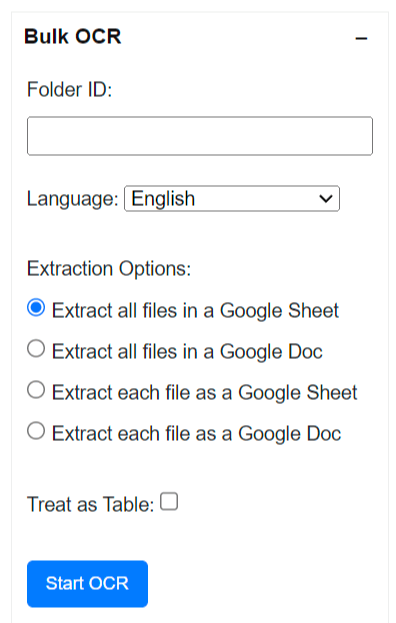
Bulk OCR in Google Drive
If your files already live in a Drive folder, open Bulk OCR in the FileDrop add-on’s Plus Tools sidebar. Paste the folder ID, select a language and output, then start the job. FileDrop emails an index link when processing finishes.
- Read JPG, PNG, and PDF files from one Drive folder.
- Put all extracted text in one Google Sheet or Doc, or make a separate Sheet or Doc for each file.
- Use Treat as table for structured pages such as invoices when supported.
Already installed? Follow the Drive bulk OCR guide.
Bulk OCR in the web app
Upload 2–100 PDF, PNG, or JPEG files from your device. Choose the OCR language and engine, start the batch, and follow its status in your dashboard. There is no Drive folder ID to copy.
- Download the batch as one TXT, XLSX, or DOCX file.
- Choose a ZIP for one TXT file per source document.
- Keep original filenames beside extracted text in combined exports.
See the web app batch OCR walkthrough for file preparation, exports, and common questions.
Need text from just one file?
For a quick PDF or image, use the FileDrop add-on’s TXT action in Google Sheets or Docs, or try the free OCR tool. Bulk OCR is designed for several files in one job.
What to expect from OCR
OCR reads words from scanned pages and photos so you can work with the extracted text. Clear, upright scans usually produce better results. Check names, totals, and table cells against the original before using them. These tools return text-based results; they do not create a new searchable PDF.
Frequently asked questions
Should I use the add-on or the web app?
Use the add-on when the files are already together in Google Drive and you want results in Google Sheets or Docs. Use the web app when you want to upload files from your device and download TXT, XLSX, DOCX, or a ZIP of text files.
Which files can I process?
Both bulk tools work with PDFs and JPG/PNG images. The web app accepts 2–100 files per batch. For the add-on, keep Drive folders to 100 files or fewer as recommended in the setup guide.
Is bulk OCR included in my plan?
Availability and monthly allowances vary by plan. See current pricing and your account’s remaining allowance before starting a batch.
Will OCR make a searchable PDF?
No. These bulk tools extract the text and provide a Google Sheet or Doc, or a text-based web app download, depending on the route you choose.