

Automating Google Sheets backups sounds small until you need one. Then it suddenly feels essential. If a spreadsheet holds reports, client data, daily logs, or anything you cannot afford to lose, having a backup arrive exactly when it should is one less thing to remember and one less thing to worry about.
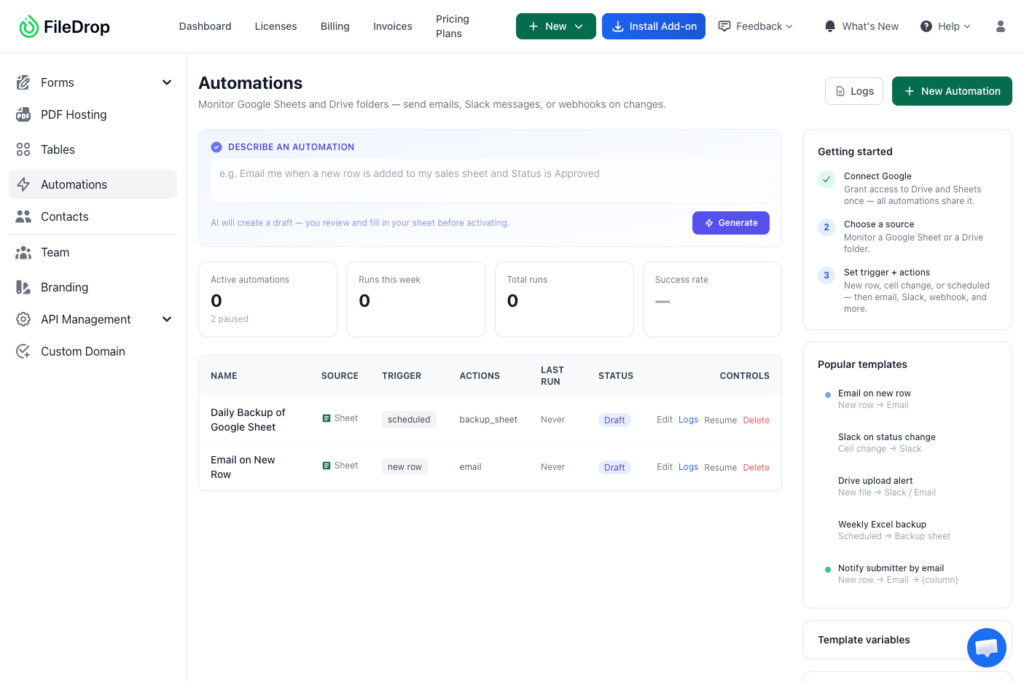
That is the idea behind FileDrop’s new automation tool. It lets you create scheduled workflows for Google Sheets backups without building anything complicated from scratch. You pick the file, set the time, choose where the backup should go, and turn it on. From there, the automation runs on its own.
A simple backup workflow, built around a prompt
FileDrop starts with an easy setup. You can begin by typing what you want into an AI prompt box, or you can start from the new automation button and build the workflow manually.
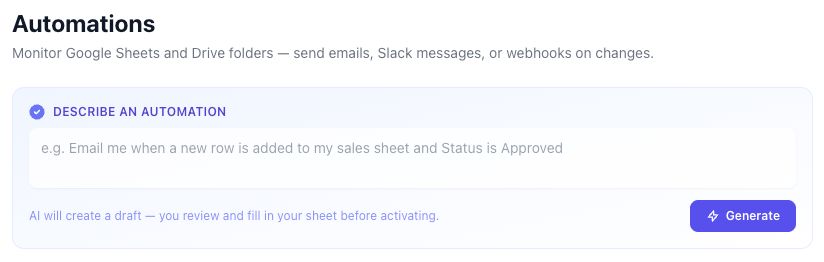
The request is straightforward: create a Google Sheets backup every day at 5 p.m.
From there, the automation asks for the key details:
- which Google Sheet to back up
- what time to run
- which time zone to use
- where to deliver the backup
If it is your first time connecting Google Sheets, you may need to approve permissions in your Google account. Once that is done, the rest is quick.
One important choice is not selecting a specific tab or section of the sheet. That means the backup covers the entire file, not just part of it. For anyone managing a complete report or an all-in-one spreadsheet, that makes the setup cleaner and more useful.

Why the time and time zone matter
Scheduling sounds simple, but the details matter. If you want a backup to run at 5 p.m., you also need to make sure it runs in the right time zone. FileDrop asks for that directly, which is a good thing.
That ensures the automation fires when expected, not when the system happens to read the time differently.
That may seem like a small step, but it is what makes automation reliable. A scheduled backup is only helpful if it shows up where you expect it, when you expect it. Getting the timing right is part of making the workflow trustworthy.
Choosing what gets delivered and where
Once the schedule is set, FileDrop shows a preview of what the backup will look like. At this point, you can add useful variables such as:
- the sheet name
- the date
- the time
- the file format
- the delivery method
The chosen destination is another Google Drive folder. That means the backup stays inside Drive and lands in a separate location, which often makes the cleanest way to organize saved copies.
This is where the automation becomes more than just a simple export. You decide how to store and label the backup. That makes it much easier to find later, especially if the workflow runs every day.
Multiple actions, not just one backup
One of the more useful parts of the automation tool is that you can stack actions.
The backup does not have to stop at Google Drive. You can also add an email action. That means the same sheet can back up in multiple ways at once, say, save to Drive and send by email too.
You can even change the format and includes sending the backup as an Excel file. That matters if a colleague, manager, or boss prefers a format they can open immediately without extra steps.
That flexibility opens up a few practical scenarios:
- send a daily report to your boss automatically
- keep a copy in Google Drive for safekeeping
- email an Excel version after work ends
- create different delivery paths for different people
In other words, this is not just a backup tool. It is a way to turn a spreadsheet into a scheduled delivery system.
A practical example: the end-of-day report
The clearest use case is a daily report that needs to go out after work.
If you finish at 4 p.m. and the report needs to reach someone at 5 p.m., FileDrop can handle that without manual follow-up. You set the schedule once, and the file goes out automatically every day.
That removes the usual friction: no forgetting, no late-night reminder, no “I will send it in a minute” that turns into tomorrow. For recurring work, that kind of automation saves time and keeps things consistent.
FAQ
Can I back up an entire Google Sheet file?
Yes. The sheet backs up as a whole file rather than a single tab or section.
Do I need to approve Google permissions first?
If it is your first time connecting Google Sheets, you may need to approve permissions in your Google account.
Can I choose the delivery location?
Yes. The example uses a Google Drive folder as the destination, but the automation can also support other actions like email delivery.
Can I send the backup as an Excel file?
Yes. You can setup sending the backup by email as an Excel file.
Can I add more than one action to a single automation?
Yes. You can combine actions, such as saving the file in Drive and emailing it to someone at the same time.
Where can I try it?
You can go to getfiledrop.com, create an account, and test the automation tool yourself.
The takeaway
A good backup system should disappear into the background and just do its job. That is what FileDrop is aiming for here: a simple way to schedule Google Sheets backups, route them where they need to go, and add extra actions when the workflow calls for it.
If you rely on spreadsheets regularly, the value is not in complexity. It is in knowing the file will be there at 5 p.m. every day, without you having to think about it.
The Bottom Line:
One keeps you awake. The other gets work done.
A month of coffee: $80
A month of FileDrop: $19
Why not have both?


