
Use PDF Sharing to upload PDF, HTML, or Markdown files and share them through a FileDrop viewer. You can set access rules, control downloads, add watermarks, and review viewer activity.
Share files with one link
- Open PDF Sharing and choose Upload & Share Files.
- Select one or more files. They will appear together under one share link.
- Configure the link settings, such as its title, password, expiry, view limit, download option, and viewer email verification.
- For PDFs, you can also choose watermark or flipbook settings. Watermarks and flipbook mode cannot be enabled at the same time.
- Select Upload Files. After processing, the dashboard confirms that the share was created; copy its link there or open the share to view it.
The link opens a FileDrop viewer. You can edit settings later from the dashboard, disable the link, or delete it.
Create a separate link for each recipient
Use this option when you want to track or revoke each person’s link separately.
- On the upload page, choose Send to Multiple Recipients.
- Upload the file or set of files that each person should receive.
- Enter one recipient per line. Use a name, an email, or both. You can add up to 200 recipients in one batch:
Sarah Jones <sarah@example.com>
Mike Chen, mike@example.com
Alex Rivera
A name becomes the recipient label in your dashboard. If you include an email, you can choose to email that person their link automatically. A line with only an email uses that email as the label.
- Choose settings shared by every link in the batch, including expiry, view limit, passcode, download permission, email verification, and watermarking.
- Select Create Links. The results page shows each person’s link, lets you copy one link or all links as a list, and provides an Edit link for each share.
Bulk creation is available on Pro and higher plans. Each recipient gets an independent copy of the selected file set, so storage use is counted for every recipient. File count and size limits depend on your plan.
Each resulting share can be edited, disabled, or deleted independently. Changing or disabling one recipient’s link does not affect the others.
Restrict access to approved email addresses
Email verification asks a viewer to prove they can receive a code at an email address. By itself, it does not restrict the link to a specific list of people.
On Business and Teams plans, add approved addresses in the share’s Invite-only email access setting. Viewers must verify an address on that list before the PDF opens. To remove someone’s access, remove their address and save the settings. Their next request to open or fetch the document will be denied.
Bulk links are delivered to the recipient addresses you provide, but those addresses do not automatically become an allowlist. To restrict a bulk-created link to its named recipient, open that link’s Edit settings and add the recipient’s address to its allowlist. Do this for each link you want to restrict.
Choose access and viewer settings
- Password/passcode: require a shared password before the viewer opens. A common password does not identify a particular viewer.
- Email verification: send the viewer a one-time code. Use invite-only email access when only named addresses should be allowed.
- Expiry and view limit: choose when a share stops working or how many views it allows. These settings are per link.
- Downloads: turn off the download action when you want visitors to view the document in the browser. This does not prevent screenshots, screen recording, or saving through browser tools.
- Watermark: add viewer details such as email, IP address, and timestamp to help identify a leaked copy. Viewer email is available when email verification is required. For bulk links, Business and Teams can add recipient-specific watermark text using
{name}. - Flipbook mode: show PDFs with animated page turns. Flipbook mode and watermarking cannot be active together.
Plan availability varies by setting. The upload and edit screens show which options your plan includes.
Send links by email
- From the single-link dashboard, use Send Invite to email a share link to one or more addresses.
- In bulk creation, check Email each recipient their link now. Only recipient lines that include a valid email are emailed.
- You can send through FileDrop or a connected Gmail account where the sender option is available.
You can also copy the link and send it yourself. A link can be forwarded; use the allowlist when access must be limited to approved email addresses.
Review views and manage links
Open a share’s statistics to review opens, downloads, viewer details, and engagement. Verified email addresses are used to identify viewers when email verification is on. Bulk-created recipients have separate statistics because each has a separate share.
Use Edit to change settings. Disable or delete an individual share to stop that link. Deleting one bulk-created share does not remove the other recipient links.
Once you created your PDF file sharing is simple. Go to the Uploaded Files dashboard to view the files.

Click the sharing icon to open the file url that you can copy.

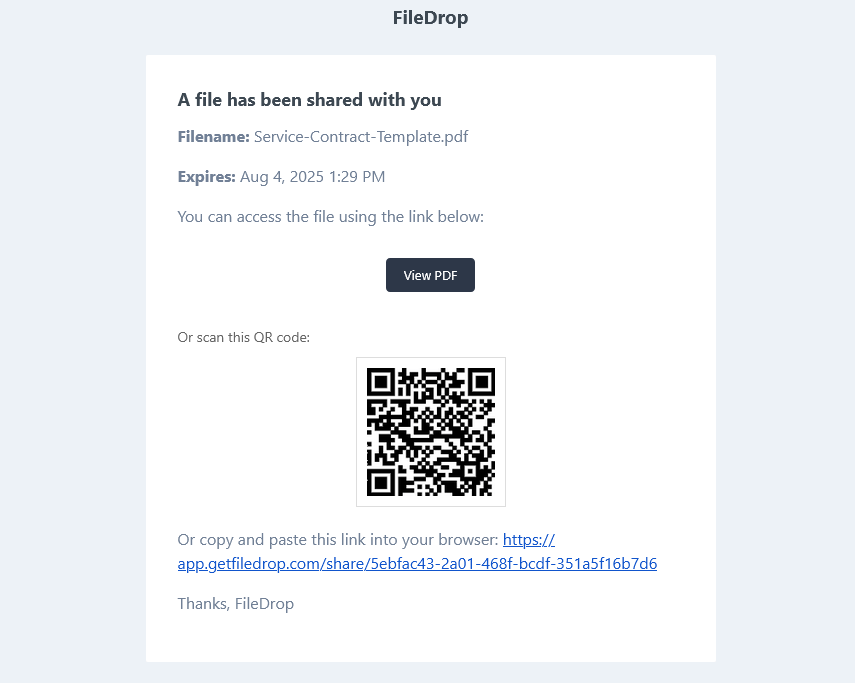
Click the invite button and you can automatically send an email with the PDF link

The invited user will receive an email like the one below with the link and also a qr code that can be scanned by mobile devices like phones or tablets.
Troubleshooting
A viewer says the code never arrived
Ask them to check spam or junk folders and confirm the address. For invite-only shares, verify that the exact address is still on the approved list.
A link says it is unavailable
Check that the share is active, has not expired, and has not reached its view limit. If the viewer is using an invite-only link, confirm their email is on the list.
I need to revoke one person’s access
For bulk links, disable that person’s share from the dashboard. For a shared link with an allowlist, remove the address in Edit settings and save. A visitor may still have pages or a downloaded copy they accessed earlier.
I need a different PDF for each person
Create separate links from /share/files/bulk-create, then edit each resulting share as needed. Bulk creation duplicates the selected file set for each recipient and counts each copy toward storage limits.