Upload Requests Sidebar for Google Sheets

Manage yourΒ FileDrop file requests formsΒ directly inside Google Sheets β€” no tab switching, no copy-pasting.

TheΒ Upload Requests sidebar connects your FileDrop Forms to your spreadsheet. Browse submissions, insert files and responses into rows with one click, and create new forms without leaving Sheets.

How it works

Create a Form and Request Files

ClickΒ New Form to create an upload request form with three starter fields β€” Full Name, Email, and File Upload β€” without opening the web app. Rename and configure it in the web app afterwards.

You can connect a Google Drive folder to automatically save all the files there.

You can now share the form and request files in your Google Drive from anyone without them needing to login to their Google account.

How to Build a Client Onboarding Intake Form for Campaign Assets in Minutes image 9

Browse Your Forms

All your FileDrop upload request forms appear in a searchable list. See the submission count and active/inactive status at a glance.

Manage Forms

Every form card has a settings icon that opens the form’s edit page in the FileDrop web app directly.
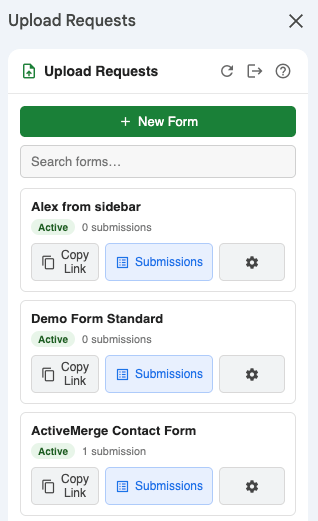
Upload Requests Sidebar Sheets

View Submissions

Open any form to see its submissions β€” submitter email, date, file count. Search by name, email, or any field value to find exactly what you need.

Insert Into the Sheet

ClickΒ InsertΒ on any submission to write all its data into the current row starting from the active cell:

  • File fields β†’ clickable hyperlinks (Google Drive links when available, signed URLs as fallback)
  • Email, text, and other fields β†’ plain cell values, in form field order
  • Submission date β†’ date cell at the end of the row

Sync All β†’ Sheet

Bulk-import every submission for a form into consecutive rows with a single click. Useful for an initial data pull.

Upload Requests submissions

Β Getting Started

1. Install the FileDrop Add-on

Install FileDrop from the Google Workspace Marketplace and open a Google Sheets file.

2. Open the Sidebar

Go to Extensions β†’ FileDrop β†’ πŸ”— Upload Requests.

3. Connect Your Account

Enter your FileDrop account email and API key. Find your key at https://app.getfiledrop.com/api-mgmt/generate-key β†’ API Keys β†’ Generate new key.

4. Browse and Insert

Select a cell in your sheet where you want data to land, pick a form, open its submissions, and click Insert.

Inserting Data β€” Column Layout

Each Insert writes one submission across columns, starting from your active cell:
Column offset Content
+0, +1, +2 … One cell per uploaded file (hyperlinked name)
Next columns Non-file field responses in form order (email, text, etc.)
Last column Submission date
For Sync All, each submission occupies one row, advancing downward from the active cell.  

Features at a Glance

Feature Details
Form search Instant client-side filter by form name
Submission search Filter visible submissions by any text
File links Google Drive permanent links preferred; signed CDN URLs as fallback
Create form Starter fields: Full Name, Email, Upload Files
Manage form Opens /fileforms/forms/{id}/edit in the web app

Requirements