
When managing projects or collaborating with clients and teams, collecting files can become a hassle, especially when relying on emails and attachments.
With FileDrop’s File Forms feature you can simplify this process by creating a secure link where users can easily upload their files without needing an account.
Whether you’re collecting documents for a project, gathering submissions, or requesting files from clients, FileDrop ensures everything is organized in one place, saving time and reducing the risk of losing important information.
Why Use FileDrop File Upload Forms in Uploading Files via Links?
FileDrop Forms provide an easy and secure way to upload files via links, offering a streamlined process that saves time and improves organization.
You can see a comparison here with other tools and why FileDrop forms are a better option than regular forms or other file collection solutions.
| Feature | FileDrop Forms | Google Forms | Typeform | JotForm | Paperform |
|---|---|---|---|---|---|
| File upload fields | Yes | Yes | Yes (paid) | Yes (paid) | Yes (paid) |
| Auto-route files to Google Drive / Dropbox / OneDrive | Yes | No | No | No | No |
| Virus scanning on uploads | Yes | No | No | No | No |
| Document collection portal (OTP-gated) | Yes | No | No | No | No |
| Approval workflow | Yes | No | No | Yes (paid) | No |
| Conversational (one-question-at-a-time) mode | Yes | No | Yes | Yes (paid) | Yes |
| Google Sheets sync | Yes | Native | Yes (paid) | Yes (paid) | Yes (paid) |
| Airtable sync | Yes | No | No | Yes (paid) | No |
| Recurring email campaign scheduler | Yes | No | No | No | No |
| Per-invitation read/responded tracking | Yes | No | No | No | No |
| Repeatable field groups | Yes | No | No | Yes (paid) | No |
| Signature field | Yes | No | No | Yes (paid) | Yes (paid) |
| Import from Google Forms | Yes | — | No | No | No |
| Response metadata (IP, location, device) | Yes | No | Yes (paid) | Yes (paid) | No |
| Password-protected forms + embeds | Yes | No | No | Yes (paid) | Yes |
| Webhooks | Yes | No | Yes (paid) | Yes (paid) | Yes (paid) |
| Custom domain | Yes | No | Yes (paid) | Yes (paid) | Yes (paid) |
| Subuser / team access | Yes | Yes (Workspace) | Yes (paid) | Yes (paid) | Yes (paid) |
| QR code generation | Yes | No | No | Yes | No |
| Bulk ZIP download | Yes | No | No | No | No |
Here’s why you should use FileDrop for collecting files:
- Made for collecting files: Files uploaded by users are automatically routed to the submitter’s cloud storage of choice — Google Drive, Dropbox, or OneDrive/SharePoint — with per-submission subfolder creation. No manual downloads, no inbox clutter.
- Automatic File Requests and Approval workflow: Setup automatic email campaigns to request files and every submission can go through a review step for approval or rejection.
- Virus scan and automatic bot protection: Every uploaded file can be scanned before storage. You don’t need other integrations to keep submissions clean with our Shield bot protection.
- Signature fields: Built-in signature capture — no third-party integration required.
- Response Metadata & Analytics: Every submission captures IP, country, city, timezone, device type, and referrer automatically. Per-form statistics show daily trends, response volume, and status breakdowns.
Steps on How to Upload a File Using a Link
Step 1: Create an Account or Log In to FileDrop
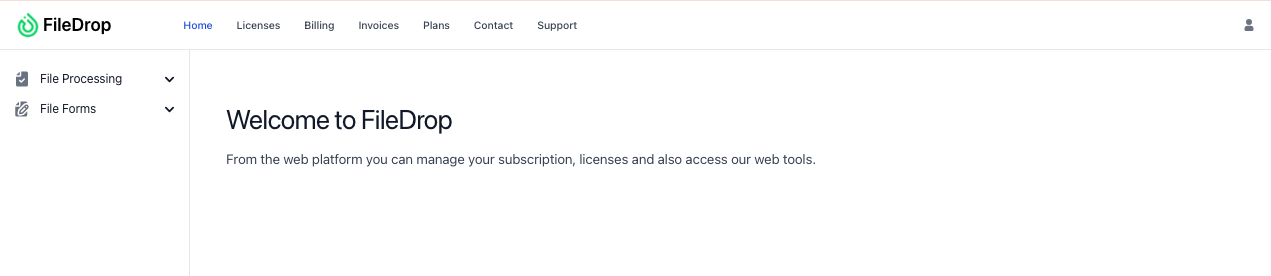
Visit FileDrop’s website to sign up for an account if you haven’t already. Simply enter your email and set a password. After verifying your email, you’ll gain access to the dashboard where you can manage and create your form.
Step 2: Locate the File Form Feature
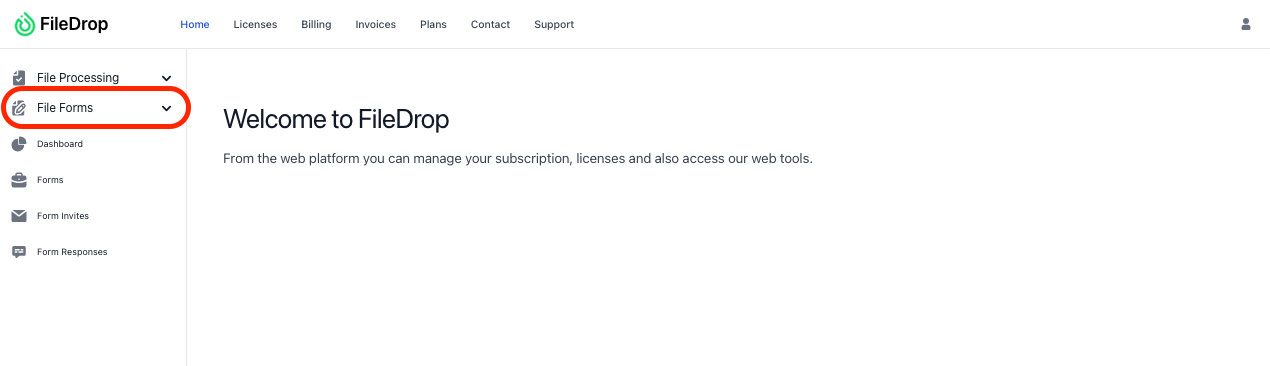
Once logged in, navigate to the “Forms” section on your dashboard or within the settings menu. This is where you can start creating and customizing your file upload forms. Click on the option to begin.
Step 3: Customize Your Form
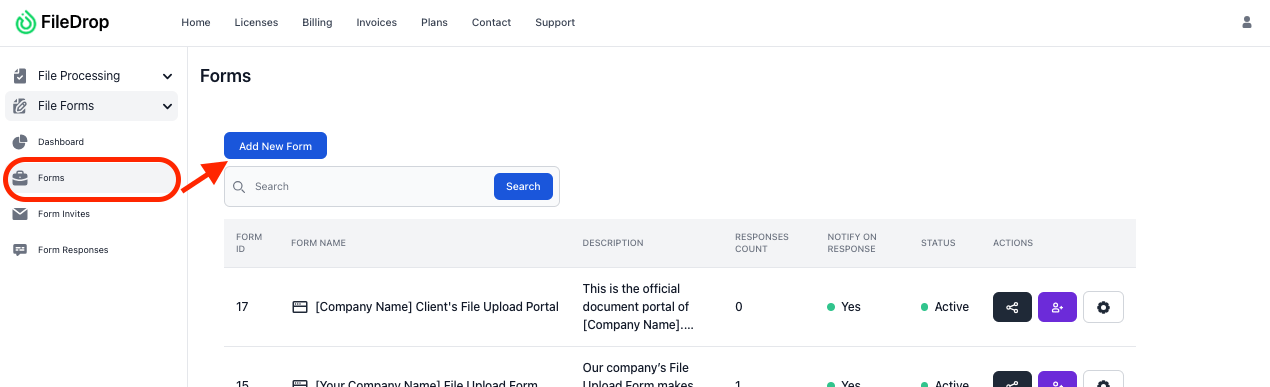
Click the “Forms” tab and select “Add New Form” to start designing your form.
FileDrop allows you to add fields like:
- Name
- File description
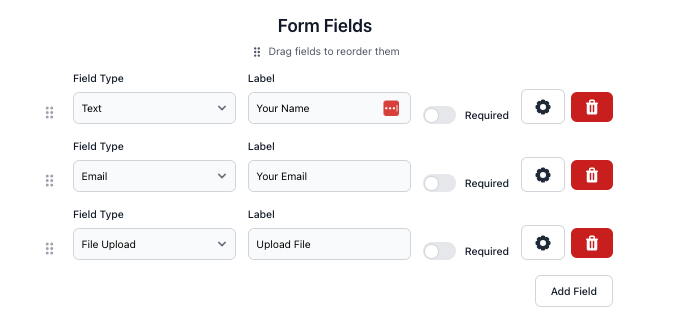
You can also add instructions to guide users through the form. Be sure to keep them clear and simple. Consider the following customizations:
- Set required fields, such as name and email.
- Restrict specific file types (e.g., PDFs, Word documents).
- Add your logo and form description for personalization.
- Enable email notifications to receive alerts when new files are uploaded.
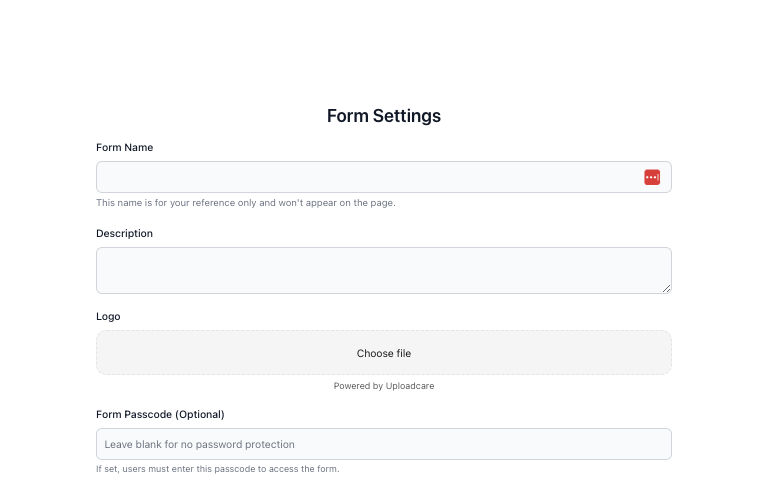
Step 4: Add File Upload Fields
One of the standout features of FileDrop’s File Form is its file upload option.
To activate this feature, click on the Settings icon (located next to the trash icon) and select the file types that users can upload.
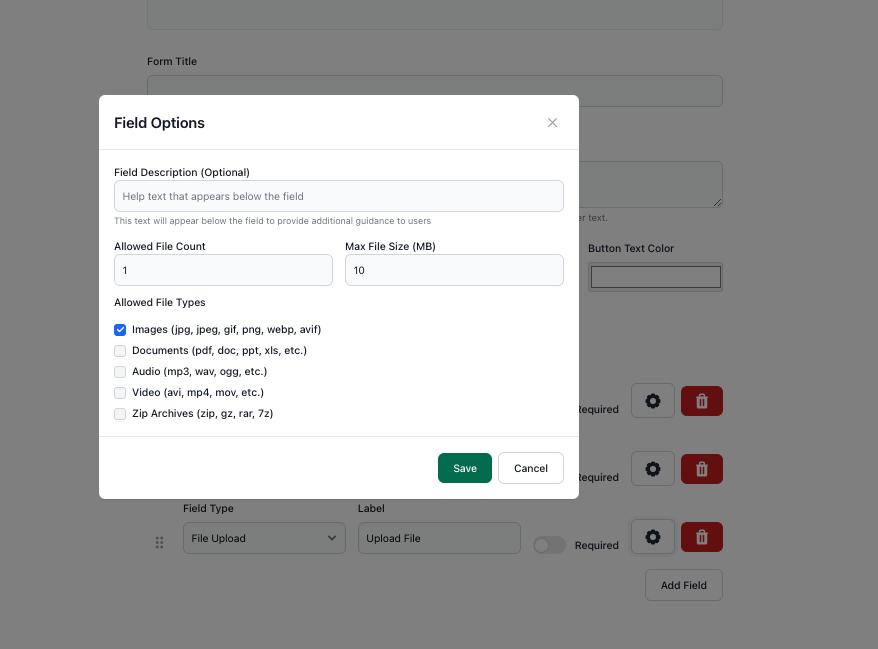
You can choose from various formats, including PDFs, Word documents, and images. Ensure that a visible upload button is included for easy file attachment.
Step 5: Set Up Google Drive Integration
FileDrop allows seamless integration with Google Drive. Configure your form’s settings, including notification preferences, like receiving an email when someone uploads a file.
After saving your settings by clicking “Create Form,” you’ll be prompted to link your Google Drive.
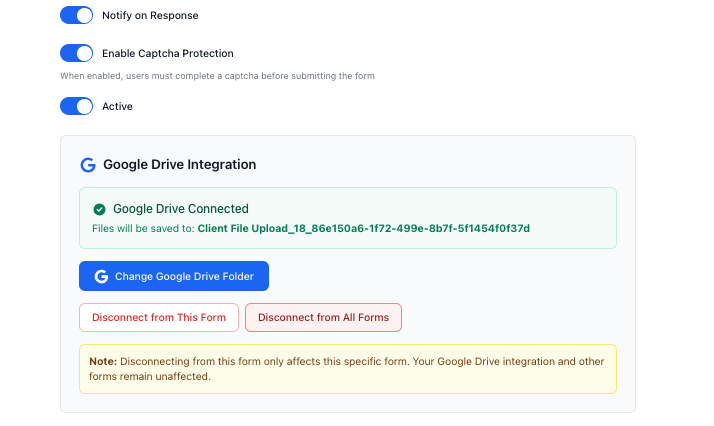
Simply click “Connect Google Drive” and follow the instructions to integrate your account. Once connected, uploaded files will be saved automatically to your Drive.
After setting up your form, you’ll receive a unique shareable link.
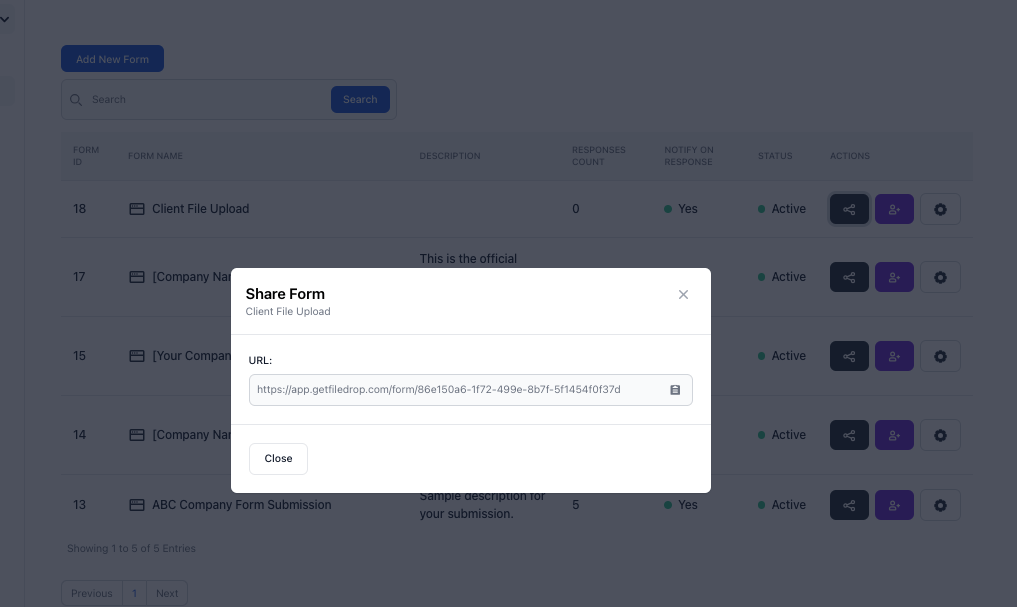
You can send this link via email, social media, or embed it on your website. Anyone who clicks the link will be able to fill out the form and upload their files directly to your FileDrop portal.
Step 7: Track Submissions
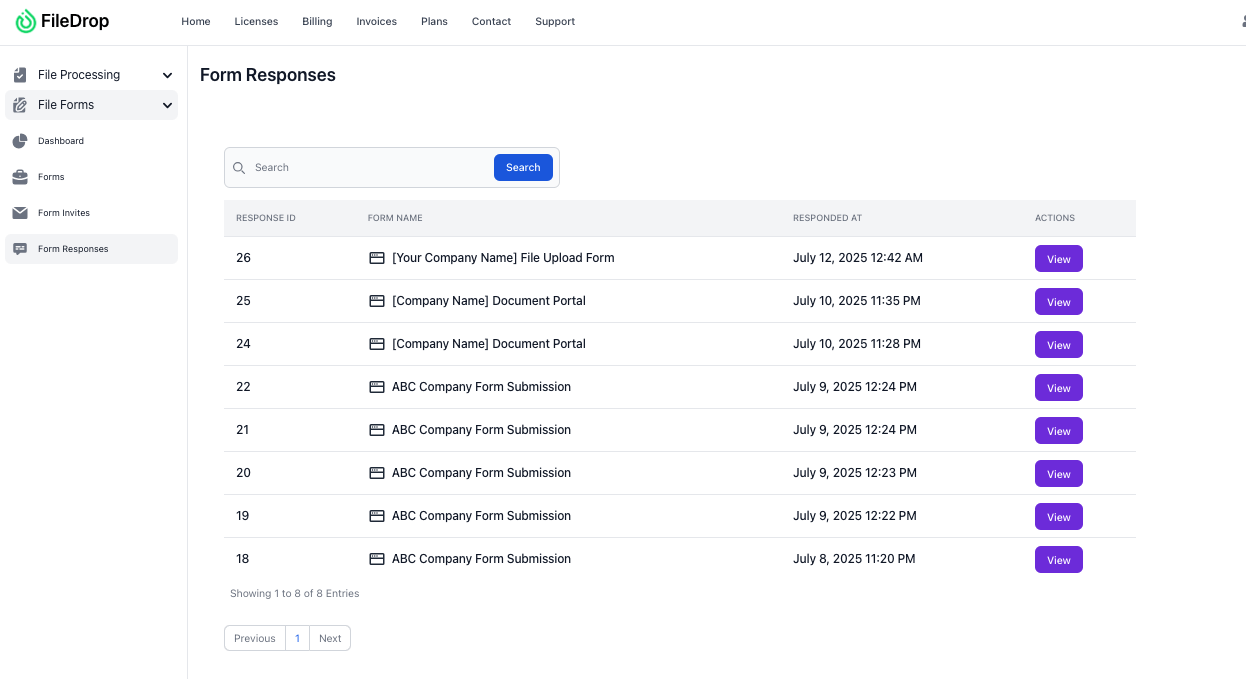
You can track all file submissions in real-time through your FileDrop dashboard. Additionally, you’ll receive an email notification whenever a file is submitted, keeping you updated on all incoming uploads.
Final Thoughts
FileDrop’s File Form feature makes it easy and efficient to collect files through a secure link.
Whether you’re collecting documents for a project, client submissions, or anything else, this solution provides an accessible way to manage file uploads without complications.
The customizable form options and tracking features help streamline your document collection process and improve organization.
Frequently Asked Questions
Can I upload files directly through the FileDrop link?
Yes, once you share the unique FileDrop link, users can upload their files directly to the link without the need for any external accounts.
What types of files can be uploaded using FileDrop Forms?
You can specify which file types can be uploaded, such as PDFs, images, videos, and more, and even set size limits for each file type.
How do I get notified when someone uploads a file?
FileDrop automatically sends you an email notification when a file is uploaded, and you can track submissions in real-time through the dashboard.
The Bottom Line:
One keeps you awake. The other gets work done.
A month of coffee: $80
A month of FileDrop: $19
Why not have both?


