Handling files submissions manually in the marketing industry can be a daunting task, particularly when managing large quantities of images, PDFs, graphics and other types of files.
Without an effective system in place, this process can result in errors, security risks, and disorganization.
Automating files collection using a tool like FileDrop’s File Upload Forms can drastically improve the process. It offers a secure, streamlined way for clients to submit files like documents or design assets while ensuring compliance and maintaining organization.
Streamline Files Collection for Marketing Agencies with File Upload Forms
FileDrop’s File Forms can drastically improve files collection:
- No sign-in required: This ensures smoother submission processes for employees and clients without the need for login credentials.
- Complete customization: Customize forms to meet specific finance-related needs, such as collecting logos, design assets, graphics, contracts, or financial documents.
- Automatic integration with Google Drive: Automatically organize submitted documents into dedicated folders, keeping all files neatly organized.
- Real-time tracking: FileDrop can send notifications to finance teams whenever a document is submitted, keeping everyone updated. Also keeps track of users you invited to submit documents.
Steps to Set Up Secure Links for Document Collection
Step 1: Log In to FileDrop
Visit app.filedrop.com and create an account if you don’t already have one. After email verification, you’ll be redirected to your dashboard, where you can access all the tools to create and manage your forms.
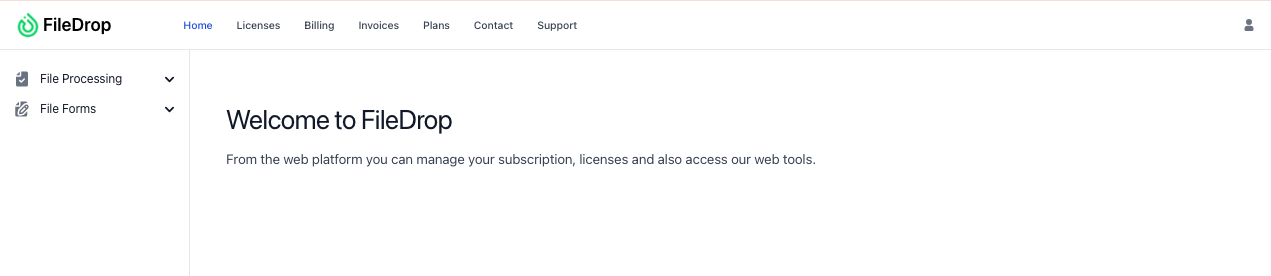
Step 2: Create a New File Form
In your FileDrop dashboard, go to the “File Forms” section. Click on “Add New Form” to start setting up the document collection form for your client or user. This form will be used by clients or staff to submit files securely.
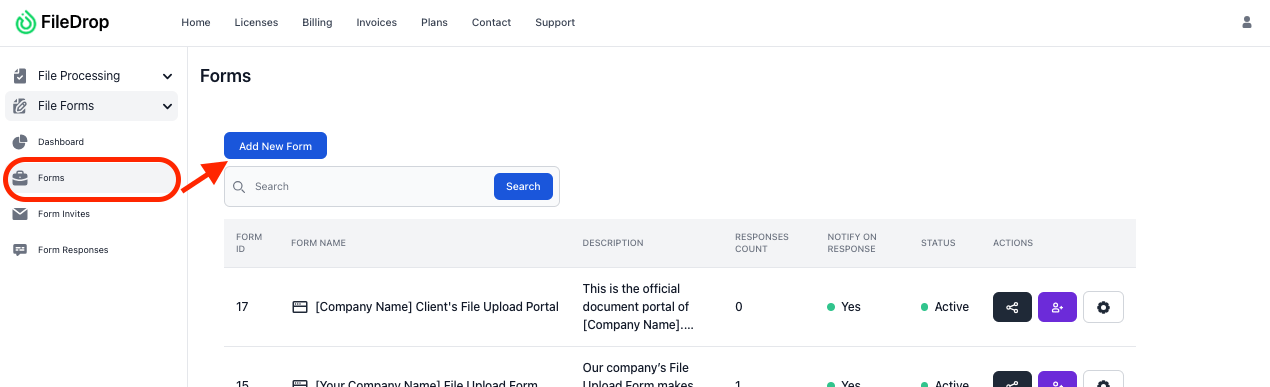
Step 3: Customize the Form
Once you’re in the form creation section, customize the form to gather the specific information you need.
Setup fields for each file type and set the limits you want. You can also make certain fields mandatory to ensure all critical data is collected.
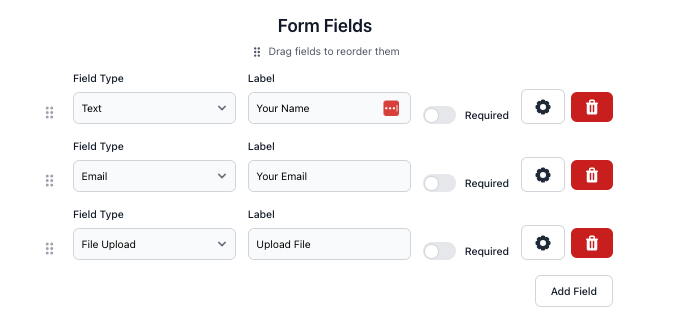
Step 4: Set File Upload Field Requirements
To run a great file collection system it’s crucial to ensure that the files are in the correct format. FileDrop allows you to set restrictions on file types and file size (ideal for financial reports). This step ensures that only appropriate documents are submitted.
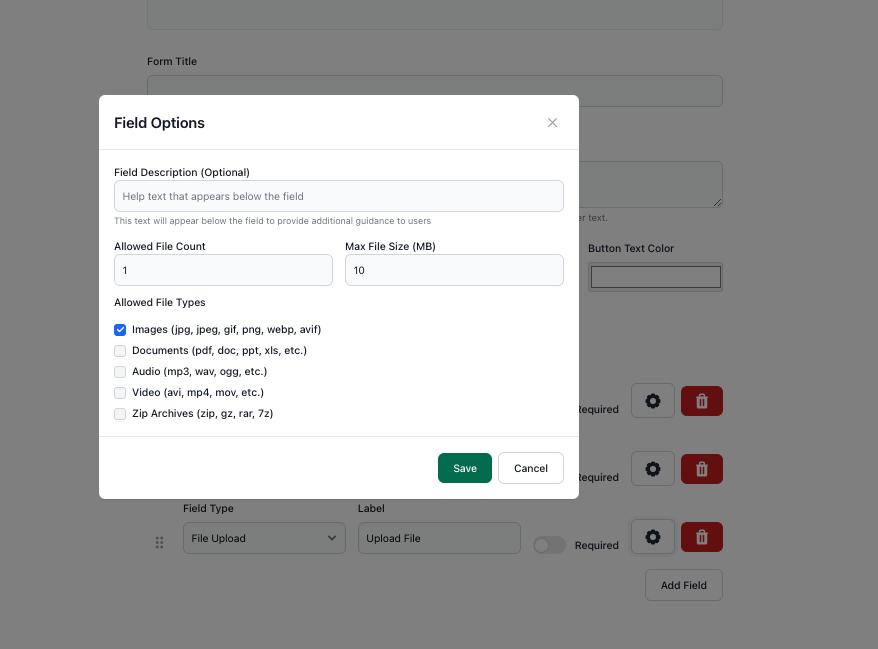
Step 5: Integrate with Google Drive
FileDrop integrates seamlessly with Google Drive. Once your form is set up, link it to your Google Drive.
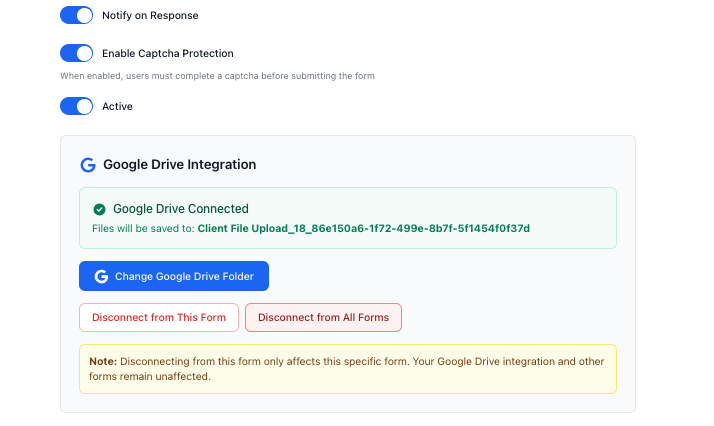
This allows every document submitted through the form to be automatically saved to your Drive, keeping your financial files organized and easy to access.
Step 6: Enable Notifications
To stay updated on document submissions, enable email notifications. FileDrop will alert you whenever a file is uploaded, ensuring that you don’t have to check manually. These real-time notifications make tracking document submissions more efficient.
Once your form is ready, FileDrop generates a unique shareable link. You can email this link to clients, share it in a newsletter, or embed it on your company’s portal. No login is required, so it’s an easy process for clients to submit their files directly.
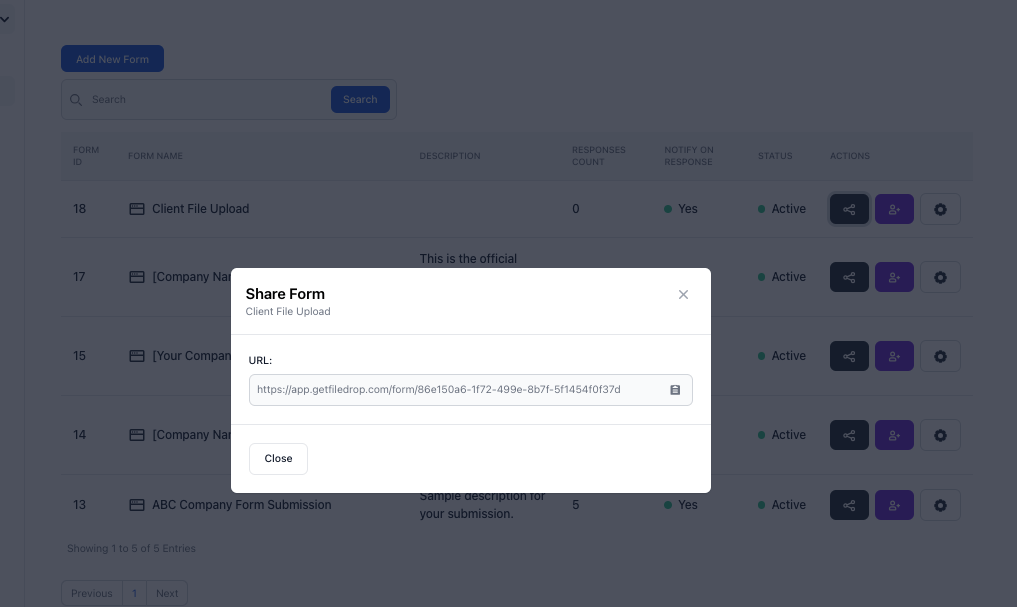
Step 8: Invite Respondents via Email
To make it even easier, you can send the link via email. Click on the person with the “+” icon beside the “Share” button in FileDrop.

Enter the email addresses of your clients, employees, or stakeholders, and customize the invitation message to guide them through the document submission process.

Your recipient will receive an email about the form:

They should click the Open Form button or scan the QR code.

Once they have successfully submitted a response, you will get an email notification about it.

Step 9: Monitor Submissions
With FileDrop, you can track all submissions in real-time through your dashboard. It allows you to view who submitted each document and when.
You can also download the files directly and categorize them into designated folders (client contracts, tax forms, financial statements).
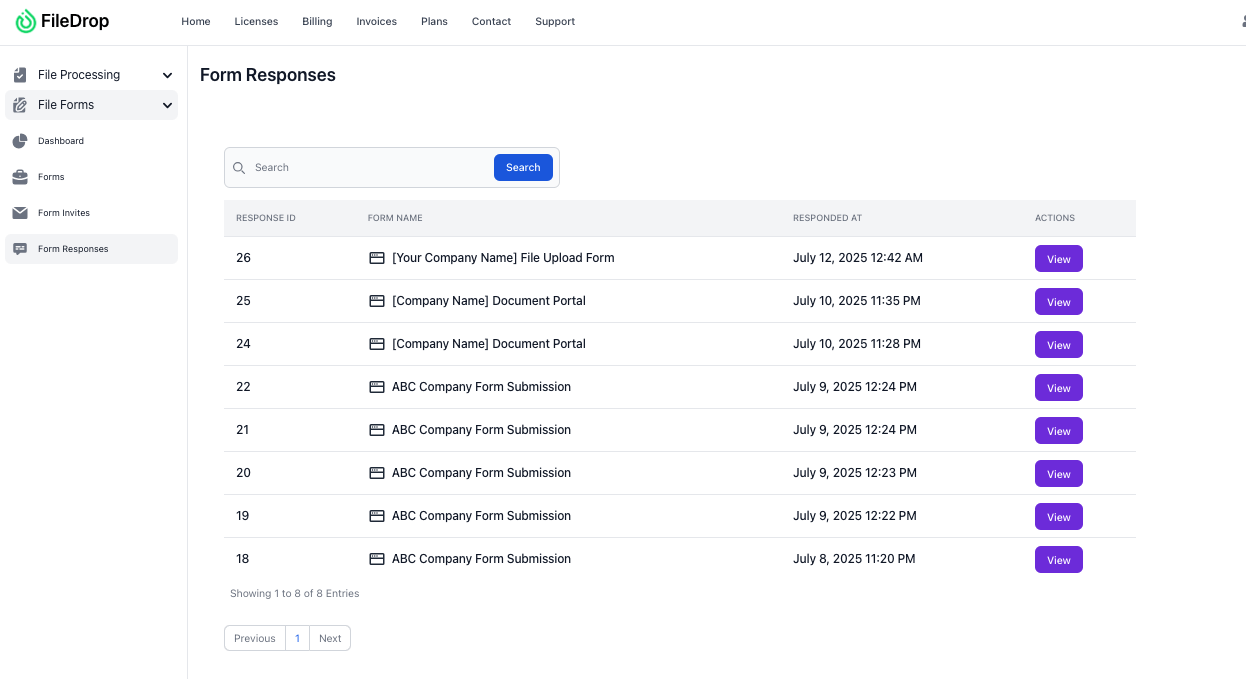
In addition to tracking submissions, you can also monitor the actions of individuals you’ve invited via email. Simply select “Form Invites,” and you’ll be able to see whether your invites have viewed, read, or responded to the form.

Key Benefits of Using FileDrop in Accounting and Finance
- Secure Uploads: FileDrop ensures that only authorized personnel can view the uploaded financial documents, maintaining confidentiality and protecting sensitive information.
- Unlimited Forms: You can create different forms for various accounting purposes (e.g., tax document submissions, contract collection, audit files) without restrictions.
- Support for Large Files: FileDrop allows the upload of larger files (up to 1GB), which is beneficial for high-volume financial documents such as detailed reports or scanned contracts.
- Real-time Email Alerts: Stay on top of new submissions with instant email notifications, keeping your accounting workflow smooth.
- Easy File Management: You can easily organize documents, track submissions, and access them as needed, all through the secure FileDrop platform.
Final Thoughts
FileDrop’s File Forms provide a secure, efficient solution for accounting and finance teams to manage document submissions.
It helps you automate the process, reduce manual work, and ensure that important documents are handled securely and organized correctly.
With seamless integration with Google Drive, real-time notifications, and an easy-to-use setup, FileDrop makes document submission hassle-free, allowing accounting departments to focus on what matters most—processing financial data.
Frequently Asked Questions
Do clients need a Google account to submit documents?
No, clients can submit documents without needing a Google account. This makes it easier for all users to interact with your forms.
How can I track document submissions?
You can monitor all submissions through your FileDrop dashboard, and you’ll receive email notifications whenever a document is uploaded.
What types of files can be uploaded?
You can specify which file types you wish to collect, including PDFs, Word documents, or images. Additionally, you can set file size limits to prevent large files from being uploaded.
The Bottom Line:
One keeps you awake. The other gets work done.
A month of coffee: $80
A month of FileDrop: $19
Why not have both?